
1. Product Overview
The OPPO A15s is a feature-rich smartphone designed for everyday use. It combines a large display with a capable camera system and long-lasting battery life. This manual will guide you through its various functions and features.

Figure 1.1: Front view of the OPPO A15s smartphone.

Figure 1.2: Back view of the OPPO A15s smartphone.
Key Features:
- Display: 6.52-inch IPS LCD with 720 x 1600 pixel resolution.
- Processor: Mediatek MT6765 Helio P35 (12nm) Octa-core.
- Memory & Storage: 4GB RAM, 64GB internal storage, expandable via microSDXC.
- Cameras: AI Triple Camera on the rear, 8MP front camera.
- Battery: 4230mAh non-removable battery.
- Operating System: Android 10.
- Security: Rear Fingerprint Sensor and AI Face Unlock.

Figure 1.3: Key features of the OPPO A15s.
2. Setup Guide
2.1 Inserting SIM Card(s) and microSD Card
The OPPO A15s supports Dual-SIM functionality and a dedicated microSDXC slot for expandable storage.
- Locate the SIM card tray on the side of your device.
- Insert the provided SIM Tray Ejector tool into the small hole next to the tray. Press gently until the tray pops out.
- Carefully pull out the SIM tray.
- Place your Nano-SIM card(s) and/or microSD card into the designated slots on the tray, ensuring the gold contacts face downwards.
- Gently push the tray back into the slot until it is flush with the phone's body.
2.2 Initial Power On and Setup
- Press and hold the Power button (located on the right side of the device) until the OPPO logo appears.
- Follow the on-screen prompts to complete the initial setup process. This includes selecting your language, connecting to a Wi-Fi network, accepting terms and conditions, and setting up your Google account.
- You will also be guided to set up security features such as a PIN, pattern, password, fingerprint, or face unlock.
Important Network Compatibility Note:
This smartphone is designed for GSM networks. It is not compatible with CDMA networks such as VERIZON, SPRINT, or US CELLULAR. Please verify network compatibility with your service provider before use, especially for 3G or 4G/LTE bands:
- SIM CARD 1: 2G GSM 850/900/1800/1900; 3G WCDMA 850(B5)/900(B8)/2100(B1); 4G FDD-LTE 850(B5)/900(B8)/1800(B3)/2100(B1); TDD-LTE 2300(B40)/2500(B41)/2600(B38).
- SIM CARD 2: 2G GSM 850/900/1800/1900.
3. Operating Your Device
3.1 Basic Navigation
- Touchscreen: Navigate by tapping, swiping, pinching, and spreading on the screen.
- Home Screen: The central hub for your apps and widgets. Swipe left or right to access additional screens.
- Notification Panel: Swipe down from the top of the screen to access notifications and quick settings.
- Recent Apps: Tap the square navigation button (or swipe up and hold from the bottom if using gestures) to view and switch between recently used applications.
3.2 Camera Usage
The OPPO A15s features an AI Triple Camera system on the rear and an 8MP front camera for selfies and video calls.
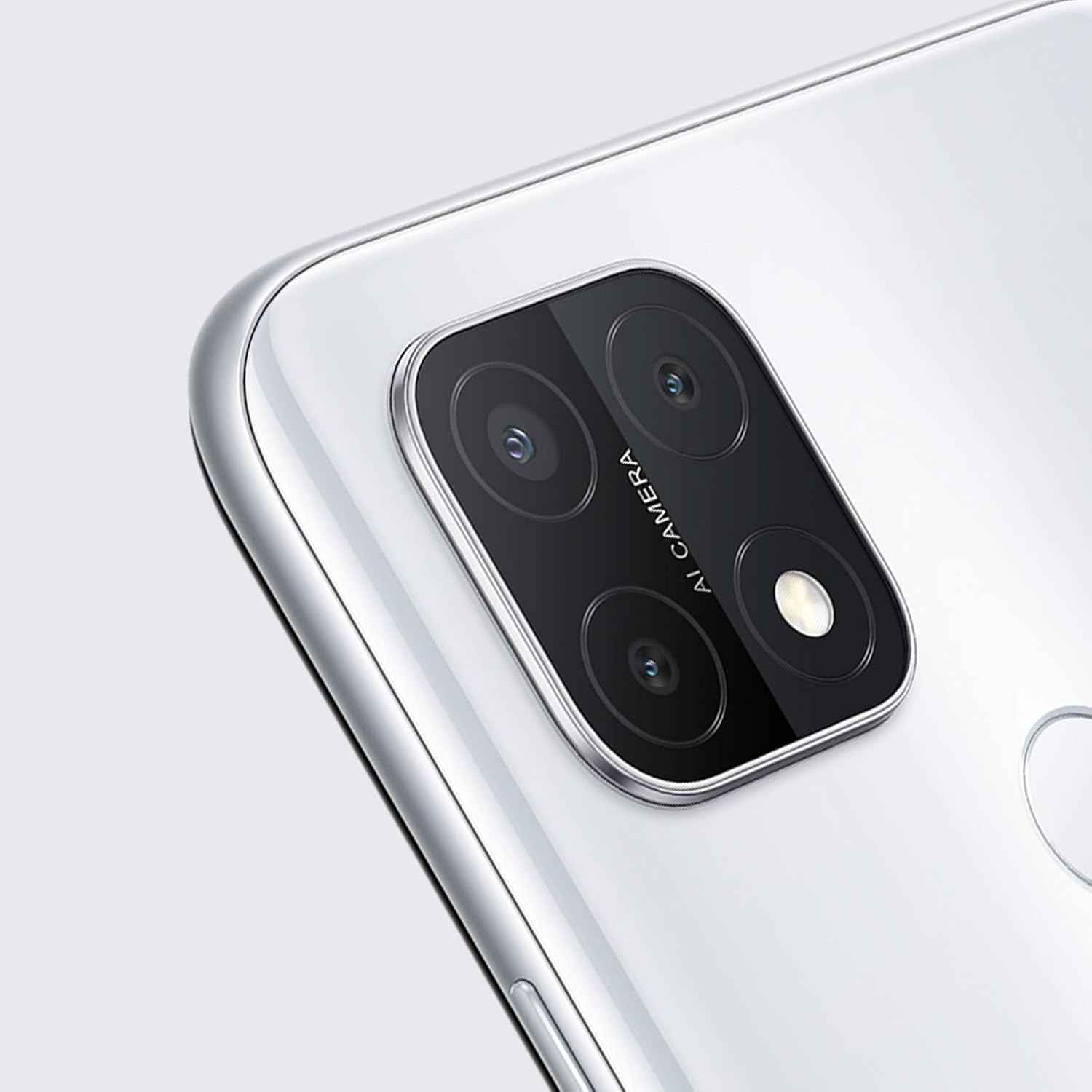
Figure 3.1: Rear AI Triple Camera module.
- Open the Camera application from your home screen or app drawer.
- Select your desired mode (Photo, Video, Portrait, Night, etc.) by swiping across the bottom of the viewfinder.
- Tap the shutter button to capture a photo or start/stop video recording.
- Use the toggle icon to switch between the front and rear cameras.
3.3 Security Features
- Rear Fingerprint Sensor: Register your fingerprints in Settings > Fingerprint, Face & Password. Touch the sensor on the back of the phone to unlock.
- AI Face Unlock: Set up face recognition in Settings > Fingerprint, Face & Password. Look at the front camera to unlock your device.
3.4 Battery Management
The OPPO A15s is equipped with a 4230mAh battery. To optimize battery life:
- Adjust screen brightness.
- Close unused applications running in the background.
- Enable Power Saving Mode from Quick Settings or Battery settings.
- Charge your device using the official charger and cable.
4. Maintenance
4.1 Cleaning Your Device
- Use a soft, lint-free cloth to wipe the screen and body of the phone.
- Avoid using harsh chemicals, abrasive cleaners, or aerosol sprays.
- Keep ports free of dust and debris.
4.2 Software Updates
Regular software updates provide new features, security patches, and performance improvements. It is recommended to keep your device's software up to date.
- Connect your device to a stable Wi-Fi network.
- Go to Settings > Software Update to check for available updates.
- Follow the on-screen instructions to download and install any updates.
4.3 Battery Care
- Avoid exposing the device to extreme temperatures.
- Do not leave the device charging for extended periods after it reaches 100%.
- If the device will not be used for a long time, charge it to about 50% before storing.
5. Troubleshooting
5.1 Common Issues and Solutions
- Device not turning on: Ensure the battery is charged. Connect to the charger for at least 10 minutes, then try powering on again.
- Apps crashing or freezing: Close the app from recent apps, clear its cache (Settings > App management > App list > [App Name] > Storage usage > Clear cache), or restart the device.
- Poor network signal: Check SIM card insertion. Move to an area with better network coverage. Restart the device. Verify network settings.
- Battery drains quickly: Review battery usage in Settings > Battery to identify power-hungry apps. Reduce screen brightness, disable unused features like Bluetooth/GPS, or enable power saving mode.
5.2 Factory Reset
Warning: A factory reset will erase all data on your phone, including apps, photos, and settings. Back up important data before proceeding.
To perform a factory reset:
- Go to Settings > Additional settings > Back up and reset > Erase all data (factory reset).
- Confirm your decision and enter your lock screen password if prompted.
6. Specifications
| Feature | Specification |
|---|---|
| Model Name | OPPO A15s (CPH2179) |
| Operating System | Android 10.0 |
| Processor | Mediatek MT6765 Helio P35 (12nm), Octa-core |
| RAM | 4 GB |
| Internal Storage | 64 GB (expandable via microSDXC) |
| Display | 6.52 Inches IPS LCD, 720 x 1600 pixels |
| Rear Camera | AI Triple Camera |
| Front Camera | 8 MP |
| Battery Capacity | 4230 mAh (non-removable) |
| Dimensions | 6.46 x 0.31 x 2.95 inches |
| Weight | 6.2 ounces (175 Grams) |
| Connectivity | Wi-Fi, Cellular (LTE) |
| SIM Type | Dual Nano-SIM |
7. Warranty and Support
Your OPPO A15s smartphone is covered by a limited warranty. Please refer to the warranty card included in your product packaging for specific terms and conditions, including warranty period and coverage details.
For technical support, service, or further inquiries, please visit the official OPPO website or contact OPPO customer service in your region. Keep your proof of purchase for warranty claims.


