
Leviton LDATA
Leviton Smart Breaker Data Hub LDATA User Manual
Model: LDATA
1. Introduction
The Leviton Smart Breaker Data Hub (Model LDATA) is designed to provide seamless connectivity for your Leviton Smart Circuit Breakers. It enables the transmission of energy consumption data to the cloud via either Wi-Fi or Ethernet, allowing for advanced monitoring and control through the My Leviton app. This hub integrates with your Leviton Load Center to enhance your home's electrical system with smart capabilities.

Image 1.1: The Leviton Smart Breaker Data Hub (LDATA) connected to a Leviton Load Center.
2. Setup and Installation
Installation of the LDATA Smart Breaker Data Hub should be performed by a licensed electrician to ensure safety and proper functionality. The hub is designed for easy integration with Leviton Load Centers.
2.1 Professional Installation
The LDATA hub requires connection to your electrical panel. Due to the nature of electrical work, it is imperative that installation is carried out by a qualified and licensed electrician. This ensures compliance with local electrical codes and guarantees the safety of your electrical system.
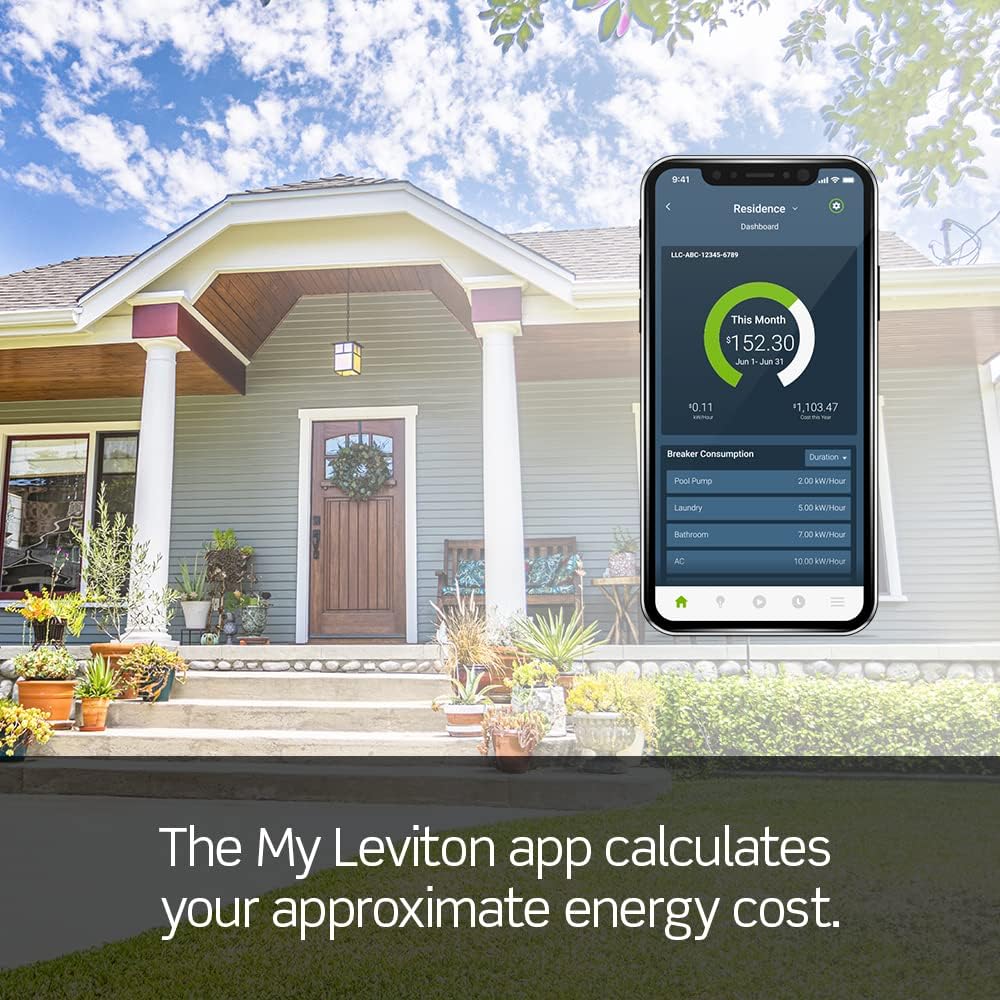
Image 2.1: Illustration of the LDATA hub being installed, emphasizing professional handling.
2.2 Connectivity Options
The LDATA hub offers flexible connectivity to your home network:
- Wi-Fi: Connects wirelessly to your router for convenient placement.
- Ethernet: Provides a stable, wired connection to your router for enhanced reliability.
2.3 My Leviton App Setup
Once the LDATA hub is physically installed and powered, download the My Leviton app from your device's app store. Follow the in-app instructions to pair your LDATA hub and Leviton Smart Circuit Breakers. This process typically involves:
- Creating a My Leviton account or logging in.
- Adding a new device and selecting the LDATA hub.
- Following prompts to connect the hub to your Wi-Fi or Ethernet network.
- Discovering and adding your Leviton Smart Circuit Breakers.

Image 2.2: Screenshot of the My Leviton app interface for device management.
3. Operating the Smart Breaker Data Hub
The LDATA hub, in conjunction with Leviton Smart Circuit Breakers and the My Leviton app, provides comprehensive control and monitoring of your home's electrical system.
3.1 Energy Monitoring and Analytics
The hub collects energy consumption data from connected smart circuit breakers and sends it to the cloud. The My Leviton app then processes this data to provide:
- Real-time energy usage insights.
- Historical trend data for energy consumption.
- Estimated energy cost calculations.

Image 3.1: My Leviton app displaying energy consumption trends.
3.2 Remote Control and Alerts
Through the My Leviton app, you can:
- Remotely trip (turn off) and reset (turn on) individual smart circuit breakers.
- Receive alerts regarding system status, such as tripped breakers or unusual energy patterns.
- Set up custom alerts for specific appliances, for example, to notify you if an appliance has been ON or OFF for a specified duration.
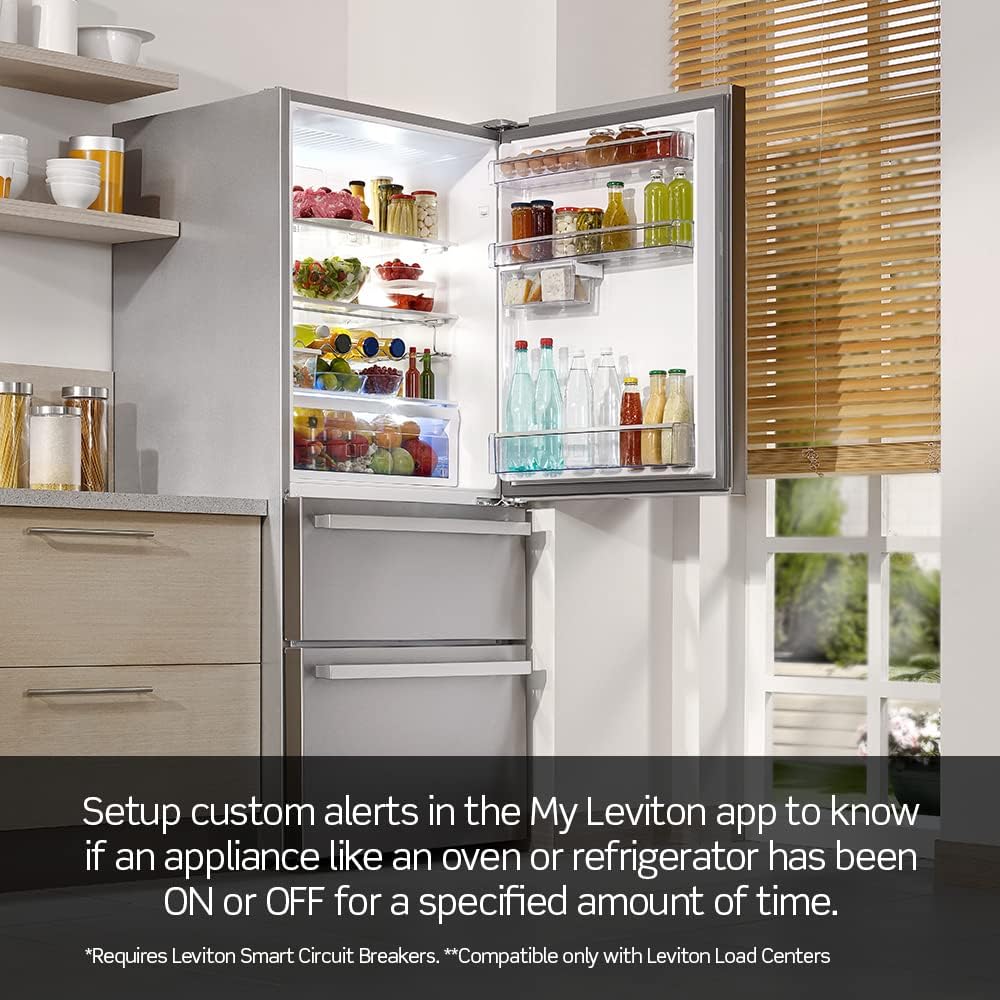
Image 3.2: My Leviton app demonstrating custom alerts for appliance status.
3.3 System Overview
The Leviton Load Center, equipped with the LDATA hub and smart circuit breakers, provides a modern aesthetic with intuitive LED diagnostics on the breakers themselves, indicating their operational status at a glance.

Image 3.3: Internal view of a Leviton Load Center showing smart circuit breakers and the LDATA hub connection.
4. Maintenance
The Leviton Smart Breaker Data Hub is designed for minimal maintenance. Follow these general guidelines to ensure its longevity and optimal performance:
- Cleaning: Periodically wipe the exterior of the hub with a soft, dry cloth. Do not use harsh chemicals, abrasive cleaners, or solvents.
- Environment: Ensure the hub is installed in a dry environment, free from excessive dust, moisture, and extreme temperatures.
- Firmware Updates: The My Leviton app will notify you of any available firmware updates for the LDATA hub. It is recommended to install these updates to ensure the best performance, security, and access to new features.
- Professional Inspection: Regular electrical system inspections by a licensed electrician are recommended, which would include checking the hub's connections.
5. Troubleshooting
If you encounter issues with your LDATA Smart Breaker Data Hub, refer to the following common troubleshooting steps:
| Problem | Possible Cause | Solution |
|---|---|---|
| Hub not connecting to network | Incorrect Wi-Fi password, out of range, Ethernet cable disconnected, router issue. | Verify Wi-Fi password. Move hub closer to router or use Ethernet. Check Ethernet cable connection. Restart router. |
| No data in My Leviton app | Hub not connected, smart breakers not paired, app not updated. | Ensure hub is online. Confirm smart breakers are correctly paired in the app. Update My Leviton app to the latest version. |
| Remote control not working | No internet connection, hub offline, smart breaker issue. | Check internet connectivity. Verify hub status in the app. Ensure smart breaker is functioning correctly. |
| Hub LED indicator is off or blinking incorrectly | No power, internal error, network issue. | Check power supply to the hub. Refer to the My Leviton app for diagnostic information. If persistent, contact Leviton support. |
For more detailed troubleshooting or issues not covered here, please refer to the official Leviton support resources.
6. Specifications
Technical specifications for the Leviton Smart Breaker Data Hub (LDATA):
| Feature | Detail |
|---|---|
| Manufacturer | Leviton |
| Part Number | LDATA |
| Color | White |
| Item Package Quantity | 1 |
| Plug Profile | Wall Mount |
| Components Included | Device |
| Batteries Required | No |
| Batteries Included | No |
| Length | 3 inches (7.62 cm) |
| Width | 1.25 inches (3.18 cm) |
| Height | 4.5 inches (11.43 cm) |
| Product Dimensions | 7.62 x 3.18 x 11.43 cm; 0.28 g |
| Model Number | LDATA |
| ASIN | B0843HM5W5 |
7. Warranty Information
Leviton products are backed by a manufacturer's warranty. Specific warranty terms and conditions, including duration and coverage, are typically provided with the product packaging or can be found on the official Leviton website. Please retain your proof of purchase for warranty claims.
8. Customer Support
For technical assistance, product inquiries, or warranty support, please contact Leviton customer service:
- Website: Visit the official Leviton website for FAQs, support documents, and contact information.
- Phone: Refer to your product packaging or the Leviton website for regional customer service phone numbers.
Related documentsLDATA


Ask a question about this manual
Ask about setup, troubleshooting, compatibility, parts, safety, or missing instructions. Manuals+ will review the question and use this page’s manual context to help answer it.