
1. Introduction
This manual provides instructions for the installation, operation, and maintenance of the HPE Aruba 6300M 24G CL4 PoE 4SFP56 Switch (Model JL662A). This device is a high-performance Layer 3 switch designed for enterprise network environments, offering 24 Gigabit Ethernet ports with Class 4 Power over Ethernet (PoE) and 4 SFP56 ports for high-speed uplinks.
Please read this manual thoroughly before attempting to install or operate the switch to ensure proper functionality and safety.
2. Safety Information
Observe the following safety precautions to prevent injury and damage to the equipment:
- Electrical Safety: Ensure the power source matches the switch's voltage requirements. Use only the provided power cord. Do not operate the switch with a damaged power cord or plug.
- Grounding: The switch must be properly grounded to prevent electrical shock.
- Ventilation: Ensure adequate airflow around the switch. Do not block ventilation openings. Maintain proper clearance for heat dissipation.
- Environment: Install the switch in a clean, dry environment, away from direct sunlight, heat sources, and excessive dust or moisture.
- Lifting: The switch may be heavy. Use proper lifting techniques or assistance when moving the unit.
- Servicing: Refer all servicing to qualified service personnel. Do not attempt to open or repair the switch yourself.
3. Package Contents
Verify that your package contains the following items. If any item is missing or damaged, contact your vendor.
- HPE Aruba 6300M 24G CL4 PoE 4SFP56 Switch (Model JL662A)
- Power Cord(s)
- Rack Mount Kit
- Console Cable (RJ-45 to DB-9)
- Documentation (Quick Start Guide, Safety and Regulatory Information)
4. Product Overview
4.1 Front Panel
The front panel of the HPE Aruba 6300M switch features 24 Gigabit Ethernet ports with Class 4 Power over Ethernet (PoE) capabilities, along with 4 SFP56 ports for high-speed fiber optic connections. It also includes status LEDs for power, system health, and port activity.

Figure 1: Front view of the HPE Aruba 6300M 24G CL4 PoE 4SFP56 Switch. This image displays the front of the network switch, featuring 24 standard RJ45 Ethernet ports arranged in two rows of twelve, each supporting Class 4 Power over Ethernet (PoE). To the right of these ports are four SFP56 ports, designed for high-speed fiber optic connections. Various status indicator LEDs are visible above the ports, providing information on power, system status, and individual port activity. A console port is also present for direct management access.
- 24 x 1GbE Class 4 PoE Ports: RJ-45 connectors for connecting network devices, providing both data and power.
- 4 x SFP56 Ports: For high-speed uplinks or stacking, supporting speeds up to 50 Gbps.
- Status LEDs: Indicate power status, system health, and port link/activity.
- Console Port: RJ-45 port for local management access via a serial connection.
4.2 Rear Panel
The rear panel houses the modular power supply bays and fan modules, allowing for redundancy and easy maintenance.
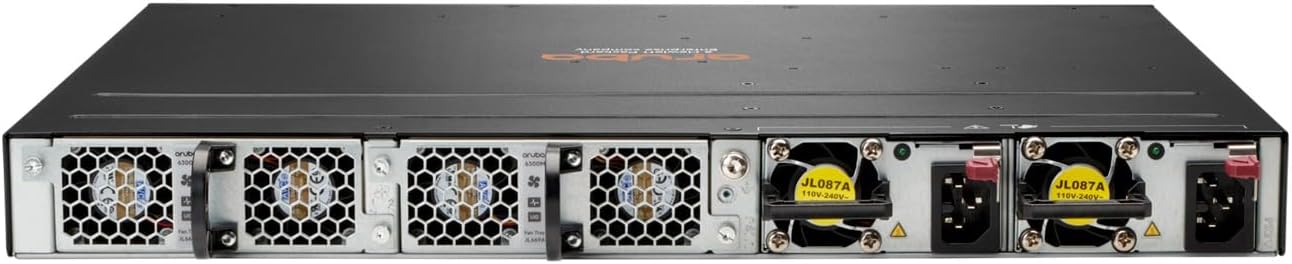
Figure 2: Rear view of the HPE Aruba 6300M 24G CL4 PoE 4SFP56 Switch. This image displays the back of the network switch, featuring multiple modular bays designed for power supplies and fan modules. Each bay is equipped with a handle for easy removal and installation. The power supply modules are visible with their respective power inlets and retention clips, indicating support for redundant power configurations. Fan modules are also present, ensuring proper cooling of the device.
- Modular Power Supply Bays: Supports redundant power supplies for increased reliability.
- Fan Modules: Hot-swappable fan modules for cooling and easy replacement.
5. Installation
5.1 Rack Mounting
The HPE Aruba 6300M switch is designed for standard 19-inch rack mounting. Use the provided rack mount kit and follow these steps:
- Attach the rack mount brackets to the sides of the switch using the screws provided.
- Secure the switch into the rack using appropriate rack screws. Ensure the switch is level and securely fastened.
- Allow adequate space for airflow around the front and rear panels.
5.2 Power Connection
Connect the power cord(s) to the power supply module(s) on the rear panel of the switch and then to a grounded AC power outlet. For redundant power, connect both power supplies to separate power sources if available.
5.3 Network Connection
- Ethernet Ports: Connect network devices (computers, access points, IP phones) to the 1GbE RJ-45 ports using standard Ethernet cables. These ports support PoE for compatible devices.
- SFP56 Ports: Insert compatible SFP56 transceivers into the SFP56 slots and connect fiber optic cables for high-speed uplinks to other switches or network devices.
6. Operating Instructions
6.1 Initial Access and Configuration
Upon initial power-up, the switch will perform a self-test. You can access the switch for configuration via:
- Console Port: Connect a computer to the console port using the provided console cable and a terminal emulation program (e.g., PuTTY, Tera Term) with settings: 9600 baud, 8 data bits, no parity, 1 stop bit, no flow control.
- Web Interface (GUI): Once the switch has an IP address, you can access its web-based management interface via a web browser. Refer to the Quick Start Guide for default IP address information.
- Command Line Interface (CLI) via SSH/Telnet: After initial configuration, you can manage the switch remotely using SSH (recommended for security) or Telnet.
6.2 Basic Configuration Steps
- Set IP Address: Configure a static IP address, subnet mask, and default gateway for the management interface.
- Change Default Credentials: For security, immediately change the default administrator username and password.
- Configure VLANs: Create and assign VLANs to segment your network traffic.
- Enable PoE: Ensure PoE is enabled on ports where PoE-powered devices are connected.
- Save Configuration: Always save your configuration changes to non-volatile memory to ensure they persist after a reboot.
7. Maintenance
7.1 Environmental Considerations
Maintain the operating environment within specified temperature and humidity ranges to ensure optimal performance and longevity of the switch. Regularly check for proper ventilation and clear any obstructions around the air vents.
7.2 Cleaning
Periodically clean the exterior of the switch with a soft, dry cloth. Do not use liquid or aerosol cleaners. Ensure the power is disconnected before cleaning.
7.3 Firmware Updates
Regularly check the HPE Aruba support website for the latest firmware updates. Applying firmware updates can provide new features, performance improvements, and security patches. Follow the instructions provided with the firmware package carefully.
8. Troubleshooting
This section provides solutions to common issues. For more complex problems, refer to the comprehensive documentation on the HPE Aruba support website or contact technical support.
- No Power:
- Verify the power cord is securely connected to both the switch and the power outlet.
- Check the power outlet for functionality.
- Ensure the power supply modules are correctly seated in their bays.
- No Link on Port:
- Check the Ethernet or fiber cable connection at both ends.
- Verify the cable type and length are appropriate for the connection.
- Ensure the connected device is powered on and functioning correctly.
- Check the port status LEDs on the switch.
- Network Connectivity Issues:
- Verify IP address, subnet mask, and gateway settings.
- Check VLAN configurations if applicable.
- Ensure there are no IP address conflicts on the network.
- Test connectivity using ping or traceroute commands from the switch CLI.
- PoE Device Not Powering On:
- Ensure the device is PoE compatible (802.3af/at).
- Check if PoE is enabled on the specific port.
- Verify the PoE budget of the switch is not exceeded.
- Test with a different PoE device or cable.
9. Specifications
| Feature | Description |
|---|---|
| Brand | HEWLETT PACKARD |
| Model Number | JL662A |
| Number of Ports | 24 (1GbE Class 4 PoE) + 4 (SFP56) |
| Switch Type | Layer 3 |
| Data Transfer Rate | 50 Gigabits Per Second (SFP56) |
| Interface | PoE, SFP56 |
| Compatible Devices | Desktop (and other network devices) |
| Item Weight | 5000 Grams |
| Case Material Type | Plastic, Metal |
| Color | Black |
| UPC | 190017339467 |
10. Warranty and Support
The HPE Aruba 6300M 24G CL4 PoE 4SFP56 Switch is covered by a manufacturer's warranty. For detailed warranty information, including terms and conditions, please refer to the warranty card included with your product or visit the official HPE Aruba website.
For technical support, product documentation, software downloads, and additional resources, please visit the HPE Aruba support portal. You will need your product model number (JL662A) and serial number when contacting support.


