
Meshforce M1
Contents
Meshforce M1 Mesh WiFi System User Manual
Model: M1
1. Introduction
The Meshforce M1 Mesh WiFi System is designed to provide seamless, whole-home wireless coverage. This system replaces traditional routers with multiple mesh points that work together to create a unified WiFi network, eliminating dead zones and buffering. This manual provides detailed instructions for setting up, operating, and maintaining your Meshforce M1 system.

Image 1.1: The Meshforce M1 Mesh WiFi System device in a home environment.

Video 1.1: An overview of the Meshforce M1 Whole Home Mesh WiFi System, demonstrating its core benefits and functionality.
2. What's in the Box
Before you begin, please check the package contents. If any items are missing or damaged, contact customer support.
- 3 x Meshforce M1 Mesh Points
- 3 x Power Adapters
- 1 x Ethernet Cable
- 1 x Quick Start Guide (refer to this manual for detailed instructions)
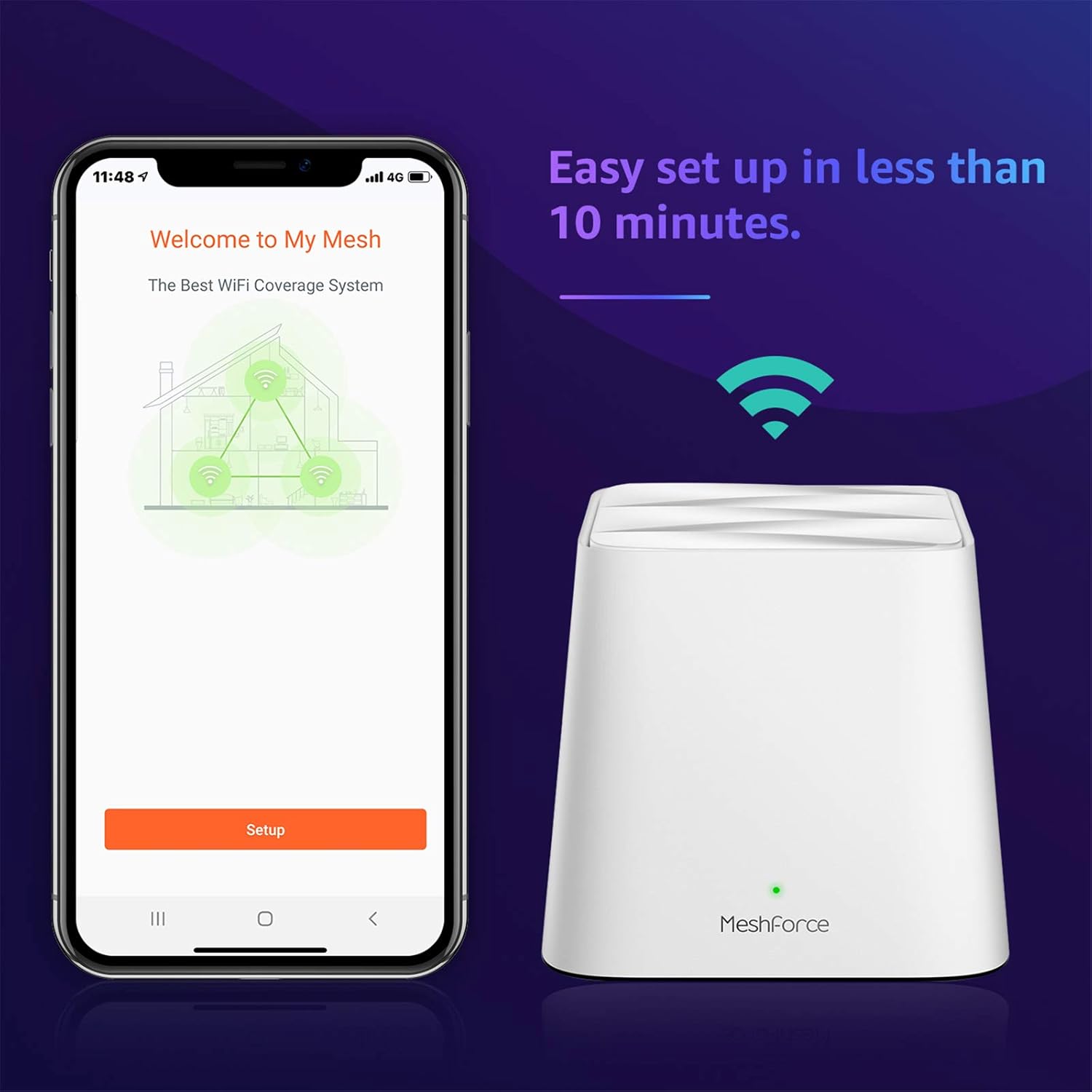
Image 2.1: The Meshforce M1 Mesh WiFi System package contents, including three M1 mesh points and necessary cables.
3. Setup Guide
Follow these steps to set up your Meshforce M1 Mesh WiFi System. Setup is typically completed within 10 minutes.
3.1. Download the My Mesh App
Search for "My Mesh" in your smartphone's app store (App Store for iOS or Google Play Store for Android) and download the application. This app is essential for managing your mesh system.

Image 3.1: The My Mesh app interface on a smartphone, illustrating the easy setup process.
3.2. Connect the Main Mesh Point
- Power Off Your Modem: Disconnect the power from your existing modem.
- Connect Main Mesh Point: Take one M1 mesh point (this will be your main unit). Connect one end of the provided Ethernet cable to the LAN port of your modem and the other end to the WAN/LAN port (marked with a globe icon) on the back of the M1 mesh point.
- Power On: Connect the power adapter to the main M1 mesh point and plug it into a power outlet. Wait for the LED indicator on the M1 to turn solid blue (this may take a few minutes).
- Power On Modem: Reconnect power to your modem.
3.3. Configure via My Mesh App
- Open App: Launch the My Mesh app on your smartphone.
- Follow On-Screen Instructions: The app will guide you through creating your new WiFi network name (SSID) and password.
- Connect Devices: Once configured, connect your smartphone and other devices to the new WiFi network.
3.4. Add Additional Mesh Points
To expand your WiFi coverage, place the other M1 mesh points in desired locations within your home. Ensure they are within range of the main mesh point or another connected mesh point.
- Power On: Plug in the additional M1 mesh points to power outlets.
- Automatic Connection: The additional mesh points will automatically detect and connect to your existing mesh network. The LED indicator will turn solid blue once connected.
- Optimal Placement: For best performance, place mesh points strategically to cover your entire home. Avoid placing them near large metal objects, microwaves, or other sources of interference.

Image 3.2: Illustration of optimal placement for multiple Meshforce M1 units to achieve full home WiFi coverage.
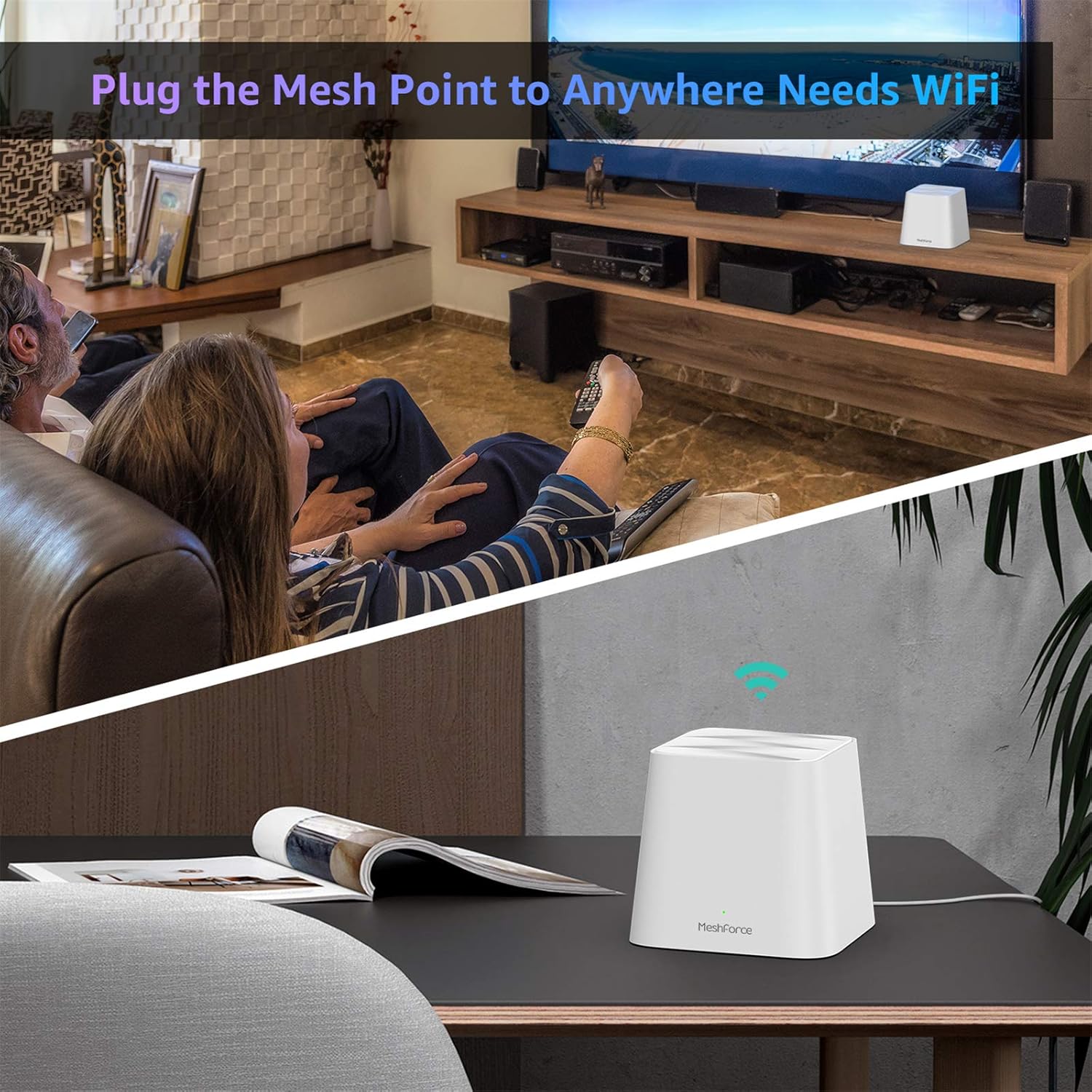
Image 3.3: Examples of flexible deployment, showing M1 mesh points placed in a living room and on a desk.
4. Operating Your Mesh System
The My Mesh app provides comprehensive control over your Meshforce M1 system.
4.1. My Mesh App Features
Through the app, you can:
- View connected devices and their status.
- Manage network settings (SSID, password).
- Set up a Guest Network.
- Configure Parental Controls.
- Monitor network performance.
- Add or remove mesh points.

Image 4.1: The My Mesh app displaying network status and settings options for comprehensive control.
4.2. Guest Network
Create a separate WiFi network for guests to ensure your main network remains secure. Guests can access the internet without gaining access to your private devices or files.
- Open the My Mesh app.
- Navigate to "Guest Network" in the settings.
- Enable the guest network and set a unique name and password.
4.3. Parental Controls
Manage internet access for specific devices connected to your network. You can set schedules for internet availability or block certain websites.
- Open the My Mesh app.
- Go to "Parental Control" in the settings.
- Select the device you wish to manage and configure access rules.
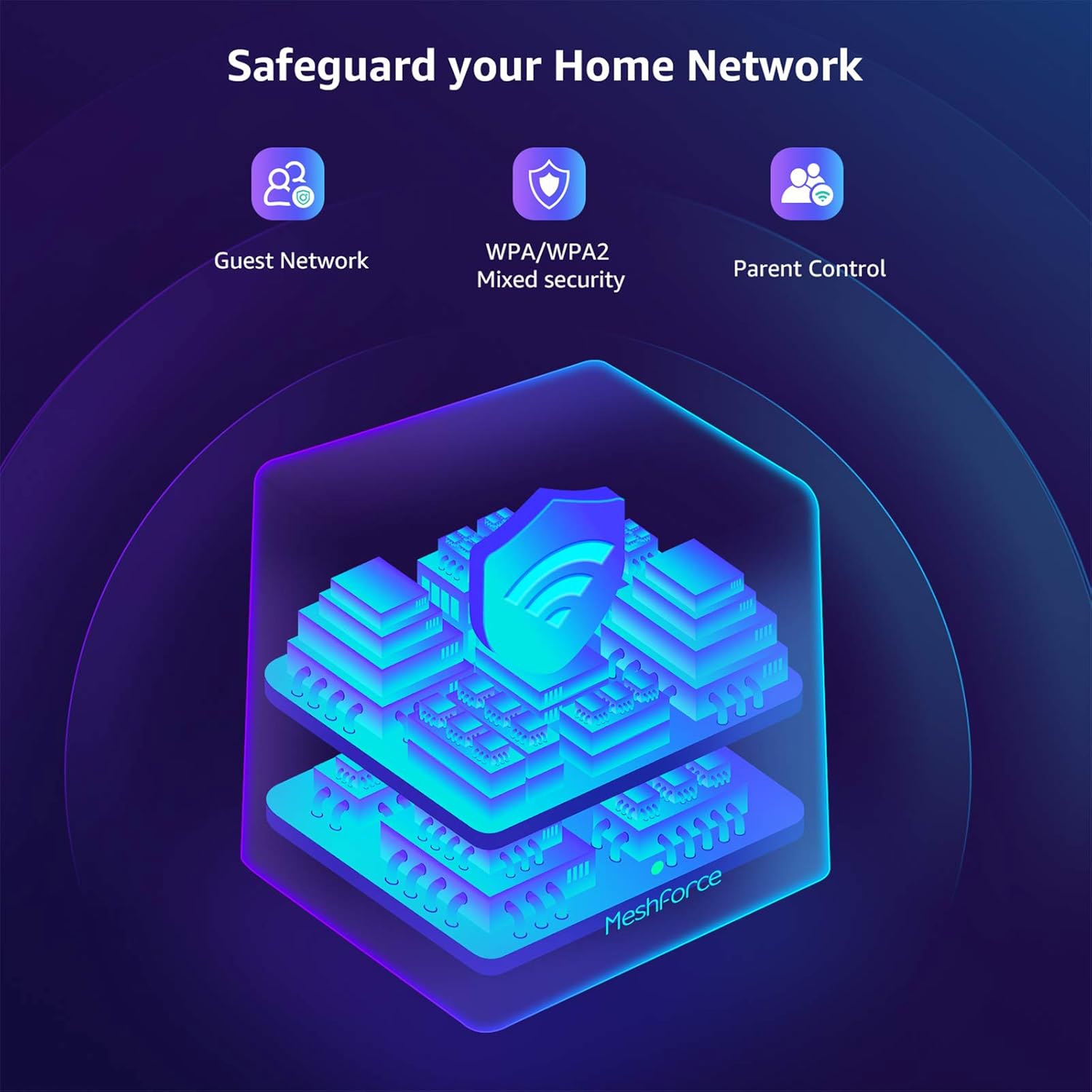
Image 4.2: Visual representation of the security features offered by the Meshforce M1 system, including Guest Network and Parental Control.
4.4. Seamless Roaming
The Meshforce M1 system supports seamless roaming, meaning your devices will automatically switch to the strongest WiFi signal as you move around your home, without interruptions.

Image 4.3: The Meshforce M1 supporting multiple devices simultaneously, ensuring lag-free connections.
5. Maintenance
To ensure optimal performance and longevity of your Meshforce M1 system, follow these maintenance guidelines:
- Keep Devices Clean: Gently wipe the mesh points with a soft, dry cloth. Do not use liquid cleaners or abrasive materials.
- Ensure Proper Ventilation: Do not cover the mesh points or place them in enclosed spaces that could restrict airflow.
- Regular Firmware Updates: Check the My Mesh app periodically for firmware updates. Keeping your system updated ensures the latest features, security patches, and performance improvements.
- Avoid Extreme Conditions: Do not expose the devices to extreme temperatures, humidity, or direct sunlight.
- Reboot Periodically: If you experience network issues, a simple reboot of your modem and all mesh points can often resolve them.
6. Troubleshooting
If you encounter issues with your Meshforce M1 system, try the following solutions:
6.1. No Internet Connection
- Check Modem: Ensure your modem is working correctly and has an active internet connection.
- Cable Connections: Verify that all Ethernet cables are securely connected between the modem and the main mesh point.
- Reboot: Power cycle your modem, then the main mesh point, and then any additional mesh points. Wait a few minutes for each device to fully restart.
- LED Status: Check the LED indicator on your main mesh point. If it's not solid blue, refer to the LED status guide in the app or quick start guide.
6.2. Weak WiFi Signal or Dead Zones
- Mesh Point Placement: Adjust the placement of your additional mesh points. Ensure they are not too far from each other or the main unit. Try moving them closer to the areas with weak signals.
- Interference: Move mesh points away from potential sources of interference such as microwaves, cordless phones, large metal objects, or thick walls.
- Add More Units: For very large homes or those with many obstacles, consider adding more Meshforce M1 units (sold separately) to extend coverage.
6.3. Cannot Connect to WiFi Network
- Correct Password: Double-check that you are entering the correct WiFi password.
- Device Compatibility: Ensure your device supports 802.11ac or 802.11n wireless standards.
- Forget Network: On your device, "forget" the WiFi network and then try to reconnect.
6.4. My Mesh App Not Working
- App Update: Ensure the My Mesh app is updated to the latest version.
- Reinstall App: Try uninstalling and reinstalling the app.
- Smartphone WiFi: Ensure your smartphone is connected to the Meshforce WiFi network.
7. Specifications
| Feature | Detail |
|---|---|
| Brand | Meshforce |
| Model Name | M1 |
| Frequency Band Class | Dual-Band (2.4GHz & 5GHz) |
| Wireless Communication Standard | 802.11ac, 802.11n |
| Security Protocol | WPA2-PSK |
| Data Transfer Rate | Up to 100 Mbps (LAN Port) |
| Control Method | App (My Mesh) |
| Coverage | Whole Home |
| Number of Ports | 1 (WAN/LAN auto-sensing) |
| Included Components | M1 mesh point *3 |
| Operating System Compatibility | Linux (internal), Android, iOS (for app control) |
8. Warranty Information
The Meshforce M1 Mesh WiFi System comes with a 12 Months Warranty from the date of purchase. This warranty covers manufacturing defects and malfunctions under normal use. It does not cover damage caused by misuse, accidents, unauthorized modifications, or external factors.
Please retain your proof of purchase for warranty claims. For detailed warranty terms and conditions, refer to the official Meshforce website or contact customer support.
9. Customer Support
If you require further assistance, technical support, or have questions not covered in this manual, please contact Meshforce customer support:
- Website: Visit the official Meshforce website for FAQs, support articles, and contact forms.
- Email: Refer to your product packaging or the Meshforce website for the support email address.
- Online Resources: Check the Meshforce Store on Amazon for additional product information and support.
Documents and downloads
Ask a question about this manual
Ask about setup, troubleshooting, compatibility, parts, safety, or missing instructions. Manuals+ will review the question and use this page’s manual context to help answer it.