
Introduction
The SanDisk Ultra Dual Drive Luxe is a versatile 2-in-1 flash drive designed for seamless file transfer between USB Type-C and USB Type-A devices. Its all-metal construction provides durability, and the dual-purpose swivel design protects the connectors. This manual provides essential information for setting up, operating, maintaining, and troubleshooting your device.

Image: The SanDisk Ultra Dual Drive Luxe, showcasing its dual USB Type-C and Type-A connectors.
Setup
Setting up your SanDisk Ultra Dual Drive Luxe is straightforward. The drive is designed for plug-and-play functionality with compatible devices.
- Identify Connector Type: Determine whether your device (smartphone, tablet, computer) uses a USB Type-C port or a traditional USB Type-A port.
- Swivel Connector: Gently swivel the metal housing to expose the appropriate connector (USB Type-C or USB Type-A).
- Connect to Device: Insert the exposed connector into the corresponding USB port on your device. Ensure the mobile device supports USB On-The-Go (OTG) for Type-C connections.
- Device Recognition: Your device should automatically recognize the drive as external storage. For smartphones, you may receive a notification to open a file manager or the SanDisk Memory Zone app.
- Install SanDisk Memory Zone App (Optional but Recommended): For enhanced functionality, especially for automatic backups on mobile devices, download and install the SanDisk Memory Zone app from your device's app store.

Image: The drive with its USB Type-C connector extended, ready for use with compatible devices.
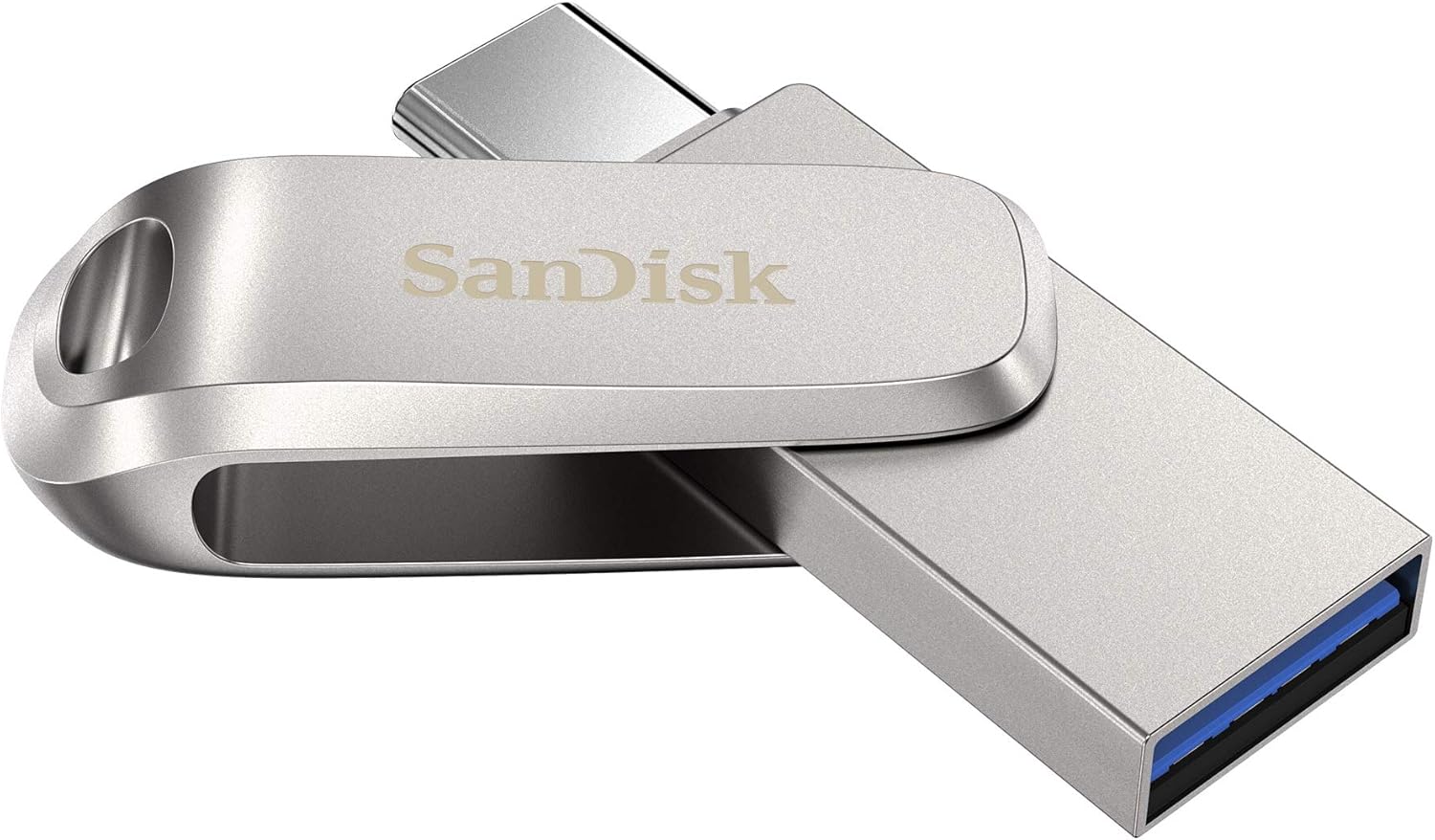
Image: The drive with its traditional USB Type-A connector extended, suitable for most computers.
Operating Instructions
The SanDisk Ultra Dual Drive Luxe allows for easy file management and backup.
Transferring Files
- Manual Transfer: Once connected, open your device's file explorer (on PC/Mac) or file manager app (on mobile). You can then drag and drop files to and from the drive, or use copy/paste functions.
- Using SanDisk Memory Zone App: For mobile devices, the SanDisk Memory Zone app simplifies file management. It allows you to browse, organize, and back up content from your phone to the drive.
Automatic Backup (Mobile Devices)
The SanDisk Memory Zone app can be configured to automatically back up your photos, videos, music, documents, and contacts from your smartphone to the drive.
- Open the SanDisk Memory Zone app.
- Navigate to the backup settings within the app.
- Select the types of files you wish to back up automatically.
- Ensure the drive is connected when you want the backup to occur.
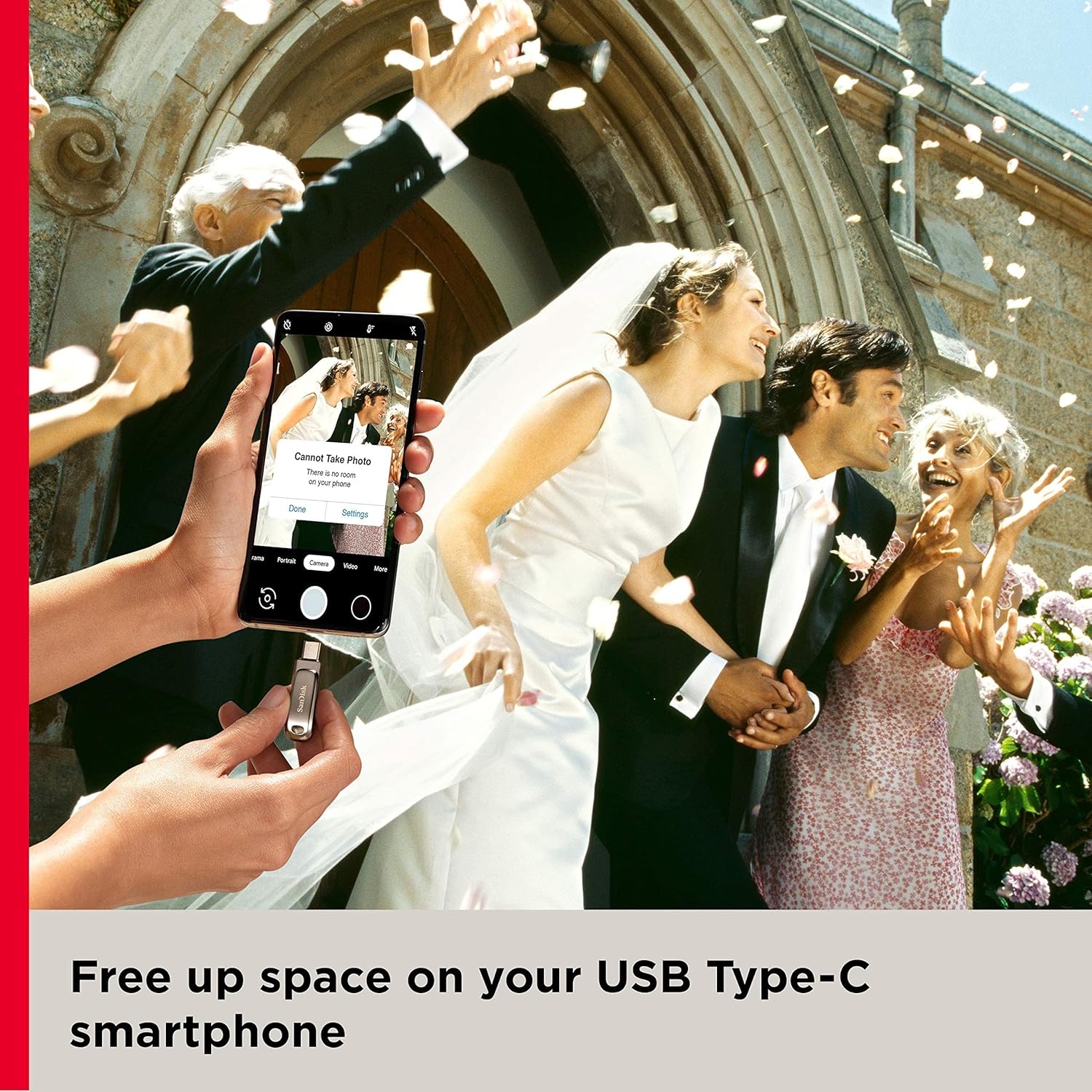
Image: Illustrates how the drive can be used to free up space on a smartphone, preventing "Cannot Take Photo" messages.
Safe Removal
Always safely eject the drive from your computer or mobile device before physically removing it to prevent data corruption. On Windows, use the "Safely Remove Hardware" icon in the system tray. On Mac, drag the drive icon to the Trash or use the Eject button in Finder. On mobile, follow the app's or OS's instructions for unmounting external storage.
Maintenance
Proper care ensures the longevity and optimal performance of your SanDisk Ultra Dual Drive Luxe.
- Physical Care: The all-metal housing is durable, but avoid dropping the drive or exposing it to excessive force. Keep the connectors clean and free of dust or debris. The swivel design helps protect the connectors when not in use.
- Temperature: The drive may become warm during extended use, especially during large file transfers. This is normal and indicates efficient heat dissipation from the internal components. Avoid operating it in extremely hot environments.
- Storage: Store the drive in a cool, dry place when not in use. Utilize the keyring hole for secure attachment to keys or bags, reducing the risk of loss.
- Data Integrity: Regularly back up critical data stored on the drive to another location (e.g., cloud storage, computer hard drive) to prevent data loss in case of unforeseen issues.

Image: Side view of the drive, highlighting the robust swivel mechanism that protects both USB connectors.
Troubleshooting
If you encounter issues with your SanDisk Ultra Dual Drive Luxe, try the following solutions:
- Drive Not Recognized:
- Ensure the drive is fully inserted into the USB port.
- Try a different USB port on your device.
- Try connecting to a different device to rule out a device-specific issue.
- For mobile devices, verify that USB OTG (On-The-Go) support is enabled in your device settings, if applicable.
- Restart your computer or mobile device.
- Slow Transfer Speeds:
- Ensure you are using a USB 3.0 or higher port for optimal performance. Older USB 2.0 ports will result in slower speeds.
- Close other applications that might be using system resources or performing background transfers.
- The drive's performance can vary based on the host device, interface, and file types (e.g., many small files transfer slower than one large file).
- Drive Gets Hot:
- It is normal for the all-metal drive to become warm or hot during heavy use, as the metal casing acts as a heatsink to dissipate heat from the internal components. This does not typically indicate a malfunction.
- If the heat is excessive and causes device instability, ensure proper ventilation around the drive and host device.
- Data Corruption:
- Always safely eject the drive before removal. Unplugging without ejecting can lead to data corruption.
- If data appears corrupted, try running a disk check utility on your computer (e.g., Check Disk on Windows, Disk Utility on Mac).
Specifications
| Model Name | SDDDC4-1T00 G46 |
| Capacity | 1 TB (Terabyte) |
| Read Speed | Up to 150 MB/s (Megabytes per second) |
| Write Speed | Up to 150 MB/s (Megabytes per second) - Note: Actual write speed may be lower and vary by capacity and host device. |
| Connectivity | USB Type-C, USB Type-A |
| Interface | USB 3.0 (backward compatible with USB 2.0) |
| Color | Silver |
| Dimensions (LxWxH) | 1.75 x 0.48 x 0.34 inches (44.45 x 12.19 x 8.64 mm) |
| Weight | 0.635 ounces (18 grams) |
| Manufacturer | Western Digital Technologies, Inc. |
| Special Features | Compact, Lightweight, All-metal housing, Swivel design |
Warranty and Support
SanDisk products are backed by a limited warranty. For specific warranty terms and conditions, please refer to the warranty information included with your product packaging or visit the official SanDisk support website.
For technical support, product registration, or to access frequently asked questions and driver downloads, please visit the official SanDisk support portal:
SanDisk Official Support Website
You may also find helpful resources and compatible device lists on the SanDisk Store on Amazon.