

1. Product Overview
The Ultenic D5 Robot Vacuum Cleaner is an advanced robotic cleaning device designed to efficiently clean various floor types, including hard floors and carpets. It features powerful suction, smart navigation, and convenient control options via Wi-Fi, Alexa, and Google Assistant.
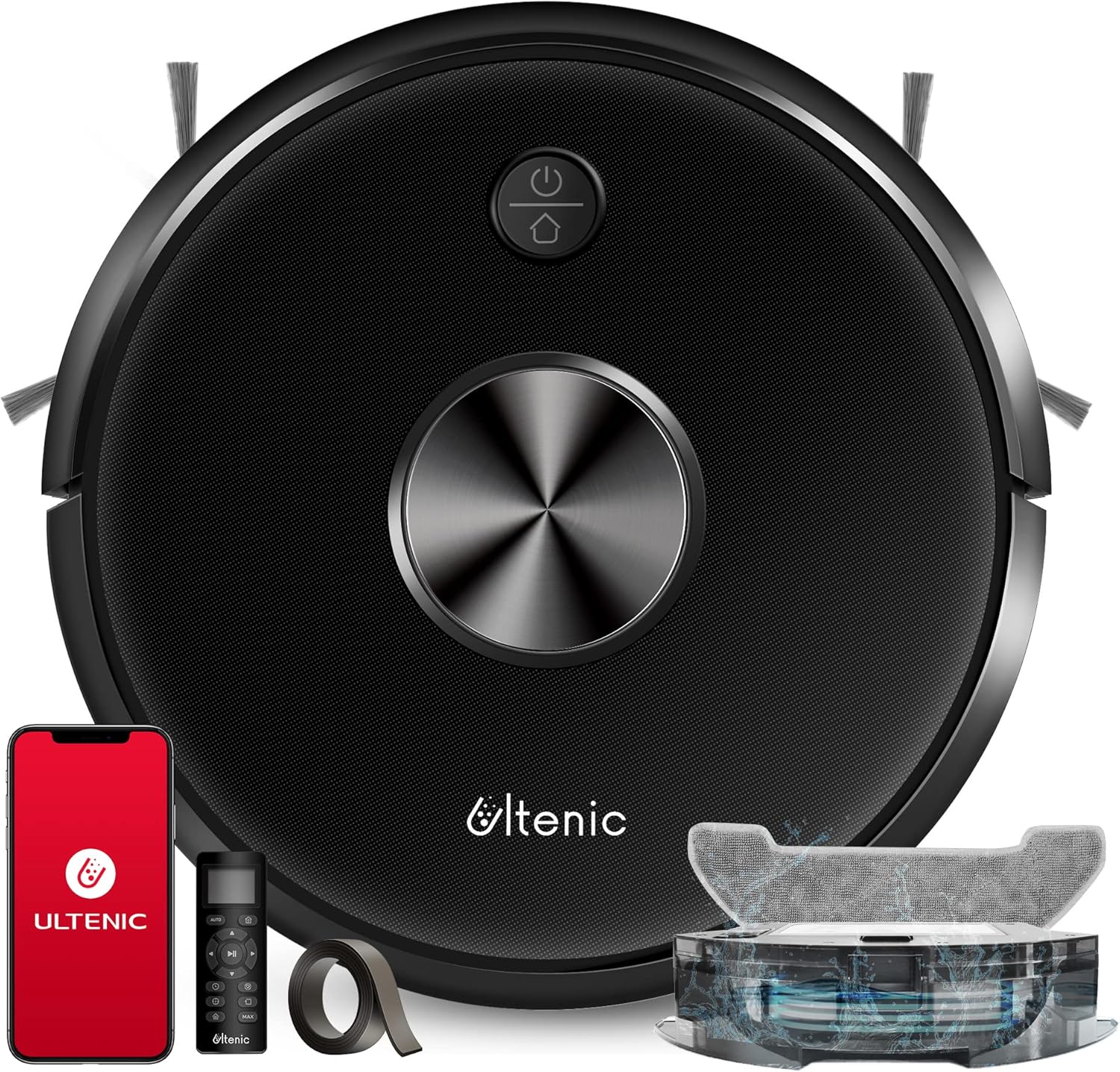
Figure 1.1: Ultenic D5 Robot Vacuum Cleaner and included accessories.
Key Features:
- Wi-Fi & Voice Control: Manage cleaning tasks, monitor status, and adjust settings via the Ultenic Home app, Alexa, or Google Assistant.
- Powerful Suction: Offers 3 adjustable cleaning speeds with a maximum suction power of 2200Pa, effective for dust, crumbs, dirt, and pet hair.
- Carpet Boost: Automatically increases suction power when detecting carpets for deeper cleaning.
- Boundary Strips: Allows setting virtual no-go zones to restrict the robot's cleaning area.
- Multiple Cleaning Modes: Includes Edge Cleaning, Spot Cleaning, and Auto Cleaning to suit various needs.
- Anti-Collision & Anti-Drop: Equipped with intelligent sensors to prevent collisions and falls.
2. What's in the Box
Carefully unpack all components and check against the list below. If any items are missing or damaged, please contact Ultenic customer support.

Figure 2.1: Main components and accessories.
- Ultenic D5 Robot Vacuum Cleaner
- Charging Dock
- Power Adapter
- Remote Control (with AAA batteries)
- Side Brushes (2 pairs)
- High-Efficiency Filter (1 extra)
- Cleaning Tool
- Boundary Strip
- User Manual
3. Setup Guide
3.1 Charging Dock Placement
Place the charging dock against a wall in an open, uncluttered area. Ensure there is at least 1 meter (3 feet) of clear space to the front and 0.5 meters (1.5 feet) to each side of the dock. Plug the power adapter into the dock and then into a wall outlet. Ensure the dock is powered on.
3.2 Initial Charging
Place the robot vacuum onto the charging dock. Ensure the charging contacts on the robot align with those on the dock. The robot will begin charging automatically. For first-time use, fully charge the robot for at least 6 hours.
3.3 Installing Side Brushes
Press the left (L) and right (R) side brushes into their respective slots on the bottom of the robot until they click into place.
3.4 Connecting to Wi-Fi and App
To utilize smart features, download the 'Ultenic Home' app from your mobile app store. Follow the in-app instructions to connect your robot to your home Wi-Fi network. This enables remote control, scheduling, and mode adjustments.

Figure 3.1: Controlling the Ultenic D5 via the Ultenic Home app.
3.5 Using Boundary Strips
The included boundary strip can be used to create virtual no-go zones. Place the strip on the floor to block off areas you do not want the robot to enter. The robot's sensors will detect the strip and avoid crossing it.
4. Operating Instructions
4.1 Starting/Pausing Cleaning
- On the Robot: Press the power button on the robot to start or pause cleaning.
- Via App: Use the 'Start' or 'Pause' button in the Ultenic Home app.
- Via Remote Control: Press the 'Start/Pause' button on the remote.
4.2 Cleaning Modes
- Auto Cleaning: The robot cleans automatically, adjusting its path based on the environment. This is the default mode.
- Spot Cleaning: The robot intensely cleans a specific area in a spiral pattern. Useful for concentrated dirt.
- Edge Cleaning: The robot cleans along walls and furniture edges.
4.3 Suction Power Adjustment
You can adjust the suction power (Standard, Strong, Max) via the Ultenic Home app or remote control to suit different cleaning needs and floor types.
4.4 Carpet Boost Feature
The D5 robot vacuum automatically detects carpets and increases its suction power to the maximum setting for a deeper clean. Once it moves off the carpet, suction returns to the previous setting.

Figure 4.1: The robot automatically boosts suction on carpets.
4.5 Scheduling Cleaning
Use the Ultenic Home app to set a cleaning schedule for your robot. You can choose specific days and times for the robot to automatically start cleaning.
4.6 Voice Control (Alexa/Google Assistant)
Once connected to your smart home system, you can use voice commands to control the robot. For example, "Alexa, turn on D5 Pro" or "Hey Google, start cleaning with D5 Pro."
5. Maintenance
Regular maintenance ensures optimal performance and extends the lifespan of your Ultenic D5 robot vacuum. Perform these steps regularly.
5.1 Emptying the Dustbox
It is recommended to empty the dustbox after each cleaning cycle. Press the dustbox release button, pull out the dustbox, open it, and discard the debris. Close the dustbox and reinsert it into the robot.
5.2 Cleaning the Filter
Remove the filter from the dustbox. Tap the filter against a trash can to remove loose dirt. Do not wash the filter with water. Replace the filter every 3-6 months, or as needed, depending on usage.
5.3 Cleaning the Main Brush
Turn the robot over and remove the main brush cover. Lift out the main brush. Use the cleaning tool to remove hair and debris tangled around the brush. Reinstall the main brush and cover.
5.4 Cleaning Side Brushes
Periodically check the side brushes for tangled hair or debris. If necessary, remove them by pulling them straight up and clean them. If brushes are worn or damaged, replace them with new ones.
5.5 Cleaning Sensors and Charging Contacts
Wipe the cliff sensors (located on the bottom of the robot) and the charging contacts (on the robot and charging dock) with a clean, dry cloth. This ensures proper navigation and charging.
6. Troubleshooting
If you encounter issues with your Ultenic D5, refer to the following common problems and solutions:
| Problem | Possible Cause | Solution |
|---|---|---|
| Robot does not turn on or charge. | Battery low; charging contacts dirty; power adapter not connected. | Ensure robot is on charging dock; clean charging contacts; check power connection. |
| Robot cannot connect to Wi-Fi. | Incorrect Wi-Fi password; router too far; 5GHz network. | Verify password; move robot closer to router; ensure 2.4GHz Wi-Fi is used. |
| Robot gets stuck frequently. | Obstacles; tangled brushes; uneven surfaces. | Clear obstacles; clean main and side brushes; use boundary strips for problem areas. |
| Poor cleaning performance. | Full dustbox; dirty filter; worn brushes. | Empty dustbox; clean/replace filter; clean/replace brushes. |
| Robot falls down stairs. | Cliff sensors dirty or blocked. | Clean cliff sensors with a dry cloth. |
7. Specifications
| Feature | Detail |
|---|---|
| Brand | Ultenic |
| Model Name | D5 |
| Item Model Number | D5s Pro+ |
| Special Feature | Smart Mapping, Carpet Boost |
| Max Suction Power | 2200Pa |
| Dustbox Capacity | 600ML (490 Milliliters listed in specs, using 600ML from title for consistency) |
| Control Method | Voice, App, Remote Control |
| Compatible Devices | Amazon Echo (Alexa), Google Assistant |
| Battery Life | Up to 3000 Hours (Note: This is likely a typo in source data, usually refers to battery capacity or lifespan, not run time) |
| Product Dimensions | 12.8 x 12.8 x 2.8 inches |
| Item Weight | 7.04 pounds |
8. Warranty and Support
Ultenic is committed to providing high-quality products and customer service.
8.1 Warranty Information
The Ultenic D5 Robot Vacuum Cleaner comes with a standard warranty. Customers can extend this warranty up to 18 months by registering their product. Please refer to the product registration details provided with your purchase for specific terms and conditions.
8.2 Customer Support
For any questions, technical assistance, or warranty claims, please contact Ultenic customer support through the following channels:
- App Live Chat: Available directly through the Ultenic Home app.
- E-mail Assistant: 24/7 support via email. Refer to the Ultenic website or app for the specific email address.
- Online Resources: Visit the official Ultenic website for FAQs, video tutorials, and additional support materials.
Ultenic also offers a 30-day free return policy. For more details, please visit the official Ultenic store or contact support.