Introduction
This manual provides instructions for the proper setup, operation, and maintenance of your Yamaha YVC-330 Portable USB & Bluetooth Conference Phone. The YVC-330 is designed to enhance audio conferencing experiences with its advanced SoundCap technology and versatile connectivity options.
Key Features
- SoundCap Technology: Built-in far-field noise reduction eliminates background noise outside a 3 ft. range. Includes self-silence feature to mute the microphone when participants are not speaking.
- Professional Audio: Three unidirectional microphones with human voice activity detection ensure clear speech pickup, suitable for 5-8 person conference meetings.
- Flexible Connectivity: Supports USB 3.0, NFC, and Bluetooth connections for compatibility with mobile phones, laptops, and various conferencing tools like Zoom, Google Meet, and Skype.
- Easy Setup: Plug-and-play functionality via USB or quick Bluetooth pairing for immediate use.
- Portable Design: Suitable for various environments including home offices, conference rooms, and open meeting spaces.
Package Contents
Ensure all items are present before proceeding with setup:
- Yamaha YVC-330 Conference Phone
- USB Cable (6 ft)
Setup Instructions
1. Connecting via USB
- Connect the provided 6 ft USB cable to the USB port on the rear of the YVC-330.
- Plug the other end of the USB cable into an available USB port on your computer (laptop or desktop).
- The device is plug-and-play and should be automatically recognized by your operating system.
- Select the Yamaha YVC-330 as your audio input and output device in your conferencing application settings.
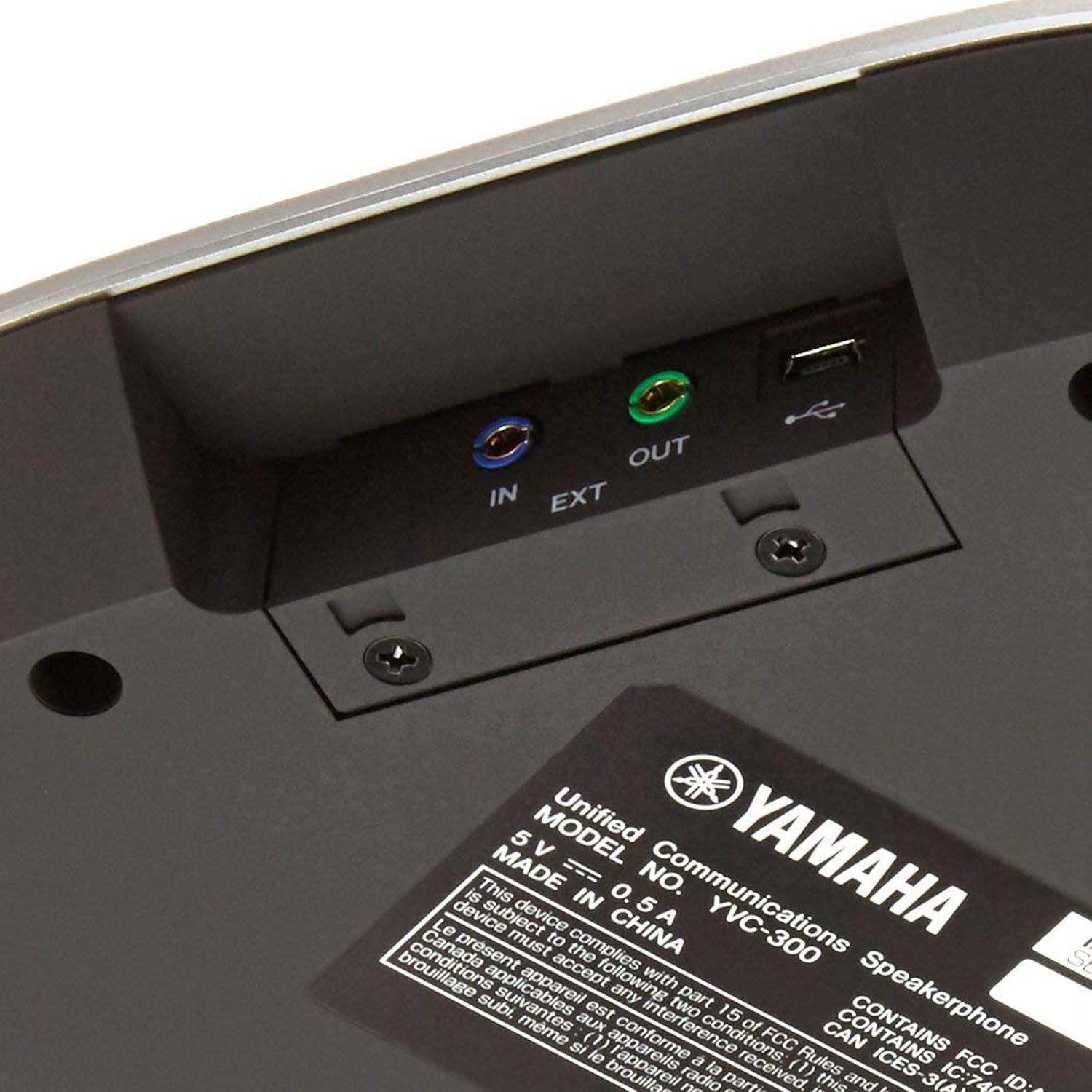
Image: Rear view of the Yamaha YVC-330 conference phone, highlighting the USB port and external audio input/output jacks. This shows where to connect the USB cable for power and data.

Image: A hand connecting a blue audio cable into the 'IN' port on the rear of the Yamaha YVC-330, demonstrating the physical connection process.
2. Connecting via Bluetooth
- Ensure the YVC-330 is powered on.
- Press and hold the Bluetooth button (indicated by a Bluetooth icon) on the device until the indicator light begins to flash, signifying pairing mode.
- On your mobile phone, tablet, or laptop, navigate to the Bluetooth settings.
- Select "YVC-330" from the list of available devices to pair.
- Once paired, the Bluetooth indicator light on the YVC-330 will become solid.
3. Connecting via NFC (Near Field Communication)
- Ensure NFC is enabled on your compatible mobile device.
- Tap your NFC-enabled device to the NFC Pairing Mark on the YVC-330 (located near the top right corner of the device).
- Follow any on-screen prompts on your mobile device to complete the connection.
Operating Instructions
The Yamaha YVC-330 features intuitive controls for managing your conference calls.

Image: A detailed diagram of the Yamaha YVC-330's top panel, with labels pointing to the 3 Microphones, NFC Pairing Mark, Speaker, Call On/Off Hook Button, Volume Up/Down, Bluetooth Button, Microphone Mute Button, and SoundCap Toggle.
Control Buttons:
- Bluetooth Button: Initiates Bluetooth pairing mode.
- Call On / Off Hook Button: Answers or ends a call.
- Microphone Mute Button: Toggles the microphone on or off. The button lights up red when muted and blue when active.
- Volume Up / Volume Down Buttons: Adjusts the speaker volume.
- SoundCap Toggle: Activates or deactivates the SoundCap technology for noise reduction.
Microphone Operation:
The YVC-330 features three unidirectional microphones strategically placed to capture voices from all directions within a 5-8 person meeting space. The human voice activity detection ensures that only speech is picked up, minimizing ambient noise.
SoundCap Technology:
SoundCap technology is designed to create a "sound bubble" around the conference phone, effectively reducing background noise from outside a 3-foot radius. This feature is particularly useful in open office environments or noisy settings. The self-silence function automatically mutes the microphone when no one is speaking, further enhancing call clarity.
Maintenance
- Cleaning: Use a soft, dry cloth to clean the exterior of the device. Do not use liquid cleaners or abrasive materials.
- Storage: Store the device in a cool, dry place away from direct sunlight and extreme temperatures when not in use.
- Handling: Avoid dropping the device or subjecting it to strong impacts.
Troubleshooting
| Problem | Possible Cause | Solution |
|---|---|---|
| No sound or low volume |
|
|
| Microphone not picking up sound |
|
|
| Bluetooth audio quality issues (clipping, distortion) |
|
|
| SoundCap technology not effective |
|
|
Specifications
| Model Name | YVC-330 |
| Speaker Type | Multimedia or Conference |
| Recommended Uses | For Conference Meetings |
| Compatible Devices | Smartphone, Tablet, Laptop, Desktop |
| Microphones | 3 Unidirectional Microphones |
| Connectivity Technology | Bluetooth, USB, NFC |
| Wireless Communication Technology | Bluetooth |
| Bluetooth Range | 10 Meters (approx. 33 feet) |
| Speaker Maximum Output Power | 100 Watts |
| Product Dimensions (D x W x H) | 9.3" x 8.9" x 1.8" |
| Item Weight | 1.8 Pounds |
| Power Source | USB Powered |
| Control Method | Voice, Buttons |
| Color | Black |
Warranty and Support
The Yamaha YVC-330 comes with a Limited Warranty. For detailed warranty information, product support, or service inquiries, please refer to the official Yamaha website or contact Yamaha customer service directly. Keep your purchase receipt for warranty claims.
For further assistance, visit the Yamaha Store on Amazon or the official Yamaha support portal.


