1. Introduction
This manual provides essential information for the safe and efficient use of your LG 50UN7000PUC 50-inch 4K Smart TV. Please read it thoroughly before operating the product and retain it for future reference. It covers setup, operation, maintenance, and troubleshooting to ensure optimal performance and longevity of your television.

Image 1.1: Front view of the LG 50UN7000PUC 50-inch 4K Smart TV, showcasing its display with vibrant colors.
2. Safety Information
Always follow these basic safety precautions to reduce the risk of fire, electric shock, or injury:
- Do not expose the TV to rain or moisture.
- Do not open the TV casing; refer all servicing to qualified personnel.
- Ensure proper ventilation around the TV.
- Use only the power cord supplied with the TV.
- Keep the TV away from heat sources and direct sunlight.
- Position the TV on a stable surface to prevent it from falling.
3. What's in the Box
Verify that all components are present before proceeding with the setup:
- LG 50UN7000PUC 50-inch 4K Smart TV
- Remote Control
- Power Cable
- E-Manual (pre-loaded on TV, accessible via remote)
- TV Stand components (if applicable)

Image 3.1: Diagram illustrating the dimensions of the LG 50UN7000PUC TV and a visual representation of the included remote control and other accessories.
4. Setup
4.1 Unpacking and Placement
Carefully remove the TV from its packaging. It is recommended to have two people for this process due to the size and weight of the unit. Place the TV on a flat, stable surface or prepare for wall mounting.
4.2 Stand Installation (Optional)
If using the included stand, attach the stand components to the TV according to the instructions provided in the quick setup guide. Ensure all screws are securely fastened.
4.3 Connecting Peripherals
Connect your external devices such as Blu-ray players, game consoles, or sound systems to the appropriate ports on the back of the TV.

Image 4.1: Rear view of the LG 50UN7000PUC TV, highlighting the various input and output ports for connecting external devices.
- HDMI: For high-definition audio and video devices. The TV features multiple HDMI inputs.
- USB: For connecting USB storage devices to play media files.
- LAN (Ethernet): For a wired internet connection.
- Optical Digital Audio Out: For connecting to a soundbar or audio receiver.
- Antenna/Cable In: For connecting an antenna or cable TV signal.
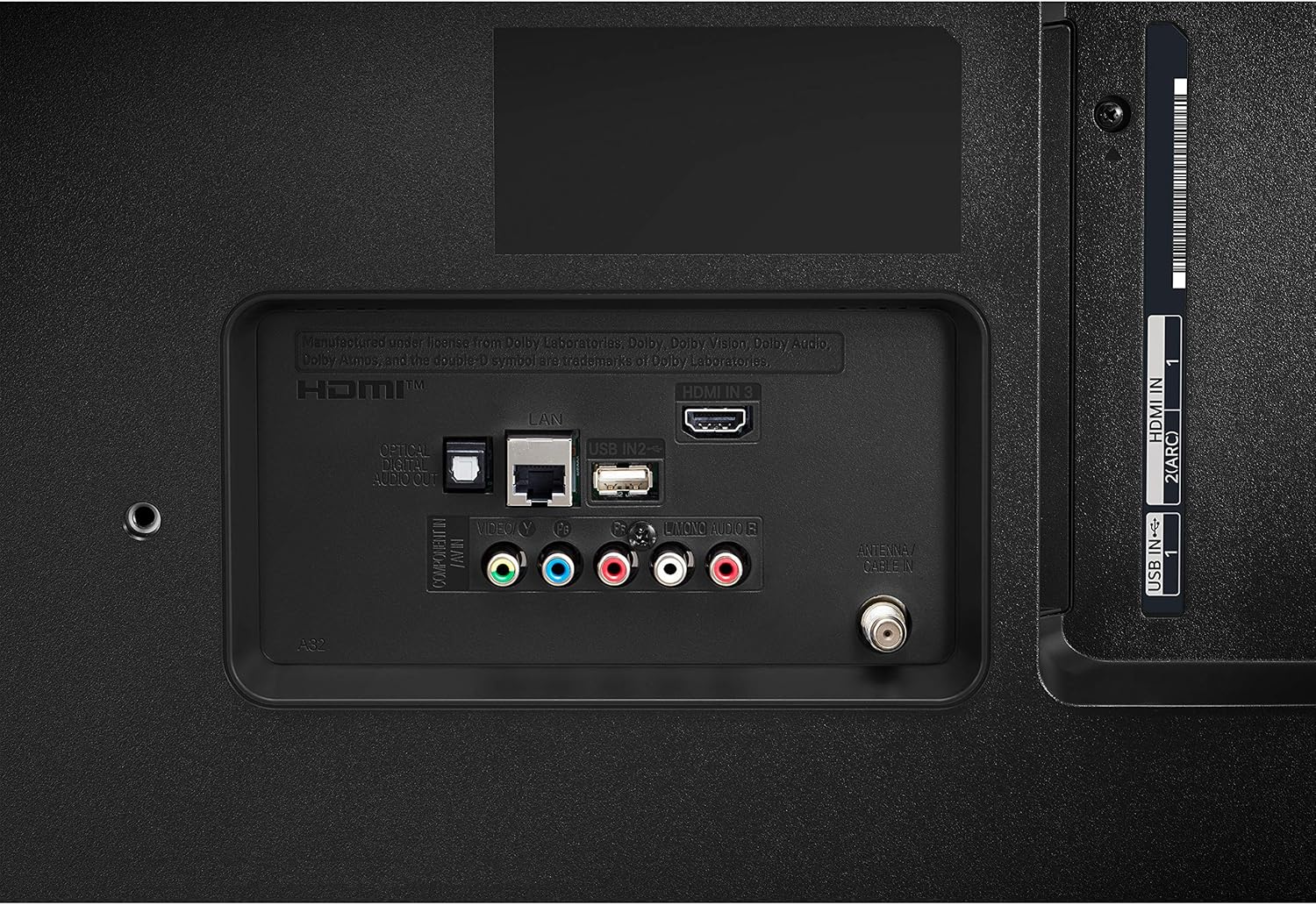
Image 4.2: Close-up view of the side-mounted HDMI and USB ports on the LG 50UN7000PUC TV for convenient access.

Image 4.3: Detailed view of the central connection panel on the LG 50UN7000PUC TV, showing LAN, additional USB, AV, optical audio, and antenna inputs.
4.4 Power Connection
Connect the power cable to the TV's power input and then plug it into a wall outlet. Ensure the connection is secure.
4.5 Initial Setup
Upon first power-on, the TV will guide you through the initial setup process, including language selection, network connection (Wi-Fi or Ethernet), and channel scanning.
5. Operating the TV
5.1 Remote Control Overview
The included remote control allows you to navigate the TV's features. Familiarize yourself with its buttons:

Image 5.1: Layout of the LG TV remote control, showing power, number, volume, channel, navigation, and app buttons.
- Power Button: Turns the TV on or off.
- Number Buttons: For direct channel input.
- Volume Up/Down: Adjusts the sound level.
- Channel Up/Down: Changes TV channels.
- Navigation Pad (Up/Down/Left/Right/OK): For menu navigation and selection.
- Home Button: Accesses the webOS Smart TV home screen.
- Back Button: Returns to the previous screen.
- App Buttons: Quick access to popular streaming services like Netflix and Prime Video.
5.2 webOS Smart Platform
Your LG TV features the webOS platform, providing easy access to streaming services and smart features.

Image 5.2: The LG webOS interface displaying a selection of streaming applications such as Netflix, Prime Video, Disney+, and Hulu.
- Press the Home button on the remote to open the Launcher Bar.
- Navigate through the apps and features using the arrow buttons.
- Customize the Launcher Bar by adding or rearranging apps.
5.3 Picture Settings
Optimize your viewing experience with various picture settings.

Image 5.3: A clear, high-resolution display on the LG 4K TV showing a vibrant football stadium, illustrating the clarity of 4K resolution.
- Real 4K Display: Enjoy content in 4K resolution for enhanced clarity and detail.
- Quad Core Processor 4K: This processor enhances color, contrast, clarity, and detail by performing noise reduction, dynamic color adjustments, and upscaling lower-resolution content to near 4K quality.

Image 5.4: Visual representation of the LG Quad-Core Processor 4K's capabilities, including Noise Reduction, Dynamic Color, and Upscaling, applied to a scenic image.
- Active HDR: Supports HDR10 and HLG formats, automatically adjusting picture settings scene-by-scene for improved contrast and color.
- Filmmaker Mode: Preserves the original aspect ratios, colors, and frame rates, allowing you to experience movies as the director intended.

Image 5.5: The LG TV screen showing a movie scene with the 'FILMMAKER MODE' logo, indicating an optimized viewing experience.
5.4 Sound Settings
Access the sound menu to adjust audio output, select sound modes, or connect external audio devices.
5.5 Connectivity Features
- Apple AirPlay 2: Cast content from your Apple devices directly to your TV.
- Apple HomeKit: Integrate your TV into your Apple smart home ecosystem for control and automation.
5.6 Special Features
- Sports Alert: Receive notifications about your favorite sports teams and game schedules.

Image 5.6: The LG TV screen showing a 'Sports Alert' notification with team scores and options to watch or disable alerts.
6. Maintenance
6.1 Cleaning the TV
To clean the screen, gently wipe it with a soft, dry, lint-free cloth. For stubborn marks, slightly dampen the cloth with water. Do not use harsh chemicals or abrasive cleaners. For the TV frame, use a soft, dry cloth.
6.2 Software Updates
Ensure your TV's software is up to date for optimal performance and security. You can check for updates through the TV's settings menu (Settings > All Settings > General > About This TV > Check for Updates).
7. Troubleshooting
Refer to the following table for common issues and their solutions:
| Problem | Possible Cause | Solution |
|---|---|---|
| No power | Power cable disconnected; outlet issue | Check power cable connection; test outlet with another device. |
| No picture, but sound is present | Incorrect input source; external device issue | Verify correct input source; check external device connections. |
| No sound, but picture is present | Volume muted or too low; audio output settings | Unmute volume or increase level; check audio output settings in TV menu. |
| Remote control not working | Dead batteries; obstruction; remote not paired | Replace batteries; remove obstructions; re-pair remote if necessary. |
| Cannot connect to Wi-Fi | Incorrect password; router issue; TV too far from router | Re-enter password; restart router; move TV closer or use wired connection. |
If the problem persists after trying these solutions, please contact LG customer support.
8. Specifications
Key technical specifications for the LG 50UN7000PUC 50-inch 4K Smart TV:
| Feature | Detail |
|---|---|
| Model Name | UN7000PUC |
| Screen Size | 50 Inches |
| Display Technology | LED |
| Resolution | 4K (3840 x 2160) |
| Refresh Rate | 60 Hz |
| Processor | Quad Core Processor 4K |
| HDR Support | Active HDR (HDR10, HLG) |
| Smart TV Platform | webOS |
| Supported Internet Services | Google TV, Hulu, Netflix, Prime Video, Vudu |
| Connectivity Technology | Ethernet, HDMI, USB, Wireless |
| HDMI Ports | Multiple (Specific count not provided, typically 3-4) |
| USB Ports | Multiple (Specific count not provided, typically 2) |
| Dimensions (without stand) | 3.4 x 44.5 x 26.1 inches |
| Item Weight | 33.3 pounds |
| Voltage | 110 Volts |
9. Warranty and Support
For warranty information, please refer to the warranty card included with your product or visit the official LG website. For technical support, troubleshooting assistance, or service requests, please contact LG customer service. Contact details can typically be found on the LG website or in the quick setup guide.
Online resources, including FAQs and software downloads, are available on the LG support portal.