
Joyroom JR-T03S
Contents
Joyroom JR-T03S Wireless Stereo Earbuds User Manual
Model: JR-T03S
1. Introduction
Thank you for choosing the Joyroom JR-T03S Wireless Stereo Earbuds. This manual provides detailed instructions on how to set up, operate, and maintain your new earbuds. Please read this manual carefully before use to ensure optimal performance and longevity of your device.
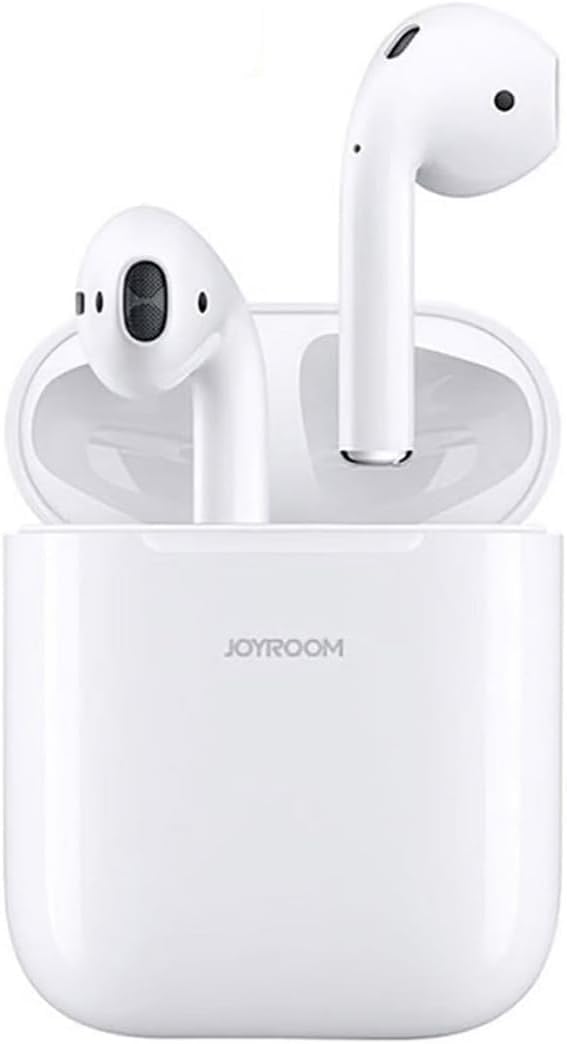
Image 1.1: Joyroom JR-T03S Wireless Stereo Earbuds in their charging case.
2. Package Contents
Please check the package for the following items:
- Joyroom JR-T03S Wireless Stereo Earbuds (Left and Right)
- Wireless Charging Case
- Charging Cable (Lightning)
- User Manual

Image 2.1: Overview of Joyroom JR-T03S features including binaural stereo, in-ear detection, wireless charging, and smart touch controls.
3. Setup
3.1 Initial Charging
Before first use, fully charge the earbuds and the charging case. Connect the charging case to a power source using the provided Lightning cable or place it on a compatible wireless charging pad.

Image 3.1: The charging case supports both wired (Lightning port) and wireless charging.
3.2 Pairing with Your Device
- Ensure the earbuds are in the charging case and the case is sufficiently charged.
- Open the lid of the charging case. The earbuds will automatically enter pairing mode.
- On your mobile device (smartphone, tablet, etc.), go to Bluetooth settings.
- Search for available devices and select "JR-T03S" from the list.
- Once connected, you will hear a confirmation tone, and the earbuds will be ready for use.
Note: For iOS devices, the earbuds support automatic pairing and battery level display upon opening the case.
4. Operating Instructions
4.1 Touch Controls
The JR-T03S earbuds feature intuitive touch controls on each earbud. Refer to the diagram below for specific functions:
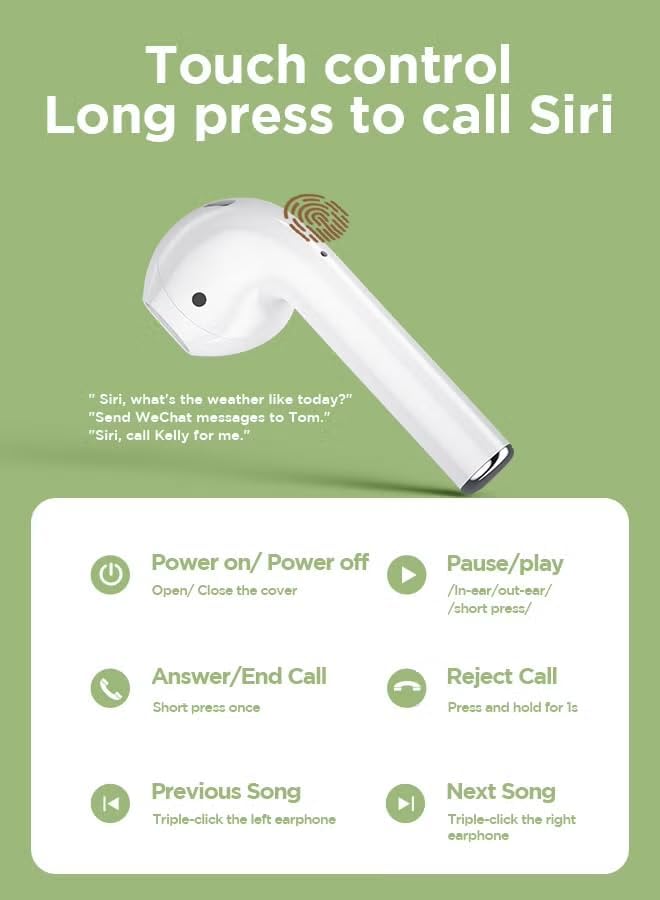
Image 4.1: Detailed guide for touch controls on the Joyroom JR-T03S earbuds.
- Power On/Off: Open the charging case to power on. Close the case to power off.
- Play/Pause: Short press either earbud. Audio also pauses when earbuds are taken out of ears and resumes when put back in (In-ear detection).
- Answer/End Call: Short press either earbud once.
- Reject Call: Press and hold either earbud for 1 second.
- Previous Song: Triple-click the left earbud.
- Next Song: Triple-click the right earbud.
- Voice Assistant (Siri/Google Assistant): Long press either earbud.
4.2 In-ear Detection
The earbuds are equipped with an internal IC touch sensor for in-ear detection. This feature automatically plays audio when the earbuds are placed in your ears and pauses when they are removed.

Image 4.2: In-ear detection automatically pauses audio when earbuds are removed and resumes when inserted.
4.3 Single and Dual Earbud Use
The JR-T03S earbuds support free switching between single and dual earbud modes. You can use both earbuds for a stereo experience or use a single earbud independently.

Image 4.3: The earbuds can be used individually or as a pair.
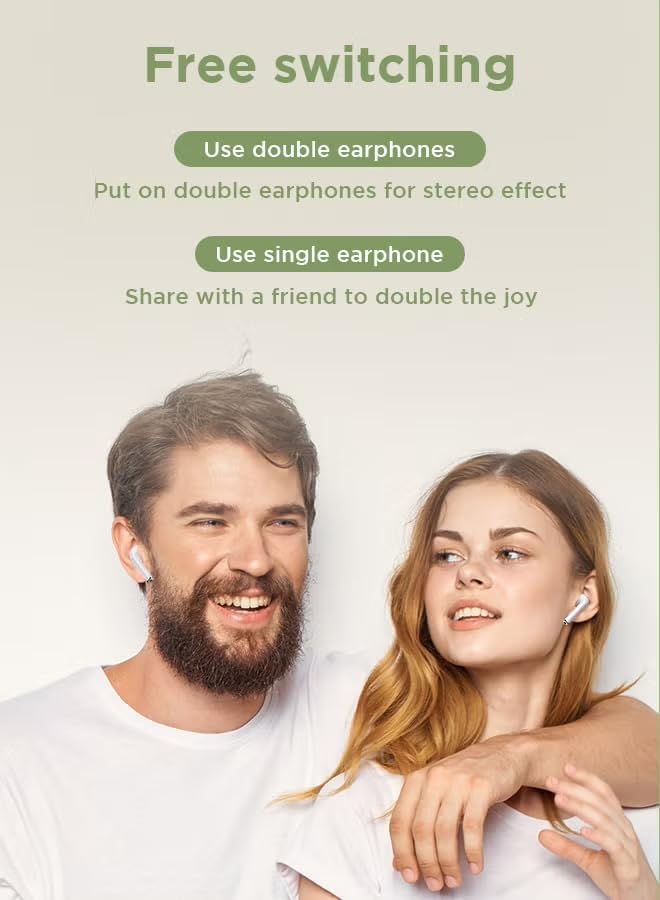
Image 4.4: Example of using earbuds in single mode to share audio.
5. Specifications
| Feature | Detail |
|---|---|
| Model Number | JR-T03S |
| Brand | Joyroom |
| Connectivity | Wireless (Bluetooth 5.0) |
| Ear Placement | In-Ear |
| Noise Control | Active Noise Cancellation (Smart Noise Isolation) |
| Impedance | 16 Ohms |
| Frequency Response | 20 kHz |
| Sensitivity | 103 dB |
| Charging Case Battery | 400 mAh (approx.) |
| Charging Interface | Lightning, Wireless Charging |
| Dimensions | 5 x 1.2 x 5 cm |
| Weight | 90 grams |
| Compatibility | All devices (including iPhone 11 and iOS systems) |
6. Troubleshooting
- Earbuds not pairing:
- Ensure both earbuds are in the charging case and the case has sufficient battery.
- Open the case lid and check if the indicator lights are active.
- Turn off Bluetooth on your device, then turn it back on and try pairing again.
- Forget the device from your phone's Bluetooth settings and re-pair.
- Only one earbud working:
- Place both earbuds back into the charging case, close the lid, wait a few seconds, then open it again.
- Ensure both earbuds are charged.
- Try resetting the earbuds (refer to manufacturer's specific reset instructions if available, or try holding the button on the case for 10-15 seconds).
- Earbuds not charging:
- Check the charging cable and power adapter.
- Ensure the charging contacts on the earbuds and inside the case are clean and free of debris.
- If using wireless charging, ensure the case is correctly positioned on the charging pad.
- Poor sound quality or disconnections:
- Ensure the earbuds are within the effective Bluetooth range of your device (typically 10 meters).
- Avoid obstacles between the earbuds and your device.
- Check for interference from other wireless devices.
- Clean the earbud speakers if sound is muffled.
7. Maintenance and Care
- Keep the earbuds and charging case clean and dry.
- Avoid extreme temperatures and direct sunlight.
- Do not drop, disassemble, or modify the device.
- Use a soft, dry cloth for cleaning. Do not use harsh chemicals or abrasive materials.
8. Warranty and Support
Joyroom products typically come with a manufacturer's warranty against defects in materials and workmanship. Please refer to the warranty information provided with your purchase or visit the official Joyroom website for detailed warranty terms and conditions.
For technical support or service inquiries, please contact Joyroom customer service or your local distributor.
Documents and downloads
Ask a question about this manual
Ask about setup, troubleshooting, compatibility, parts, safety, or missing instructions. Manuals+ will review the question and use this page’s manual context to help answer it.