
1. Introduction
The Dell Mobile Wireless Mouse MS3320W is designed for efficient and convenient use, offering dual-mode connectivity via 2.4GHz wireless or Bluetooth 5.0. Its optical sensor provides precise tracking, making it suitable for various surfaces and high-resolution screens. This manual will guide you through the setup, operation, and maintenance of your new wireless mouse.
2. What's Included
- Dell Mobile Wireless Mouse MS3320W
- USB Dongle
- 1 AAA Battery (pre-installed or included separately)
- Documentation (this manual)
3. Setup
3.1. Battery Installation
- Gently lift the top cover of the mouse to reveal the battery compartment.
- Insert the included AAA battery, ensuring correct polarity (+/-).
- Replace the top cover, ensuring it clicks securely into place.
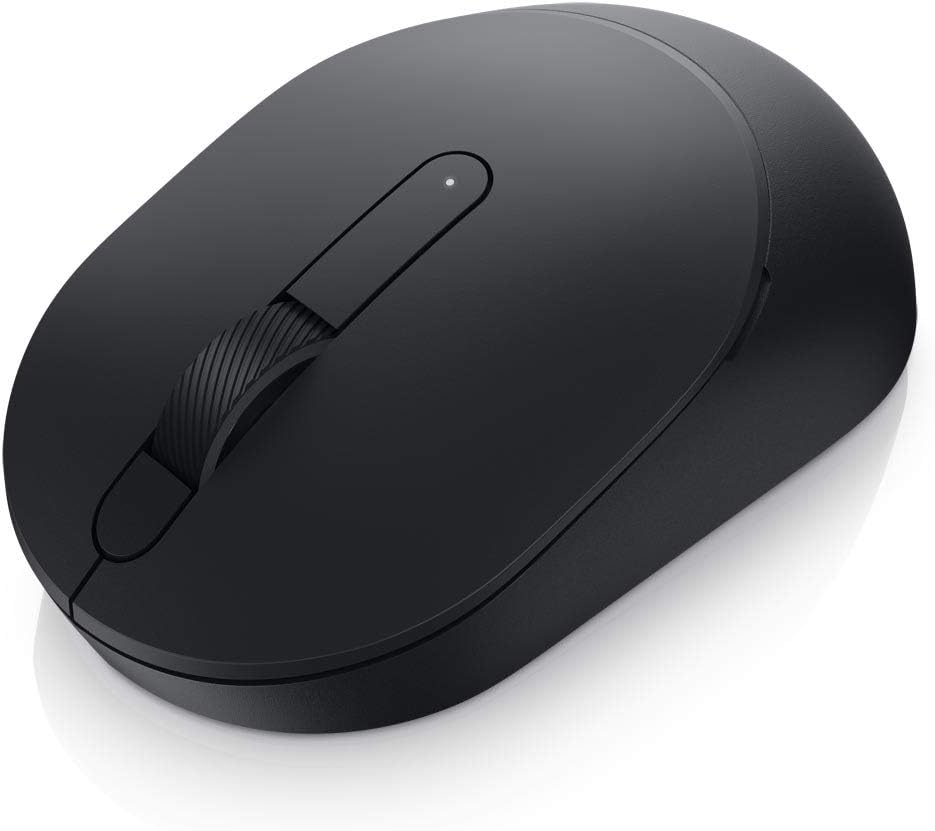
Figure 1: Angled view of the Dell Mobile Wireless Mouse MS3320W.
3.2. Connecting via USB Dongle (2.4GHz Wireless)
- Locate the USB dongle, typically stored inside the mouse's battery compartment.
- Plug the USB dongle into an available USB port on your computer.
- Turn on the mouse using the power switch located on the bottom.
- The mouse should automatically connect to your computer.

Figure 2: The Dell Mobile Wireless Mouse MS3320W shown with its USB dongle.
3.3. Connecting via Bluetooth 5.0
- Turn on the mouse using the power switch on the bottom.
- Press and hold the Bluetooth pairing button on the bottom of the mouse until the LED indicator starts blinking, indicating it's in pairing mode.
- On your computer, navigate to Bluetooth settings.
- Select the Dell Mobile Wireless Mouse MS3320W from the list of available devices and follow the on-screen prompts to complete pairing. For Windows 10 v1803 onward, Microsoft Swift Pair allows instant pairing.
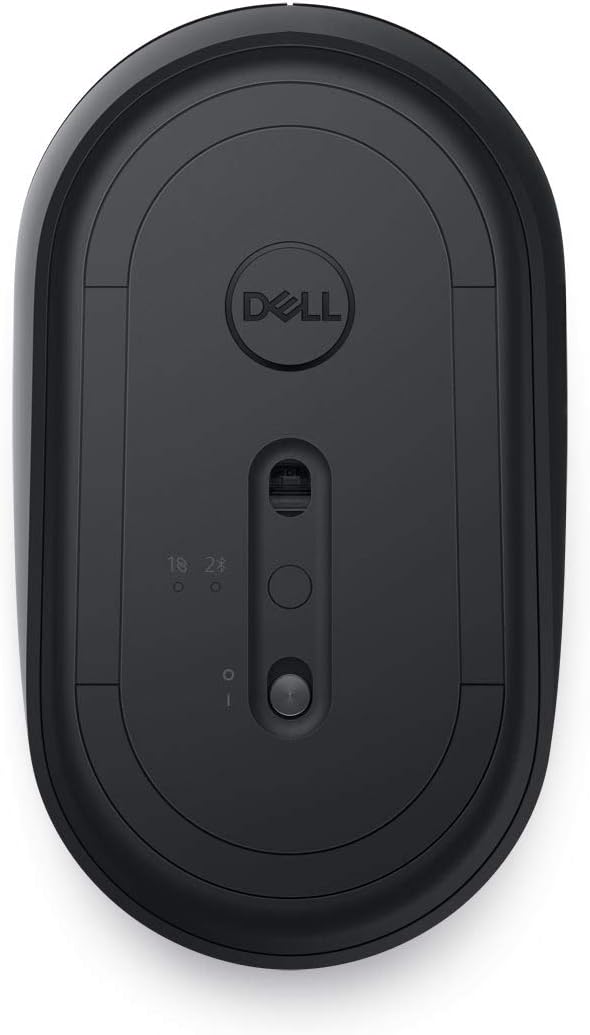
Figure 3: Bottom view of the Dell Mobile Wireless Mouse MS3320W, highlighting the power switch and pairing button.
4. Operation
4.1. Basic Mouse Functions
- Left Click: Primary selection and activation.
- Right Click: Accesses contextual menus.
- Scroll Wheel: Scrolls through documents and web pages. The mechanical scroll wheel provides tactile feedback.

Figure 4: Top view of the Dell Mobile Wireless Mouse MS3320W, showing the left, right, and scroll wheel buttons.
4.2. Power Management
To conserve battery life, turn off the mouse using the power switch on the bottom when not in use. The mouse features a 36-month battery life under typical usage conditions.
5. Features
- Dual-Mode Connectivity: Seamlessly switch between 2.4GHz wireless via USB dongle and Bluetooth 5.0 for versatile connection options to almost any PC.
- Microsoft Swift Pair: Enjoy instant pairing with Windows laptops via Bluetooth, eliminating the need for manual configuration in Windows settings.
- Extended Battery Life: Designed for longevity with up to 36 months of battery life, reducing the frequency of battery replacements.
- Precise Optical Tracking: A 1600 DPI sensor ensures accurate and responsive cursor movement, ideal for high-resolution displays and various desk surfaces.
- Broad Compatibility: Compatible with a wide range of operating systems including Windows, Mac, Chrome, Linux, and Android, offering maximum flexibility.
6. Maintenance
- Cleaning: Use a soft, dry cloth to clean the mouse. For stubborn dirt, slightly dampen the cloth with water. Avoid harsh chemicals or abrasive materials.
- Storage: When not in use for extended periods, turn off the mouse to preserve battery life. Store in a cool, dry place.
- Battery Replacement: Replace the AAA battery when the mouse performance degrades or the indicator light suggests low battery.
7. Troubleshooting
- Mouse not responding: Ensure the mouse is turned on and the battery is not depleted. Re-pair the mouse via Bluetooth or re-insert the USB dongle. Try a different USB port.
- Intermittent connection: Move the mouse closer to the computer. Ensure there are no large metallic objects or other wireless devices interfering with the signal.
- Cursor erratic or not tracking: Clean the optical sensor on the bottom of the mouse. Ensure you are using the mouse on a suitable surface; avoid highly reflective or transparent surfaces.
- Bluetooth pairing issues: Ensure your computer's Bluetooth is enabled and discoverable. Remove any previous pairings of the mouse from your computer's Bluetooth settings and attempt to pair again.
8. Specifications
| Attribute | Detail |
|---|---|
| Brand | Dell |
| Model Number | MS3320W |
| Connectivity Technology | 2.4 GHz Wireless, Bluetooth 5.0 |
| Movement Detection Technology | Optical LED |
| DPI (Dots Per Inch) | 1600 DPI |
| Buttons | 3-Buttons (Left, Right, Scroll Wheel) |
| Scroll Type | Mechanical Scroll |
| Color | Black |
| Item Weight | 2.24 ounces |
| Product Dimensions (LxWxH) | 4.1 x 2.4 x 1.5 inches |
| Power Source | Battery Powered |
| Battery Type | 1 AAA battery (included) |
| Average Battery Life | 36 months |
| Operating System Compatibility | Windows, Mac, Chrome, Linux, Android |
9. Warranty and Support
The Dell Mobile Wireless Mouse MS3320W comes with a Dell three-year Advanced Exchange Service. This service ensures that if the mouse becomes faulty during the warranty period, a replacement mouse will be shipped the next business day, providing peace of mind.
For further support, please visit the official Dell support website or contact Dell customer service.


