
Oversteel Phosphorus
Oversteel Phosphorus 7.1 Gaming Headset User Manual
Introduction
Thank you for choosing the Oversteel Phosphorus 7.1 Gaming Headset. This manual provides essential information for setting up, operating, maintaining, and troubleshooting your new headset. The Phosphorus headset is designed to deliver immersive 7.1 virtual surround sound, featuring an omnidirectional microphone with noise cancellation and dynamic RGB lighting, all connected via a wired USB interface for broad compatibility across multiple gaming platforms.
Setup
Follow these steps to connect and prepare your Oversteel Phosphorus headset for use:
- Connect the Headset: The Oversteel Phosphorus headset connects via a USB cable. Plug the USB connector into an available USB port on your PC, PS5, PS4, Xbox (requires adapter for some models), or Switch (in docked mode).
- Driver Installation (PC): For PC users, the necessary drivers should install automatically upon connection. If prompted, follow the on-screen instructions.
- Audio Settings Configuration:
- PC: Navigate to your operating system's sound settings and ensure the Oversteel Phosphorus headset is selected as the default playback and recording device.
- Consoles (PS5, PS4, Xbox, Switch): After connecting, access the console's audio settings to confirm the headset is recognized and set as the primary audio output and input device.
- Software (Optional): The headset supports dedicated software for advanced customization of speaker and microphone settings. Refer to the manufacturer's website for software availability and download instructions. Note: Some users have reported difficulty accessing the software due to manufacturer website changes. RGB lighting is typically automatic and not manually configurable via software.

Image: Oversteel Phosphorus headset connected via USB, with the microphone extended.
Operating Instructions
The Oversteel Phosphorus headset features convenient on-cable controls for easy management of audio and microphone functions.
On-Cable Controls
- Volume Control: Use the integrated scroll wheel or buttons on the cable control unit to adjust the audio volume.
- Microphone Mute: A dedicated button allows you to quickly enable or disable the microphone. An indicator light may show the microphone status.
- 7.1 Virtual Surround Sound: Activate or deactivate the 7.1 virtual surround sound feature with a dedicated button for an immersive audio experience.
- RGB Lighting: A button on the control unit allows you to activate or deactivate the headset's RGB lighting. The lighting typically cycles through colors automatically.
Microphone Usage
The omnidirectional microphone with noise cancellation ensures clear communication. The microphone features a foldable tube for easy positioning and storage.
- Positioning: Adjust the flexible microphone tube to position the microphone optimally near your mouth for clear voice capture.
- Noise Cancellation: The integrated noise cancellation technology helps reduce ambient background noise, focusing on your voice.
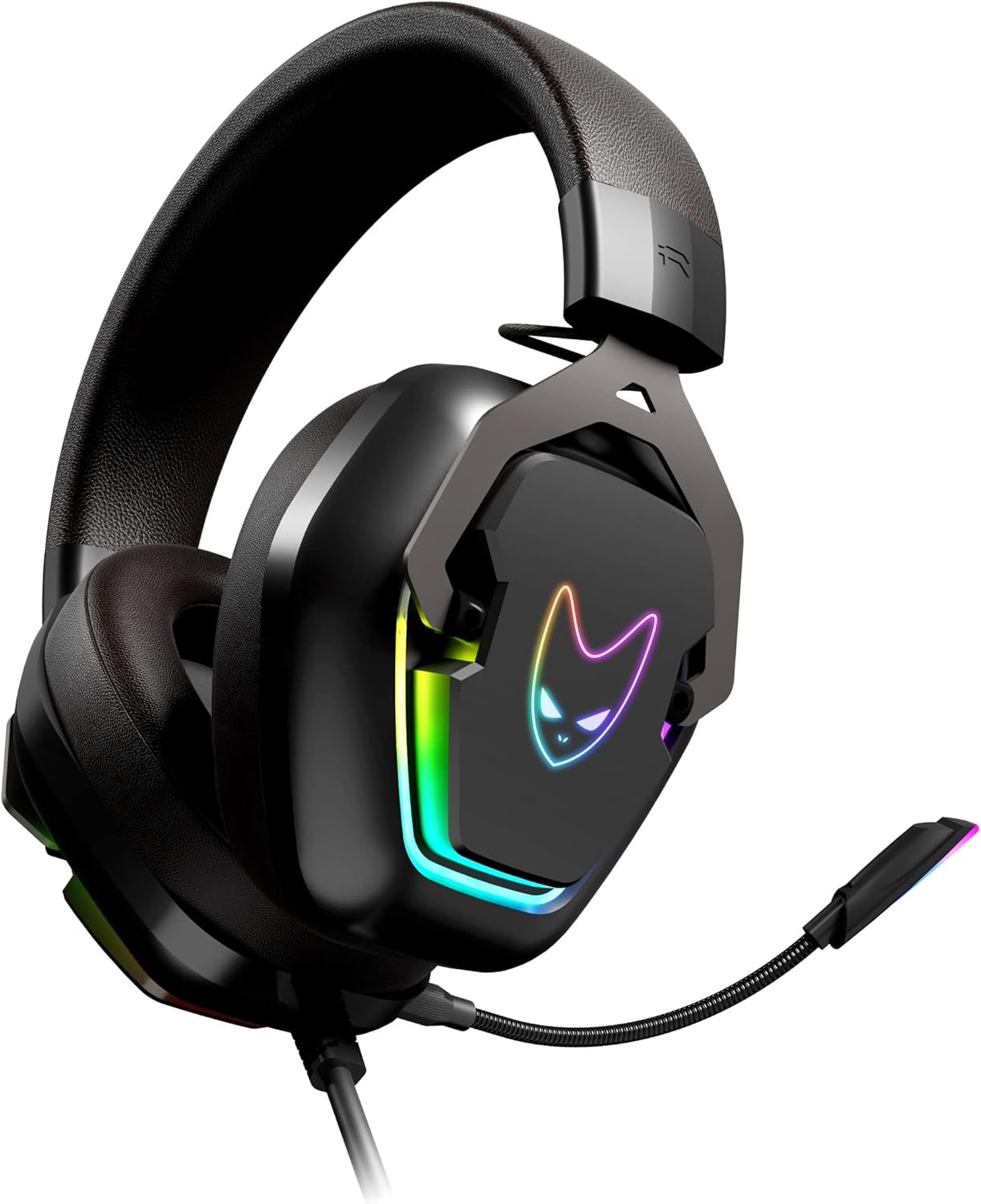
Image: Oversteel Phosphorus headset with the omnidirectional microphone extended and ready for communication.
Maintenance
Proper care will extend the lifespan and maintain the performance of your Oversteel Phosphorus headset.
- Cleaning: Use a soft, dry cloth to wipe down the headset's surfaces. For ear cushions, a slightly damp cloth can be used, but ensure they are completely dry before use. Avoid harsh chemicals or abrasive materials.
- Storage: Store the headset in a cool, dry place away from direct sunlight and extreme temperatures. Avoid placing heavy objects on the headset.
- Cable Care: Do not pull on the cable excessively or bend it sharply. Store the cable neatly to prevent tangling and damage.
- Durability: The headset features a resistant aluminum frame, contributing to its durability. However, avoid dropping or subjecting the headset to strong impacts.
Troubleshooting
If you encounter issues with your Oversteel Phosphorus headset, refer to the following common solutions:
- No Sound or Low Volume:
- Ensure the USB cable is securely plugged into the device.
- Check the on-cable volume control and increase the volume.
- Verify that the headset is selected as the default audio output device in your device's sound settings.
- Test the headset on another device to rule out a device-specific issue.
- Microphone Not Working:
- Ensure the microphone mute button on the cable control is disengaged (microphone is not muted).
- Check that the headset is selected as the default recording device in your device's sound settings.
- Confirm that the application you are using (e.g., game, communication software) is configured to use the headset microphone.
- Test the microphone on another device or application.
- RGB Lighting Not Working:
- Ensure the headset is properly connected via USB.
- Press the RGB lighting button on the cable control unit to activate it.
- Note that the RGB lighting typically cycles automatically and may not offer manual color selection.
- Software Issues: If you experience problems with the dedicated software, ensure you have downloaded the correct version from the official Oversteel website. If the website or software is unavailable, the headset will still function with its basic features and on-cable controls.
- Connectivity Clarification: Please note that despite some descriptions, the Oversteel Phosphorus headset primarily uses a USB connection for audio and microphone functions. While a 3.5mm jack might be mentioned in some contexts, the main interface is USB, and direct 3.5mm connectivity for all features may not be supported without an adapter.
Specifications
| Model Name | Phosphorus |
| Model Number | NAT-OV-PHOSPHORUS |
| Brand | Oversteel |
| Connectivity Technology | Wired (USB) |
| Audio Channels | 7.1 Virtual Surround Sound |
| Speaker Size | 40mm |
| Microphone Type | Omnidirectional with Noise Cancellation |
| Lighting | RGB (Automatic cycling) |
| Control Method | Remote Control (on-cable) |
| Compatible Devices | PC, PS5, PS4, Xbox (with adapter), Switch (docked) |
| Material | Aluminum frame |
| Weight | 530 g |
| Dimensions | 22.7 x 19.9 x 11.4 cm (Package) |
| Cable Length | 2.1 meters (Nylon braided) |
Warranty and Support
For warranty information, please refer to the terms and conditions provided by your retailer at the time of purchase or visit the official Oversteel website. Keep your proof of purchase for any warranty claims.
For technical support, driver downloads, or further assistance, please visit the official Oversteel support website. While dedicated software is mentioned, its availability may vary, and the headset's core functions are accessible via its hardware controls.
Related documentsPhosphorus

Ask a question about this manual
Ask about setup, troubleshooting, compatibility, parts, safety, or missing instructions. Manuals+ will review the question and use this page’s manual context to help answer it.