
1. Introduction
Thank you for choosing the Oversteel ZAMAK RGB Gaming Headset. This headset is designed to provide a high-quality audio experience for gaming across multiple platforms. It features stereo sound, an ergonomic design for comfort, RGB LED backlighting, and a retractable microphone.
This manual provides essential information for setting up, operating, and maintaining your headset. Please read it carefully before use.
2. Package Contents
Ensure all items are present in the package:
- Oversteel ZAMAK RGB Gaming Headset
- Jack adapter for multi-platform use
3. Product Overview
Familiarize yourself with the components of your Oversteel ZAMAK headset.
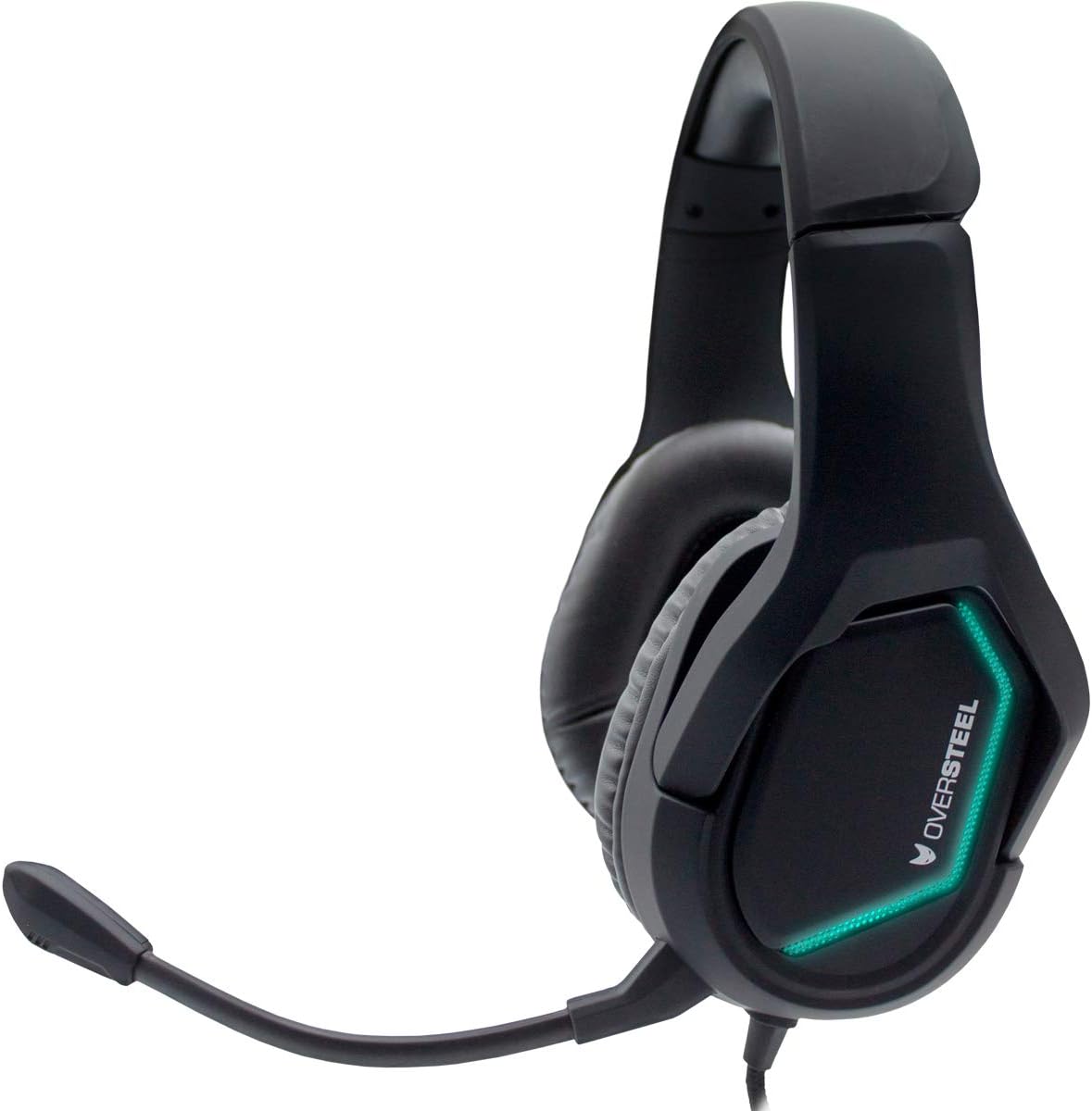
Image 1: Front view of the Oversteel ZAMAK headset, showcasing the green RGB LED lighting on the earcups and the flexible microphone arm.

Image 2: Side view of the Oversteel ZAMAK headset, highlighting the blue RGB LED lighting on the earcups and the comfortable over-ear design.

Image 3: Close-up view of the headset's earcups, showing the soft faux leather material for enhanced comfort during extended use.

Image 4: Another side view of the Oversteel ZAMAK headset, displaying the purple RGB LED lighting effect.

Image 5: Top view of the Oversteel ZAMAK headset, illustrating the adjustable headband and overall robust construction.
Key Components:
- Adjustable Headband: For a comfortable fit on various head sizes.
- Over-ear Earcups: Padded with faux leather for comfort and acoustic isolation.
- Retractable Microphone: Flexible and can be adjusted or retracted when not in use.
- Inline Remote Control: For volume adjustment and microphone mute (if applicable).
- Wired Connection: Durable cable for reliable audio transmission.
4. Setup Instructions
The Oversteel ZAMAK headset is compatible with multiple platforms. Follow these steps to connect your headset:
4.1 Connecting to PC/Laptop
- If your PC has separate audio (green) and microphone (pink) jacks, use the included jack adapter to split the single 3.5mm connector.
- Plug the headset's 3.5mm jack into the adapter, then plug the adapter's green connector into your PC's audio output and the pink connector into the microphone input.
- If your PC has a single combined 3.5mm audio jack, plug the headset's 3.5mm jack directly into it.
- Adjust sound settings in your operating system to ensure the headset is selected as the default audio input and output device.
4.2 Connecting to PlayStation 4 / Xbox One / Nintendo Switch / Smartphone
- Plug the headset's 3.5mm jack directly into the controller (PS4/Xbox One), console (Nintendo Switch), or smartphone's 3.5mm audio jack.
- For Xbox One, an Xbox One Stereo Headset Adapter (sold separately) may be required for older controllers without a 3.5mm jack.
- Adjust audio settings within the console or device menu to ensure the headset is recognized and functioning correctly.
5. Operating Instructions
5.1 Volume Control
The headset features an inline remote control on the cable. Use the volume wheel or slider on this control to adjust the audio output level to your preference.
5.2 Microphone Usage
- Positioning: Adjust the flexible microphone arm so the microphone is positioned near your mouth for optimal voice pickup.
- Mute Function: Use the microphone mute switch on the inline remote control to quickly turn the microphone on or off.
- Retracting: When not in use, the microphone can be retracted or moved out of the way for convenience.
5.3 RGB LED Backlighting
The Oversteel ZAMAK headset features integrated RGB LED backlighting on the earcups. This lighting is typically powered via the USB connection (if available) or the 3.5mm jack, and cycles through various colors automatically. There is no specific control for changing the RGB lighting patterns or colors directly on the headset.
6. Maintenance
Proper care will extend the life of your headset.
- Cleaning: Use a soft, dry cloth to wipe down the earcups and headband. For stubborn dirt, a slightly damp cloth can be used, but ensure no moisture enters the speaker grilles or microphone. Avoid harsh chemicals or abrasive cleaners.
- Storage: Store the headset in a cool, dry place away from direct sunlight and extreme temperatures. Avoid placing heavy objects on the headset.
- Cable Care: Do not pull on the cable forcefully. Always grasp the plug when disconnecting. Avoid sharp bends or kinks in the cable.
7. Troubleshooting
If you encounter issues with your Oversteel ZAMAK headset, refer to the following common problems and solutions:
| Problem | Possible Solution |
|---|---|
| No sound from headset |
|
| Microphone not working |
|
| RGB lighting not working |
|
8. Specifications
| Brand | Oversteel |
| Model Name | Oversteel ZAMAK |
| Item Model Number | NAT-OV-ZAMAK |
| Connectivity Technology | Wired |
| Headphone Jack | 3.5 mm Jack |
| Compatible Devices | PlayStation 4, PC, Xbox One, Nintendo Switch, Smartphone |
| Ear Placement | Over-ear |
| Form Factor | Over-ear |
| Soundproofing | Acoustic Isolation |
| Material | Faux Leather |
| Color | Black |
| Item Weight | 680 Grams |
| Water Resistance Level | Water-resistant |
| Cable Function | Retractable |
| Control Type | Volume Control (Inline Remote) |
| Special Features | Gaming, RGB LED Backlighting |
| Country of Origin | China |
9. Warranty and Support
For detailed warranty information, please refer to the documentation included with your product packaging or visit the official Oversteel website. Keep your proof of purchase for warranty claims.
If you require technical support or have questions not covered in this manual, please contact Oversteel customer service through their official channels.
