
1. Introduction
This manual provides detailed instructions for the installation, operation, and maintenance of your GIGABYTE Z790 AORUS Elite X WIFI7 ATX Motherboard. Designed for Intel LGA 1700 processors, this motherboard features DDR5 memory support, PCIe 5.0, Wi-Fi 7, and 2.5GbE LAN for high-performance computing.
2. Safety Information
Always observe the following safety precautions during installation and operation:
- Disconnect the power cord from the wall outlet before touching any components.
- Wear an anti-static wrist strap to prevent electrostatic discharge (ESD) damage to components.
- Handle components by their edges; avoid touching pins or circuitry.
- Ensure proper ventilation within your PC case to prevent overheating.
- Keep the motherboard away from moisture and extreme temperatures.
3. Package Contents
Verify that all items are present in your motherboard package:
- GIGABYTE Z790 AORUS Elite X WIFI7 Motherboard
- SATA Cables
- Wi-Fi Antenna
- M.2 Screws/Standoffs
- User Manual and Quick Installation Guide
- Driver CD/USB (or download instructions)
4. Setup
4.1. Component Overview
Familiarize yourself with the layout and key components of your motherboard.

Image: GIGABYTE Z790 AORUS Elite X WIFI7 Motherboard and its retail packaging.

Image: Top-down view of the GIGABYTE Z790 AORUS Elite X WIFI7 Motherboard, showing the CPU socket, RAM slots, and heatsinks.
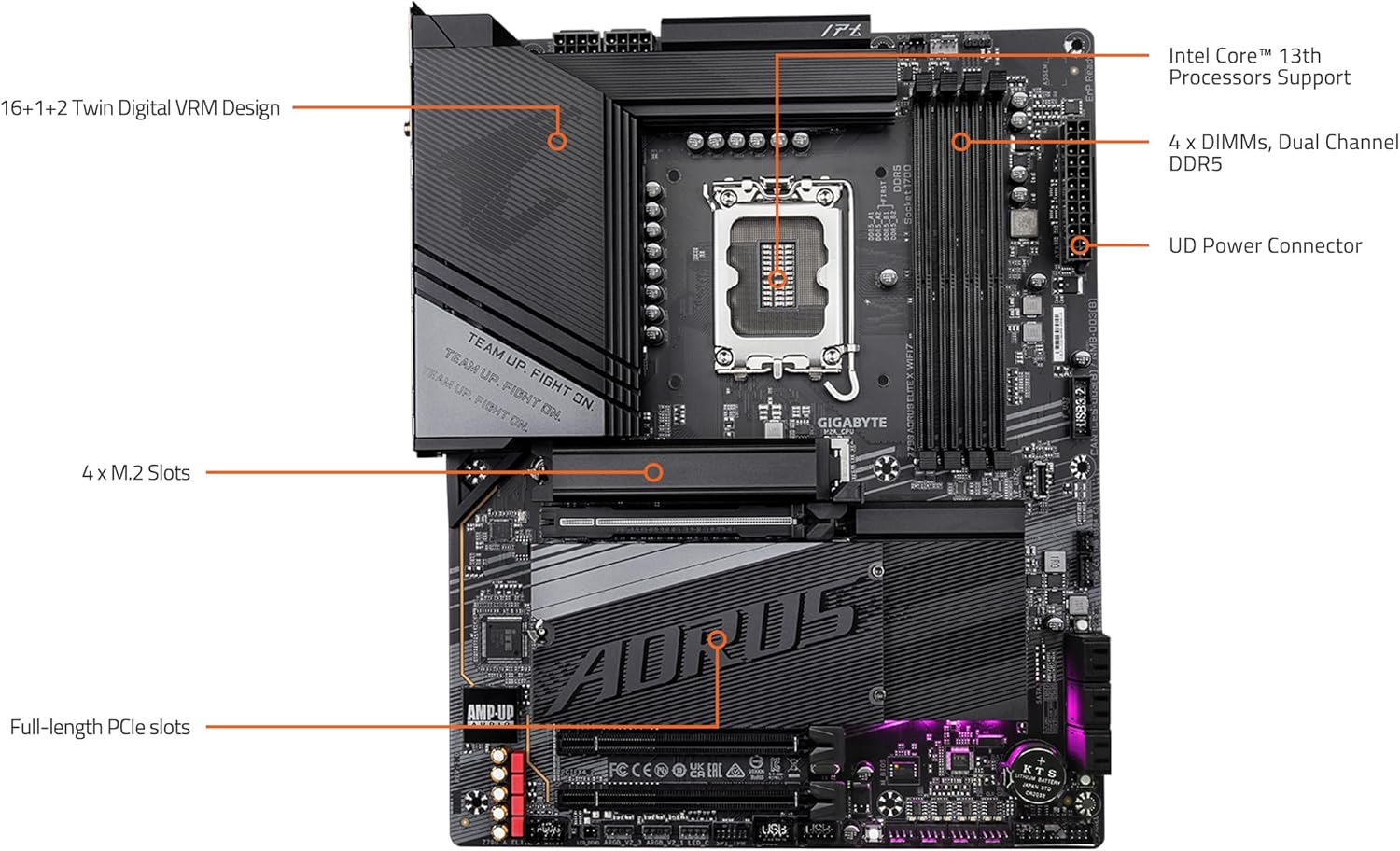
Image: Labeled diagram highlighting key components such as the Intel LGA 1700 socket, 4 DDR5 DIMM slots, 4 M.2 slots, PCIe slots, and VRM design.

Image: Close-up of the rear I/O panel, displaying USB ports, Wi-Fi antenna connectors, 2.5GbE LAN port, DisplayPort, HDMI, and audio jacks.
4.2. Installation Steps
- CPU Installation (LGA 1700):
- Open the CPU socket lever and remove the protective cover.
- Carefully align the CPU with the socket, ensuring the notches on the CPU match the keys on the socket.
- Gently place the CPU into the socket without forcing it.
- Close the socket lever to secure the CPU.
- Memory Installation (DDR5 DIMMs):
- Open the clips at both ends of the DIMM slots.
- Align the memory module with the slot, ensuring the notch on the module matches the key in the slot.
- Press down firmly on both ends of the memory module until the clips snap into place.
- For dual-channel operation, refer to your motherboard's specific manual for recommended slot configurations.
- M.2 SSD Installation:
- Locate an available M.2 slot and remove the M.2 Thermal Guard if present.
- Insert the M.2 SSD into the slot at an angle.
- For EZ-Latch Plus designs, simply push the SSD down and rotate the latch to secure it. No screws are required.
- Reattach the M.2 Thermal Guard for optimal cooling.
- PCIe Card Installation:
- Align your graphics card or other PCIe expansion card with the desired PCIe slot (e.g., PCIe 5.0 x16 slot).
- Press down firmly until the card is seated correctly and the retention clip locks into place.
- Secure the card to the chassis with a screw.
- Power Supply Connections:
- Connect the 24-pin ATX main power connector from your power supply to the motherboard.
- Connect the 8-pin (or 4+4-pin) CPU power connector(s) to the motherboard.
- Front Panel Connections:
- Connect the power button, reset button, HDD LED, and power LED cables from your chassis to the corresponding pins on the motherboard's front panel header. Refer to the motherboard diagram for correct pin assignments.
- Connect the USB 2.0, USB 3.2, and USB Type-C front panel cables.
- I/O Panel Connections:
- Connect your monitor to the graphics card or the motherboard's DisplayPort/HDMI if using integrated graphics.
- Connect USB devices, Ethernet cable, and audio devices to the rear I/O panel ports.
- Attach the Wi-Fi antenna to the designated connectors for wireless connectivity.
5. Operating Instructions
5.1. Initial Boot and BIOS Setup
After assembling your system, power it on. Press the designated key (usually DEL or F2) during startup to enter the BIOS/UEFI setup utility. Here you can configure system settings, boot order, and enable features like XMP for memory.
The motherboard supports Q-Flash Plus, allowing you to update the BIOS without installing the CPU, memory, or graphics card. Refer to the GIGABYTE website for detailed instructions on using Q-Flash Plus.
5.2. Driver Installation
After installing your operating system, install the necessary drivers for the motherboard's components. These include chipset drivers, LAN drivers, Wi-Fi drivers, audio drivers, and any other peripheral drivers. Drivers can be found on the GIGABYTE support website for your specific motherboard model.
5.3. Software Utilities
GIGABYTE provides several utilities to enhance your system's performance and customization:
- RGB FUSION 2.0: Customize the RGB lighting effects on your motherboard and connected RGB devices.
- Smart Fan 6: Monitor and control fan speeds to optimize cooling and noise levels.
- APP Center: A central hub for managing GIGABYTE utilities and drivers.
6. Maintenance
6.1. BIOS Update
Regularly check the GIGABYTE website for the latest BIOS updates. BIOS updates can improve system stability, compatibility, and performance. Use the Q-Flash or Q-Flash Plus utility for safe BIOS updates.
6.2. Cleaning
To ensure optimal performance and longevity, periodically clean your motherboard and PC case. Use compressed air to remove dust from heatsinks, fans, and other components. Ensure the system is powered off and unplugged before cleaning.
7. Troubleshooting
If you encounter issues, refer to the following common troubleshooting steps:
- No Power: Check all power connections (24-pin ATX, 8-pin CPU, GPU power). Ensure the power supply is switched on.
- No Display: Verify that the monitor is connected to the correct output (graphics card or motherboard). Reseat the graphics card and memory modules.
- System Instability/Crashes: This can be caused by incompatible memory, unstable overclocks, or outdated drivers. Try resetting BIOS settings to default, testing memory modules individually, and updating drivers.
- Boot Loop: Often related to BIOS settings or boot device issues. Try clearing CMOS or checking boot order in BIOS.
- Peripheral Not Detected: Ensure the device is properly connected and its drivers are installed. Test the device in a different port or system if possible.
For more advanced troubleshooting, consult the GIGABYTE support website or contact technical support.
8. Specifications
| Feature | Specification |
|---|---|
| CPU Socket | LGA 1700 |
| Compatible Processors | Intel 12th, 13th, and 14th Gen Processors |
| Chipset | Intel Z790 |
| RAM Technology | DDR5 (Dual Channel) |
| DIMM Slots | 4 |
| Max Memory Capacity | 128 GB |
| Memory Speed | Up to 3200 MHz (Native), XMP 3.0 support for higher speeds |
| PCIe Slots | PCIe 5.0 x16, additional PCIe slots |
| M.2 Slots | 4 x PCIe 4.0 x4 M.2 slots |
| LAN | 2.5GbE LAN |
| Wireless Connectivity | Wi-Fi 7 |
| USB Ports | USB 3.2 Type-C (20Gb/s), USB 3.2, USB 2.0 |
| Video Outputs | DisplayPort, HDMI |
| Form Factor | ATX |
| Dimensions (LxWxH) | 13.18 x 10.62 x 3.14 inches |
9. Warranty and Support
GIGABYTE motherboards typically come with a manufacturer's warranty. Please refer to the warranty card included with your product or visit the official GIGABYTE website for detailed warranty terms and conditions specific to your region.
For technical support, driver downloads, BIOS updates, and further assistance, please visit the official GIGABYTE support website:


