1. Introduction
Thank you for choosing the ORSKEY S900 Dash Cam. This device is designed to provide real-time video and audio recording while driving, enhancing road safety and providing reliable evidence when needed. Please read this guide thoroughly to ensure proper installation and operation of your device.
2. Package Contents
The ORSKEY S900 Dash Cam package includes the following items:
- 1 x ORSKEY Front Dash Cam
- 1 x Rear Camera (18 FT cable)
- 1 x Suction Mount
- 1 x 32GB SD Card
- 1 x Car Charger
- 1 x USB Data Cable
- 1 x User Manual
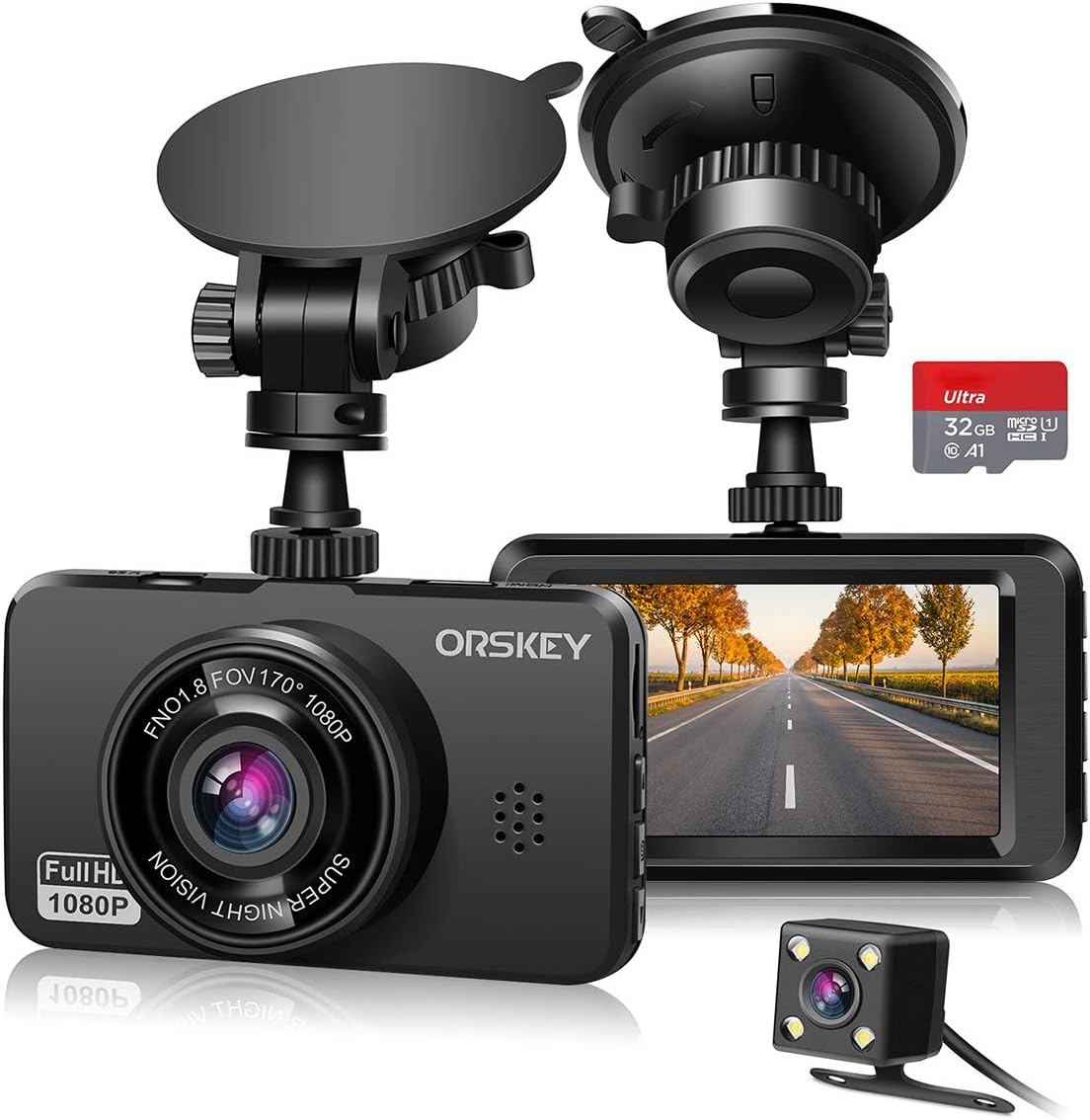
Figure 2.1: All components included in the ORSKEY S900 Dash Cam package.
3. Setup
3.1. Mounting the Dash Cam
The ORSKEY S900 Dash Cam uses a suction mount for easy installation on your vehicle's windshield. Choose a location that provides a clear view of the road ahead without obstructing your driving visibility. Ensure the windshield surface is clean and dry before attaching the suction cup for optimal adhesion.

Figure 3.1: Dash Cam mounted on the windshield using the suction cup.
3.2. Connecting Power
Connect the car charger to your vehicle's cigarette lighter socket and the mini USB end to the dash cam's USB port. The device will automatically power on and begin recording when the vehicle's engine is started. For 24-hour parking monitoring, a hardwire kit (not included) is required to provide continuous power from the car battery even when the engine is off.
3.3. SD Card Installation
The dash cam supports high-endurance micro-SD memory cards up to 128GB. A 32GB SD card is included in the package. Insert the micro-SD card into the designated slot on the side of the dash cam until it clicks into place. It is recommended to format the SD card within the dash cam's settings before first use and periodically to ensure optimal performance and prevent data corruption.
3.4. Camera Setup (Front, Rear, and Cabin)
The ORSKEY S900 features dual lenses for comprehensive coverage:
- Front Camera: Records in Super HD 1920x1080P / 30FPS with a 170° wide-angle lens, capturing details of the road ahead.
- Rear Camera: Records in 720P and provides a 140° wide-angle view of the rear. It can be mounted inside or outside the vehicle.
- In-Cabin Camera: Records in 720P and monitors the vehicle's interior.

Figure 3.2: The dual wide-angle lenses provide extensive coverage.

Figure 3.3: Dual lens recording captures both front and rear views simultaneously.
4. Operating the Dash Cam
4.1. Basic Recording
The dash cam automatically starts recording when powered on. It features Loop Recording, which means it continuously records and overwrites the oldest footage when the SD card is full, ensuring you always have the most recent recordings. The G-Sensor (Gravity Sensor) automatically detects sudden shakes or collisions and locks the current video footage to prevent it from being overwritten, serving as crucial evidence in case of an incident.

Figure 4.1: The G-sensor automatically locks footage during sudden impacts.
4.2. Super Night Vision
Equipped with a high-quality sensor and F1.8 Aperture 6 Elements Glass Lens, the ORSKEY S900 provides excellent clarity even in low-light conditions, ensuring clear recordings day and night.

Figure 4.2: Enhanced night vision capabilities for clear recordings in the dark.
4.3. Parking Monitor and Motion Detection
The dash cam supports Parking Monitoring and Motion Detection functions. When enabled (requires continuous power via a hardwire kit), the camera will automatically start recording if it detects motion or a collision while the vehicle is parked, providing security and surveillance.

Figure 4.3: The 24-hour parking monitor provides surveillance for your parked car.
4.4. Playback and Settings Adjustment
You can view recorded videos directly on the dash cam's 3-inch IPS HD screen. Navigate through the menu using the physical buttons to access playback mode, adjust recording resolution, exposure, G-sensor sensitivity, and other settings. The menu allows for customization of features like loop recording duration, audio recording, and date/time settings.
5. Maintenance
5.1. SD Card Formatting
To maintain optimal recording performance, it is recommended to format the micro-SD card regularly (e.g., once a month). This helps prevent data corruption and ensures smooth loop recording. Always format the card using the dash cam's internal settings.
5.2. Cleaning
Keep the dash cam lenses and screen clean to ensure clear video quality. Use a soft, lint-free cloth to wipe the lenses. Avoid using abrasive cleaners or solvents that could damage the device.
6. Troubleshooting
6.1. Dash Cam Not Turning On/Off
- Ensure the car charger is properly connected and the vehicle's cigarette lighter socket is receiving power.
- Check if the power adapter is functioning correctly.
- The built-in battery is primarily for emergency power-off and has limited capacity. It is not designed for continuous operation without external power.
6.2. SD Card Issues (Full/Error)
- Ensure you are using a Class 10 or higher speed micro-SD card.
- Format the SD card regularly within the dash cam's settings.
- If the issue persists, try a different high-endurance micro-SD card (up to 128GB).
6.3. Blurry Videos or Poor Quality
- Clean the camera lenses and windshield thoroughly.
- Ensure the protective film has been removed from the lenses.
- Adjust the camera's angle to minimize glare and reflections.
6.4. Parking Monitor/Motion Detection Not Working
- Verify that a hardwire kit (purchased separately) is installed and providing continuous power.
- Check the G-sensor sensitivity settings; setting it too low may prevent detection.
7. Specifications
| Feature | Specification |
|---|---|
| Product Dimensions | 1.38 x 3.54 x 2.05 inches |
| Item Weight | 2.54 ounces |
| Item Model Number | S900 |
| Display | 3" IPS HD Screen |
| Front Camera Angle | 170° Wide Angle |
| Front Video Resolution | 1920x1080P / 30FPS |
| Rear/Inside Video Resolution | 1280x720P |
| Lens Aperture | F1.8 |
| Memory Card Support | Up to 128GB (Class 10, U3) |
| Special Features | Loop Recording, G-Sensor, Parking Monitor, Motion Detection, HDR |
| Connectivity Technology | USB |
| Power Supply | DC-5V/2A |
| Battery | Built-in Li-ion Battery 200mAh |
8. Warranty & Support
ORSKEY provides a 12-month warranty for the S900 Dash Cam. We are committed to 100% customer satisfaction and offer professional customer service.
If you have any questions, concerns, or require assistance with your dash cam, please do not hesitate to contact our friendly customer service team:
Email: service@orskey.com
We aim to respond to all inquiries within 24 hours.


