
1. Introduction
Thank you for purchasing the Ewin Mini 2.4GHz Wireless Keyboard with Touchpad and Backlight, Model ES-KB01. This compact and versatile device combines keyboard and mouse functionalities, offering convenience for various applications. This manual provides essential information for proper setup, operation, maintenance, and troubleshooting to ensure optimal performance.
2. Product Overview
2.1 Key Features
- Integrated Touchpad: Features a 90-degree rotatable touchpad with dedicated left and right click keys, providing mouse functionality.
- Japanese Layout (72 Keys): Designed with a Japanese key layout for intuitive input in Japanese environments, including various shortcut keys for media control.
- LED Backlight & Flashlight: Equipped with a backlight for use in dim environments and a built-in LED flashlight for added utility.
- Ultra-Compact & Lightweight: Weighs approximately 90g, making it highly portable and easy to carry.
- 2.4GHz Wireless Connection: Provides a stable wireless connection via a USB receiver, eliminating cable clutter.
- Broad Compatibility: Supports various devices including PCs (Windows & Mac OS), Smart TVs, Android TV Boxes, PS3, Xbox360, and projectors.
2.2 Package Contents
- Ewin Mini Wireless Keyboard (ES-KB01) x 1
- USB Receiver x 1 (stored inside the keyboard body)
- Type-C Charging Cable x 1
- Simple Japanese User Manual x 1
2.3 Product Diagram
An overview of the keyboard's components and layout.

Figure 1: Ewin Mini Wireless Keyboard Layout and Features
3. Setup
3.1 Charging the Keyboard
Before initial use, fully charge the keyboard using the provided Type-C charging cable. Connect the cable to the keyboard's charging port and a compatible USB power source (e.g., computer USB port, USB wall adapter).
- The charging indicator light will illuminate during charging.
- The indicator will change or turn off once charging is complete.
Important: Use a charger with a voltage of 5V and current of 1A or 2A. Using chargers with higher voltage or current may damage the battery. Disconnect the charging cable promptly once charging is complete to prolong battery life.
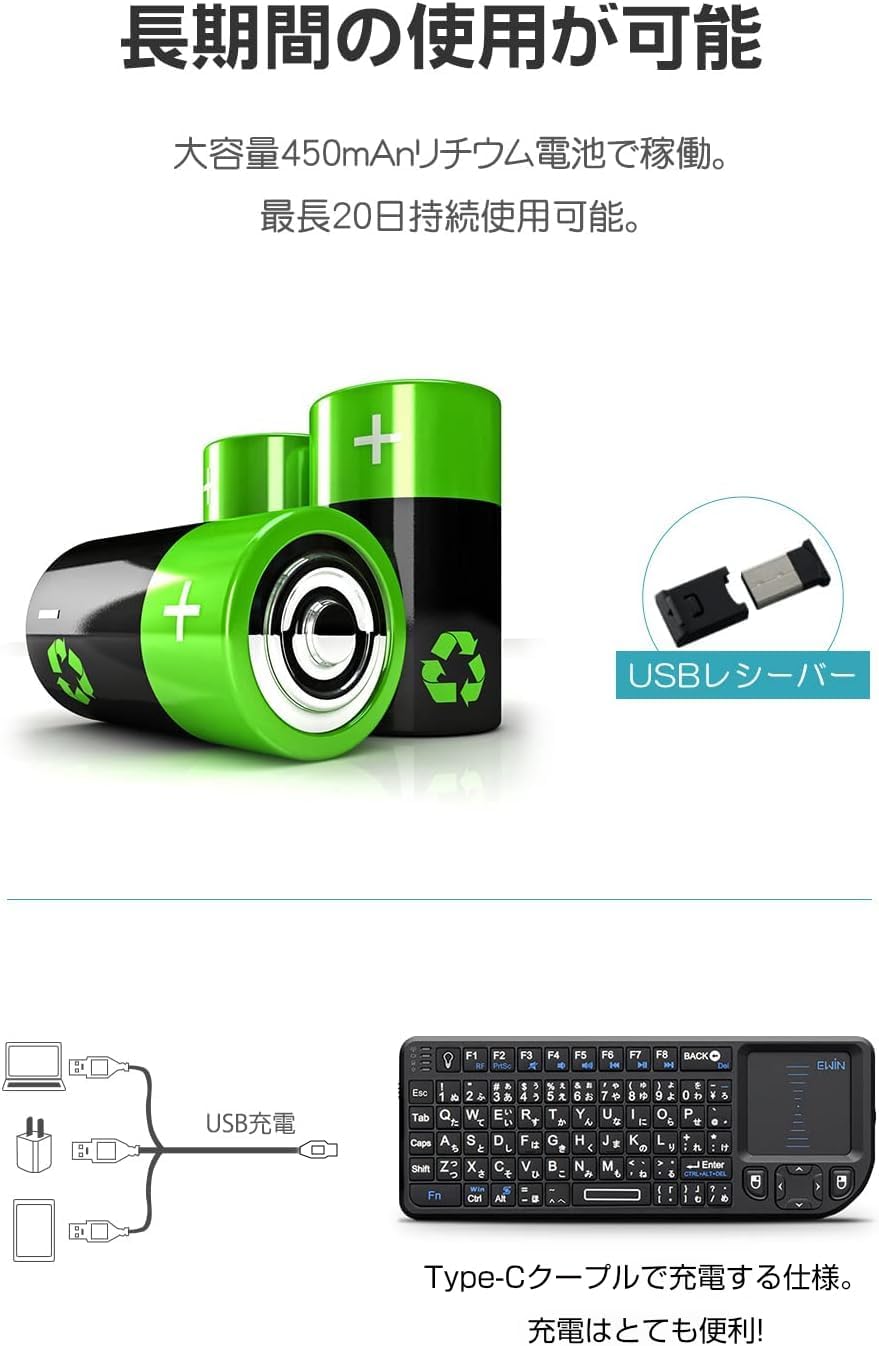
Figure 2: Charging the Keyboard
3.2 Connecting the USB Receiver
The keyboard connects wirelessly via a 2.4GHz USB receiver. No drivers are typically required for most operating systems.
- Locate the USB receiver. It is typically stored in a compartment on the side or back of the keyboard for safekeeping.
- Insert the USB receiver into an available USB-A port on your computer, Smart TV, or other compatible device.
- Turn on the power switch of the mini keyboard. The device should automatically recognize the keyboard.

Figure 3: USB Receiver Storage Location
The wireless connection range is up to 10 meters in an unobstructed environment.
4. Operating Instructions
4.1 Basic Keyboard Functions
The keyboard features a standard QWERTY layout with 72 keys, including function keys (F1-F8) and special characters for Japanese input. Many keys have secondary functions accessible via the 'Fn' key.
4.2 Touchpad Functions
The integrated touchpad allows for mouse-like navigation. It supports single-finger input for cursor movement. The touchpad can be rotated 90 degrees for comfortable use in different orientations.
- Cursor Movement: Drag one finger across the touchpad.
- Left Click: Press the dedicated left-click button or tap the touchpad once.
- Right Click: Press the dedicated right-click button.
Note: This touchpad primarily recognizes single-finger gestures. Multi-finger gestures (e.g., two, three, or four-finger gestures) are not supported.
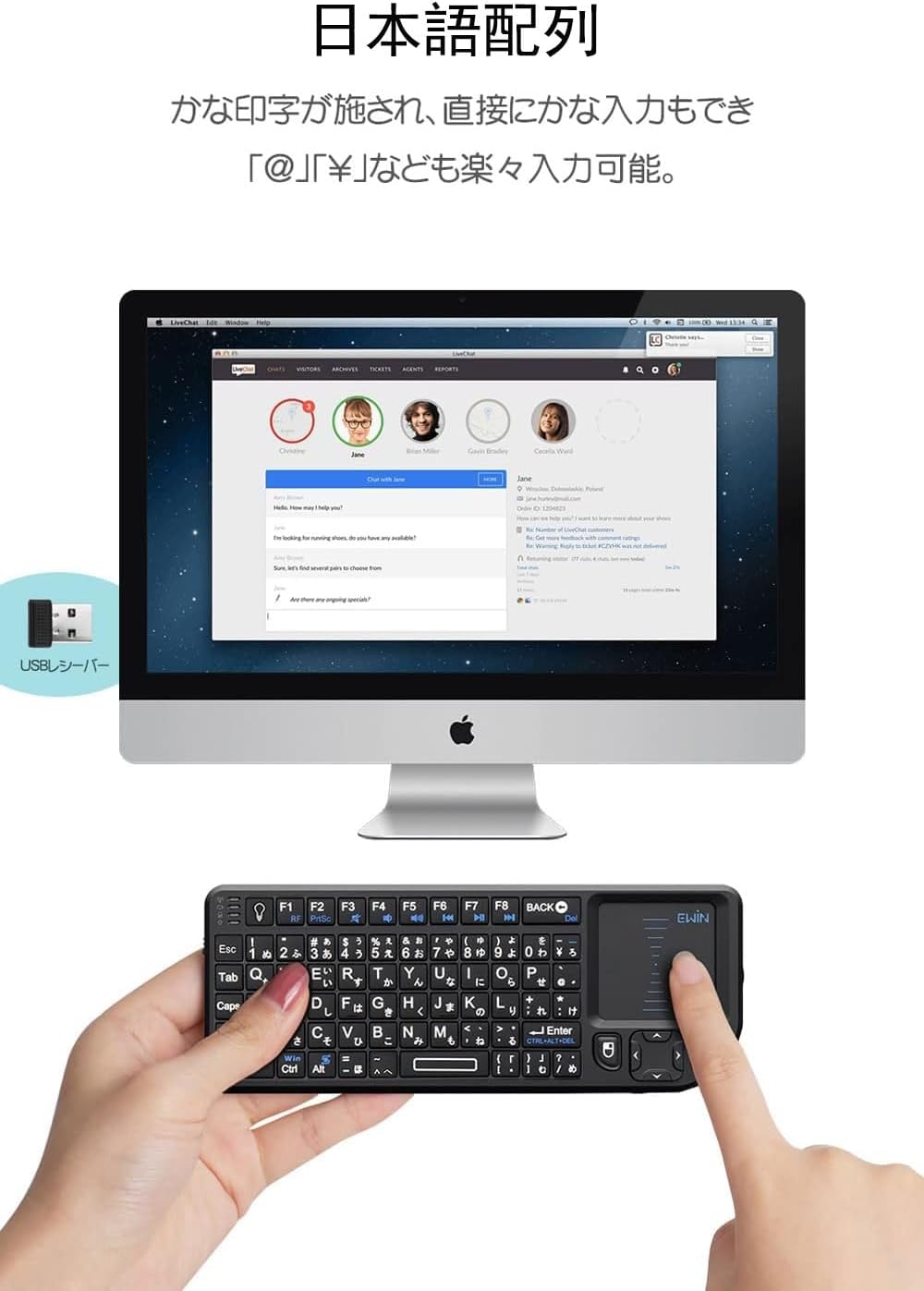
Figure 4: Using the Touchpad
4.3 Backlight and LED Flashlight
The keyboard includes a backlight for improved visibility in low-light conditions and a small LED flashlight.
- Refer to the keyboard's specific key combinations (usually involving the 'Fn' key) to activate or deactivate the backlight and flashlight.

Figure 5: Keyboard Backlight and Flashlight in Use
4.4 Compatibility
The Ewin Mini Wireless Keyboard is compatible with a wide range of devices and operating systems:
- Operating Systems: Windows, Mac OS.
- Devices: PCs, HTPCs, Smart TVs (IPTV, Web TV, Google TV), Android TV Boxes, PS3, Xbox360, Projectors.
Important Notes:
- Your device must have a USB-A port to connect the receiver.
- This keyboard does not support Bluetooth connection.
- This keyboard is not compatible with iOS devices (iPad/iPhone/iPod) or Android smartphones.

Figure 6: Device and OS Compatibility
5. Maintenance and Safety
5.1 Battery Care
- Always use the specified charging voltage (5V) and current (1A/2A).
- Avoid overcharging; disconnect the charging cable once the battery is full.
- The keyboard is powered by a 450mAh lithium battery, offering extended usage.
5.2 General Care and Precautions
- Not Waterproof: This keyboard is not waterproof. Avoid exposing it to liquids, as this can cause malfunctions or unintended key presses.
- Physical Damage: Do not strike the keyboard against hard objects or place heavy items on it. This can damage the power switch or keys.
- Cleaning: Use a soft, dry cloth to clean the keyboard. Avoid abrasive cleaners or solvents.
- Storage: Store the keyboard in a cool, dry place away from direct sunlight and extreme temperatures.
6. Troubleshooting
6.1 Keyboard Not Recognized
- Cause 1: Low Battery. If the keyboard battery is low, it may not be recognized.
- Solution 1: Fully charge the keyboard, then attempt to reconnect the USB receiver.
- Cause 2: Obstruction in Receiver. Foreign objects inside the USB receiver port can prevent connection.
- Solution 2: Carefully clean the receiver port with a soft brush or similar tool.
- Cause 3: Driver Issue. Your computer may not recognize the USB receiver, displaying a message like "Device driver software was not successfully installed."
- Solution 3: For Windows 7 users, refer to the driver installation guide at https://manuals.plus/m/8f67c7aa2438d4e73c503cf5e4df145a9e469e5e42ee192ed6928f5e1924711c. If the issue persists, it might be a system problem with your PC; consider reinstalling your system if necessary.
6.2 Touchpad Malfunctions
- If the touchpad becomes unresponsive or behaves erratically, try turning the keyboard's power switch off and then on again. This often resolves temporary glitches.
6.3 General Connection Issues
- Ensure the USB receiver is securely plugged into the device.
- Try plugging the receiver into a different USB port.
- Restart the host device (computer, Smart TV, etc.).
7. Specifications
| Brand | Ewin |
| Model Number | ES-KB01 |
| Connectivity | 2.4GHz USB Wireless (USB Receiver) |
| Keyboard Layout | Japanese QWERTY (72 Keys) |
| Touchpad | Integrated, 90° Rotatable, Single-finger recognition |
| Backlight | Single Color |
| Special Features | LED Flashlight, Mini Size |
| Compatible OS | Windows, Mac OS |
| Compatible Devices | PC, HTPC, Smart TV, Android TV Box, PS3, Xbox360, Projectors |
| Dimensions (L x W x H) | 15.1 x 5.9 x 1.3 cm |
| Weight | Approx. 90g |
| Battery | 450mAh Lithium Battery |
| Waterproof | No |
8. Warranty and Support
Ewin provides reliable after-sales service for this product. If you encounter any issues or have questions regarding the use of your Ewin Mini Wireless Keyboard, please contact our customer support team. Refer to the contact information provided with your purchase or on the official Ewin website for assistance.
