
1. Introduction
This manual provides detailed instructions for the installation, operation, and maintenance of your GIGABYTE B660I AORUS PRO DDR4 Mini-ITX Gaming Motherboard. Designed for 12th Gen Intel Core Series Processors, this motherboard offers robust performance and advanced features for gaming and productivity. Please read this manual thoroughly before proceeding with installation to ensure proper setup and functionality.
2. Key Features
- Intel LGA 1700 Socket: Supports 12th Gen Intel Core Series Processors.
- DDR4 Compatible: Dual Channel Non-ECC Unbuffered DDR4, 2 DIMMs.
- Commanding Power Design: 8+1+1 Phases Digital VRM Solution with 90A SPS for stable power delivery.
- Cutting-Edge Thermal Design: Extended Heatsinks and Multi-Layered PCH/M.2 Heatsink, Shielded Memory Routing, Thermal Backplate for efficient heat dissipation.
- Next Gen Connectivity: PCI 4.0, NVMe PCIe 4.0 x4 M.2, USB 3.2 Gen 2x2 Type-C for high-speed data transfer.
- Fast Networking: Intel 2.5GbE LAN, WIFI 6 802.11ax, BT5 for reliable and high-speed network connections.
- Fine Tuning Features: RGB FUSION 2.0, Supports Addressable LED & RGB LED Strips, Smart Fan 6, Q-Flash Plus for BIOS updates without CPU, Memory, or GPU installation.
3. Product Overview
Familiarize yourself with the layout and components of your motherboard.
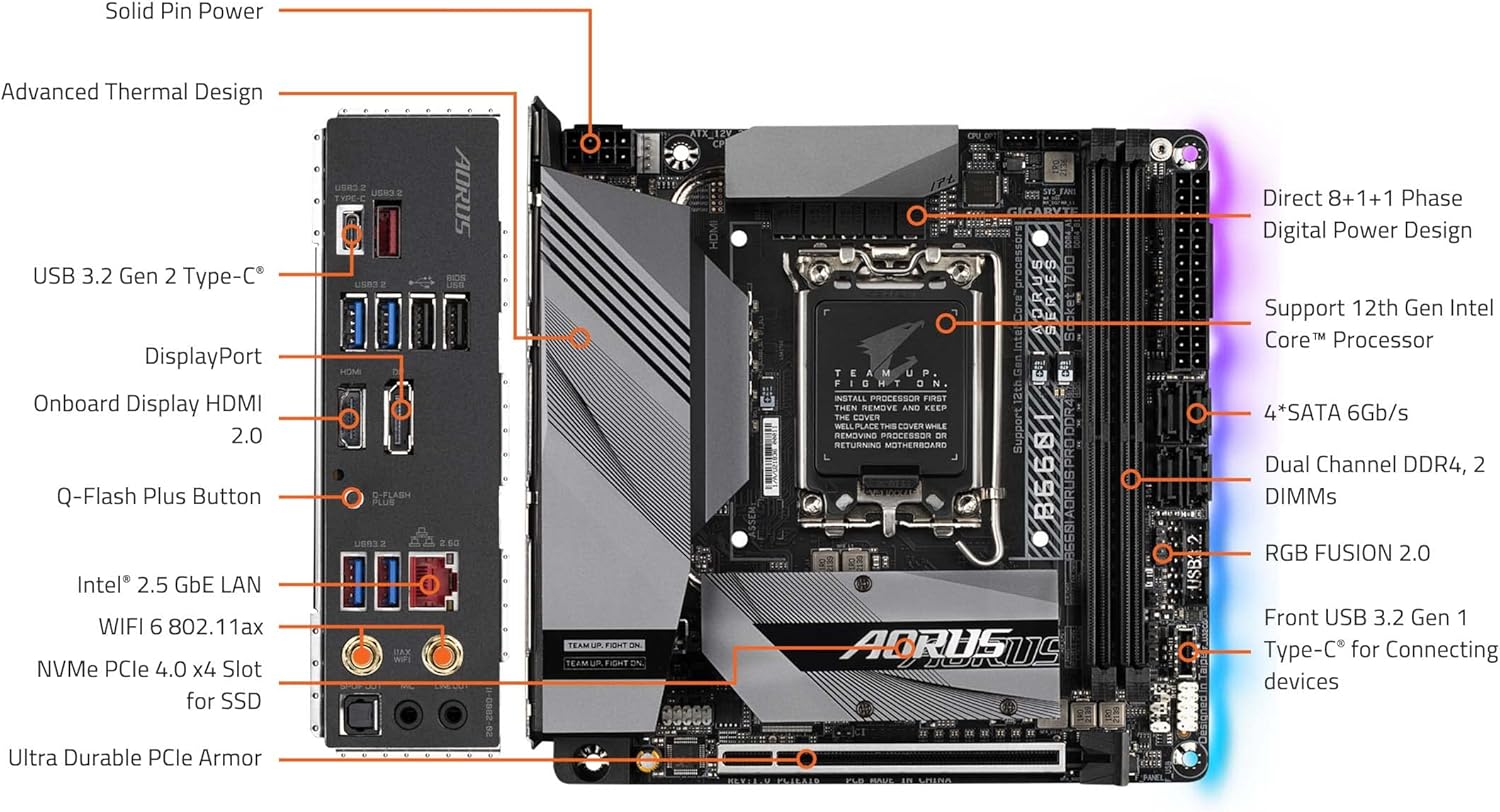
Figure 3.1: GIGABYTE B660I AORUS PRO DDR4 Motherboard with labeled components. This diagram shows the CPU socket, DDR4 DIMM slots, PCIe 4.0 slot, NVMe PCIe 4.0 x4 M.2 slot, USB 3.2 Gen 2 Type-C, DisplayPort, HDMI 2.0, Q-Flash Plus Button, Intel 2.5GbE LAN, WIFI 6 802.11ax, Ultra Durable PCIe Armor, and RGB FUSION 2.0 headers.

Figure 3.2: Rear I/O Panel. This image displays the USB 3.2 ports (Type-C and Type-A), USB 2.0 ports, HDMI, DisplayPort, Intel 2.5GbE LAN port, WiFi antenna connectors, and audio jacks.
4. Setup and Installation
4.1. CPU Installation
The motherboard features an LGA 1700 socket. Ensure your CPU cooler has an LGA 1700 bracket for proper installation.
- Open the CPU socket lever.
- Carefully align the CPU with the socket, ensuring the triangular mark on the CPU matches the mark on the socket.
- Gently place the CPU into the socket. Do not force it.
- Close the socket lever to secure the CPU.
- Install your CPU cooler, ensuring it is compatible with the LGA 1700 socket and properly mounted.

Figure 4.1: CPU Socket and Cooler Bracket. This image shows the LGA 1700 socket on the motherboard and a separate LGA 1700 cooler bracket, emphasizing the need for compatible cooling solutions.
4.2. Memory (RAM) Installation
This motherboard supports Dual Channel Non-ECC Unbuffered DDR4 memory across 2 DIMM slots.
- Open the clips at both ends of the DIMM slot.
- Align the notch on the DDR4 memory module with the notch on the DIMM slot.
- Insert the memory module firmly into the slot until the clips snap into place.
4.3. Storage (M.2 SSD) Installation
The motherboard includes an NVMe PCIe 4.0 x4 M.2 slot for high-speed storage.
- Locate the M.2 slot, often covered by a heatsink. Remove the heatsink if present.
- Insert the M.2 SSD into the slot at an angle.
- Gently push down the SSD and secure it with the provided screw or retention mechanism.
- Reattach the M.2 heatsink if applicable.
4.4. PCIe Card Installation
The motherboard features a PCIe 4.0 slot for graphics cards or other expansion cards.
- Align your PCIe card with the PCIe slot.
- Press down firmly until the card is seated correctly and the retention clip locks.
- Secure the card to your chassis with a screw.
5. Operating Instructions
5.1. Initial Boot and BIOS Setup
Upon first boot, access the BIOS/UEFI setup by pressing the designated key (usually DEL or F2) during startup. Here you can configure boot order, system time, and other advanced settings. Refer to the GIGABYTE website for detailed BIOS guides.
5.2. Driver Installation
After installing your operating system, install the latest drivers for your motherboard's chipset, audio, LAN, and Wi-Fi components. These can be found on the official GIGABYTE support website for your specific model.
5.3. Q-Flash Plus
The Q-Flash Plus feature allows you to update the BIOS without installing the CPU, memory, or graphics card. Simply download the latest BIOS file from the GIGABYTE website, rename it as instructed, and place it on a USB flash drive. Insert the USB drive into the designated Q-Flash Plus port on the rear I/O panel and press the Q-Flash Plus button.
6. Maintenance
6.1. Cleaning
Regularly clean your PC components to prevent dust buildup, which can lead to overheating. Use compressed air to remove dust from heatsinks, fans, and other components. Ensure the system is powered off and unplugged before cleaning.
6.2. BIOS Updates
Keep your BIOS updated to ensure optimal performance, compatibility, and security. Always download BIOS updates directly from the official GIGABYTE website and follow the instructions carefully. Incorrect BIOS updates can damage your motherboard.
6.3. Software Updates
Ensure all system drivers and utility software (e.g., RGB FUSION 2.0, Smart Fan 6) are kept up-to-date for the best user experience and system stability.
7. Troubleshooting
7.1. No Display/Boot Failure
- Check all power connections to the motherboard (24-pin ATX and 8-pin CPU power).
- Ensure RAM modules are correctly seated in their slots. Try reseating them or testing with one module at a time.
- Verify that the graphics card is properly installed and connected to the monitor.
- Clear CMOS (Complementary Metal-Oxide-Semiconductor) by removing the CMOS battery for a few minutes or using the designated jumper.
7.2. Network Connectivity Issues
- For wired connections, ensure the Ethernet cable is securely plugged into the Intel 2.5GbE LAN port and your router/modem.
- For wireless connections, ensure the Wi-Fi antennas are properly attached to the rear I/O panel.
- Install or update the latest LAN and Wi-Fi drivers from the GIGABYTE website.
7.3. USB Port Malfunction
- Ensure all USB headers on the motherboard are correctly connected to your case's front panel USB ports.
- Update chipset drivers.
- Test the USB device on a different port or another computer to rule out device issues.
8. Specifications
| Feature | Specification |
|---|---|
| Brand | GIGABYTE |
| Model Name | B660I AORUS PRO DDR4 |
| CPU Socket | LGA 1700 |
| Compatible Processors | 12th Gen Intel Core Series Processors |
| Chipset Type | Intel B660 |
| RAM Memory Technology | DDR4 |
| Memory Speed | 4400 MHz |
| Memory Storage Capacity | 128 GB (Max) |
| Wireless Type | 802.11ax (WiFi 6) |
| LAN | Intel 2.5GbE LAN |
| USB Ports | USB 3.2 Gen 2x2 Type-C, USB 3.2 Gen 2, USB 3.2 Gen 1, USB 2.0 |
| Product Dimensions | 9.25 x 8.94 x 3.74 inches |
| Item Weight | 2.62 pounds |
9. Product Demonstration
Video 9.1: A brief product demonstration of the GIGABYTE B660I AORUS PRO DDR4 motherboard, showcasing its physical aspects and features. This video provides a visual overview of the motherboard's design and connectivity options.
10. Warranty and Support
GIGABYTE products come with a limited warranty. For detailed warranty information, technical support, driver downloads, and BIOS updates, please visit the official GIGABYTE website. You can also find FAQs and contact customer service through their support portal.
GIGABYTE Support Website: www.gigabyte.com/support


