
BORSSO ULTIMA GEN-4
BORSSO Ultima GEN-4 4K HDR10 Smart Projector User Manual
Model: ULTIMA GEN-4
Introduction
Welcome to the BORSSO Ultima GEN-4 user manual. This document provides detailed instructions for setting up, operating, and maintaining your new 4K HDR10 smart projector. The Ultima GEN-4 is designed to deliver a premium home cinema experience with advanced features like Android 14, 2800 ANSI lumens brightness, full automatic projection adjustments, and comprehensive connectivity options.
Important Safety Information
To ensure optimal performance and longevity of your projector, please observe the following safety guidelines:
- Operate the projector in a dark, cool, and dust-free environment. This helps in achieving better image quality and extends the product's lifespan.
- Avoid blocking ventilation openings to prevent overheating.
- Do not look directly into the projector lens when the lamp is on, as it can cause eye damage.
- Keep the projector away from water or any liquids.
- Use only the power adapter supplied with the projector.
Product Overview
Familiarize yourself with the components and interfaces of your BORSSO Ultima GEN-4 projector.
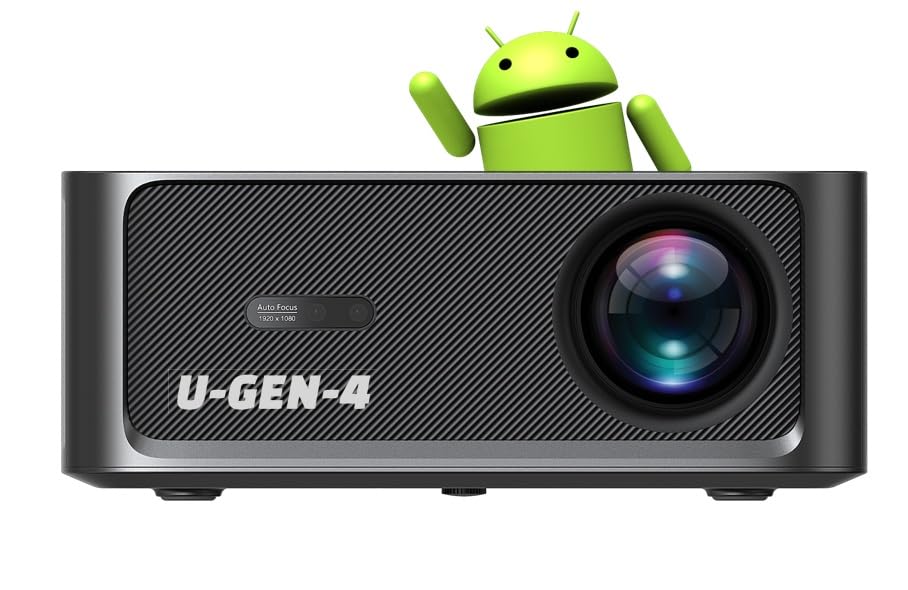
Figure 1: Front View of the BORSSO Ultima GEN-4 Projector. This image displays the front of the projector, featuring the main projection lens and the auto-focus camera. The "U-GEN-4" branding is visible below the lens.

Figure 2: Angled Front View of the BORSSO Ultima GEN-4 Projector. This perspective highlights the textured front panel and the ventilation grilles on the side, indicating efficient heat dissipation.
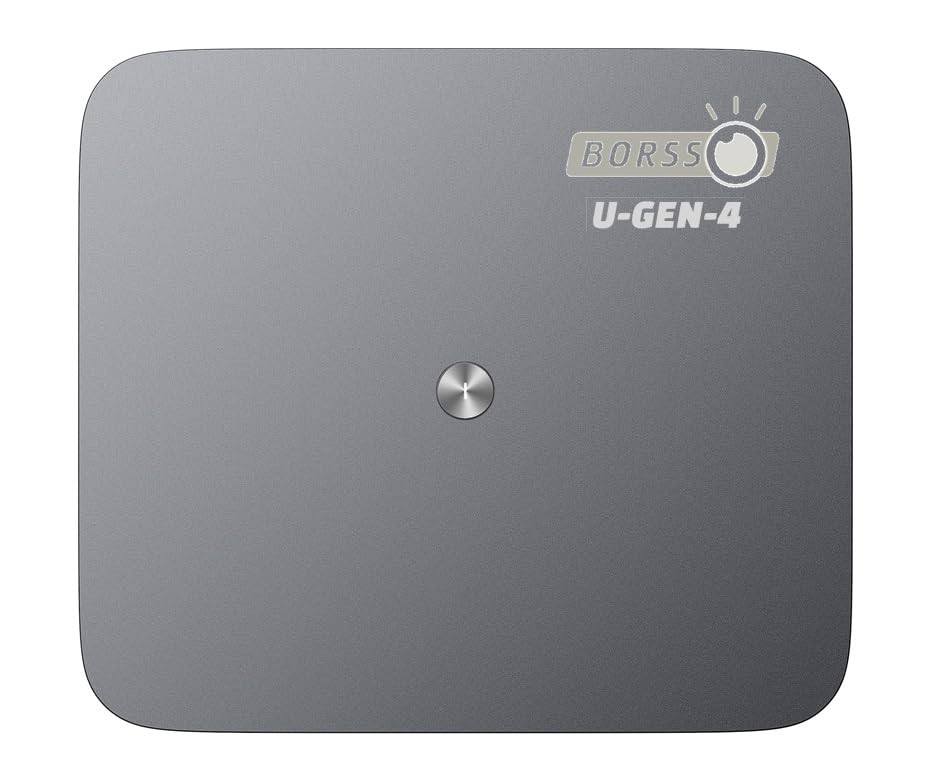
Figure 3: Top View of the BORSSO Ultima GEN-4 Projector. The top panel features a minimalist design with a central control button, indicating a sleek and user-friendly interface.

Figure 4: Rear View of the BORSSO Ultima GEN-4 Projector. This view shows the various input and output ports, including HDMI, USB, SPDIF, and the power input, along with an IR receiver and RJ45 Ethernet port.
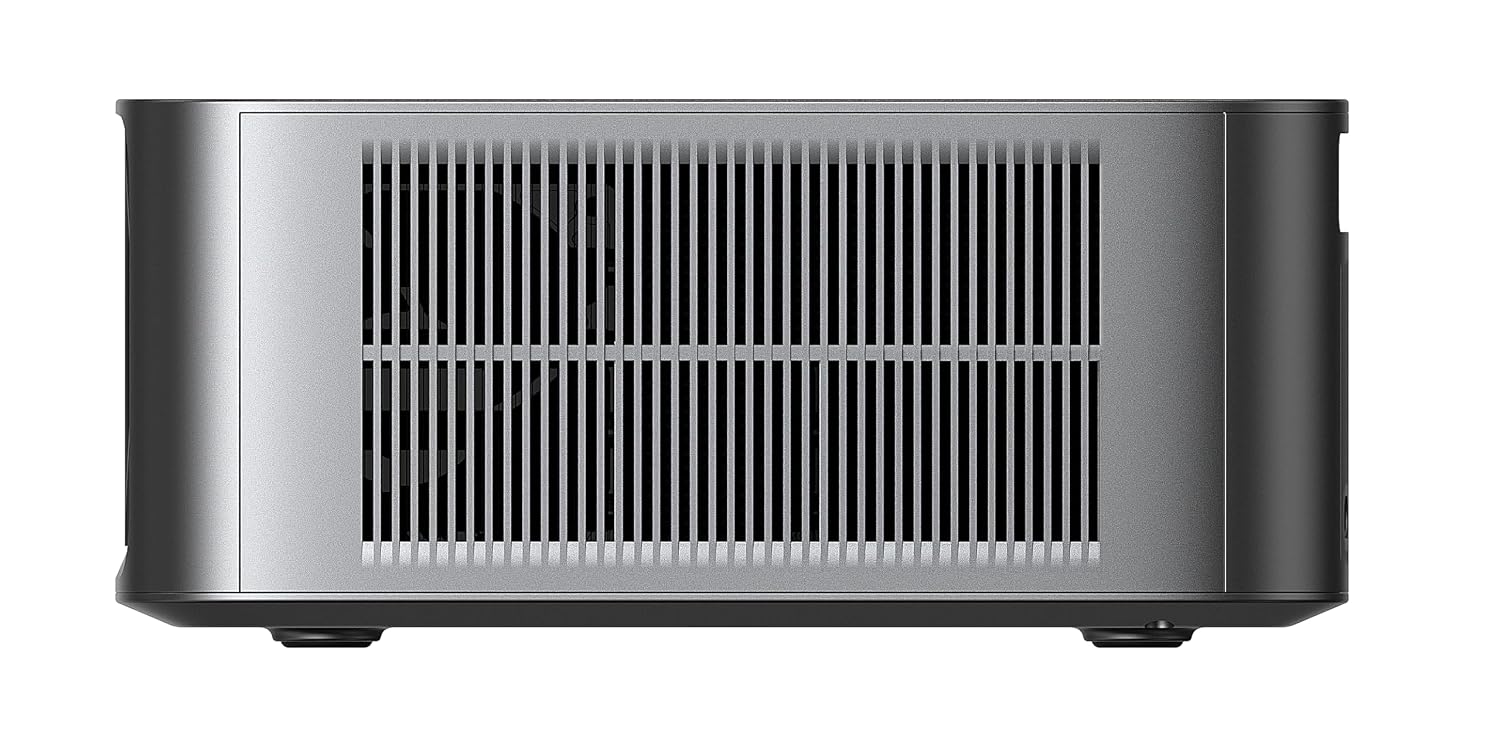
Figure 5: Left Side View of the BORSSO Ultima GEN-4 Projector. This image displays the extensive ventilation grilles on the left side, crucial for maintaining optimal operating temperature.

Figure 6: Right Side View of the BORSSO Ultima GEN-4 Projector. Similar to the left side, the right side also features ventilation grilles, ensuring consistent airflow for cooling.

Figure 7: Bottom View of the BORSSO Ultima GEN-4 Projector. The bottom panel shows the screw holes for tripod or ceiling mounting, along with rubber feet for stable tabletop placement.
Setup
1. Placement
Position the projector on a stable, flat surface or mount it using compatible accessories. Ensure there is adequate space around the projector for ventilation. For optimal viewing, project onto a smooth, light-colored wall or a dedicated projector screen.
The Ultima GEN-4 features a short throw ratio of 1.27:1, allowing for a 100-inch display from approximately 11 feet distance, with a maximum display size of 300 inches.
2. Power Connection
- Connect the power cable to the projector's power input port.
- Plug the other end of the power cable into a suitable electrical outlet.
3. Initial Power On
Press the power button on the projector or the remote control to turn on the device. The projector will initiate its startup sequence.
4. Automatic Adjustments (Focus, Keystone, Obstacle Avoidance, Tilt)
The Ultima GEN-4 is equipped with an AI-based full auto projection camera. Upon startup or repositioning, the projector will automatically perform the following adjustments:
- Auto Focus: Automatically adjusts the lens for a sharp image.
- Auto Keystone: Corrects trapezoidal distortion to ensure a rectangular image.
- Obstacle Avoidance: Detects and adjusts the projection area to avoid objects on the wall.
- Auto Tilt: Adjusts the vertical angle for optimal projection.
Allow a few moments for these automatic adjustments to complete for the best viewing experience.
Operating Instructions
1. Remote Control
The projector comes with an IR and Bluetooth remote control. Ensure batteries are inserted correctly. For Bluetooth remote functionality, pair it with the projector via the system settings.
2. Navigation and User Interface
The Ultima GEN-4 runs on Android 14, providing a familiar smart TV interface. Use the remote control's directional buttons to navigate menus, select applications, and adjust settings.
- Home Screen: Access installed apps, settings, and input sources.
- Settings Menu: Adjust display, sound, network, and system preferences.
3. Input Source Selection
To switch between internal Android apps and external devices:
- Press the "Input" or "Source" button on the remote control.
- Select the desired input (e.g., HDMI 1, HDMI 2, USB, or internal Android system).
4. Brightness Adjustment
The projector offers three adjustable brightness levels:
- High: 2800 ANSI Lumens (for brighter environments)
- Standard: 2400 ANSI Lumens
- Low Noise: 2000 ANSI Lumens (for quieter operation in dark rooms)
Adjust this setting in the display menu to suit your viewing conditions.
Connectivity
1. Wi-Fi Connection
The Ultima GEN-4 supports dual-band Wi-Fi 6 (2.4G/5G). To connect to a wireless network:
- Go to "Settings" > "Network & Internet" > "Wi-Fi".
- Select your desired network and enter the password.
2. Bluetooth 5.2
Connect external Bluetooth devices such as speakers, headphones, or game controllers.
- Go to "Settings" > "Connected Devices" > "Pair new device".
- Select your Bluetooth device from the list to pair.
3. HDMI ARC
Use the HDMI ARC port to connect to compatible audio receivers or soundbars for enhanced audio output. This allows audio from the projector's internal apps to be sent back to the connected audio system.
4. SPDIF
The SPDIF optical audio output provides high-quality digital audio connection to external sound systems.
5. USB 2.0
Two USB 2.0 ports are available for connecting USB drives, external hard drives, or other USB peripherals. The projector supports playback of various media files directly from USB storage.
6. Wireless Screen Mirroring
The projector supports AirPin and Miracast for wireless screen mirroring from Android and iOS devices. Refer to your device's screen mirroring instructions and select the projector from the available devices.
Advanced Features
1. HDR10+ and 4K Support
The Ultima GEN-4 supports Real HDR10+ and HLG, enhancing contrast, color accuracy, and brightness for a more dynamic visual experience. It supports 4K Ultra HD 60 FPS input via HDMI, downscaling to its native 1080p resolution while retaining HDR benefits.
2. MEMC Technology
Motion Estimation, Motion Compensation (MEMC) technology improves the smoothness of on-screen motion, particularly in fast-action scenes. It generates and inserts intermediate frames to increase the effective frame rate, reducing motion blur and judder.
3. AI Super Color Chipset & Vivid Cinema Engine
The integrated AI Super Color chipset and Vivid Cinema Engine work together to enhance contrast, deep color, and clarity, producing vivid, lifelike images with ultra-realistic colors.
4. LTPS+ Display Technology
The LTPS+ New Generation Highly Transparent Display offers high brightness with low power consumption, contributing to the projector's 2800 ANSI peak lamp brightness.
Maintenance
Proper maintenance ensures the longevity and optimal performance of your projector.
- Lens Cleaning: Gently wipe the projector lens with a soft, lint-free cloth specifically designed for optical surfaces. Do not use abrasive cleaners or excessive force.
- Dust Removal: Regularly clean the projector's exterior with a soft, dry cloth. Use a can of compressed air to clear dust from ventilation grilles.
- Storage: When not in use for extended periods, store the projector in a cool, dry, and dust-free environment.
- Lamp Life: The projector lamp has an estimated lifespan of 50,000 hours. No user replacement is typically required during the product's operational life.
Troubleshooting
If you encounter issues with your projector, refer to the following common problems and solutions:
No Image or "No Signal" Message
- Ensure the projector is powered on and the input source is correctly selected (e.g., HDMI 1, HDMI 2).
- Check all cable connections (HDMI, USB) are secure.
- Verify the external device (laptop, gaming console) is powered on and outputting a signal.
Blurred Image
- Allow the automatic focus feature to complete its adjustment.
- Ensure the projector lens is clean.
- Check if the projection surface is flat and smooth.
Distorted Image (Trapezoid Shape)
- Allow the automatic keystone correction to complete.
- Ensure the projector is placed directly in front of the screen or wall as much as possible.
No Sound or Low Volume
- Check the volume settings on both the projector and the connected source device.
- If using external speakers, ensure they are properly connected via Bluetooth, HDMI ARC, or SPDIF and are powered on.
- Verify that the audio output setting on the projector is configured correctly.
Remote Control Not Responding
- Replace the batteries in the remote control.
- Ensure there are no obstructions between the remote and the projector's IR receiver.
- If using Bluetooth remote, ensure it is paired correctly.
Specifications
| Feature | Detail |
|---|---|
| Brand | BORSSO |
| Model | ULTIMA GEN-4 |
| Operating System | Android 14 (2GB RAM + 32GB Storage) |
| Display Technology | LED, LTPS+ |
| Native Resolution | 1920 x 1080 (Full HD) |
| Supported Resolution | Up to 4096 x 2160 Pixels (4K) |
| Brightness | 2800 ANSI Peak Lumens (Adjustable: 2800, 2400, 2000 ANSI) |
| Contrast Ratio | 55000:1 |
| Aspect Ratio | 16:9 |
| Lamp Life | 50,000 Hours |
| Special Features | 3D Support (Red & Blue), Full Automatic (Focus+Keystone+Obstacle Avoidance+Tilt), MEMC, HDR 10+, AI Super Color chipset |
| Connectivity | Dual-Band WiFi 6, Bluetooth 5.2, 2x HDMI (ARC), 2x USB 2.0, SPDIF, RJ45 |
| Audio | 12W×2 Stereo DSP Speakers with 3D Surround Sound (Bass Diaphragm) |
| Product Dimensions | 30 x 25 x 14 cm |
| Item Weight | 4.5 kg |
| Throw Ratio | 1.27:1 |
| Refresh Rate | 60 Hz |
Warranty and Support
Warranty Information
The BORSSO Ultima GEN-4 projector comes with a 1-year comprehensive off-site warranty provided by BORSSO from the date of purchase. To avail warranty benefits, it is mandatory to register your product's warranty within 10 days from the date of delivery. For more details, please visit the official BORSSO brand website.
Customer Support
For any warranty claims, technical assistance, or support inquiries, please contact BORSSO customer service:
- Phone: 8955589977
- Email: myrakhmshop@gmail.com
Related documentsULTIMA GEN-4

Ask a question about this manual
Ask about setup, troubleshooting, compatibility, parts, safety, or missing instructions. Manuals+ will review the question and use this page’s manual context to help answer it.