
Yottamaster 5 Bay RAID USB3.0
Contents
Yottamaster 5 Bay RAID Hard Drive Enclosure (FS5RU3) User Manual
Model: 5 Bay RAID USB3.0
1. Product Overview
The Yottamaster 5 Bay RAID Hard Drive Enclosure (FS5RU3) is a high-capacity external storage solution designed for both 2.5-inch and 3.5-inch SATA HDDs/SSDs. It supports up to 90TB (5 x 18TB) of total storage and offers various RAID modes for flexible data management and protection. This enclosure features a robust aluminum alloy casing and an 80mm low-noise fan for efficient heat dissipation, ensuring stable operation.

Figure 1: Front view of the Yottamaster 5 Bay RAID Hard Drive Enclosure.

Figure 2: Front and rear panel overview, highlighting hard drive indicators, airflow holes, non-slip pads, heat dissipation fan, AC power interface, power switch, USB3.0 Type-B interface, SET button, and RAID Dip Switch.
2. Package Contents
Please verify that all items are present in your package:
- 1 x Yottamaster 5 Bay RAID Hard Drive Enclosure
- 1 x Power cord
- Screw Kit
- 1 x Data Cable
- 1 x User Manual
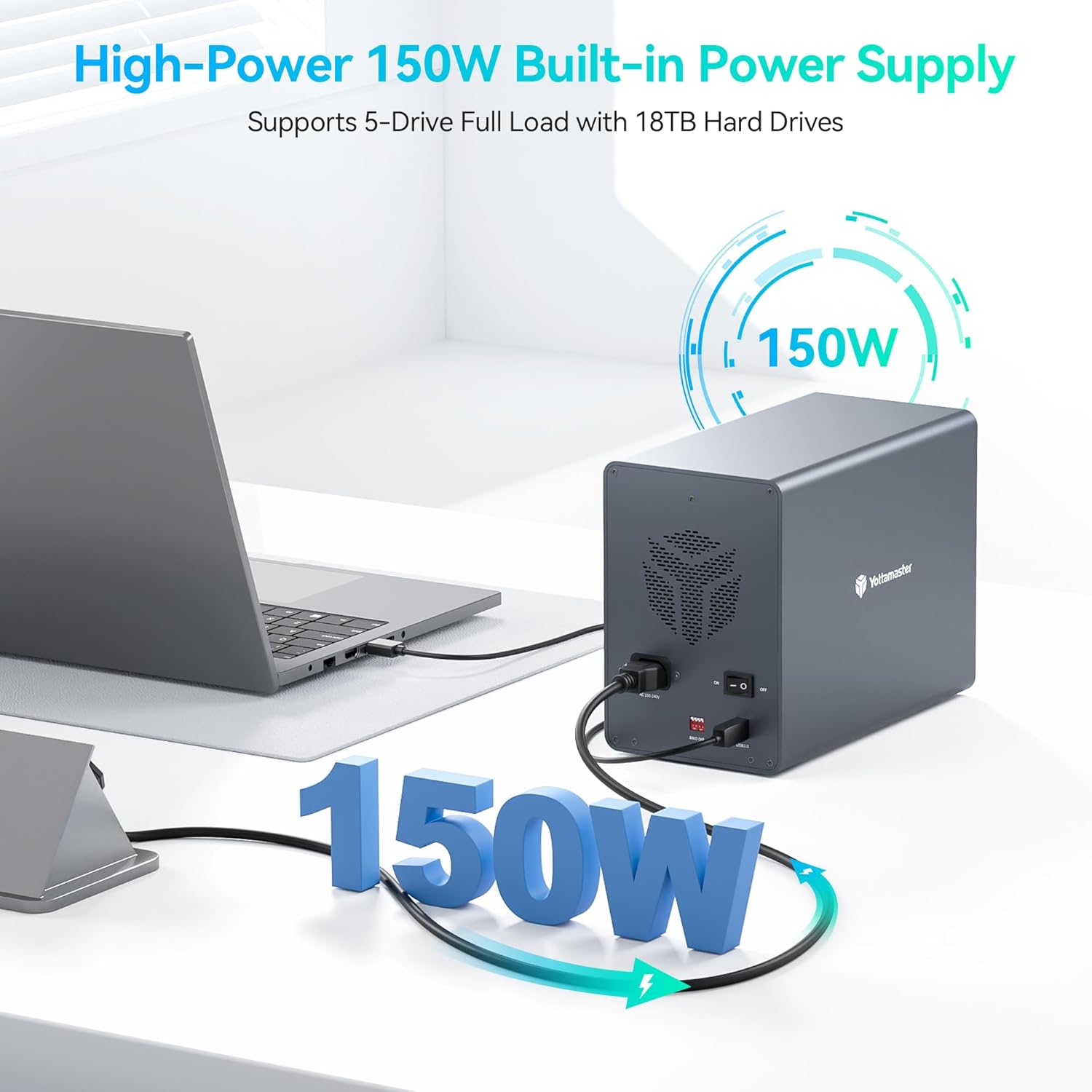
Figure 3: All items included in the product package.
3. Setup Guide
3.1. Hard Drive Installation
The enclosure supports both 2.5-inch and 3.5-inch SATA HDDs/SSDs. Ensure hard drives are securely fastened with provided screws for stability.
- Push left to release the tray handle.
- Pull the tray out by the handle.
- For 3.5-inch HDDs: Insert the HDD and secure it with 4 side screws.
- For 2.5-inch HDDs/SSDs: Insert the HDD/SSD and secure it with 4 bottom screws.
- Insert the tray back into the enclosure and close the door.
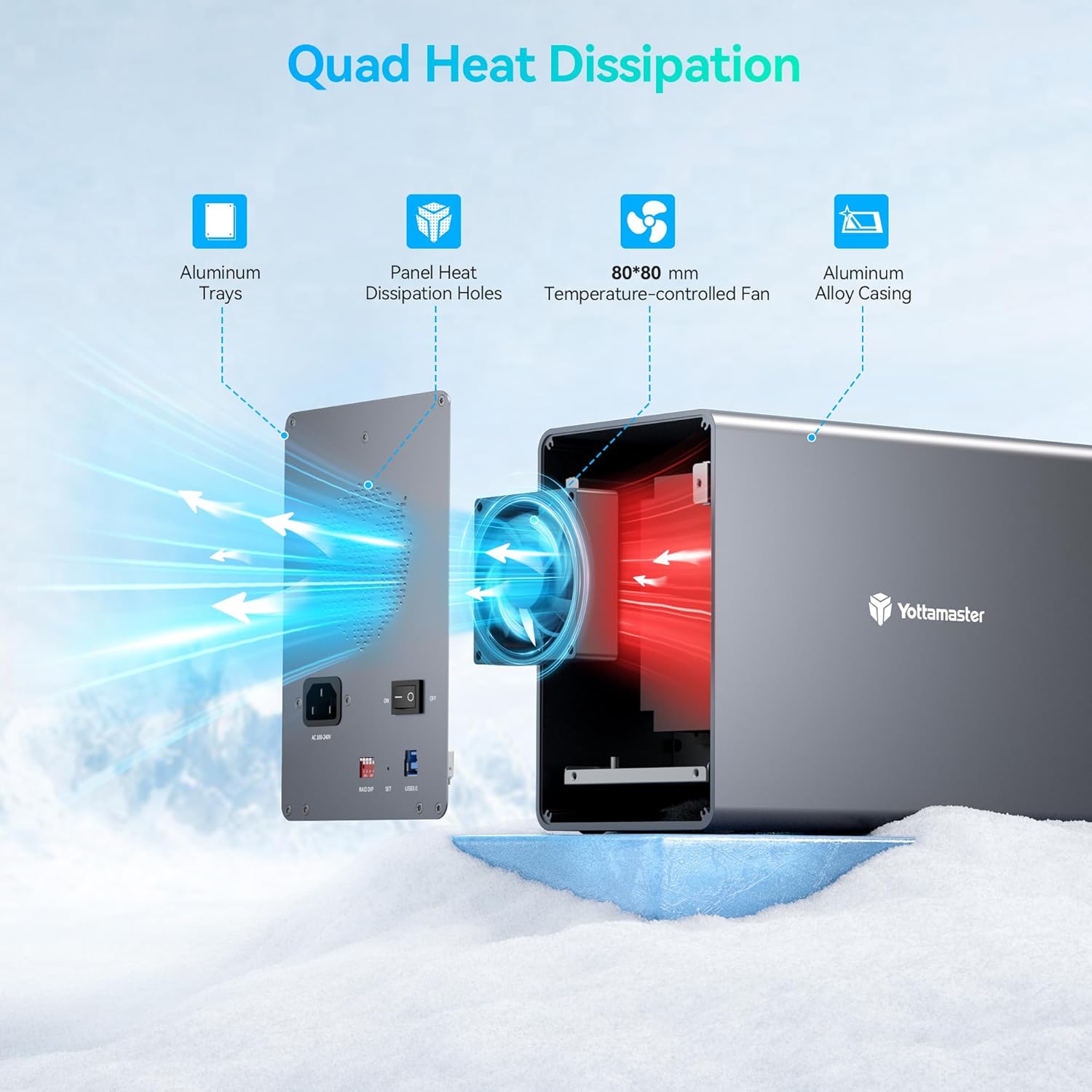
Figure 4: Step-by-step guide for installing hard drives into the enclosure trays.

Figure 5: The enclosure supports both 2.5-inch SSDs/HDDs and 3.5-inch HDDs, with screw mounting for enhanced stability.
3.2. RAID Configuration
The Yottamaster enclosure supports various RAID modes (RAID 0/1/5/10/JBOD/CLONE/Normal) to meet different storage needs. You can configure RAID using either hardware DIP switches or software.
3.2.1. Hardware RAID Configuration
For detailed direction of the RAID mode, please check the sticker on the back panel of the enclosure or read the directions on the user manual. Setting up RAID will wipe out all data on your hard drive. If you are using old hard drives, please backup your data first before starting setting up RAID. New hard drives should be formatted before use.
Video 1: Guide on how to set up RAID using hardware switches on the Yottamaster External Hard Drive Enclosure.
Video 2: Detailed instructions on how to set up RAID for Yottamaster RAID SSD Enclosure.
3.2.2. Software RAID Configuration
Utilize Yottamaster's RAID Manager software to effortlessly tailor and manage multiple hard drive storage configurations. The software can be downloaded from the Yottamaster Firmware Download page.
Video 3: Instructions on how to modify RAID modes using RAID Management Software on Windows.
4. Operating Instructions
4.1. Understanding RAID Modes
Different RAID modes offer varying levels of performance, data protection, and storage capacity. Choose the mode that best suits your needs.

Figure 6: Detailed table outlining various RAID modes and their characteristics.
Video 4: A guide to choosing the right RAID level for your hardware setup.
4.2. Data Transfer
The enclosure features a USB3.0 Type B interface, offering a maximum transfer speed of up to 5Gbps for efficient data transfer.

Figure 7: High-speed data transfer capabilities of the enclosure, achieving 1GB transfer in seconds.
4.3. Formatting Hard Drives
After setting up your RAID, you may need to format the drives for use with your operating system.
Video 5: Step-by-step guide on how to format a hard drive partition in Windows/Mac OS.
5. Maintenance
5.1. Sleep Mode Management
The enclosure features a 10-minute Intelligent Sleep mode to optimize energy efficiency. The auto-sleep time can be adjusted or canceled.

Figure 8: Visual guide to cancel the auto-sleep function using firmware settings.
Video 6: Step-by-step guide to adjust or disable sleep mode on the enclosure.
Video 7: Instructions on how to cancel sleep mode for Yottamaster Multi-bay HDD Enclosure.
5.2. General Care
To ensure the longevity and optimal performance of your enclosure:
- Keep the device in a clean, dry environment, away from direct sunlight and extreme temperatures.
- Avoid blocking the ventilation holes to maintain proper airflow and heat dissipation.
- Clean the exterior with a soft, dry cloth. Do not use liquid cleaners or aerosols.
6. Troubleshooting
If you encounter issues with your Yottamaster enclosure, please refer to the following common problems and solutions:
| Problem | Possible Cause | Solution |
|---|---|---|
| Drives not detected | Loose cable connection, incorrect RAID mode, unformatted drives. | Check USB and power cables. Verify RAID mode settings. Format new drives in Disk Management. |
| Slow transfer speeds | USB port issues, cable quality, drive performance. | Ensure connection to a USB 3.0 port. Use the provided data cable. Check individual drive health. |
| Enclosure goes to sleep unexpectedly | Intelligent Sleep mode enabled. | Adjust or disable the sleep timer using the provided firmware/software. |
| RAID configuration issues | Incorrect DIP switch settings, data not backed up before changing RAID. | Refer to Section 3.2 for correct RAID setup. Always back up data before changing RAID modes. |
If the issue persists, please contact Yottamaster customer support for further assistance.
7. Specifications
- Material: Aluminum
- Item Weight: 4.72 Kilograms (10.39 pounds)
- Memory Storage Capacity: 90 TB
- Compatible Devices: Laptop, Desktop, Smartphone
- Hard Disk Form Factor: 3.5 Inches
- Max Number of Supported Devices: 5
- Data Transfer Rate: 5 Gigabits Per Second
- Manufacturer: Yottamaster
- Product Dimensions: 10.43 x 5.39 x 7.87 inches
- Hardware Interface: SATA 6.0 Gb/s, USB 3.0
- Color: USB3.0 RAID
- Hardware Platform: PC, Linux, Mac
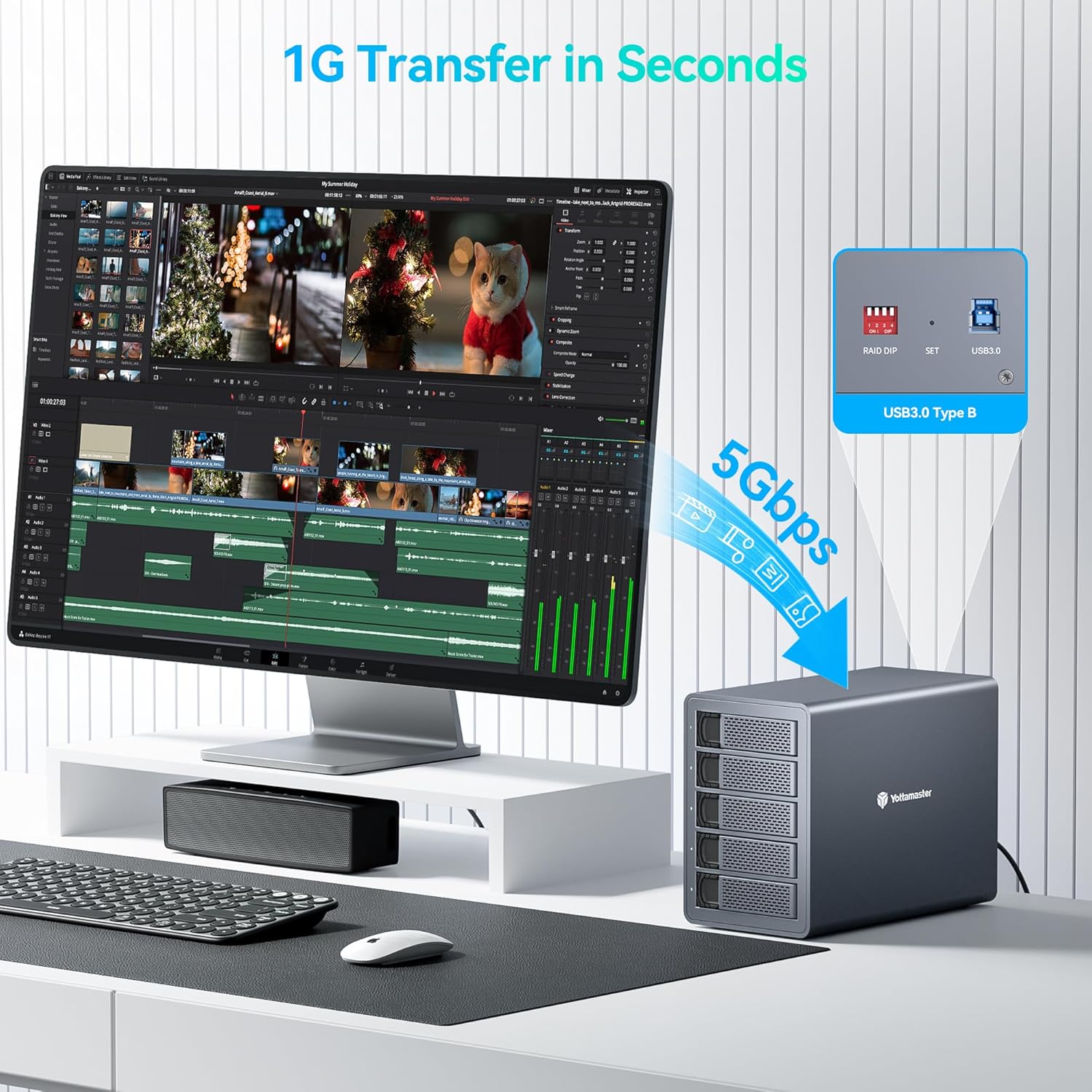
Figure 9: The enclosure features a high-power 150W built-in power supply, supporting 5-drive full load with 18TB hard drives.
8. Warranty and Support
For warranty information and technical support, please refer to the official Yottamaster website or contact their customer service directly. You can find additional resources, including installation manuals and instructions for use, in PDF format via the links below:
Documents and downloads
Ask a question about this manual
Ask about setup, troubleshooting, compatibility, parts, safety, or missing instructions. Manuals+ will review the question and use this page’s manual context to help answer it.