
1. Introduction
This manual provides instructions for the setup, operation, and maintenance of your BN-LINK Outdoor Smart Dual Outlet, Model BNC-60/U154-1. This device allows for remote control and scheduling of connected appliances via a smartphone application and voice commands.
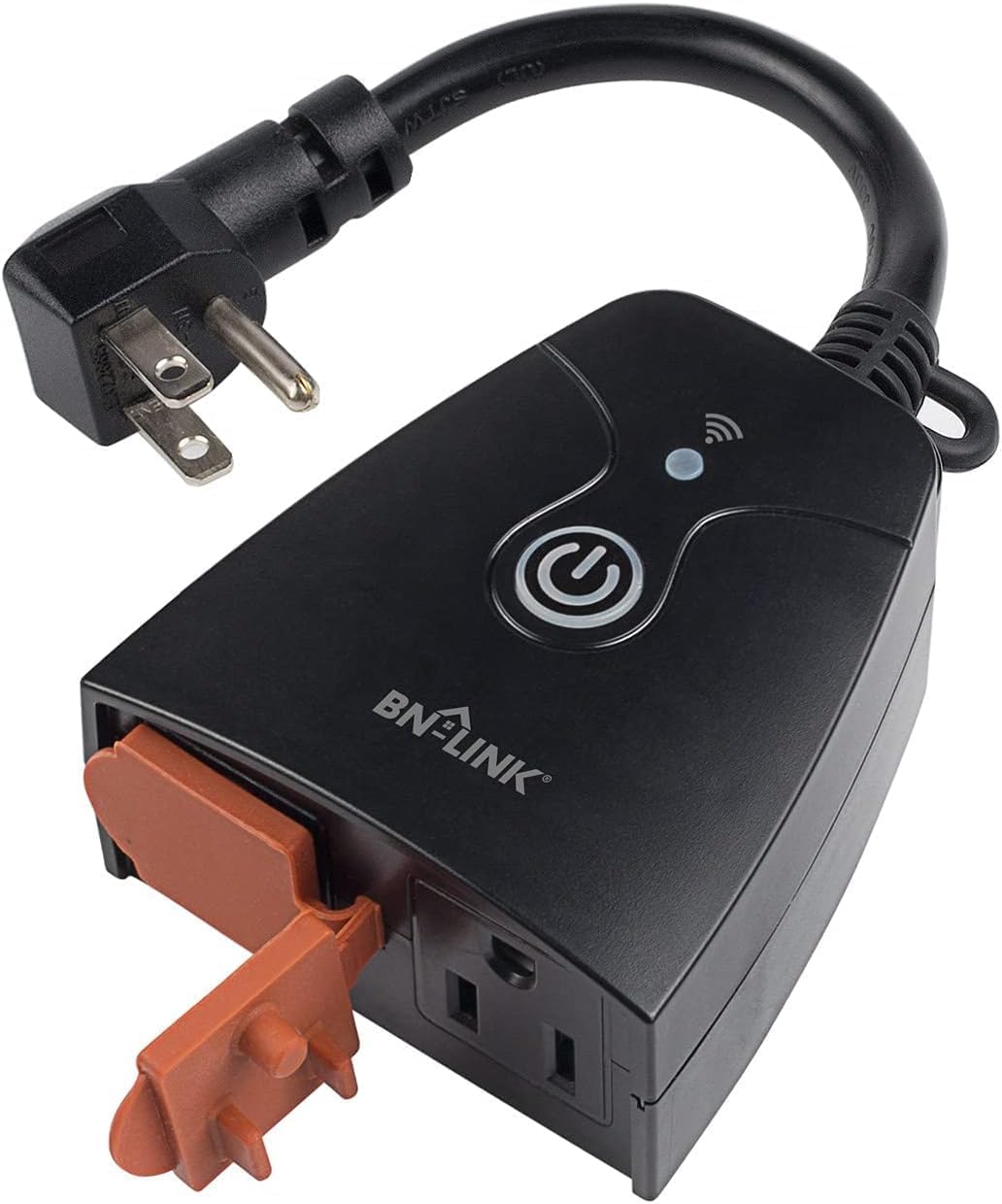
Image 1.1: BN-LINK Outdoor Smart Dual Outlet. This image displays the main unit of the smart dual outlet, featuring its compact design, power plug, and two grounded outlets with protective covers.

Image 1.2: Product dimensions and key features. This image illustrates the physical dimensions of the smart outlet and highlights its two operational modes (App Remote Control & Manual Control) and two independently controllable grounded outlets with rubber covers.
2. Setup
2.1 Package Contents
- 1 x BN-LINK Outdoor Smart Dual Outlet (Model BNC-60/U154-1)
- 1 x User Manual
2.2 Important Safety Information
- Ensure the device is used with a secured 2.4 GHz Wi-Fi network. 5.0 GHz networks are not supported.
- Do not immerse the device in water.
- Install the device vertically, at least 2 feet above ground level, to ensure proper water drainage and protection.
- Ensure the total load of connected devices does not exceed 1875W (15A).
2.3 App Installation and Device Pairing
The BN-LINK Outdoor Smart Dual Outlet can be controlled using the BN-LINK Smart app, Smart Life app, or Tuya Smart app. For optimal performance, ensure your smartphone is connected to a 2.4 GHz Wi-Fi network during the pairing process.
- Download the App: Search for "BN-LINK Smart," "Smart Life," or "Tuya Smart" in your smartphone's app store (iOS or Android) and download it.
- Register/Log In: Open the app and register for a new account or log in with an existing one.
- Add Device: Plug the smart outlet into a power source. The indicator light on the device should begin to flash. In the app, tap "Add Device" or the "+" icon.
- Select Device Type: Manually select the device type. Look for "Socket (Wi-Fi)" or a similar option under Electrical or Power Strip categories.
- Connect to Wi-Fi: Confirm that the indicator light is flashing rapidly. Enter your 2.4 GHz Wi-Fi network name and password. The app will then attempt to connect to the device.
- Completion: Once connected, you can rename the device and its individual outlets within the app.
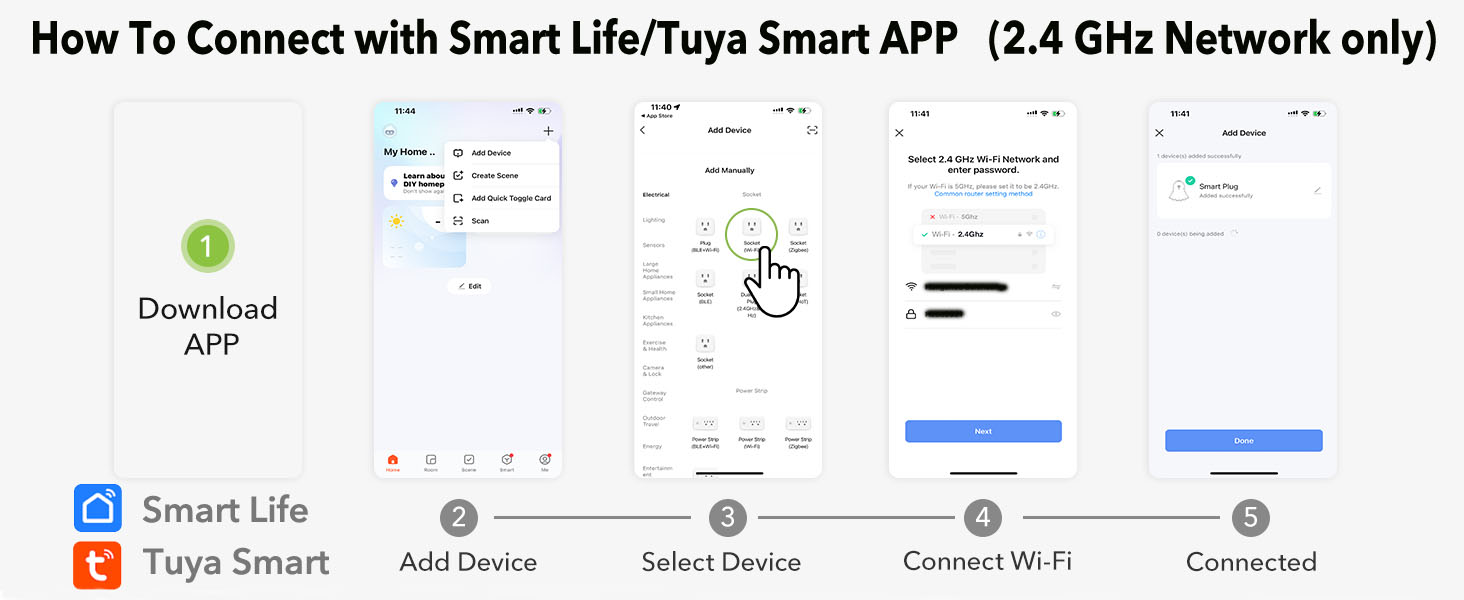
Image 2.1: Step-by-step guide for connecting the smart outlet using the BN-LINK Smart app. This visual guide shows the process from downloading the app to successful device connection, emphasizing the 2.4 GHz Wi-Fi requirement.

Image 2.2: Step-by-step guide for connecting the smart outlet using the Smart Life or Tuya Smart app. This image provides a visual walkthrough of the connection process, similar to the BN-LINK app, highlighting the compatibility with these alternative applications.
2.4 Voice Control Integration
The smart outlet is compatible with Amazon Alexa and Google Assistant. To enable voice control:
- Ensure your smart outlet is successfully paired with the BN-LINK Smart, Smart Life, or Tuya Smart app.
- Open the Alexa or Google Home app on your smartphone.
- Navigate to the "Skills & Games" (Alexa) or "Works with Google" (Google Home) section.
- Search for and enable the "BN-LINK Smart," "Smart Life," or "Tuya Smart" skill/service.
- Link your app account when prompted.
- Discover devices. Your smart outlet should now appear and be controllable via voice commands.
3. Operating Instructions
3.1 Manual Control
Press the power button on the smart outlet to manually turn all connected devices ON or OFF.
3.2 App Control
Through the BN-LINK Smart, Smart Life, or Tuya Smart app, you can:
- Remote ON/OFF: Turn the entire smart outlet or individual outlets ON/OFF from anywhere with an internet connection.
- Scheduling: Set daily or weekly schedules for the outlets to turn ON/OFF automatically.
- Countdown Timer: Set a countdown for the outlets to turn OFF after a specified duration.
- Independent Control: Each of the two grounded outlets can be controlled independently.

Image 3.1: Smartphone displaying the control interface for the smart outlet. This image shows a hand holding a phone with the app open, demonstrating the ability to control connected lights remotely.
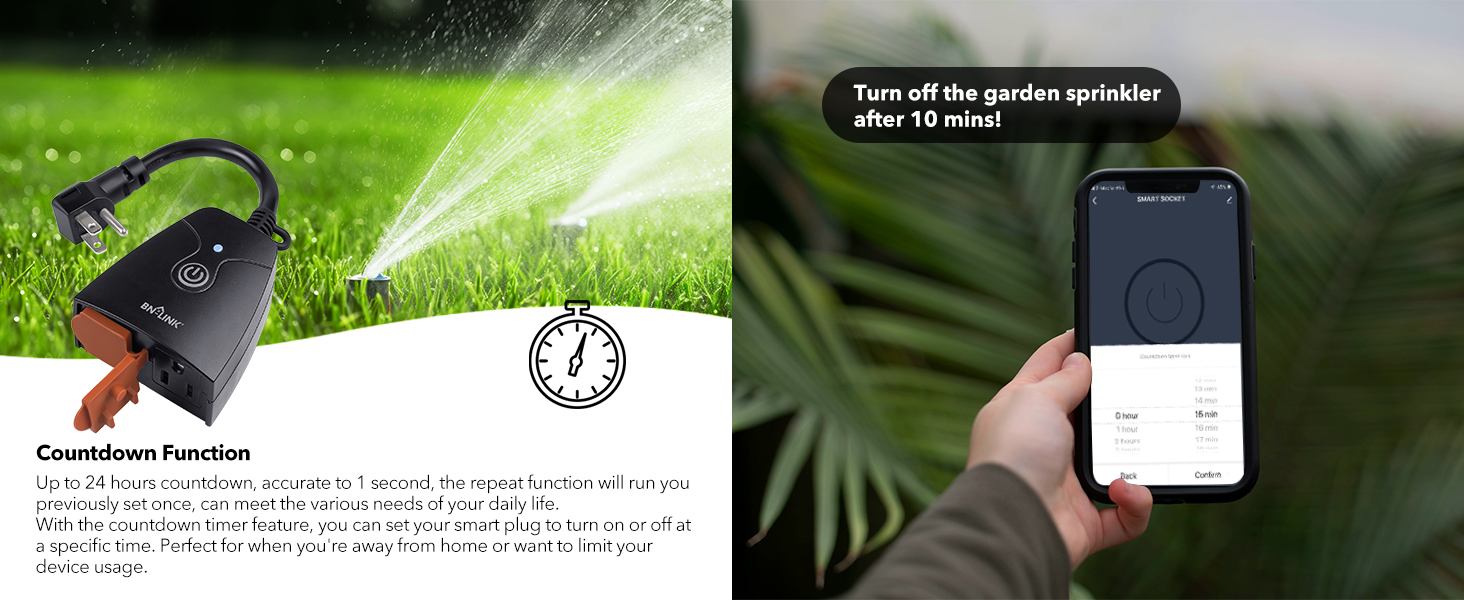
Image 3.2: Screenshot of the app's scheduling interface. This image illustrates how users can set specific times for the smart outlet to turn on and off, such as 6:00 PM ON and 11:00 PM OFF.
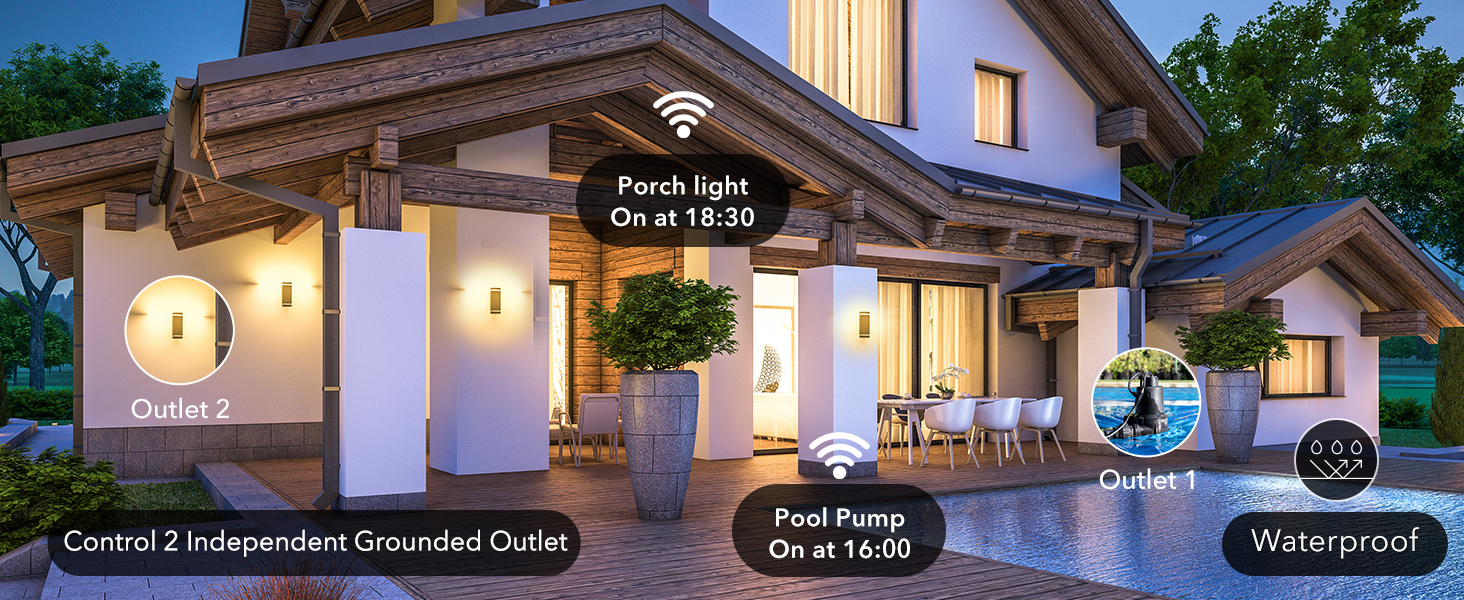
Image 3.3: Screenshot of the app's countdown timer function. This image demonstrates setting a countdown, for example, to turn off a garden sprinkler after 10 minutes.
3.3 Voice Control
Once integrated with Alexa or Google Assistant, use voice commands to control your smart outlet. For example:
- "Alexa, turn on the porch light."
- "Hey Google, turn off the fountain."
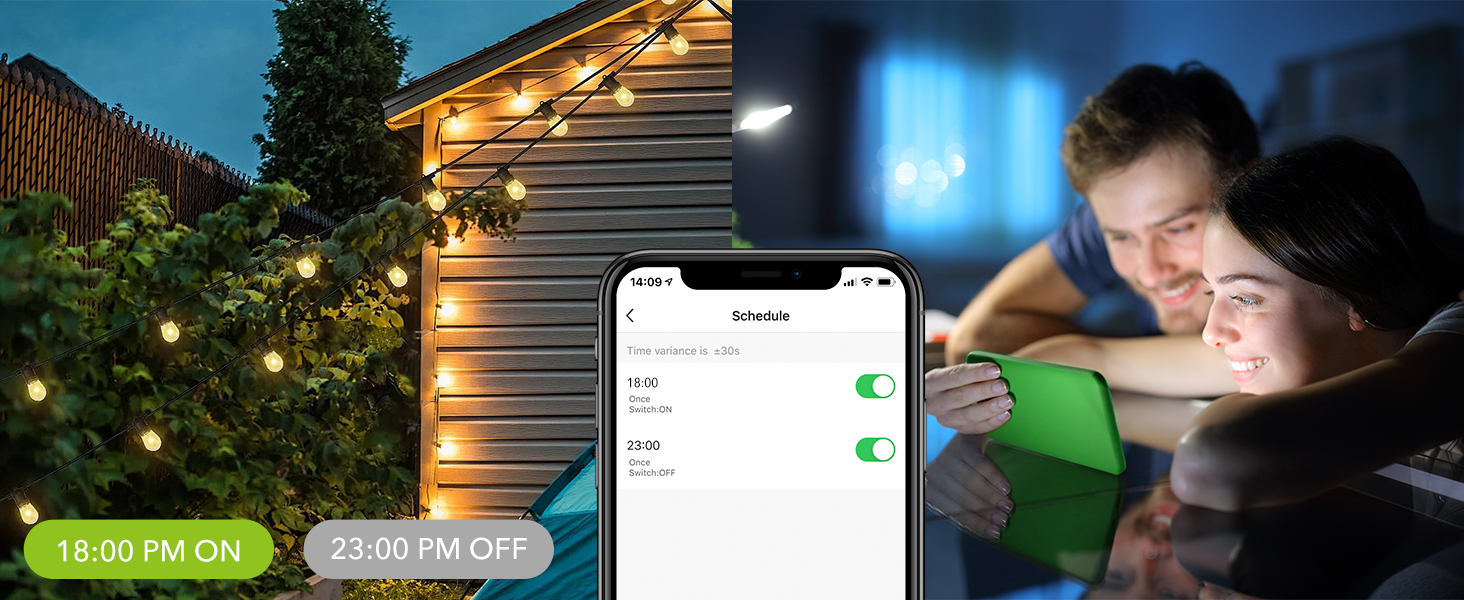
Image 3.4: A person using voice commands to control a fountain. This image illustrates the convenience of using voice assistants like Alexa to operate devices connected to the smart outlet.
4. Maintenance
The BN-LINK Outdoor Smart Dual Outlet is designed for outdoor use with an IP44 weather-resistant rating. To ensure longevity and proper function:
- Placement: Always install the smart outlet vertically with the outlets facing downwards, at least 2 feet (0.6 meters) above the ground. This prevents water accumulation and ensures proper drainage.
- Cleaning: Disconnect the device from power before cleaning. Wipe the exterior with a damp cloth. Do not use harsh chemicals or abrasive cleaners.
- Inspection: Periodically check the power cord and plug for any signs of damage. Do not use if damaged.

Image 4.1: Illustration of the smart outlet's waterproof feature and recommended vertical installation. This image emphasizes the importance of installing the device vertically and at least 2 feet above the ground for optimal weather resistance.
5. Troubleshooting
5.1 Device Not Connecting to Wi-Fi
- 2.4 GHz Network: Ensure your Wi-Fi network is 2.4 GHz. The device does not support 5.0 GHz networks. If your router broadcasts both, temporarily disable the 5.0 GHz band or ensure your phone is connected to the 2.4 GHz band during setup.
- Network Password: Double-check that you are entering the correct Wi-Fi password.
- Proximity: Ensure the smart outlet is within range of your Wi-Fi router during setup.
- Reset Device: Press and hold the power button on the smart outlet for approximately 5-10 seconds until the indicator light flashes rapidly to enter pairing mode.
- App Compatibility: If experiencing issues with the BN-LINK Smart app, try using the Smart Life or Tuya Smart app, as they are often compatible.
5.2 Voice Control Not Working
- App Link: Verify that the BN-LINK Smart, Smart Life, or Tuya Smart skill/service is correctly linked in your Alexa or Google Home app.
- Device Name: Ensure the device name used in voice commands matches the name set in the app.
- Internet Connection: Confirm that both your smart outlet and voice assistant device have a stable internet connection.
5.3 Outlets Not Responding
- Power Supply: Check if the smart outlet is properly plugged into a functioning power source.
- App Status: Verify the ON/OFF status of the outlets in the app.
- Manual Button: Test the manual power button on the device.
6. Specifications
| Feature | Specification |
|---|---|
| Model Number | BNC-60/U154-1 |
| Product Dimensions | 4 x 5 x 2 inches |
| Item Weight | 7.05 ounces |
| Operation Mode | ON-OFF |
| Current Rating | 15 Amps |
| Operating Voltage | 125 Volts |
| Resistive Rating | 1875W |
| Tungsten Rating | 625W (5A) |
| Motor Rating | 1/2 HP |
| Contact Type | Plug in |
| Connector Type | Plug In |
| Terminal | Blade |
| Circuit Type | 1-way |
| Actuator Type | Push Button |
| Wi-Fi Network | 2.4 GHz only |
| Certifications | ETL certified |
| Weather Resistance | IP44 rated |
7. Warranty Information
The BN-LINK Outdoor Smart Dual Outlet comes with a 15-month warranty from the date of purchase. This warranty covers defects in materials and workmanship under normal use. Please retain your proof of purchase for warranty claims.
8. Customer Support
For any concerns, questions, or technical assistance, please contact the BN-LINK Customer Service team. We are committed to providing support to all our customers.
Contact information can typically be found on the BN-LINK official website or through the contact section of the BN-LINK Smart app.