
1. Introduction
This manual provides essential information for setting up, configuring, and maintaining your GIGABYTE Z590 AORUS Xtreme motherboard. Please read these instructions carefully before proceeding with installation to ensure proper functionality and to prevent damage to your components.
2. Product Overview
The GIGABYTE Z590 AORUS Xtreme is a high-performance E-ATX motherboard designed for 11th and 10th Gen Intel Core Series Processors. It features robust power delivery, advanced thermal solutions, and extensive connectivity options.

Figure 2.1: Top-down view of the GIGABYTE Z590 AORUS Xtreme motherboard, showcasing the CPU socket, DIMM slots, and heatsinks.
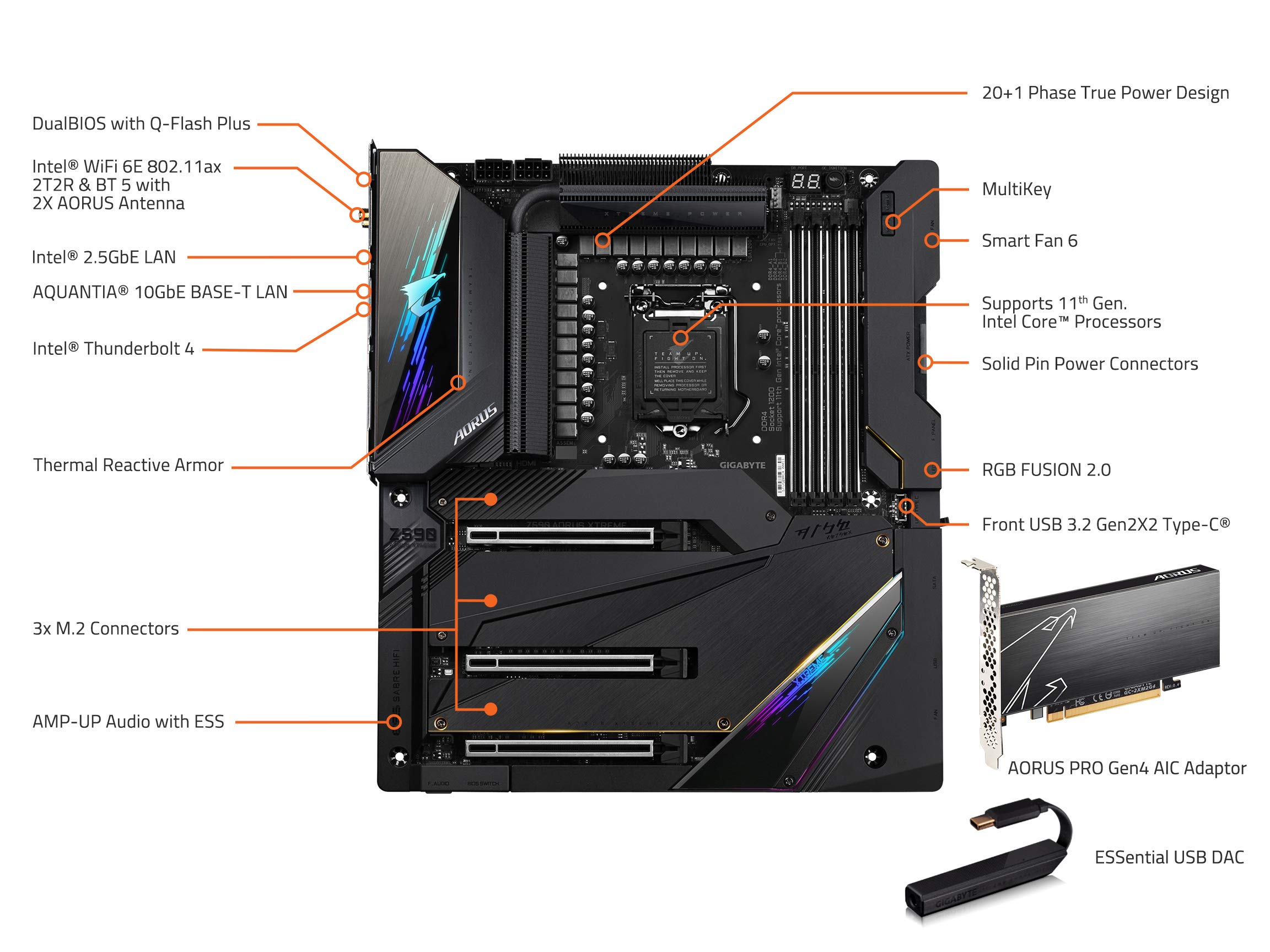
Figure 2.2: Detailed view of the motherboard with key components labeled, including the CPU socket, DDR4 DIMM slots, M.2 connectors, and various headers.

Figure 2.3: Angled view highlighting the VRM heatsinks and the integrated I/O shield design.
3. Setup
3.1 Unpacking and Inspection
Carefully remove the motherboard from its packaging. Inspect for any visible damage. Ensure all accessories listed in the package contents are present.
3.2 Component Installation
Before installing any components, ensure your system is powered off and unplugged. Wear an anti-static wrist strap to prevent electrostatic discharge (ESD) damage.
3.2.1 CPU Installation
- Open the CPU socket lever.
- Align the CPU with the socket, ensuring the golden triangle on the CPU matches the triangle on the socket.
- Gently place the CPU into the socket without forcing it.
- Close the socket lever to secure the CPU.
3.2.2 RAM Installation
- Open the clips on both ends of the DIMM slots.
- Align the notch on the DDR4 memory module with the notch in the DIMM slot.
- Press down firmly on both ends of the memory module until the clips snap into place.
3.2.3 Storage Device Installation (M.2 SSDs)
The motherboard supports multiple M.2 NVMe PCIe 4.0/3.0 x4 SSDs. Refer to Figure 2.2 for M.2 slot locations.
- Remove the M.2 heatsink cover.
- Insert the M.2 SSD into the slot at a 30-degree angle.
- Gently push down the SSD and secure it with the provided screw or standoff.
- Reattach the M.2 heatsink cover.
3.2.4 Graphics Card (GPU) Installation
- Open the retention clip on the PCIe x16 slot.
- Align the graphics card with the slot and press down firmly until it is fully seated and the clip locks.
- Secure the graphics card to the chassis with screws.
3.3 Power Connections
Connect the 24-pin ATX main power connector and the 8-pin + 8-pin ATX 12V power connectors from your power supply to the motherboard. Ensure all connections are secure.
4. Operating
4.1 First Boot
After assembling all components and connecting peripherals, power on your system. The motherboard will perform a Power-On Self-Test (POST). If successful, the system will proceed to boot from your installed operating system or prompt for BIOS setup.
4.2 BIOS Configuration
To enter the BIOS setup, press the DEL key during the POST process. The BIOS allows you to configure system settings such as boot order, CPU/memory frequencies, fan speeds, and more. Refer to the GIGABYTE website for detailed BIOS manuals and updates.
4.3 Driver Installation
After installing your operating system, install the necessary drivers for the motherboard components. These include chipset drivers, LAN drivers, Wi-Fi drivers, audio drivers, and any other specific utility drivers. Drivers can be found on the GIGABYTE official website for your specific motherboard model.
5. Maintenance
5.1 Cleaning
Regularly clean your computer system to prevent dust buildup, which can lead to overheating. Use compressed air to remove dust from heatsinks, fans, and other components. Ensure the system is powered off and unplugged before cleaning.
5.2 BIOS Updates
Periodically check the GIGABYTE website for BIOS updates. BIOS updates can improve system stability, add support for new hardware, and fix bugs. Follow the instructions provided by GIGABYTE carefully when performing a BIOS update to avoid system damage.
6. Troubleshooting
This section addresses common issues you might encounter.
- No Power: Ensure all power cables (24-pin ATX, 8-pin ATX 12V) are securely connected to the motherboard and power supply. Verify the power supply switch is on.
- No Display: Check that the graphics card is properly seated in its PCIe slot and connected to the power supply (if required). Ensure the monitor cable is securely connected to the graphics card and the monitor. Try reseating RAM modules.
- System Instability/Crashes: This can be caused by various factors. Check CPU and GPU temperatures. Verify RAM is correctly installed and compatible. Ensure drivers are up to date. Consider resetting BIOS to default settings.
- Boot Device Not Found: Check SATA/M.2 cable connections for your storage devices. Verify boot order in BIOS. Ensure the operating system is properly installed on the selected boot drive.
7. Specifications
Key specifications for the GIGABYTE Z590 AORUS Xtreme Motherboard:
| Feature | Specification |
|---|---|
| CPU Socket | LGA 1200 |
| Compatible Processors | 11th and 10th Gen Intel Core Series Processors |
| Chipset | Intel Z590 |
| RAM Type | DDR4 (Dual Channel, Non-ECC Unbuffered) |
| DIMM Slots | 4 |
| Memory Speed | Up to 3200 MHz (O.C. support) |
| Storage | Triple Ultra-Fast NVMe PCIe 4.0*/3.0 x4 M.2 |
| LAN | AQUANTIA 10GbE BASE-T LAN, Intel 2.5GbE LAN |
| Wireless | Intel WiFi 6E 802.11ax 2T2R & BT 5 |
| USB Ports | USB 3.2 Gen2X2 Type-C, USB 3.2 Gen2, USB 3.2 Gen1, USB 2.0 |
| Thunderbolt | Intel Thunderbolt 4 Onboard |
| Audio | 127dB SNR AMP-UP Audio with High-End ESS SABRE 9018K2M DAC |
| Form Factor | E-ATX |
| Dimensions (LxWxH) | 14.96 x 12.36 x 5.12 inches |
| Weight | 4.76 pounds |
8. Warranty Information
GIGABYTE motherboards typically come with a limited manufacturer's warranty. The duration and terms of the warranty may vary by region and retailer. Please retain your proof of purchase for warranty claims. For detailed warranty information, visit the official GIGABYTE website or contact your local dealer.
9. Support
For further assistance, technical support, or to download the latest drivers and BIOS updates, please visit the official GIGABYTE support website:
https://www.gigabyte.com/support
You may also contact GIGABYTE customer service directly through their website for specific inquiries.


