1. Introduction
This manual provides detailed instructions for the installation, operation, and maintenance of your GIGABYTE X570S AORUS Elite AX motherboard. Please read this manual thoroughly before proceeding with installation to ensure proper setup and optimal performance.
The GIGABYTE X570S AORUS Elite AX is designed to support AMD Ryzen 5th, 4th, 3rd, and 2nd Generation processors, featuring PCIe 4.0 support, advanced thermal design, and high-speed connectivity options including AMD WiFi 6E and 2.5GbE LAN.

Figure 1.1: GIGABYTE X570S AORUS Elite AX Motherboard and its retail packaging.
2. Setup and Installation
2.1. Package Contents
Verify that all components are present in the package:
- GIGABYTE X570S AORUS Elite AX Motherboard
- User Manual (this document)
- SATA Cables
- Wi-Fi Antenna
- M.2 Screws and Standoffs
- Driver CD/USB (if included)
2.2. Safety Precautions
- Always disconnect the power supply before installing or removing any components.
- Wear an anti-static wrist strap to prevent electrostatic discharge (ESD) damage to components.
- Handle the motherboard by its edges to avoid touching sensitive components.
2.3. Motherboard Layout

Figure 2.1: Detailed layout of the GIGABYTE X570S AORUS Elite AX motherboard, highlighting key components and connectors such as the CPU socket, DIMM slots, PCIe slots, M.2 connectors, and various headers.
Familiarize yourself with the motherboard's layout. Key areas include:
- CPU Socket (Socket AM4): For AMD Ryzen processors.
- DIMM Slots (DDR4): For memory modules.
- PCIe Slots: For graphics cards and expansion cards.
- M.2 Connectors: For NVMe SSDs.
- SATA Ports: For storage drives.
- Rear I/O Panel: For external device connections.
2.4. Component Installation
- CPU Installation:
Open the CPU socket lever, align the CPU with the triangle marker on the socket, gently place the CPU, and close the lever. Do not force the CPU into the socket.
- CPU Cooler Installation:
Install the CPU cooler according to its manufacturer's instructions. Ensure proper thermal paste application.
- Memory (RAM) Installation:
Open the clips on the DIMM slots. Align the memory module notch with the slot key. Press firmly on both ends of the module until the clips snap into place. Refer to the motherboard manual for recommended dual-channel configurations.
- Graphics Card (GPU) Installation:
Open the retention clip on the PCIe x16 slot. Align the graphics card with the slot and press firmly until it seats correctly and the clip locks. Secure the card with a screw to the chassis.
- M.2 SSD Installation:
Locate the M.2 slots. Remove the M.2 heatsink if present. Insert the M.2 SSD into the slot at an angle, then gently push it down and secure it with the provided screw/standoff. Reattach the heatsink if applicable.
- SATA Drive Installation:
Connect SATA data cables from the motherboard's SATA ports to your storage drives. Connect power cables from the power supply to the drives.
- Power Supply Connection:
Connect the 24-pin ATX power connector and the 8-pin (or 4+4-pin) CPU power connector from your power supply to the motherboard.
- Front Panel Connections:
Connect the front panel headers (power button, reset button, USB ports, audio jacks, LED indicators) to the corresponding pins on the motherboard. Refer to the motherboard layout diagram for correct pin assignments.
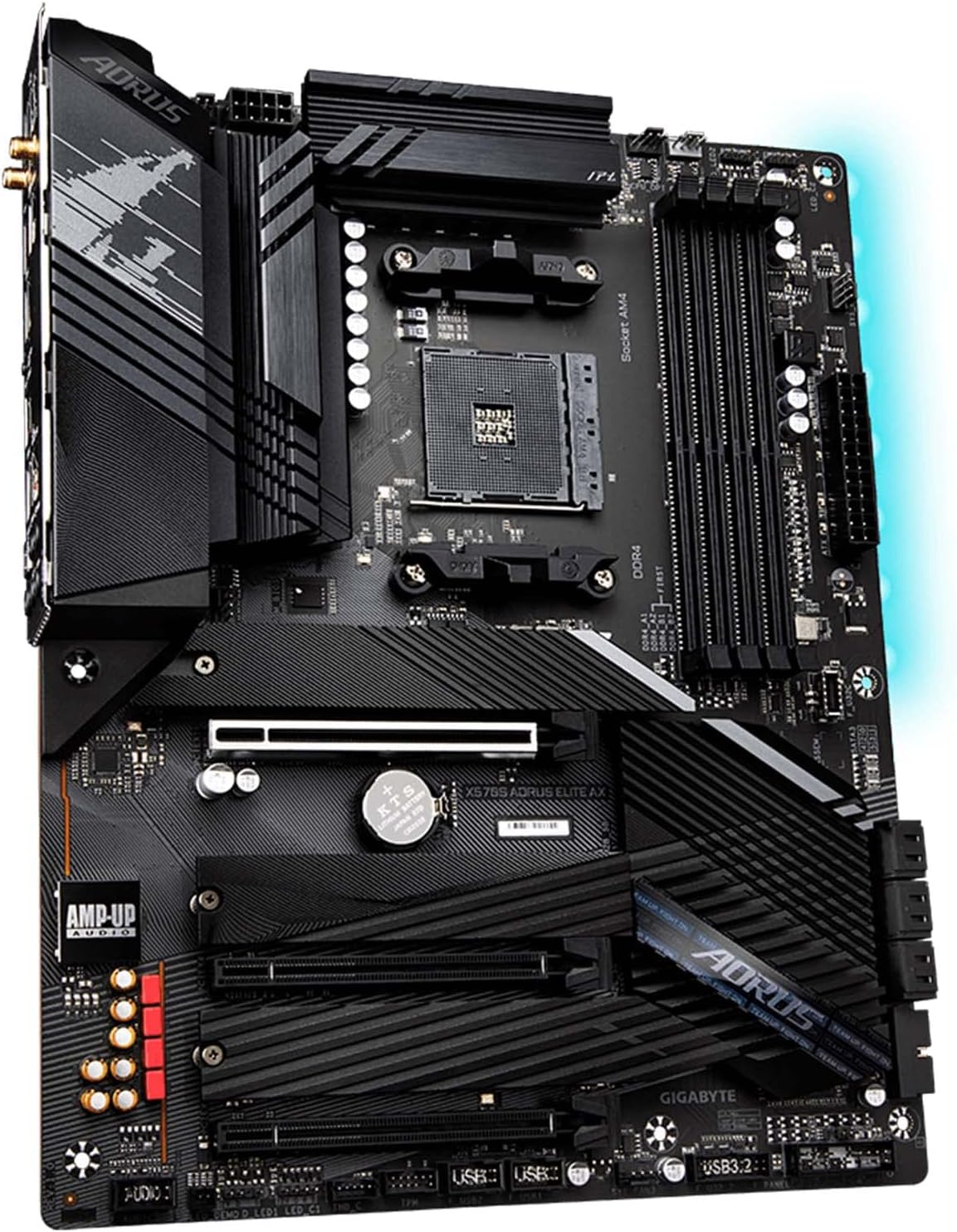
Figure 2.2: An angled view of the GIGABYTE X570S AORUS Elite AX motherboard, showing the CPU socket, DIMM slots, and PCIe slots, ready for component installation.
3. Operating Instructions
3.1. Initial Boot and BIOS Setup
- Power On: After connecting all components and peripherals, power on your system.
- Access BIOS/UEFI: During startup, repeatedly press the DEL key to enter the BIOS/UEFI setup utility.
- BIOS Update (Q-Flash Plus): The motherboard supports Q-Flash Plus, allowing BIOS updates without a CPU, memory, or graphics card installed. Refer to the GIGABYTE website for detailed instructions and the latest BIOS versions.
- Basic Settings:
- Set the correct date and time.
- Configure boot order to prioritize your operating system drive.
- Enable XMP/DOCP for optimal memory performance if using compatible RAM.
- Adjust fan curves using Smart Fan 6 for optimal cooling and noise levels.
- Save and Exit: Save your changes and exit the BIOS. The system will restart.
3.2. Driver Installation
After installing your operating system, install the necessary drivers for the motherboard components. These typically include:
- Chipset Drivers
- LAN Drivers (2.5GbE)
- Wi-Fi 6E and Bluetooth 5.2 Drivers
- Audio Drivers (AMP-UP Audio with ALC1220-VB)
- USB Drivers
Drivers can be found on the official GIGABYTE website for your specific motherboard model.
3.3. Software Utilities
GIGABYTE provides various software utilities to enhance your experience, such as:
- RGB FUSION 2.0: For controlling the motherboard's multi-zone addressable LED lighting.
- APP Center: A centralized platform for GIGABYTE utilities.
- Smart Fan 6: For advanced fan control and monitoring.
4. Maintenance
4.1. Cleaning
- Regularly clean dust from the motherboard and components using compressed air.
- Ensure the system is powered off and unplugged before cleaning.
- Avoid using liquid cleaners directly on components.
4.2. BIOS Updates
Periodically check the GIGABYTE website for BIOS updates. BIOS updates can improve stability, compatibility, and performance. Follow the instructions provided by GIGABYTE carefully when updating the BIOS.
4.3. Driver Updates
Keep your drivers updated to ensure optimal performance and compatibility with new software and hardware. Download drivers only from the official GIGABYTE website or component manufacturers.
5. Troubleshooting
This section addresses common issues you might encounter.
5.1. No Power / No Boot
- Check Power Connections: Ensure the 24-pin ATX and 8-pin CPU power connectors are securely seated.
- Power Supply: Verify the power supply is switched on and functioning correctly.
- Front Panel Headers: Double-check the power button connection on the front panel header.
- Minimal Boot: Remove all non-essential components (GPU, M.2, SATA drives, extra RAM sticks) and attempt to boot with only CPU, one RAM stick, and necessary power connections.
5.2. No Display Output
- Graphics Card: Ensure the graphics card is properly seated in the PCIe slot and has all necessary power cables connected.
- Monitor Connection: Verify the display cable is securely connected to both the graphics card and the monitor.
- Integrated Graphics: If your CPU has integrated graphics, try connecting the monitor to the motherboard's HDMI port (if available and supported by your CPU) to rule out a graphics card issue.
5.3. System Instability / Crashes
- Memory (RAM): Test memory modules individually or run a memory diagnostic tool. Ensure XMP/DOCP profiles are stable; try disabling them if issues persist.
- Overheating: Monitor CPU and GPU temperatures. Ensure CPU cooler is properly installed and fans are functioning.
- Drivers: Ensure all drivers are up-to-date and correctly installed.
- BIOS Settings: Reset BIOS to default settings if recent changes caused instability.
5.4. USB Device Issues
- Drivers: Ensure USB drivers are installed.
- BIOS Settings: Check BIOS settings for USB controller configuration.
- Port Testing: Try different USB ports or devices to isolate the issue.

Figure 5.1: The rear I/O panel of the GIGABYTE X570S AORUS Elite AX motherboard, showing various ports including USB 3.2, HDMI, 2.5GbE LAN, Wi-Fi antenna connectors, and audio jacks. This panel is crucial for connecting external peripherals and troubleshooting display or network issues.
6. Specifications
| Feature | Detail |
|---|---|
| Brand | GIGABYTE |
| Model Name | X570S AORUS ELITE AX |
| CPU Socket | Socket AM4 |
| Compatible Processors | AMD Ryzen 5th Gen/ 4th Gen/ 3rd Gen/ 2nd Gen |
| Chipset | AMD X570S |
| RAM Memory Technology | DDR4 (Dual Channel ECC/ Non-ECC Unbuffered) |
| DIMM Slots | 4 |
| Memory Speed | Up to 5400 MHz (OC) |
| PCIe Slots | PCIe 4.0/3.0 |
| M.2 Connectors | 3x Ultra-Fast NVMe PCIe 4.0/3.0 x4 with Thermal Guards |
| SATA Ports | 6x SATA 6Gb/s |
| LAN | 2.5GbE LAN with Bandwidth Management |
| Wireless Connectivity | AMD WiFi 6E 802.11ax & BT 5.2 |
| USB Ports | SuperSpeed USB 3.2 Gen 2x2 Type-C (20Gb/s), USB 3.2 Gen 2, USB 3.2 Gen 1, USB 2.0 |
| Audio | AMP-UP Audio with ALC1220-VB and WIMA Audio Capacitors |
| Form Factor | ATX |
| Dimensions (LxWxH) | 13.18 x 10.62 x 3.14 inches |
| Weight | 3.26 pounds |
7. Warranty and Support
7.1. Warranty Information
GIGABYTE products are covered by a limited warranty. The duration and terms of the warranty may vary by region and product type. Please refer to the official GIGABYTE website or your product's warranty card for specific details regarding your motherboard's warranty coverage.
Retain your proof of purchase for warranty claims.
7.2. Technical Support
For technical assistance, driver downloads, BIOS updates, and further product information, please visit the official GIGABYTE support website:
You may also contact GIGABYTE customer service through the channels provided on their website for direct support.


