
1. Introduction
The Motorola One Hyper is a smartphone designed to deliver a comprehensive mobile experience. It features a 6.5-inch Full HD+ Total Vision display, providing an expansive viewing area without interruptions, thanks to its discreetly hidden pop-up selfie camera.
Equipped with advanced camera technology, the device includes a 64MP ultra-high-resolution rear camera and a 32MP pop-up front camera, both utilizing Quad Pixel technology for enhanced low-light performance and detailed imagery. Laser autofocus ensures precise focus in various lighting conditions.
Powered by a Qualcomm Snapdragon 675 octa-core processor and 4GB of RAM, the Motorola One Hyper is built for smooth performance and efficient multitasking. It offers 128GB of internal storage, expandable via a microSD card, and includes features like Dolby Audio for an immersive sound experience.
2. Package Contents
Upon opening the package, ensure all the following items are present:
- Motorola One Hyper Smartphone (Model XT2016-2)
- SIM Tray Ejector Tool
- USB-C Cable (for charging and data transfer)
- Power Adapter
- Quick Start Guide (separate document)
3. Device Layout
Familiarize yourself with the physical components and layout of your Motorola One Hyper smartphone.

Figure 3.1: Front and Back View of Motorola One Hyper. This image displays the smartphone from both its front and rear perspectives, highlighting the full-screen display and the rear camera module with the fingerprint sensor.

Figure 3.2: Front View of Motorola One Hyper. This image shows the front of the device, emphasizing the edge-to-edge display and the absence of a notch or punch-hole camera, as the selfie camera is retracted.

Figure 3.3: Back View of Motorola One Hyper. This image illustrates the rear panel, showcasing the vertical dual-camera setup, LED flash, and the circular fingerprint sensor located centrally.

Figure 3.4: Side View of Motorola One Hyper. This image provides a profile view of the smartphone, detailing the placement of the power button, volume rocker, and the SIM/microSD card tray.
4. Setup
4.1. Inserting SIM and microSD Cards
The Motorola One Hyper supports a hybrid dual SIM tray, allowing for either two Nano-SIM cards or one Nano-SIM card and one microSD card for expanded storage.
- Locate the SIM tray on the side of the phone.
- Insert the provided SIM tray ejector tool into the small hole next to the tray and press firmly until the tray pops out.
- Carefully pull out the tray.
- Place your Nano-SIM card(s) and/or microSD card into the designated slots on the tray, ensuring the gold contacts face down.
- Gently push the tray back into the phone until it clicks into place.
4.2. Charging the Battery
Before first use, it is recommended to fully charge the device. The Motorola One Hyper is equipped with a 4000 mAh battery.
- Connect the USB-C cable to the charging port at the bottom of the phone.
- Connect the other end of the USB-C cable to the power adapter.
- Plug the power adapter into a wall outlet.
- The charging indicator will appear on the screen.
Note: Use only Motorola-approved chargers and cables to prevent damage to the device.
4.3. Powering On/Off
- To Power On: Press and hold the Power button on the side of the phone until the Motorola logo appears.
- To Power Off: Press and hold the Power button until the power options menu appears on the screen. Tap "Power off" and confirm.
- To Restart: From the power options menu, tap "Restart" and confirm.
4.4. Initial Setup
Upon first powering on, the device will guide you through an initial setup process. This includes selecting your language, connecting to a Wi-Fi network, signing in with your Google account, and setting up security features like the fingerprint sensor.
5. Operating Your Device
5.1. Basic Navigation (Android 10)
Your Motorola One Hyper runs on Android 10, offering intuitive gesture navigation:
- Home: Swipe up from the bottom of the screen.
- Back: Swipe from the left or right edge of the screen.
- Recent Apps: Swipe up from the bottom of the screen and hold.
- Quick Settings: Swipe down twice from the top of the screen.
5.2. Camera Features
The Motorola One Hyper features a high-resolution camera system for capturing photos and videos.
- Rear Camera: The 64MP main sensor utilizes Quad Pixel technology for improved light sensitivity and detail. It includes laser autofocus for quick and accurate focusing, even in low light.
- Front Camera: The 32MP pop-up selfie camera deploys rapidly when activated. It also uses Quad Pixel technology for brighter selfies.
- Night Vision: A dedicated mode for enhancing photos taken in very low light conditions.
- Camera Modes: Explore various modes such as Portrait, Panorama, and Pro mode for advanced controls.
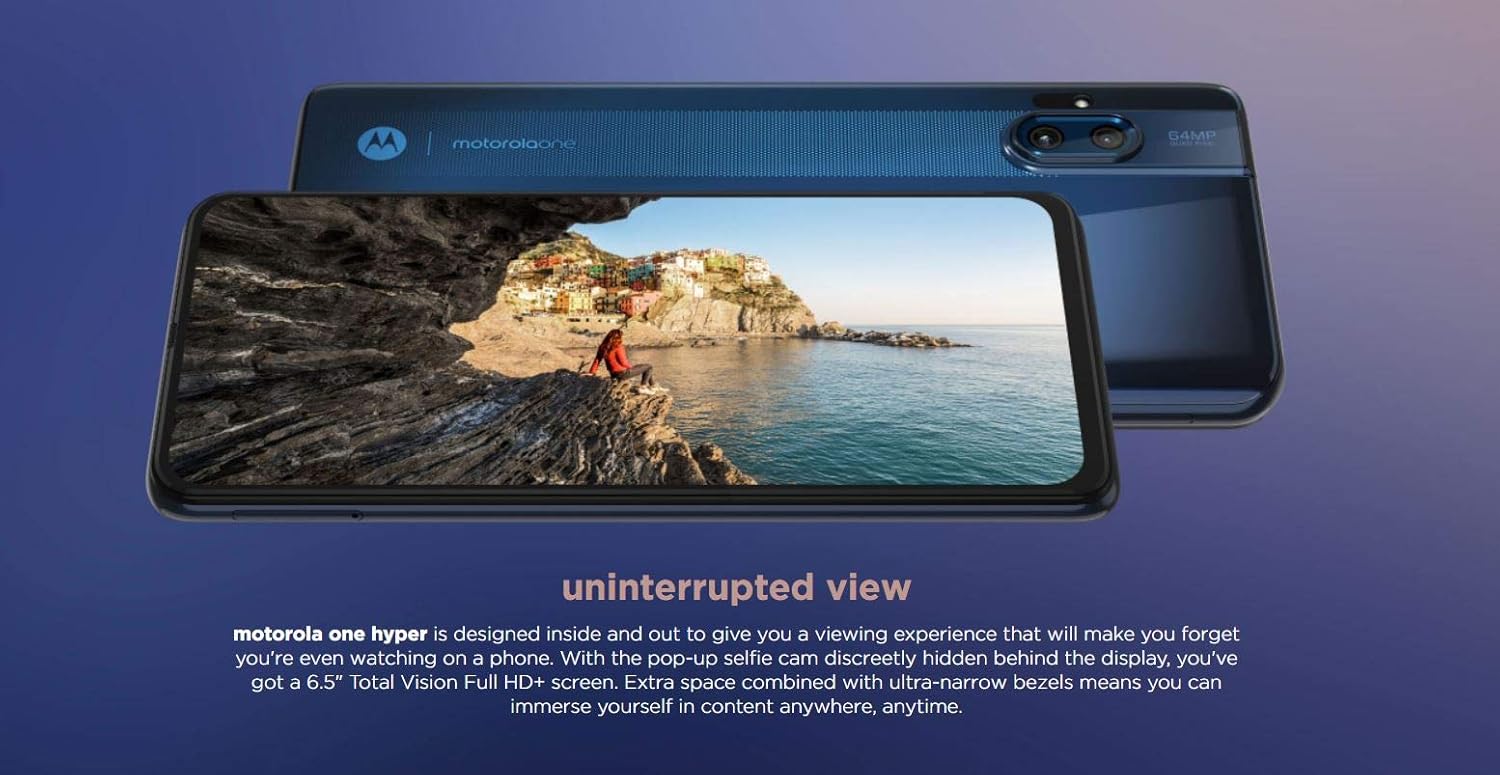
Figure 5.1: Uninterrupted Display View. This image highlights the expansive 6.5-inch Full HD+ Total Vision display, showcasing content without any camera cutouts, thanks to the pop-up selfie camera.
5.3. Display and Audio
- Display: The 6.5-inch Full HD+ Total Vision display offers vibrant colors and sharp details. Adjust brightness and color settings in the Display menu.
- Dolby Audio: Enhance your audio experience with Dolby Audio. Access settings to customize sound profiles for music, movies, and games.
- 3.5mm Audio Jack: Connect wired headphones or external speakers using the dedicated 3.5mm audio jack.
5.4. Storage and Performance
- Internal Storage: The device comes with 128GB of internal storage for apps, photos, and files.
- Expandable Storage: Utilize the hybrid SIM tray to add a microSD card for additional storage capacity.
- Processor: The Qualcomm Snapdragon 675 octa-core processor ensures smooth operation for daily tasks and demanding applications.
- RAM: With 4GB of RAM, the phone handles multitasking efficiently.

Figure 5.2: Qualcomm Snapdragon 675 Processor. This image illustrates the Snapdragon 675 processor, highlighting the core component responsible for the phone's fast and smooth performance.

Figure 5.3: Key Features Overview. This graphic displays icons representing key features: 4GB RAM + 128GB storage, water-repellent design, notification light, and Dolby Audio support.
6. Maintenance
6.1. Battery Care
- Avoid exposing the phone to extreme temperatures.
- Do not let the battery completely drain frequently.
- For optimal battery longevity, keep the charge between 20% and 80%.
- Use the original charger and cable for efficient and safe charging.
6.2. Cleaning Your Device
- Use a soft, lint-free cloth to wipe the screen and back panel.
- For stubborn smudges, slightly dampen the cloth with water or a screen cleaner.
- Avoid using harsh chemicals, abrasive materials, or aerosol sprays.
- Ensure all ports are dry before charging.
6.3. Software Updates
Regularly check for and install software updates to ensure your device has the latest features, security patches, and performance improvements. You can typically find this option in Settings > System > Advanced > System update.
7. Troubleshooting
This section addresses common issues you might encounter with your Motorola One Hyper.
7.1. Device Not Turning On
- Ensure the battery is charged. Connect the charger and wait a few minutes before attempting to power on.
- Press and hold the Power button for at least 10-15 seconds to force a restart.
7.2. Screen Unresponsive
- Restart the device by holding the Power button.
- If the screen is physically damaged, contact customer support for repair options.
7.3. Poor Battery Life
- Close unused applications running in the background.
- Reduce screen brightness or enable adaptive brightness.
- Disable Wi-Fi, Bluetooth, or GPS when not in use.
- Check battery usage in Settings to identify power-consuming apps.
7.4. Network Connectivity Issues
- Toggle Airplane Mode on and off.
- Restart the phone.
- Ensure your SIM card is properly inserted.
- Check with your mobile carrier for network outages in your area.
8. Specifications
Detailed technical specifications for the Motorola One Hyper (Model XT2016-2).
| Feature | Specification |
|---|---|
| Model Number | XT2016-2 |
| Operating System | Android 10.0 |
| Display Size | 6.5 Inches |
| Display Resolution | 1080 x 2340 pixels |
| Processor | Qualcomm Snapdragon 675 |
| RAM | 4 GB |
| Internal Storage | 128 GB |
| Expandable Storage | microSD (Hybrid SIM slot) |
| Rear Camera | 64 MP (main) |
| Front Camera | 32 MP (pop-up) |
| Battery Capacity | 4000 Milliamp Hours |
| Audio Jack | 3.5 mm |
| Connectivity | Bluetooth, Cellular (2G, 3G, 4G), GPS |
| Dimensions | 7 x 3 x 2.5 inches |
| Item Weight | 15.8 ounces (0.45 Kilograms) |
| Color | Deep Sea Blue |
9. Warranty and Support
For information regarding your product's warranty, please refer to the warranty card included in your product packaging or visit the official Motorola support website.
Motorola provides customer support for technical assistance, troubleshooting, and service inquiries. You can find contact information and frequently asked questions on their official support channels.
Official Motorola Support: www.motorola.com/us/support