
Introduction
This manual provides instructions for the proper use and care of your Memorex 128GB USB 2.0 Flash Drive. Please read this manual thoroughly before using the device to ensure optimal performance and longevity.
Product Overview
The Memorex 128GB USB 2.0 Flash Drive is a portable storage device designed for easy data transfer and backup. It features a compact design with a protective swivel cap.

Figure 1: Front view of the Memorex 128GB USB 2.0 Flash Drive. The drive features a red body and a silver swivel cap that protects the USB connector.
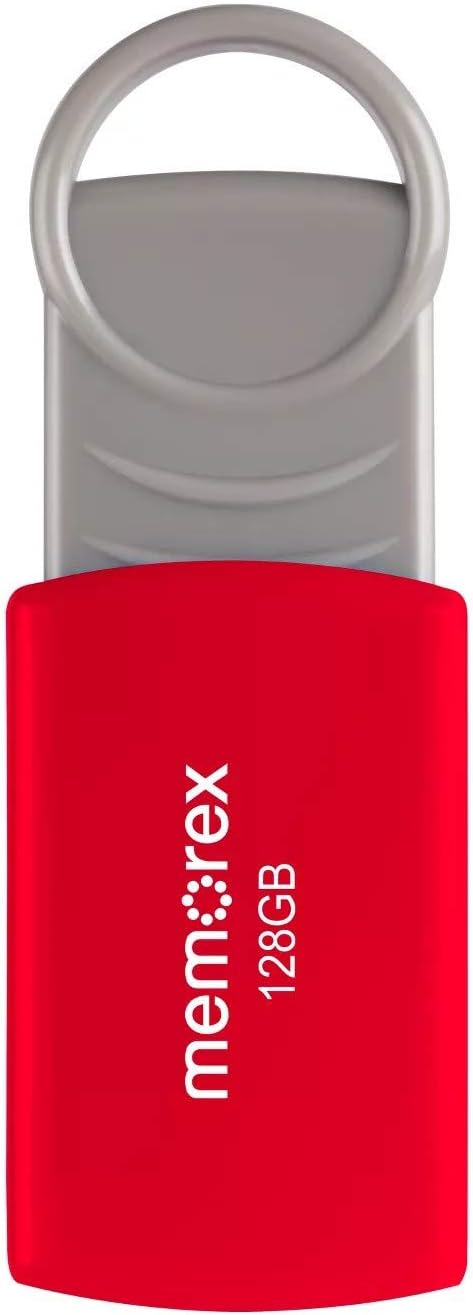
Figure 2: The Memorex 128GB USB 2.0 Flash Drive shown in its retail packaging, highlighting its capacity and USB 2.0 interface.
Setup
- Unpack the Device: Carefully remove the flash drive from its packaging.
- Identify USB Port: Locate an available USB Type-A port on your computer (PC or Mac).
- Connect the Flash Drive: Remove the protective cap or swivel the cover to expose the USB connector. Insert the flash drive firmly into the USB port.
- Automatic Recognition: Your operating system should automatically detect and install the necessary drivers. A notification may appear indicating that the device is ready for use. The flash drive will typically appear as a removable disk drive in your computer's file explorer (e.g., "This PC" on Windows, "Finder" on Mac).
Operating Instructions
Transferring Files
- Access the Drive: Open your computer's file explorer (e.g., "File Explorer" on Windows, "Finder" on Mac) and navigate to the Memorex flash drive.
- Copy Files:
- To the Flash Drive: Drag and drop files or folders from your computer's hard drive into the flash drive's window. Alternatively, right-click on the desired files/folders, select "Copy," then open the flash drive's window, right-click, and select "Paste."
- From the Flash Drive: Drag and drop files or folders from the flash drive's window to a location on your computer's hard drive. Alternatively, right-click on the desired files/folders on the flash drive, select "Copy," then open the destination folder on your computer, right-click, and select "Paste."
Safely Removing the Flash Drive
To prevent data corruption, always safely remove the flash drive before physically disconnecting it from your computer.
- Windows:
- Click the "Safely Remove Hardware and Eject Media" icon in the system tray (usually near the clock).
- Select the Memorex flash drive from the list.
- Wait for the "Safe to Remove Hardware" message before unplugging.
- Mac:
- Drag the flash drive icon from your desktop or Finder sidebar to the Trash icon. The Trash icon will change to an Eject icon.
- Alternatively, right-click (or Control-click) the flash drive icon on your desktop or in Finder and select "Eject."
- Once the icon disappears or the eject option is no longer available, you can safely unplug the drive.
Maintenance
- Physical Care: Keep the flash drive clean and dry. Avoid exposing it to extreme temperatures, direct sunlight, or strong magnetic fields. Use the swivel cap to protect the USB connector when not in use.
- Data Backup: While flash drives are convenient, it is recommended to regularly back up important data to another storage medium (e.g., computer hard drive, cloud storage) to prevent data loss.
- Avoid Sudden Removal: Always follow the safe removal procedures to prevent data corruption and damage to the drive.
Troubleshooting
- Drive Not Recognized:
- Try plugging the flash drive into a different USB port on your computer.
- Restart your computer and try again.
- Ensure the USB connector is fully inserted into the port.
- Check your computer's Device Manager (Windows) or System Information (Mac) to see if the device is listed, even if it doesn't appear as a drive letter.
- Slow Transfer Speeds:
- Ensure you are using a USB 2.0 port for optimal USB 2.0 speeds. While compatible with USB 3.0/3.1 ports, the drive will operate at its native USB 2.0 speed.
- Transferring many small files can be slower than transferring a few large files.
- Close other applications that might be using system resources.
- Cannot Write Files to Drive:
- Check if the drive is full. Delete unnecessary files to free up space.
- Ensure the drive is not write-protected (though this model typically does not have a physical write-protect switch).
- The file system (e.g., FAT32) might have limitations on individual file sizes (e.g., 4GB limit for FAT32). If you need to store larger files, consider reformatting the drive to NTFS (Windows) or exFAT (Windows/Mac compatible) if compatible with your intended use. Note: Reformatting will erase all data on the drive.
Specifications
| Brand | Memorex |
| Model Name | 32020012821 |
| Memory Storage Capacity | 128 GB |
| Hardware Interface | USB 2.0 |
| Connectivity Technology | USB |
| Color | Red |
| Hardware Platform | Mac, PC |
| Item Weight | 1.58 ounces |
| Package Dimensions | 5 x 4 x 0.2 inches |
| UPC | 751492617930 |
Warranty and Support
For warranty information and technical support, please refer to the documentation included with your purchase or visit the official Memorex website. Keep your proof of purchase for warranty claims.
For further assistance, you may contact Memorex customer support through their official channels.