
Introduction
Thank you for choosing the AULA F2088 Mechanical Gaming Keyboard. This manual provides detailed instructions for setting up, operating, and maintaining your new keyboard to ensure optimal performance and longevity. The AULA F2088 is a full-size USB wired mechanical keyboard designed for gaming and general computer use, featuring a detachable ergonomic wrist rest, multimedia control knob, and customizable RGB backlighting.

Image: The AULA F2088 Mechanical Gaming Keyboard, showcasing its full layout and vibrant RGB backlighting.
Setup
1. Connecting the Keyboard
- Locate the USB cable attached to the AULA F2088 keyboard.
- Plug the USB-A connector into an available USB port on your computer (PC, laptop, or gaming console).
- The keyboard is plug-and-play and should be automatically recognized by your operating system without requiring additional driver installation.
2. Attaching the Ergonomic Wrist Rest
- The AULA F2088 comes with a magnetic ergonomic wrist rest.
- Align the wrist rest with the bottom edge of the keyboard. The magnets will snap it into place, providing comfortable support for extended use.

Image: The AULA F2088 keyboard with its magnetic wrist rest securely attached, designed for ergonomic comfort.
3. Adjusting Keyboard Tilt
- Flip the keyboard over to reveal the underside.
- Locate the two kickstands at the top corners.
- Flip out the kickstands to elevate the keyboard to a more comfortable typing angle.
Operating Instructions
1. Backlight Modes and Customization
- The AULA F2088 features multiple RGB backlight modes.
- To cycle through different backlight effects, press the dedicated multimedia knob (often labeled with a light icon).
- To adjust brightness, rotate the multimedia knob.
- Some models may offer additional customization through dedicated software or key combinations (refer to specific product documentation if available).

Image: Close-up of the AULA F2088 keyboard's multimedia control area, highlighting the M1, M2, M3 buttons for programmable lighting and the central knob for light effects.
2. Multimedia Control Knob
- The large knob on the top right of the keyboard serves multiple functions:
- Volume Control: Rotate the knob left or right to decrease or increase system volume.
- Mute/Unmute: Press the knob to mute or unmute audio.
- Backlight Mode: As mentioned above, pressing the knob also cycles through backlight modes.

Image: Detailed view of the AULA F2088's multi-function alloy knob, used for multimedia control and backlight adjustments.
3. Key Features
- Mechanical Switches: The F2088 uses mechanical switches (e.g., Black Switch variant) for tactile feedback and durability.
- Anti-Ghosting: The keyboard supports full N-key rollover (anti-ghosting), ensuring every keypress is registered accurately, even during rapid simultaneous inputs.
- Double-Injection Keycaps: The keycaps are made with a double-injection process (PC+ABS) for enhanced durability, preventing fading and scratching, and resisting oil buildup.
- Satellite Switch Design: This design ensures more stable key rebound, preventing keys from getting stuck and providing a comfortable typing experience.

Image: Diagram illustrating the double-injection keycap construction of the AULA F2088, showing the translucent PC and Black ABS Resin layers.

Image: Close-up view of the AULA F2088's satellite switch design, which contributes to stable key rebound and overall durability.
4. Official Product Video
Video: An official product video from AULA MALL showcasing the AULA F2088 Mechanical Gaming Keyboard, highlighting its detachable wrist rest and various features.
Maintenance
1. Cleaning the Keyboard
- Due to the elevated design of the keycaps, the F2088 is relatively easy to clean.
- Use a can of compressed air to blow out dust and debris from between the keys.
- For stubborn dirt, gently wipe the keycaps and keyboard surface with a soft, damp cloth. Avoid excessive moisture.
2. Keycap and Switch Replacement
- The keyboard may come with a keycap puller and extra switches.
- To remove a keycap, use the keycap puller to gently grasp the keycap and pull upwards.
- To replace a switch (if applicable and if the keyboard is hot-swappable), use a switch puller to carefully remove the switch, then align and press the new switch into place.
Troubleshooting
- Keyboard Not Responding: Ensure the USB cable is securely connected to both the keyboard and the computer. Try plugging it into a different USB port.
- Keys Not Registering: If specific keys are not working, ensure no debris is lodged beneath them. If the issue persists, and you have spare switches, consider replacing the faulty switch (if the keyboard supports hot-swapping).
- Backlight Issues: If backlighting is not working or is stuck, try cycling through the modes using the multimedia knob or refer to the manufacturer's website for specific reset procedures.
- Metallic/Tinny Sound from Spacebar/Backspace: Some users may notice a slightly metallic sound from larger keys. This is often characteristic of mechanical keyboards and can sometimes be mitigated with modifications like lubricating stabilizers, though this is an advanced procedure.
Specifications
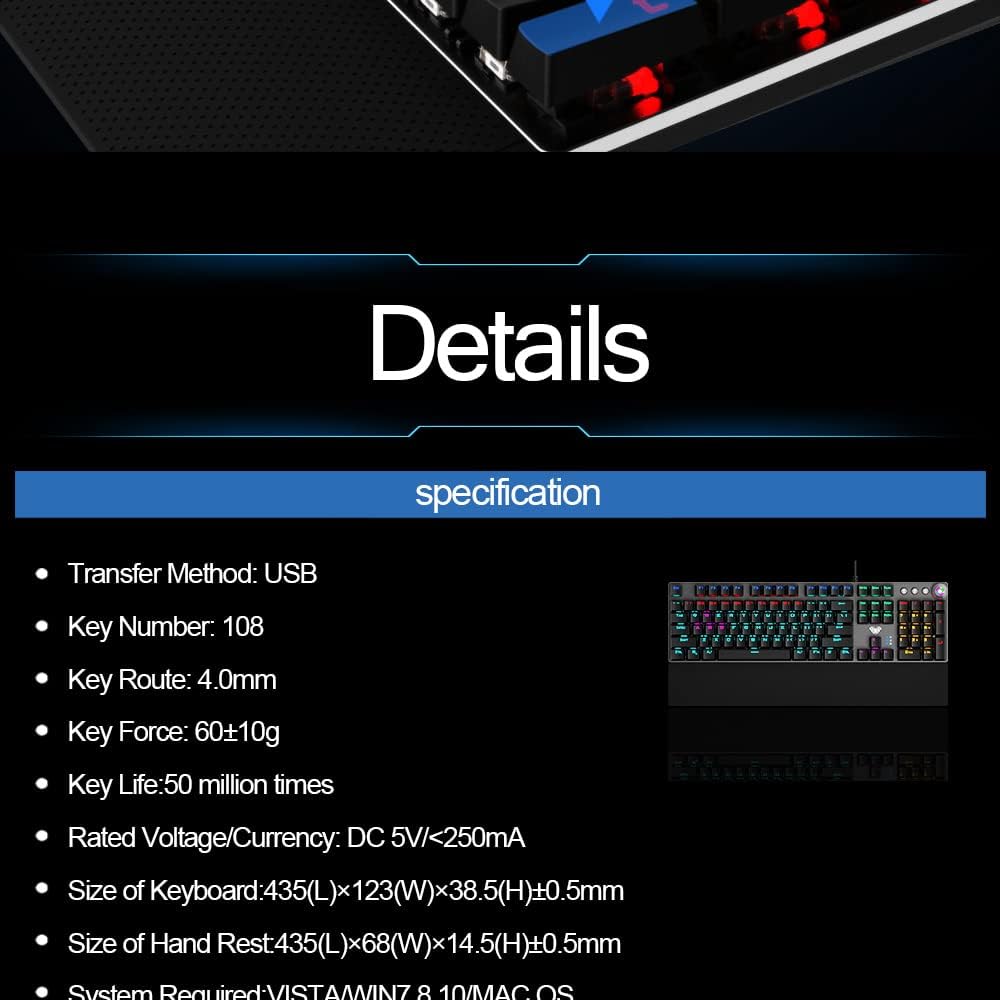
Image: A visual representation of the AULA F2088 keyboard's detailed specifications.
| Feature | Detail |
|---|---|
| Item Weight | 2.25 pounds |
| Manufacturer | AULA |
| Item Model Number | F2088 |
| Connectivity Technology | USB Wired |
| Keyboard Description | Gaming |
| Recommended Uses | Gaming |
| Product Dimensions | 17.13"L x 4.84"W x 1.5"H |
| Material | Acrylonitrile Butadiene Styrene, Metal, Plastic, Silicone |
| Switch Type | Mechanical |
| Keyboard Layout | QWERTY |
| Key Number | 108 |
| Key Route | 4.0mm |
| Key Force | 60±10g |
| Key Life | 50 million times |
| Rated Voltage/Current | DC 5V/<250mA |
Warranty and Support
For warranty information, technical support, or further assistance, please refer to the official AULA website or contact their customer service directly. Keep your purchase receipt as proof of purchase for any warranty claims.


