
Williams AV DWS COM 8 400
Williams AV DWS COM 8 400 Digi-Wave 400 Wireless Intercom System User Manual
Model: DWS COM 8 400 | Brand: Williams AV
1. System Overview
The Williams AV DWS COM 8 400 Digi-Wave 400 is a wireless intercom system designed for clear, reliable communication among up to 8 participants. This system is ideal for various applications including event production, theaters, houses of worship, and educational settings, providing seamless interpretation and communication capabilities.
Included Components:
- (8) DLT 400 Transceivers: These compact units serve as both transmitters and receivers, allowing two-way communication.
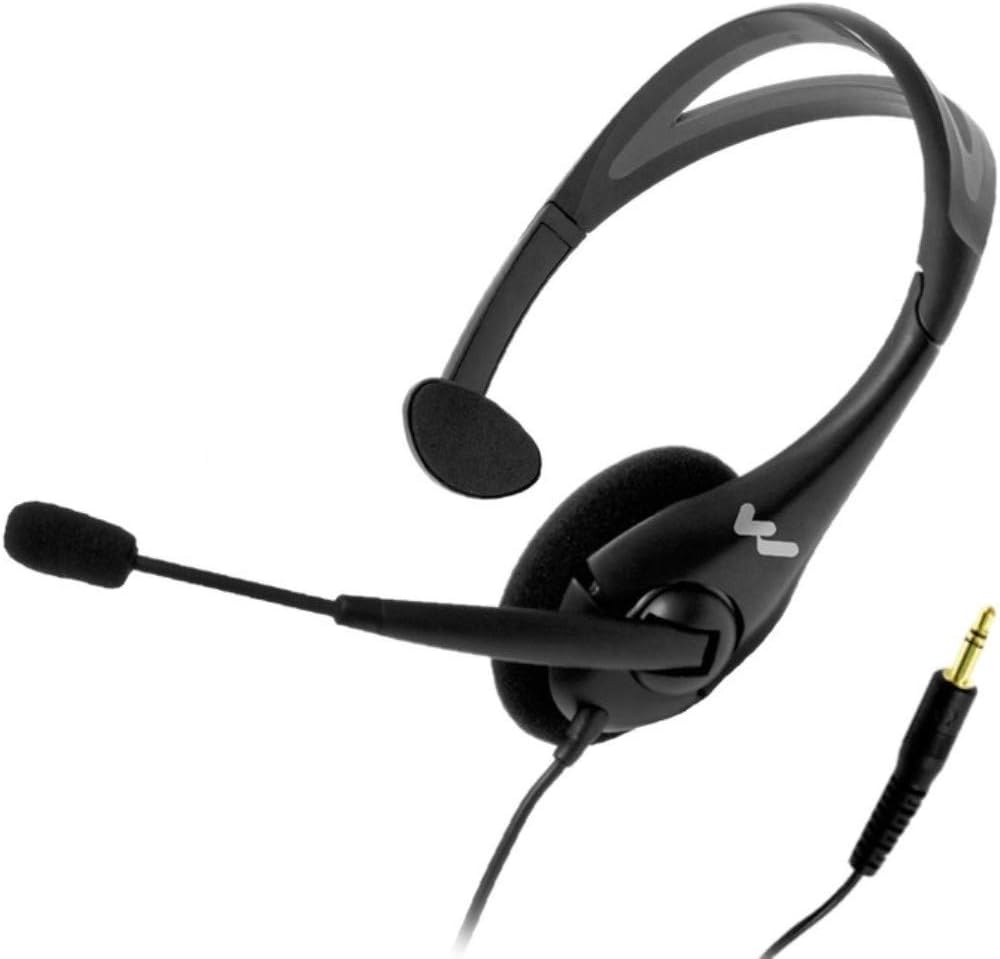
- (8) MIC 144 2P Headset Microphones: Comfortable headset microphones for hands-free operation and clear audio input.
- (1) CCS 056 DW 11 System Carry Case: A durable case designed to protect and transport the entire system.
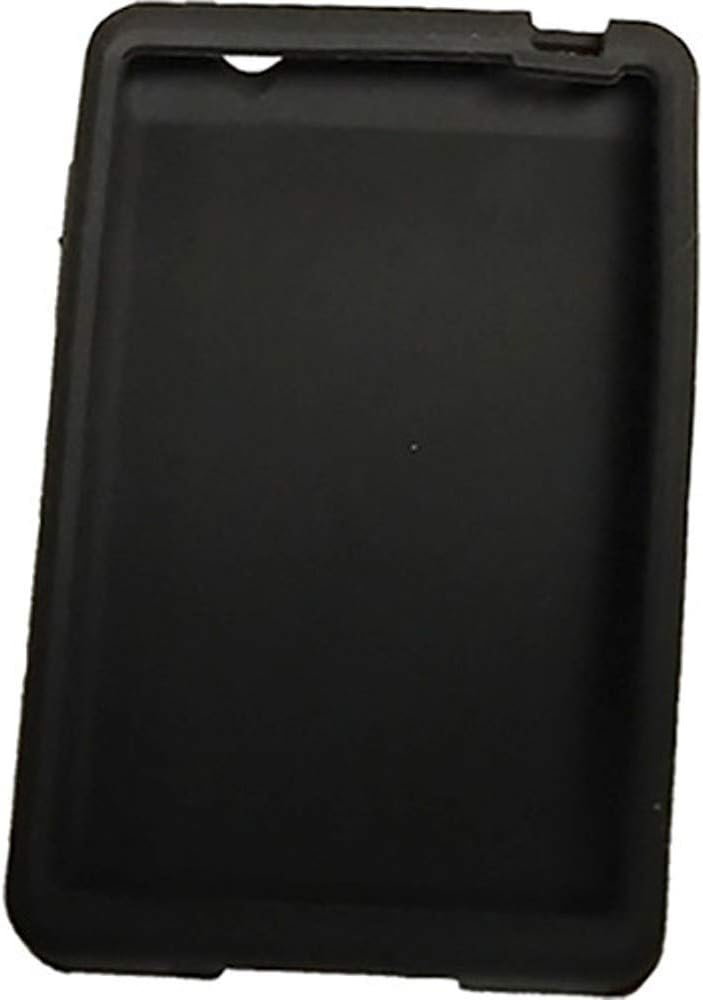
- (1) CCS 061 GR Grey Silicone Skin: A protective silicone cover for one transceiver.
- (7) CCS 061 BK Black Silicone Skins: Protective black silicone covers for the remaining transceivers.


2. Setup Instructions
- Charge the DLT 400 Transceivers:
Before initial use, ensure all DLT 400 Transceivers are fully charged. Connect the transceivers using a standard USB-C cable to a power source, or place them in a compatible multi-unit charger (e.g., CHG 412, sold separately) if available. A full charge typically takes approximately 5 hours.

Figure 2.1: DLT 400 Transceiver with USB-C port. The USB-C port is located on the side for direct charging. - Attach Silicone Skins (Optional):
For added protection and grip, slide the provided CCS 061 GR (Grey) or CCS 061 BK (Black) silicone skins onto the DLT 400 Transceivers.
- Connect Headset Microphones:
Plug the MIC 144 2P Headset Microphones into the 3.5 mm TRRS headphone jack located on the top of each DLT 400 Transceiver. This port also serves as the audio output for listening.
Figure 2.2: DLT 400 Transceiver with 3.5mm jack. The headphone/microphone jack is located at the top of the unit. - Power On:
Press and hold the power button (usually marked with a circle and a vertical line) on each DLT 400 Transceiver until the OLED display illuminates.
3. Operating Instructions
3.1. Channel Selection (Interpretation Mode)
The DLT 400 Transceiver allows users to easily switch between different interpretation channels. This system is configured to support multiple language translations simultaneously.
- View Current Channel: The OLED display shows the currently selected channel (e.g., "CH 01").
- Switch Channels: Use the up (^) and down (v) arrow buttons located below the display to navigate through available channels. Each channel typically corresponds to a different language or audio source.
- Confirm Selection: The system will automatically select the channel once you stop pressing the arrow buttons.
3.2. Volume Adjustment
Adjust the listening volume to a comfortable level using the dedicated volume buttons on the side of the DLT 400 Transceiver.
- Increase Volume: Press the '+' button.
- Decrease Volume: Press the '-' button.
3.3. Two-Way Communication (Transceiver Functionality)
The DLT 400 units are transceivers, meaning they can both transmit and receive audio. When using the MIC 144 2P Headset Microphone, you can speak into the microphone to transmit your voice to other participants on the same channel, or to an interpreter.
- Talk Button: Press the central microphone icon button to activate your microphone for speaking. A red LED around the Talk button indicates that the microphone is active.
- Mute Microphone: Press the Talk button again to mute your microphone.
4. Maintenance
- Cleaning: Use a soft, dry cloth to clean the exterior of the DLT 400 Transceivers and the headset microphones. Avoid using abrasive cleaners, solvents, or harsh chemicals.
- Storage: When not in use, store the system components in the CCS 056 DW 11 System Carry Case to protect them from dust, moisture, and physical damage. Store in a cool, dry place.
- Battery Care: For optimal battery life, avoid fully discharging the transceivers frequently. Recharge them regularly, especially if they will be stored for an extended period.
- Silicone Skins: The silicone skins can be removed and cleaned with mild soap and water if necessary. Ensure they are completely dry before reattaching them to the transceivers.
5. Troubleshooting
- No Sound from Headset:
- Ensure the headset microphone is fully plugged into the 3.5mm jack.
- Check the volume level on the DLT 400 Transceiver and increase if necessary.
- Verify that the transceiver is powered on and tuned to an active channel.
- Confirm the headset itself is functioning by testing with another audio source if possible.
- Transceiver Not Charging:
- Ensure the USB-C cable is securely connected to both the transceiver and the power source.
- Try a different USB-C cable or power adapter.
- If using a multi-unit charger, ensure the transceiver is correctly seated in its slot.
- Poor Audio Quality or Interference:
- Check the distance between the transceiver and the main transmitter; the system has a range of up to 900 ft (274 m), but environmental conditions can affect this.
- Ensure there are no large metallic objects or other wireless devices causing interference in the immediate vicinity.
- Verify that all units are on the correct channel.
- Microphone Not Transmitting:
- Ensure the MIC 144 2P Headset Microphone is properly connected.
- Press the Talk button on the DLT 400 Transceiver to activate the microphone (red LED should illuminate).
- The internal microphone is disabled when the MIC jack is engaged; ensure the headset is the intended input.
6. Specifications
| Operating Frequencies | 2.4 GHz (ISM band); 2402 – 2476 MHz FHSS |
| Audio Frequency Response (-3dB Level) | Intercom Mode: 100 - 7200Hz / Other Modes: 100 - 1,500Hz |
| Signal-to-Noise Ratio (SNR) | 73 dB (A-weighted, default Rx volume with mic input) |
| Total Harmonic Distortion (THD) | 0.1 % (Default Volume, 1kHz) |
| Microphone Input | Internal microphone (disabled when MIC jack engaged) and 3.5 mm phone jack (sleeve) with electret microphone bias, adjustable gain with 63dB range. |
| Line Input | USB-C |
| Headphone Output | 3.5 mm TRRS headphone jack; 25 mW, R 32 ohms |
| Audio Output (Max SSPL 90) | 111.8dB (EAR 013), 116.8dB (EAR 041) |
| Range | Up to 900 ft (274 m) (depending upon environmental conditions) |
| Modulation | FSK |
| RF Output | 19 dBm Typical |
| Security | 87 bit encryption (300 Series Compatible), 87+128 bit Encryption, Encryption PIN, Lock for settings |
| Side Tone | -6 dB below volume, tone variation (Off, Low and High settings available) |
| Indicators | OLED display |
| LEDs | Red LED around Talk button when enabled; Bi-color, changing green and red LED at top |
| Charging Connectors | USB-C; Two contacts for use with CHG 412 |
| Compatible Receivers | DLR 400 RCH, DLR 400 ALK, DLT 300 and DLR 360 |
| Battery Life | Up to 16 hrs talk time |
| Power Save | Auto Sleep Mode after 5 minutes of no RF signal from compatible devices |
| Charge Time | 5 hrs. approx. |
| Dimensions | 4.22" x 2.60" x 0.50" |
| Weight | 3.3 oz |
7. Warranty and Support
For detailed warranty information, please refer to the warranty card included with your product or visit the official Williams AV website. For technical support, troubleshooting assistance beyond this manual, or to inquire about replacement parts, please contact Williams AV customer service.
Williams AV Contact Information:
- Website: www.williamsav.com
- Refer to the product packaging or official website for current phone numbers and email addresses.
Related documentsDWS COM 8 400


Ask a question about this manual
Ask about setup, troubleshooting, compatibility, parts, safety, or missing instructions. Manuals+ will review the question and use this page’s manual context to help answer it.