
Introduction
This manual provides instructions for the setup, operation, and maintenance of your Wacom Intuos Graphics Drawing Tablet (Model CTL4100) and the accompanying Wacom LP1100K 4K Pen. The Wacom Intuos tablet is designed for digital art, photo editing, and animation, offering a natural drawing experience on your Mac or PC.
The Wacom LP1100K 4K Pen features 4096 levels of pressure sensitivity, two customizable buttons, and utilizes Electro-Magnetic Resonance (EMR) technology, making it battery-free. This design ensures comfort and precision for both left and right-handed users.
What's in the Box
- Wacom Intuos Graphics Drawing Tablet (CTL4100)
- Wacom LP1100K 4K Pen
- USB Cable
- Quick Start Guide (not included in this digital manual)
- Software download instructions (for 3 bonus software titles)
Setup
1. Connecting the Tablet
Connect the Wacom Intuos tablet to your computer using the provided USB cable. Insert one end of the USB cable into the tablet's USB port and the other end into an available USB port on your Mac or PC.
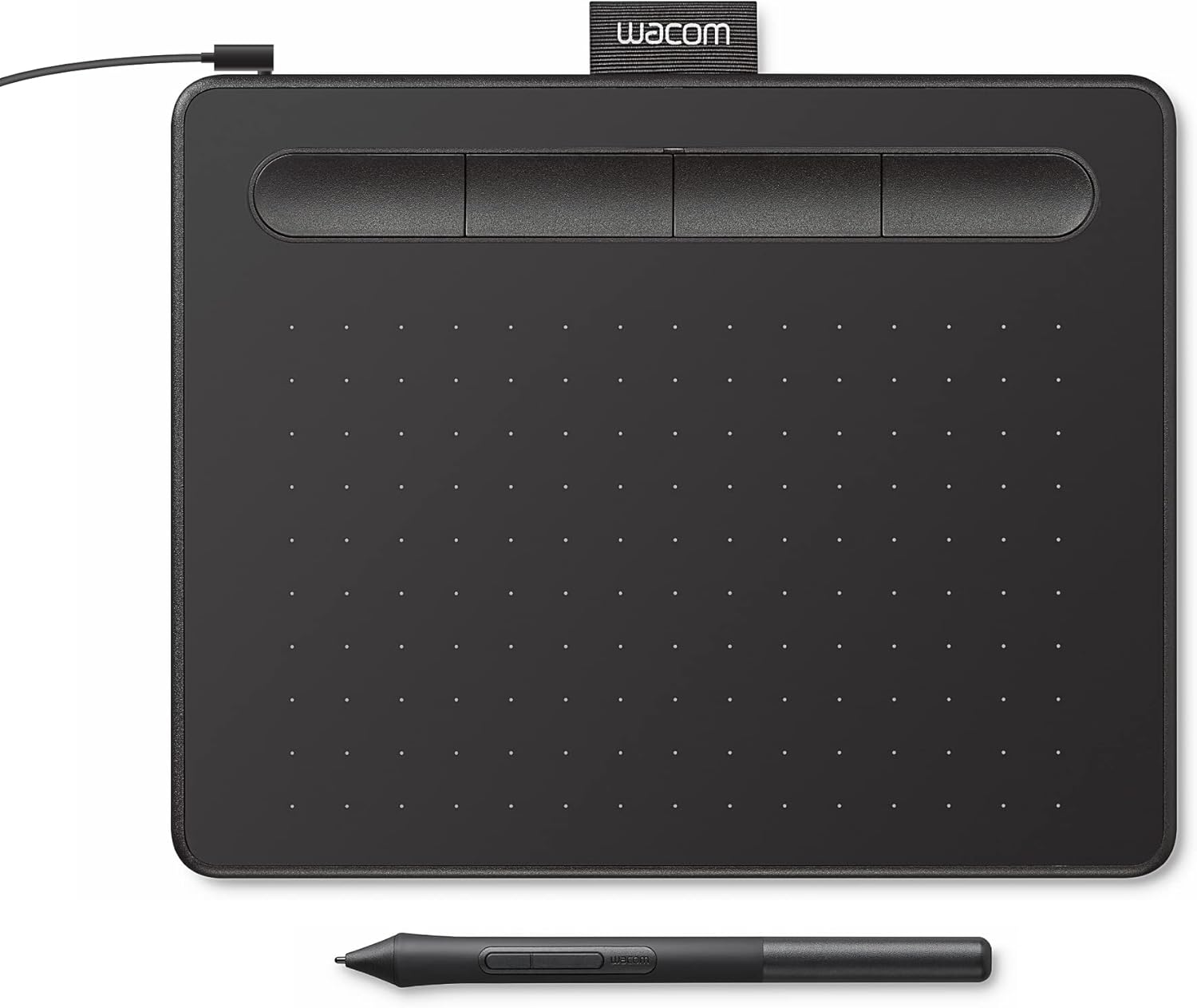
Image: Wacom Intuos tablet connected to a computer via USB cable, illustrating the connection point.
2. Driver Installation
For optimal performance and full functionality, it is recommended to install the latest Wacom drivers. Visit the official Wacom website (wacom.com/support/product-support/drivers) to download and install the appropriate driver for your operating system (macOS or Windows). Follow the on-screen instructions to complete the installation.
3. Software Registration
Your Wacom Intuos tablet includes access to three bonus software titles. Follow the instructions provided with your product to register your tablet and download the included software from the Wacom website.
4. Pen Setup
The Wacom LP1100K 4K Pen is battery-free and does not require charging. It is ready for use once the tablet drivers are installed. The pen features two customizable buttons for quick access to functions.

Image: Close-up of the Wacom LP1100K 4K Pen, highlighting its ergonomic design and two customizable side buttons.
Operating the Tablet
1. Basic Drawing and Navigation
Hold the pen as you would a traditional pen or pencil. The pen tip acts as your mouse cursor. Pressing the pen tip to the tablet surface registers a click or a stroke, depending on the application. Move the pen across the tablet surface to move the cursor on your screen.
2. Using ExpressKeys
The Wacom Intuos tablet features four customizable ExpressKeys located at the top of the tablet. These buttons can be programmed to perform various functions, such as undo, redo, zoom, or switch tools, to enhance your workflow. Customization options are available through the Wacom Tablet Properties software after driver installation.

Image: A user's hand interacting with the Wacom Intuos tablet using the pen, demonstrating the use of the ExpressKeys for workflow customization.
3. Pen Pressure Sensitivity
The Wacom LP1100K 4K Pen offers 4096 levels of pressure sensitivity. This allows for varying line thickness, opacity, and other effects in compatible software, mimicking the feel of traditional art tools. Apply more pressure for a stronger effect and less pressure for a lighter effect.

Image: An illustration highlighting key features of the Wacom pen, including 4096 pressure levels, two customizable buttons, and its battery-free design.
4. Left-Handed Use
The Wacom Intuos tablet and pen are designed for both left and right-handed users. You can configure the tablet orientation and pen button functions in the Wacom Tablet Properties to suit your preference.
Maintenance
1. Cleaning the Tablet and Pen
To clean the tablet surface and pen, use a soft, lint-free cloth slightly dampened with water. Avoid using harsh chemicals, abrasive cleaners, or solvents, as these can damage the device. Ensure the tablet is disconnected from the computer before cleaning.
2. Storing the Device
When not in use, store the tablet and pen in a clean, dry place away from direct sunlight and extreme temperatures. Avoid placing heavy objects on the tablet surface.
Troubleshooting
Tablet Not Responding
- Ensure the USB cable is securely connected to both the tablet and the computer.
- Try connecting the tablet to a different USB port on your computer.
- Restart your computer.
- Verify that the Wacom drivers are correctly installed and up to date. Reinstall if necessary.
Pen Not Working
- Ensure the tablet is connected and recognized by your computer.
- Check if the pen tip is worn out. If so, replace it with one of the accessory nibs (if included with your pen).
- Confirm that the Wacom drivers are installed.
- Test the pen in different applications to rule out software-specific issues.
Pressure Sensitivity Not Working
- Ensure you are using software that supports pen pressure sensitivity.
- Check the Wacom Tablet Properties to ensure pressure sensitivity is enabled and calibrated correctly.
- Update or reinstall your Wacom drivers.
Specifications
| Feature | Detail |
|---|---|
| Model Number | CTL4100 |
| Brand | Wacom |
| Connectivity Technology | USB |
| Active Area | Approximately 6.0 inches x 3.7 inches (based on product description) |
| Pressure Sensitivity | 4096 Levels |
| Pen Buttons | 2 customizable buttons |
| Pen Technology | Battery-free (EMR) |
| ExpressKeys | 4 customizable |
| Operating System Compatibility | macOS, Windows |
| Color | Black |
Warranty and Support
Wacom products typically come with a manufacturer's limited warranty. For specific warranty details, registration, and technical support, please refer to the documentation included with your product or visit the official Wacom support website: wacom.com/support. Online resources include FAQs, driver downloads, and contact information for customer service.