1. Introduction
This manual provides essential information for the installation, setup, operation, and maintenance of your Yasorn Smart Single-Phase DIN-Rail Energy Meter. This device is designed to monitor electricity consumption and allow remote control via a smartphone application. Please read this manual thoroughly before use to ensure safe and efficient operation.

Image 1.1: Front view of the Yasorn Smart Single-Phase DIN-Rail Energy Meter, showing the display and connection terminals.
2. Product Features
- Remote Control: Connects to home Wi-Fi (2.4 GHz only) for remote appliance control via the 'Smart Life' or 'Tuya' app.
- Power Consumption Monitoring: Visual LCD displays real-time voltage, current, power, and total consumption. Detailed data is available in the app.
- Timing & Delay Function: Schedule automatic appliance operation, such as turning on a water heater or turning off an air conditioner.
- Safety Material: Constructed from high-quality flame-resistant ABS material for enhanced safety, impact resistance, heat resistance, cold resistance, and insulation.
- Accurate Measurement: Utilizes large-scale integrated circuits and SMT technology for precise energy measurement.

Image 2.1: Close-up view illustrating the flame-retardant ABS material used in the meter's housing, highlighting its safety features.
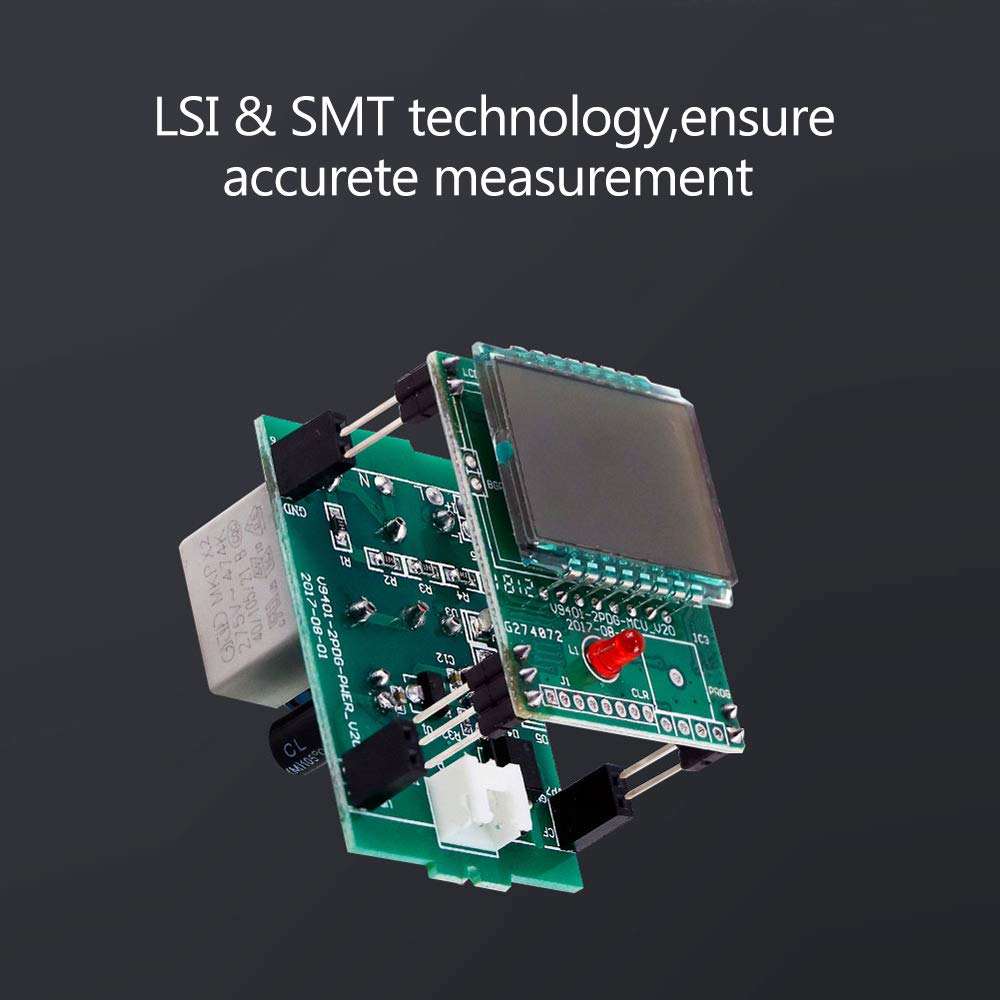
Image 2.2: Internal view of the meter, showcasing the LSI (Large Scale Integration) and SMT (Surface Mount Technology) components responsible for accurate measurement.
3. Package Contents
Verify that all items are present in the package:
- 1 x Yasorn WiFi Smart Meter
- 1 x Instruction Manual (this document)
- 1 Set Accessories (e.g., mounting screws, terminal covers)
4. Specifications
| Parameter | Value |
|---|---|
| Accuracy | Level 1 |
| WiFi Support | 2.4 GHz (5G routers not supported) |
| Color | Grey |
| Rated Current | 5 A |
| Material | ABS |
| Voltage | 220V / 50Hz |
| Maximum Current | 50/60A |
| Pulse Frequency | 1200imp/kwh |
| Installation | 35mm DIN Rail |
| Power Rate | 1W/6VA |
| Product Size | 100*36*66mm (approx. 3.94 x 1.42 x 2.6 inches) |
| Ambient Temperature | -45℃~75℃ (-49℉~167℉) |
5. Safety Information
WARNING: Installation and maintenance should only be performed by qualified personnel. Always disconnect power before working with electrical circuits to prevent electric shock or damage to the device.
- Ensure the voltage and current ratings of the meter match your electrical system.
- Do not operate the device in wet or damp conditions.
- Keep the device away from flammable materials.
- Do not attempt to disassemble or repair the meter yourself. Contact qualified service personnel if needed.
6. Installation
The Yasorn Smart Energy Meter is designed for 35mm DIN rail mounting.
6.1 Physical Installation
- Power Disconnection: Before starting, ensure the main power supply to the circuit where the meter will be installed is completely disconnected.
- Mounting: Clip the meter onto a standard 35mm DIN rail within your electrical panel.
- Wiring: Refer to the wiring diagram below and the labels on the meter for correct connections.
6.2 Wiring Diagram
Connect the incoming live (L in) and neutral (N in) wires to the top terminals. Connect the outgoing live (L out) and neutral (N out) wires to the bottom terminals, leading to the load.
Image 6.1: The meter showing 'L in' and 'N in' terminals at the top for incoming power, and 'L out' and 'N out' terminals at the bottom for outgoing power to the load.
- Secure Connections: Ensure all wire connections are tight and secure to prevent loose contacts and overheating.
- Power Restoration: Once installation is complete and verified, restore power to the circuit. The meter's display should illuminate.
7. App Setup and WiFi Connection
To utilize the smart features, you need to connect the meter to your home Wi-Fi network via the 'Smart Life' or 'Tuya' app.
- Download App: Download the 'Smart Life' or 'Tuya' app from your smartphone's app store (available for iOS and Android).
- Register/Login: Open the app and register for a new account or log in if you already have one.
- Add Device: Tap the '+' icon in the top right corner of the app to add a new device. Select 'Electrical Engineering' > 'Energy Meter (Wi-Fi)'.
- Pairing Mode: On the meter, press and hold the 'Pair' button (usually located near the WiFi indicator) until the WiFi indicator light starts blinking rapidly. This indicates pairing mode.
- Connect to WiFi: In the app, confirm the indicator is blinking rapidly. Enter your 2.4 GHz Wi-Fi network name and password. (Note: 5 GHz Wi-Fi networks are not supported).
- Completion: The app will search for and connect to the device. Once connected, the WiFi indicator on the meter will become solid, and the device will appear in your app's device list.
8. Operating Instructions
8.1 Local Display Operation
The meter's LCD display cycles through various parameters such as Voltage (V), Current (A), Active Power (W), and Total Energy Consumption (kWh). No direct interaction is typically required on the meter itself for basic monitoring.
8.2 Remote Control via App
Once connected to the app, you can control and monitor the meter from anywhere with an internet connection.
- On/Off Control: Tap the power icon in the app to remotely turn the connected circuit on or off.
- Real-time Monitoring: View live data for voltage, current, active power, and total energy consumption.

Image 8.1: Screenshot of the 'Smart Life' or 'Tuya' app interface displaying real-time power consumption data, including current, active power, and voltage.
8.3 Scheduling and Timer Functions
The app allows you to set schedules and timers for automated operation.
- Create Schedules: Navigate to the 'Schedule' or 'Timer' section within the device settings in the app.
- Set Time: Define specific times for the meter to turn on or off.
- Repeat Options: Choose daily, weekly, or specific days for the schedule to repeat.
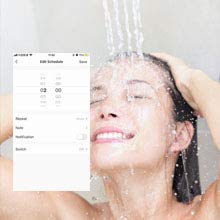
Image 8.2: App interface showing options to edit schedules, including setting times and repeat patterns for automated control.
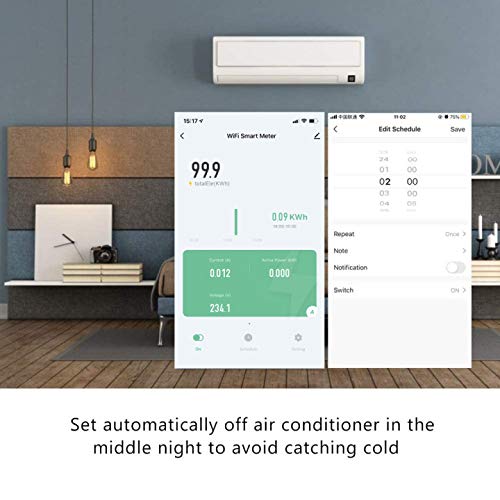
Image 8.3: Combined view of the app, demonstrating both the power consumption monitoring and the scheduling interface for automated control of appliances.
8.4 Device Sharing
You can share control of the smart meter with other family members through the app, allowing multiple users to manage the device.

Image 8.4: Illustration of multiple users interacting with a smartphone, symbolizing the device sharing feature within the smart home application.
9. Maintenance
The Yasorn Smart Energy Meter requires minimal maintenance.
- Cleaning: Periodically wipe the exterior of the meter with a soft, dry cloth. Do not use abrasive cleaners or solvents.
- Inspection: Occasionally check the wiring connections for tightness and signs of wear. Ensure power is disconnected before any physical inspection.
10. Troubleshooting
| Problem | Possible Cause | Solution |
|---|---|---|
| Meter display is off | No power supply to the meter. | Check the main power supply and wiring connections. Ensure power is restored to the circuit. |
| Cannot connect to Wi-Fi / App | Incorrect Wi-Fi password; 5 GHz Wi-Fi network used; Meter not in pairing mode; Weak Wi-Fi signal. | Ensure you are using a 2.4 GHz Wi-Fi network. Verify the Wi-Fi password. Put the meter into pairing mode (blinking Wi-Fi indicator). Move the meter closer to the router or improve Wi-Fi signal strength. |
| Inaccurate power readings in app | App synchronization issue; Firmware outdated. | Restart the app. Check for app updates. Ensure the meter's firmware is up to date via the app settings. If issues persist, contact support. |
| Remote control not working | No internet connection on phone or meter; Meter is offline. | Verify your phone's internet connection. Check if the meter's Wi-Fi indicator is solid (connected). If not, re-establish Wi-Fi connection. |
11. Support
For further assistance or technical support, please contact Yasorn customer service through the contact information provided on the product packaging or the official Yasorn website. Please have your model number (db5da50f-b632-4fa4-b4b1-24fbde63ca75) ready when contacting support.