1. Introduction and Overview
The ECOWITT WiFi Weather Station HP2553 provides comprehensive weather monitoring for your home and backyard. This advanced system includes a 7-inch TFT color display console (HP2550), a WS80 outdoor sensor array, a WH40 self-emptying rain gauge, and a WN32BP indoor 3-in-1 sensor. Designed for accuracy and ease of use, it allows you to monitor various environmental parameters wirelessly and upload data to popular online weather services via Wi-Fi.
Key features include:
- Accurate weather information with a high-resolution TFT color display.
- Wi-Fi capability for uploading data to Weather Underground, Weather Cloud, WOW, and Ecowitt.net.
- Separated sensors for optimal placement: Solar-powered ultrasonic anemometer (WS80) and self-emptying rain collector (WH40).
- Comprehensive display of wind speed/direction, dewpoint, rainfall, indoor/outdoor temperature and humidity, barometric pressure, moon phase, solar radiation, and UV.
- Support for additional sensors (up to 8 WH51 soil moisture, 4 WH41 PM2.5 air quality, 8 WN31 multi-channel temperature/humidity sensors).
2. Product Components
The ECOWITT HP2553 Weather Station includes the following main components:

Complete Weather Station Kit: This image shows all primary components of the ECOWITT HP2553 system, including the outdoor sensor array, rain gauge, indoor sensor, and the TFT display console.

WS80 Outdoor Sensor Array: This solar-powered ultrasonic anemometer measures wind direction, wind speed, wind gust, UV index, light intensity, temperature, and humidity. It is designed for robust outdoor performance.

WH40 Rain Gauge Sensor: A self-emptying, funnel-shaped rain collector that accurately measures rainfall. It is easy to install and maintain.

HP2550 TFT Display Console: The central display unit with a 7-inch high-resolution color screen. It shows all collected weather data, offers a user-friendly interface, and manages Wi-Fi connectivity.

HP2550 TFT Display Console Interface: A detailed view of the console's screen, highlighting the various data points and layout for easy readability.
WN32BP Indoor 3-in-1 Sensor: This sensor monitors indoor temperature, humidity, and barometric pressure, providing essential indoor climate data to the console.
3. Setup Guide
3.1 Unpacking and Inspection
Carefully unpack all components and verify that all parts listed in the product packaging are present and undamaged. Retain the packaging for future storage or transport.
3.2 Sensor Placement
Optimal placement of sensors is crucial for accurate readings:
- WS80 Outdoor Sensor Array: Mount in an open area, away from obstructions like buildings or trees, to ensure accurate wind, UV, and light readings. The ideal height is typically 2-10 meters (6.5-33 feet) above ground. Ensure it is level for accurate rain and wind measurements.
- WH40 Rain Gauge Sensor: Place on a level surface, away from structures that might block rain or cause splash-back. It should be easily accessible for occasional cleaning.
- WN32BP Indoor 3-in-1 Sensor: Position indoors in a central location, away from direct sunlight, heat sources, or drafts, to get representative indoor temperature and humidity readings.
3.3 Battery Installation
Install batteries into the sensors as per the instructions provided in the sensor-specific manuals. Ensure correct polarity. For the outdoor sensor array, lithium batteries are recommended for best performance in cold weather.
3.4 Console Power-up and Sensor Pairing
Connect the HP2550 TFT Display Console to power. The console will automatically attempt to connect with the outdoor and indoor sensors. Ensure sensors are powered on and within range. Successful pairing will be indicated on the console display.
3.5 Wi-Fi Configuration
The console supports Wi-Fi connectivity for online data uploads:
- Access the Wi-Fi settings on the HP2550 console.
- Connect the console to your local Wi-Fi network.
- Configure settings to upload data to your preferred weather server (e.g., Weather Underground, Weather Cloud, WOW, Ecowitt.net). Refer to the console's on-screen instructions or the detailed manual for specific server setup.
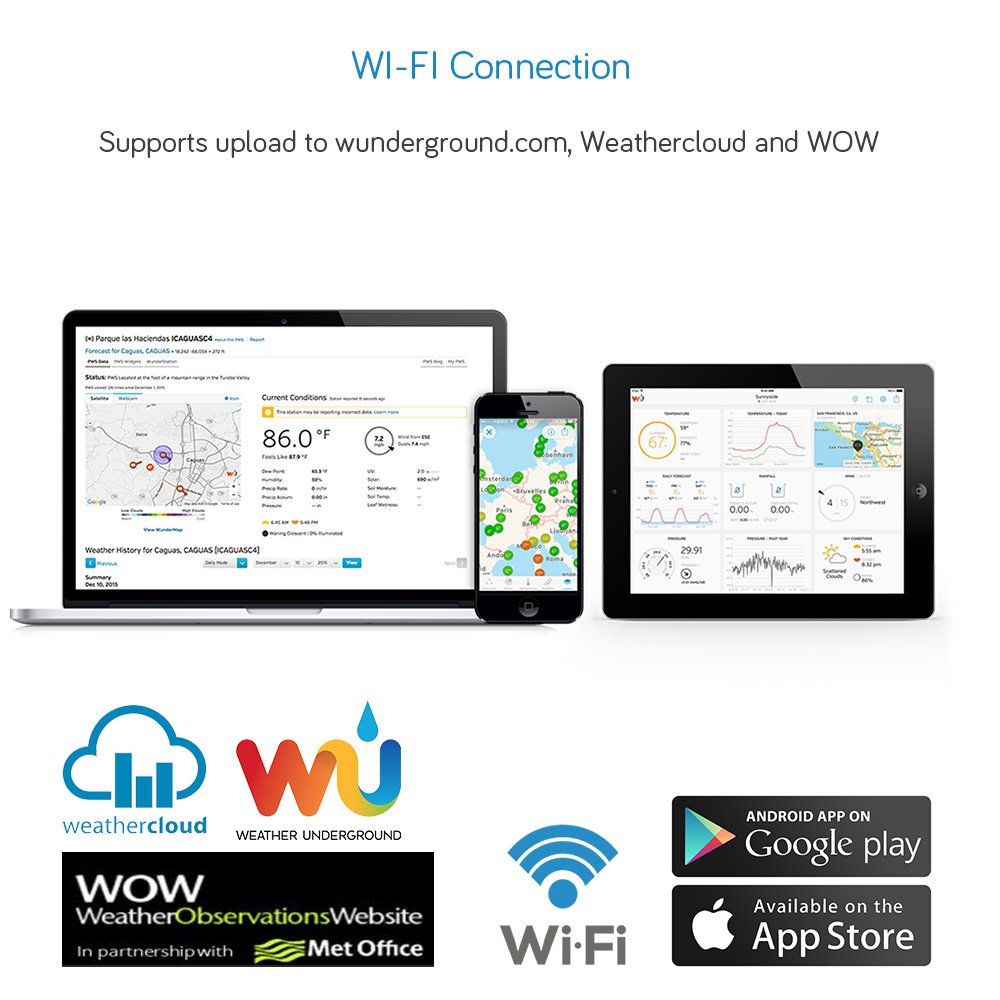
Diagram illustrating the Wi-Fi connection process and supported online platforms.
4. Operating Instructions
4.1 Display Console Features
The HP2550 console provides a rich display of weather data:
- Real-time Data: View current outdoor and indoor temperature, humidity, wind speed and direction, rainfall, UV index, solar radiation, and barometric pressure.
- Weather Forecast: The console provides a weather forecast based on barometric pressure trends.
- Alarms: Set customizable alarms for various weather parameters (e.g., high wind speed, low temperature).
- Historical Records: Access maximum/minimum values and historical graphs directly on the console for various time periods (daily, weekly, monthly, yearly).
- Brightness: Adjust the display brightness for optimal viewing in different lighting conditions.

Illustration of the two primary working modes for the Ecowitt weather station, showing direct console connection and gateway connection for app access.
4.2 Remote Monitoring via Apps and Web Servers
Once connected to Wi-Fi, your weather data can be accessed remotely:
- Ecowitt.net: Upload data to Ecowitt's free weather server. This allows you to view live data dashboards, graph displays, and receive email alerts via the Ecowitt app or website.
- Third-Party Platforms: The system supports uploading to Weather Underground, Weather Cloud, and WOW (Weather Observations Website).
- Mobile Apps: Download the free iOS and Android apps (e.g., WS View Plus) to view your weather conditions from anywhere.

Screenshots of the Ecowitt weather server interface, showing live data, graphs, alerts, and historical records.
4.3 Sensor Management and Calibration
The console allows for sensor ID management and calibration functions for all connected sensors. This is useful for fine-tuning accuracy or managing multiple sensors of the same type.

Diagram showing the main outdoor sensor array and various additional sensors that can be integrated with the Ecowitt system.
5. Maintenance
- Cleaning Sensors: Periodically clean the outdoor sensor array and rain gauge to prevent debris buildup that could affect accuracy. Use a soft, damp cloth.
- Battery Replacement: Replace sensor batteries as needed, typically indicated by a low battery warning on the console. Refer to individual sensor manuals for battery types and replacement procedures.
- Firmware Updates: Check the Ecowitt website or app for available firmware updates for your console and sensors. Updates can improve performance and add new features.
- Rain Gauge Calibration: If rainfall readings appear inaccurate, the rain gauge may require calibration. Refer to the detailed manual for instructions on how to perform a calibration test and adjust settings on the console.
6. Troubleshooting
If you encounter issues with your ECOWITT Weather Station, consider the following common troubleshooting steps:
- No Sensor Data Displayed:
- Ensure all sensors have fresh batteries and are powered on.
- Verify sensors are within the wireless transmission range of the console (up to 100m/328ft in open air).
- Check for obstructions between sensors and the console.
- Re-pair sensors with the console if necessary (refer to console settings).
- Inaccurate Readings:
- Wind: Ensure the outdoor array is free from obstructions and mounted securely.
- Rain: Check the rain gauge for debris or blockages. Perform a calibration if readings are consistently off.
- Temperature/Humidity: Ensure sensors are not exposed to direct sunlight, heat sources, or excessive moisture.
- Wi-Fi Connectivity Issues:
- Verify your Wi-Fi network is active and the password entered correctly on the console.
- Ensure the console is within range of your Wi-Fi router.
- Restart your router, then the console.
- Check for any firewall or router settings that might be blocking the connection to external weather servers.
- Console Display Problems:
- Ensure the power adapter is securely connected.
- Adjust display brightness settings.
For persistent issues, consult the full product manual or contact ECOWITT customer support.
7. Specifications
| Feature | Specification |
|---|---|
| Model Number | HP2553CA |
| Connectivity Technology | Wi-Fi |
| Material | Plastic |
| Power Source | Indoor Console: Cord Powered; Sensors: Batteries Powered (Batteries Not Included) |
| Special Features | Adjustable Brightness, Alarm, Customizable Alert, Large Display |
| Manufacturer | ECOWITT |
| First Available Date | January 26, 2024 |
| Parcel Dimensions | 31.5 x 25.5 x 18.8 cm; 2.39 kg |
8. Warranty and Support
For warranty information and technical support, please refer to the documentation included with your product or visit the official ECOWITT website. ECOWITT is known for prompt customer support, as noted by users.


