1. Introduction
Thank you for choosing the UOKIER Wireless Security Camera. This manual provides essential information for setting up, operating, and maintaining your camera to ensure optimal performance. This camera is designed for both indoor and outdoor use, offering 1080P HD video, night vision, two-way audio, and motion detection for enhanced security.
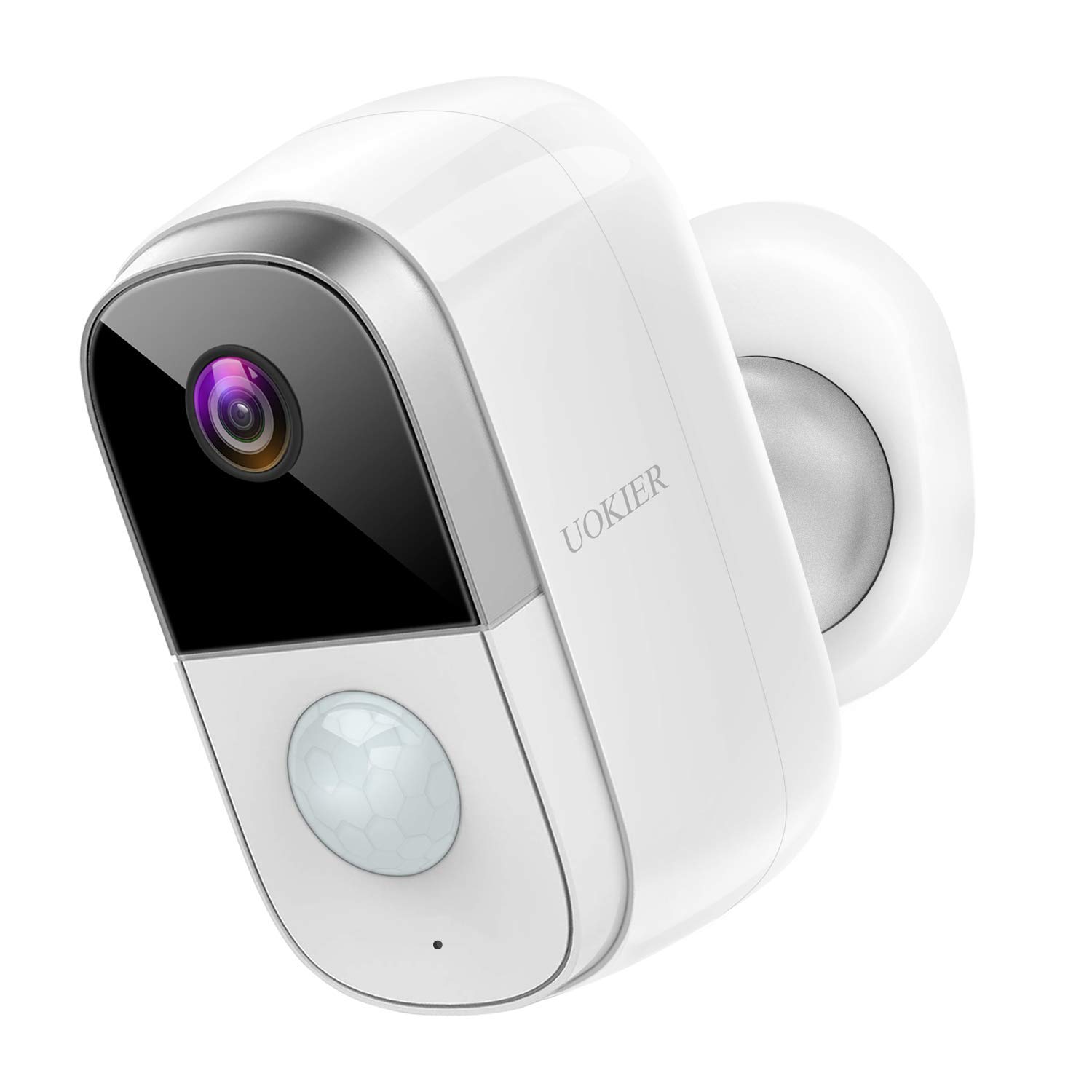
Figure 1: UOKIER Wireless Security Camera
2. What's in the Box
Upon unboxing your UOKIER Wireless Security Camera, please verify that all the following components are included:
- UOKIER Wireless Security Camera Unit
- Quick Guide (Instruction Manual)
- USB Charging Cable
- Magnetic Wall Mount
- Adjustable Wall Mount (threaded)
- Mounting Screws and Wall Anchors
- 3M Adhesive Pads
- Tweezers (for Micro SD card insertion/removal)
Video 1: UOKIER 6400 mAh Security Camera - Unboxing and Components Overview
3. Product Features
- 1080P Full HD Video: Captures crisp and clear images with no distortion.
- IR Night Vision: Provides a clear view on your phone even in dark conditions.
- Smart PIR Motion Detection: Upgraded program sends notifications upon human movement detection.
- Convenient 2-Way Audio: Directly talk to family or visitors via the camera through the app.
- Reliable Battery Performance: Rechargeable battery lasts up to 2-6 months depending on usage. (6400 mAh capacity)
- 100% Wireless & Cordless: Easy to install without worrying about wires.
- Weatherproof (IP65): Certified waterproof and dustproof, suitable for outdoor installation.
- Versatile Use: Can also be used as a baby monitor.
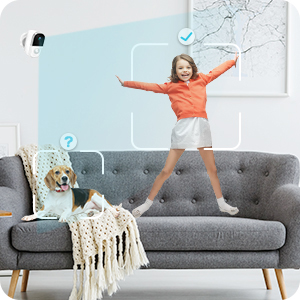
Image 1: Comparison of 720P vs 1080P Full HD video quality.

Image 2: Day and Night vision comparison, highlighting IR Night Vision.
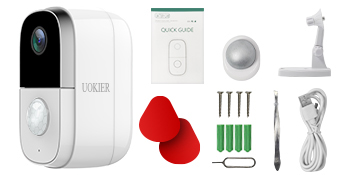
Image 3: Illustration of PIR motion detection distinguishing human movement.
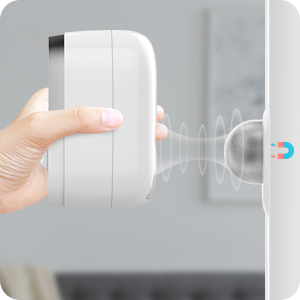
Image 4: User communicating through the camera's two-way audio feature.
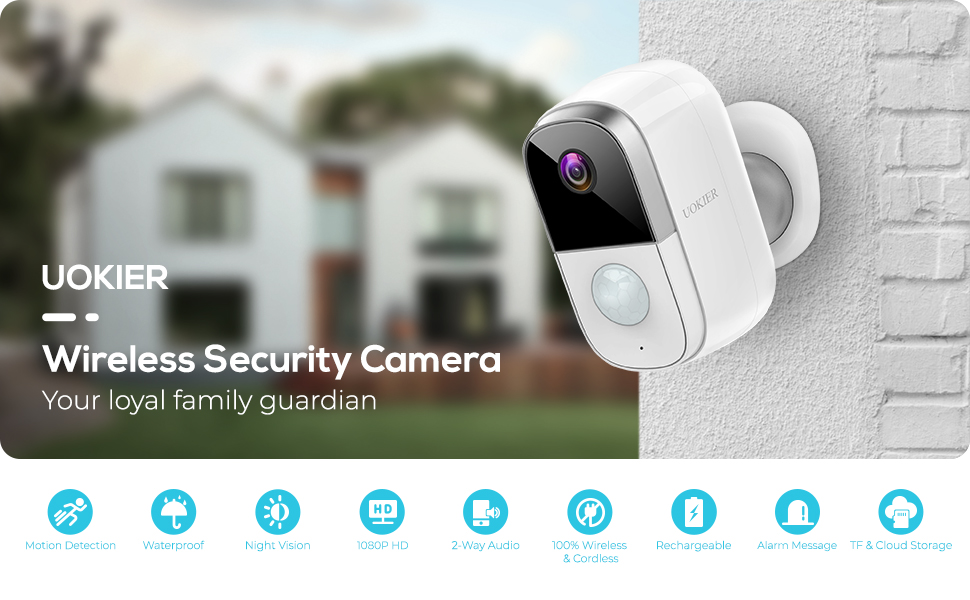
Image 5: Visual representation of the camera's long-lasting rechargeable battery.
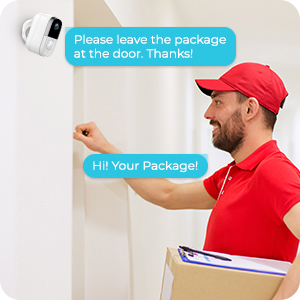
Image 6: Demonstrating the easy, wire-free installation of the camera.
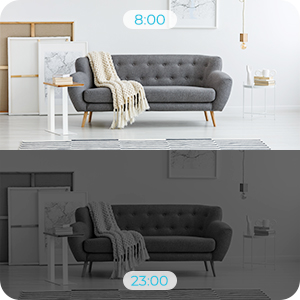
Image 7: Camera shown in rainy conditions, highlighting its weatherproof design.
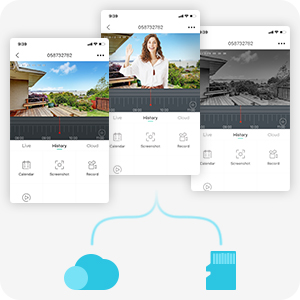
Image 8: Camera positioned in a nursery, demonstrating its use as a baby monitor.
Video 2: UOKIER Wireless Security Camera Outdoor Indoor - Detailed Features Overview
4. Setup
4.1 Initial Charging
Before first use, fully charge the camera using the provided USB charging cable. The charging port is located under a protective grommet on the back of the camera. A red indicator light typically signifies charging, turning blue when fully charged.
4.2 Inserting Micro SD Card
Locate the Micro SD card slot, also under the protective grommet. Gently insert a Micro SD card (up to 128GB, not included) into the slot until it clicks into place. Use the provided tweezers if necessary for easier insertion or removal.
4.3 App Download and Account Creation
Download the "CloudEdge" app from your device's app store (available for iOS and Android). Create an account and log in.
4.4 Adding the Device
- In the CloudEdge app, tap the "+" icon to add a new device.
- Select "Battery Camera" from the list of device types.
- Follow the on-screen instructions to power on the camera and reset it (hold the reset button for 4-5 seconds until a tone is heard).
- Connect your mobile device to a 2.4GHz Wi-Fi network. (Note: 5GHz Wi-Fi networks are not supported).
- The app will display a QR code. Position your camera's lens 5-8 inches away from your phone screen to scan the QR code. A tone will be heard from the camera upon successful scanning.
- The camera will then connect to your Wi-Fi network. Once connected, you can name your device and begin live viewing.
4.5 Mounting Options
The camera offers flexible mounting options:
- Magnetic Mount: Attach the magnetic base to a clean, flat surface using the provided 3M adhesive pads or screws. The camera can then be easily attached magnetically and adjusted.
- Adjustable Wall Mount: Use the threaded adjustable mount for a more secure installation. Screw the mount into the desired location using the provided screws and wall anchors. Then, screw the camera onto the threaded connector of the mount. This allows for precise angle adjustment.
5. Operating Instructions
5.1 Live View
From the "Devices" screen in the CloudEdge app, tap on your camera to access the live view. You can switch between HD and SD quality, listen to audio, and take screenshots or manual recordings.
5.2 Motion Detection
Configure motion detection settings in the app:
- Adjust sensitivity (Low/High).
- Enable "Alarm only when people appear" for human-specific detection.
- Set day/night detection preferences.
- Create an alarm plan to define specific time periods for active detection.
5.3 Two-Way Audio
While in live view, tap the "Intercom" button to activate two-way audio. Hold the button to speak, and release to listen.
5.4 Recording and Playback
- Event Recording: The camera automatically records clips when motion is detected. You can set the recording time (20, 40 seconds, or 1 minute) in the SD Card settings.
- Manual Recording: Tap the "Record" button in live view to manually start and stop recording.
- History: Access recorded events via the "History" tab in the app. Use the timeline to navigate through recorded clips.
- Cloud Storage: The camera supports optional cloud storage services. A free 7-day trial may be available. Check the "Cloud" tab for details.
5.5 Notifications and Device Sharing
- Notifications: Enable or disable push notifications for motion alerts in the app settings.
- Device Sharing: Share access to your camera with family members or trusted individuals through the "Device Share" option in settings.
6. Maintenance
- Battery Charging: Recharge the camera battery when the app indicates low power. Use the provided USB cable and a standard 5V USB power adapter.
- Lens Cleaning: Regularly clean the camera lens with a soft, dry cloth to ensure clear image quality.
- SD Card Management: Periodically review and format the Micro SD card through the app settings to maintain optimal recording performance and free up space.
7. Troubleshooting
- Camera not connecting to Wi-Fi:
- Ensure your Wi-Fi network is 2.4GHz. 5GHz networks are not supported.
- Verify the Wi-Fi password is correct.
- Make sure the camera is within range of your Wi-Fi router. Consider using a Wi-Fi extender if the distance is significant.
- Reset the camera by holding the reset button for 4-5 seconds and try the setup process again.
- Poor video quality or lag:
- Check your Wi-Fi signal strength in the app. A weak signal can cause lag.
- Ensure your internet connection is stable and has sufficient bandwidth.
- Clean the camera lens for any obstructions or smudges.
- Battery draining quickly:
- High motion detection sensitivity and frequent recordings will consume more battery. Adjust settings to lower sensitivity or reduce recording duration.
- Ensure the camera is fully charged.
- Consider a solar panel charger (sold separately) for continuous power in outdoor installations.
- App not responding or device not found:
- Close and restart the CloudEdge app.
- Check your phone's internet connection.
- If the issue persists, try resetting the camera and re-adding it to the app.
8. Specifications
| Feature | Specification |
|---|---|
| Model Number | B083338HMR |
| Video Capture Resolution | 1080p Full HD |
| Connectivity Technology | Wireless (Wi-Fi 2.4GHz) |
| Power Source | Rechargeable Battery (6400 mAh) |
| Special Features | Motion Sensor, Night Vision, 2-Way Audio |
| Indoor/Outdoor Usage | Indoor, Outdoor |
| International Protection Rating | IP65 |
| Field Of View | 130 Degrees |
| Storage Options | Micro SD Card (up to 128GB), Cloud Storage |
| Item Dimensions L x W x H | 2.44 x 2.13 x 3.94 inches |
| Item Weight | 13.5 ounces (384 Grams) |
9. Warranty & Support
For warranty information or technical support, please refer to the contact details provided in the Quick Guide included with your product or visit the official UOKIER website. Keep your purchase receipt for warranty claims.