
1. Introduction
This manual provides comprehensive instructions for the installation, operation, and maintenance of your Aigital 300Mbps WiFi Extender. This device is designed to expand your existing WiFi signal coverage, eliminate dead zones, and provide a stable wireless network throughout your home or office. Please read this manual carefully before using the product.
2. Product Features
- Extended WiFi Coverage: Equipped with high-gain antennas to expand WiFi coverage and eliminate dead zones.
- High-Speed Performance: Offers up to 300Mbps data transfer rate, suitable for HD video streaming and online gaming.
- Multiple Operating Modes: Supports Repeater Mode for signal boosting, Router Mode for creating a new wireless network, and AP Mode for converting a wired connection to wireless.
- Easy Setup: Features quick setup options including WPS and web interface configuration.
- Broad Compatibility: Compatible with 99% of routers on the market and works with any wireless devices.
3. Package Contents
- Aigital 300Mbps WiFi Extender Unit
- Instruction Manual
4. Product Overview
Familiarize yourself with the components of your Aigital WiFi Extender.

Figure 4.1: Front view of the Aigital WiFi Extender, showing indicator lights for LAN, WAN, WPS, WLAN, and Power, along with the WPS button.
Indicator Lights:
- LAN: Indicates connection to a wired device via the LAN port.
- WAN: Indicates connection to the internet (Router Mode).
- WPS: Flashes during WPS setup, solid when connected via WPS.
- WLAN: Indicates wireless activity.
- Power: Indicates the device is powered on.
Buttons and Ports:
- WPS Button: Used for quick, secure connection to a router supporting WPS.
- Reset Button: (Typically a small pinhole) Used to restore the device to factory default settings. Note: Ensure the device is powered on when performing a reset.
- LAN/WAN Port: An Ethernet port that can function as either a LAN port (for connecting wired devices) or a WAN port (for connecting to a modem/router in Router Mode).
5. Setup Guide
There are two primary methods to set up your Aigital WiFi Extender: using the WPS button or via a web browser.
5.1. WPS Setup (Recommended for Repeater Mode)
- Power On: Plug the Aigital WiFi Extender into an electrical outlet near your main router. Wait for the Power light to become solid.
- Activate WPS on Router: Press the WPS button on your main wireless router. Refer to your router's manual for the exact location and procedure.
- Activate WPS on Extender: Within two minutes, press the WPS button on the Aigital WiFi Extender. The WPS light on the extender will flash.
- Connect: Wait for the WPS light on the extender to become solid, indicating a successful connection. The extender will automatically adopt your router's WiFi name (SSID) with "_EXT" or "_Plus" appended, and the same password.
- Relocate: Once connected, you can unplug the extender and move it to a location halfway between your router and the WiFi dead zone. Ensure the WLAN light remains solid, indicating a good signal.
5.2. Web Interface Setup (For all modes)
- Power On: Plug the Aigital WiFi Extender into an electrical outlet.
- Connect to Extender's Network: On your computer or mobile device, connect to the WiFi network named "Wireless-AC" or "Aigital_XXXX" (where XXXX are the last four digits of the MAC address, usually found on a sticker on the device). This network will initially have no internet access.
- Access Web Interface: Open a web browser (e.g., Chrome, Firefox) and type
192.168.10.1into the address bar, then press Enter. - Login: Enter
adminfor both the username and password (default). - Select Mode: On the setup page, choose your desired operating mode:
- Repeater Mode: Select your existing WiFi network from the list, enter its password, and click "Apply".
- Router Mode: Configure WAN settings (e.g., PPPoE, Dynamic IP, Static IP) and set up a new WiFi network name and password.
- AP Mode: Connect an Ethernet cable from your main router to the extender's LAN/WAN port. Configure a new WiFi network name and password for the extender.
- Complete Setup: Follow the on-screen prompts to finalize the configuration. The extender will restart.
- Relocate (for Repeater/AP Mode): After successful setup, you can unplug and relocate the extender to an optimal position.
6. Operating Modes
The Aigital WiFi Extender supports three distinct operating modes to suit various networking needs:
6.1. Repeater Mode
In Repeater Mode, the device extends the range of an existing wireless network. It receives the wireless signal from your main router and re-transmits it, effectively boosting coverage to areas with weak or no signal. This mode is ideal for eliminating WiFi dead zones.
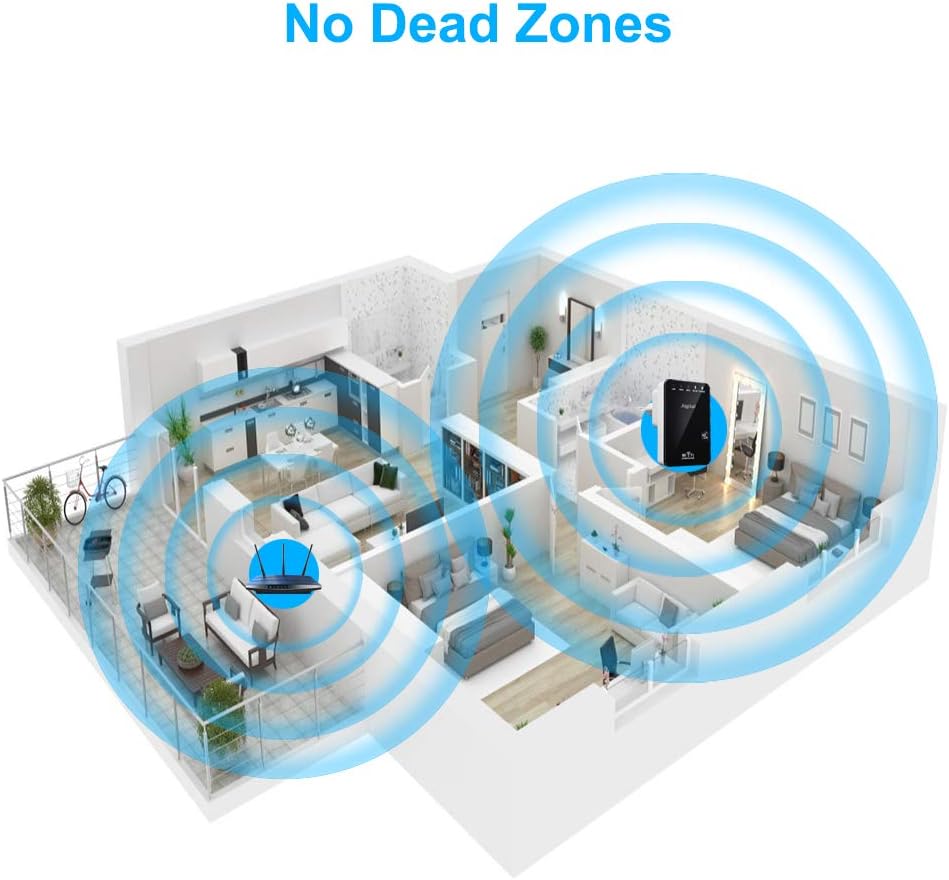
Figure 6.1: Illustration of WiFi signal extension, demonstrating how the Aigital Extender expands coverage throughout a multi-room environment.
6.2. Router Mode
In Router Mode, the device functions as a primary wireless router. It connects to a modem via an Ethernet cable (using the LAN/WAN port) and creates a new private wireless network. This mode is suitable if you need a basic router for a small network.
6.3. AP (Access Point) Mode
In AP Mode, the device converts a wired network connection into a wireless one. You connect an Ethernet cable from your existing router or network switch to the extender's LAN/WAN port, and the extender broadcasts a new WiFi signal. This is useful for adding wireless capability to a wired-only network or creating a separate WiFi network.
7. Troubleshooting
If you encounter issues with your Aigital WiFi Extender, refer to the following common problems and solutions:
| Problem | Possible Cause / Solution |
|---|---|
| No Power / Lights Off | Ensure the extender is securely plugged into a working electrical outlet. Try a different outlet. |
| Cannot connect to the extender's setup network (e.g., "Wireless-AC") | Ensure the extender is powered on. Try restarting your computer/device. Perform a factory reset on the extender (see below). |
| Extender connected but no internet access | In Repeater Mode, ensure the extender is within range of your main router and has a strong signal (WLAN light solid). Verify your main router has internet access. Reconfigure the extender via the web interface, ensuring the correct WiFi password for your main router is entered. |
| Weak signal from the extender | Relocate the extender to a position halfway between your main router and the desired coverage area. Avoid physical obstructions like thick walls or metal objects. Reduce interference from other electronic devices. |
| WPS setup fails | Ensure your main router supports WPS and that you are pressing its WPS button correctly. Try the web interface setup method instead. |
| Forgot login password for web interface | Perform a factory reset. |
| How to perform a Factory Reset | With the extender powered on, use a paperclip or a thin object to press and hold the Reset button (usually a small pinhole) for 5-10 seconds until all lights flash. Release the button. The extender will restart with factory default settings. Note: If the reset button does not respond, ensure you are pressing it firmly enough and that the device is powered on. |
8. Specifications
| Feature | Detail |
|---|---|
| Brand | Aigital |
| Model | Aigital 300Mbps WiFi Extender |
| Wireless Communication Standard | 802.11a/b/g/n, 2.4 GHz Radio Frequency, 5.8 GHz Radio Frequency |
| Data Transfer Rate | 300 Megabits Per Second |
| Frequency Band Class | Dual-Band (2.4G and 5G) |
| Product Dimensions | 3.9 x 4 x 3.8 inches |
| Item Weight | 5.6 ounces |
| Manufacturer | Aigital |
| First Available Date | December 24, 2019 |
9. Maintenance
To ensure optimal performance and longevity of your Aigital WiFi Extender, follow these maintenance guidelines:
- Cleaning: Gently wipe the device with a soft, dry cloth. Do not use liquid cleaners or aerosols.
- Ventilation: Ensure the device is placed in a well-ventilated area. Do not block the ventilation holes.
- Environment: Avoid exposing the device to extreme temperatures, humidity, or direct sunlight.
- Firmware Updates: Periodically check the manufacturer's official website for any available firmware updates. Updating firmware can improve performance and security.
10. Warranty and Support
For specific warranty information, please refer to the warranty card included with your product or visit the official Aigital website. Warranty terms and conditions may vary by region and purchase date.
If you require technical assistance or have questions not covered in this manual, please contact Aigital customer support through their official channels. Details are typically available on the product packaging or the manufacturer's website.
Note: Keep your purchase receipt as proof of purchase for warranty claims.