
Introduction
This manual provides instructions for the safe operation and maintenance of your DBPOWER U818A WIFI Drone. The U818A is a remote-controlled quadcopter equipped with a 720P HD camera for real-time video transmission. It features altitude hold and headless mode, designed for ease of use, making it suitable for beginners.
Please read this manual thoroughly before operating the drone to ensure proper function and to prevent damage or injury.
Safety Information
- Take a 10-minute break after each flight to allow the motors to cool down.
- Always operate the drone in open, clear areas, away from people, animals, and obstacles.
- Do not fly near airports, power lines, or restricted airspace.
- Ensure all propellers are securely attached and undamaged before each flight.
- Keep fingers and hair away from rotating propellers.
- Do not operate in strong winds or adverse weather conditions.
- Adult supervision is recommended for younger users.
Package Contents
Verify that all items listed below are included in your package:
- 1 x DBPOWER U818A FPV WIFI Drone with 720P HD Camera
- 1 x 2.4 GHz Remote Control
- 2 x LiPo 3.7V 350mAh Batteries (for drone)
- 1 x USB Charger
- 1 x Card Reader
- 1 x 4GB Micro SD Card
- 4 x Spare Propellers
- 1 x User Manual
- 1 x Quick Start Guide
Setup
1. Charging the Drone Batteries
- Connect the LiPo battery to the USB charger.
- Plug the USB charger into a USB power source (e.g., computer, USB wall adapter).
- The indicator light on the charger will show charging status (refer to charger instructions for specific light patterns).
- Charging typically takes approximately 60-90 minutes per battery.
2. Installing Remote Control Batteries
- The remote control requires 4 x AA batteries (not included).
- Open the battery compartment on the back of the remote control.
- Insert the batteries, ensuring correct polarity (+/-).
- Close the battery compartment.
3. Installing Propellers (if necessary)
- Ensure propellers are correctly matched to their respective motor shafts (usually marked A and B).
- Securely attach each propeller.
4. Inserting Micro SD Card
- Locate the Micro SD card slot on the drone.
- Insert the provided 4GB Micro SD card until it clicks into place.
5. Pairing the Drone with the Remote Control
- Place the drone on a flat, level surface.
- Connect the drone battery. The drone's LED lights will flash.
- Turn on the remote control.
- Push the left joystick (throttle) all the way up, then all the way down.
- The drone's LED lights will become solid, indicating successful pairing.
6. App Installation and Wi-Fi Connection (for FPV)
- Download the 'Flyingsee' or 'UDIRC FPV' app from your smartphone's app store (iOS or Android).
- Turn on the drone.
- On your smartphone, go to Wi-Fi settings and connect to the drone's Wi-Fi network (usually named 'UDIRC' followed by numbers/letters).
- Open the app to view the live camera feed and access app-based controls.
Operating Instructions
Basic Flight Controls
- One-Button Take-Off/Landing: Press the designated button on the remote control for automatic take-off or landing.
- Throttle (Left Joystick): Push up to ascend, pull down to descend.
- Directional Control (Right Joystick): Push forward/backward to move the drone forward/backward. Push left/right to move the drone left/right.
- Yaw (Left Joystick Left/Right): Push left/right to rotate the drone counter-clockwise/clockwise.

Image: One-Button Take-Off/Landing feature for simplified operation.
Altitude Hold Mode
The advanced barometer allows the drone to maintain a stable altitude automatically, simplifying control for beginners and enabling stable photography.

Image: Altitude Hold Mode for stable flight and photography.
Headless Mode
In Headless Mode, the drone's orientation is relative to the pilot, not the drone's front. This means pushing the right joystick forward will always make the drone fly away from you, regardless of which way the drone is facing. This simplifies control, especially for beginners.
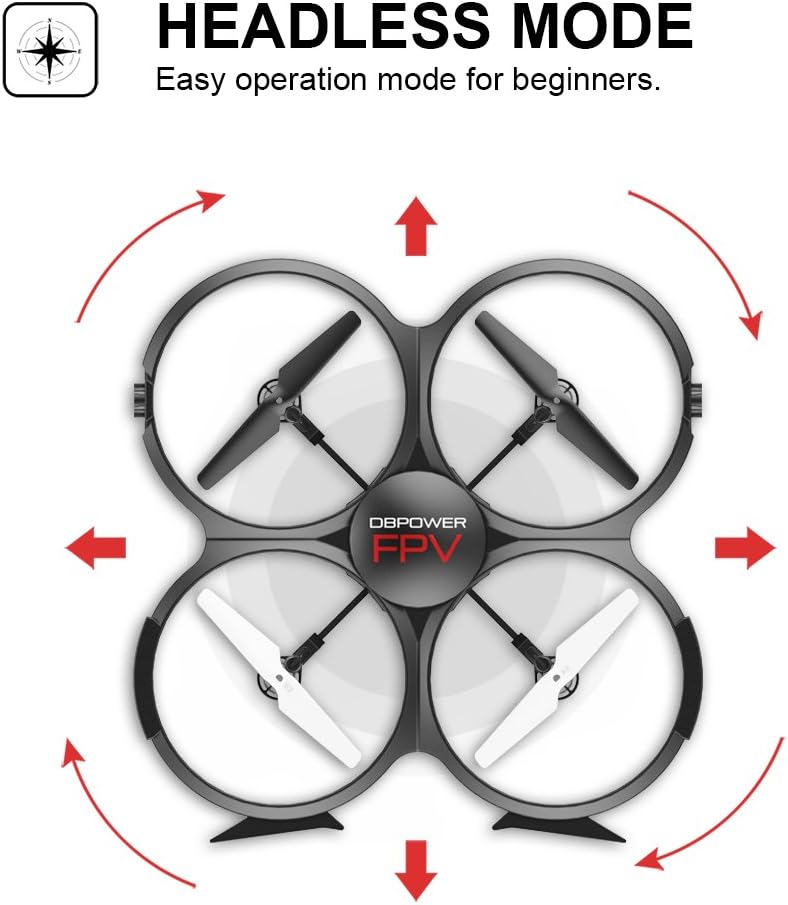
Image: Headless Mode for easier directional control.
3D Flips & Rolls
The drone supports automatic 360-degree flips. Consult the remote control diagram in the quick start guide for the specific button or joystick combination to activate this function.

Image: 3D Flip & Rolls feature for aerial maneuvers.
720P HD Camera and FPV (First Person View)
The integrated 720P HD camera captures photos and videos. Through Wi-Fi real-time transmission, you can view the live feed on your smartphone via the dedicated app. This allows for capturing aerial footage and photos directly to the Micro SD card or your phone.

Image: 720P HD WIFI Camera for capturing high-definition aerial views.
Gravity Induction Mode
When using the smartphone app, Gravity Induction Mode allows you to control the drone's forward/backward/left/right movement by tilting your mobile phone.
Low Power Alarm
When the drone's battery is low, the remote control will emit an audible beep to alert you to fly the drone back and land it, preventing loss of control due to power depletion.

Image: Low Power Alarm feature on the remote control.
Control Modes
The drone can be controlled using either the included 2.4 GHz remote control or via the dedicated smartphone application, offering flexibility in operation.
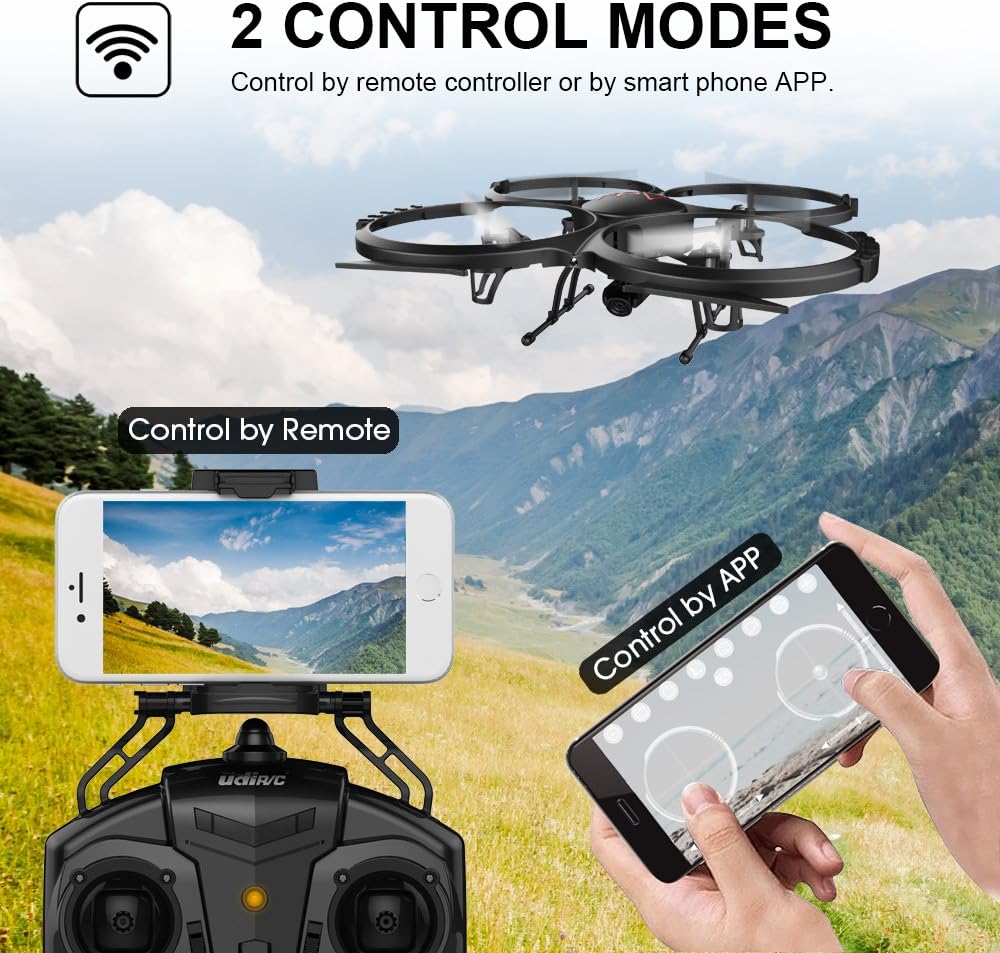
Image: Two Control Modes: Remote Control and Smartphone App.
3D View Mode (VR Headset Support)
The drone's FPV feed can be used with a compatible VR headset (not included) for an immersive 3D viewing experience during flight.

Image: 3D View Mode with optional VR headset for immersive flight.
Maintenance
Propeller Replacement
- If a propeller is damaged, replace it immediately with a spare propeller from the package.
- Ensure the new propeller is correctly oriented and securely fastened.
Cleaning
- Use a soft, dry cloth to clean the drone body and camera lens.
- Avoid using liquids or solvents that could damage electronic components.
Motor Cooling
- Allow motors to cool for at least 10 minutes after each flight to prolong their lifespan.
Troubleshooting
- Drone does not respond: Ensure the drone and remote control are fully charged and properly paired. Check for any obstructions to the propellers.
- Unstable flight: Recalibrate the drone on a flat surface. Check if propellers are damaged or incorrectly installed. Avoid flying in windy conditions.
- No FPV feed: Ensure your smartphone is connected to the drone's Wi-Fi network and the app is open. Check for strong Wi-Fi interference.
- Short flight time: Ensure batteries are fully charged. Flight time can be affected by aggressive flying, wind, and cold temperatures.
- Drone drifts: Use the trim buttons on the remote control to adjust for minor drifts.
Specifications
| Feature | Detail |
|---|---|
| Brand | DBPOWER |
| Model Number | U818A WIFI |
| Video Recording Resolution | 720p |
| Connectivity Technology | Wi-Fi |
| Skill Level | No experience required |
| Video Capture Format | MP4 |
| Control Type | Remote Control |
| Material | Plastic |
| Battery Composition | Lithium-ion |
| Remote Control Batteries | 4 x AA (not included) |
| Rechargeable Drone Batteries | 2 x 3.7V 350mAh LiPo (included) |
| Media Type | Micro SD (4GB included) |
Warranty and Support
The DBPOWER U818A WIFI Drone comes with a 1-year warranty.
For any issues or technical assistance, please contact our support team via Amazon messaging. Our technical support team will provide the best possible solution.