
Introduction
This manual provides detailed instructions for the setup, operation, maintenance, and troubleshooting of your EasySMX Wireless Controller, model SP5226-R-EU. This controller is designed for use with Nintendo Switch, Nintendo Switch Lite, and Windows PC. Please read this manual thoroughly before use to ensure proper functionality and to maximize your gaming experience.
Package Contents
Verify that all items are present in your package:
- 1 x EasySMX Wireless Pro Controller for Nintendo Switch
- 1 x 1.2 Meter USB-C Charging Cable
- 1 x User Manual (this document)
Product Overview
The EasySMX Wireless Controller features an ergonomic design for comfortable use and includes various buttons and functions for an enhanced gaming experience. Below are images illustrating the controller's layout and key features.

Image: Front view of the EasySMX Wireless Controller. This image highlights the controller's main buttons, dual analog sticks, D-pad, and action buttons (A, B, X, Y). Icons above the controller indicate key features such as 6-Axis Gyro, Bluetooth connectivity, Vibration feedback, Switch Host compatibility, and Screenshot functionality.

Image: Back view of the EasySMX Wireless Controller. This image displays the rear of the controller, including the R and L triggers, and regulatory markings such as "SWITCH Wireless Controller," "Input: DC 5V 500mA," and "Made in China."
Charging the Controller
The controller is equipped with a built-in 500mAh rechargeable lithium battery. To charge the controller:
- Connect the provided USB-C charging cable to the USB-C port on the controller.
- Connect the other end of the cable to a USB power source (e.g., a Nintendo Switch dock, a computer USB port, or a USB wall adapter).
- The indicator lights on the controller will show the charging status.
A full charge typically takes approximately 2-3 hours. Once fully charged, the controller provides approximately 8 hours of operating time.
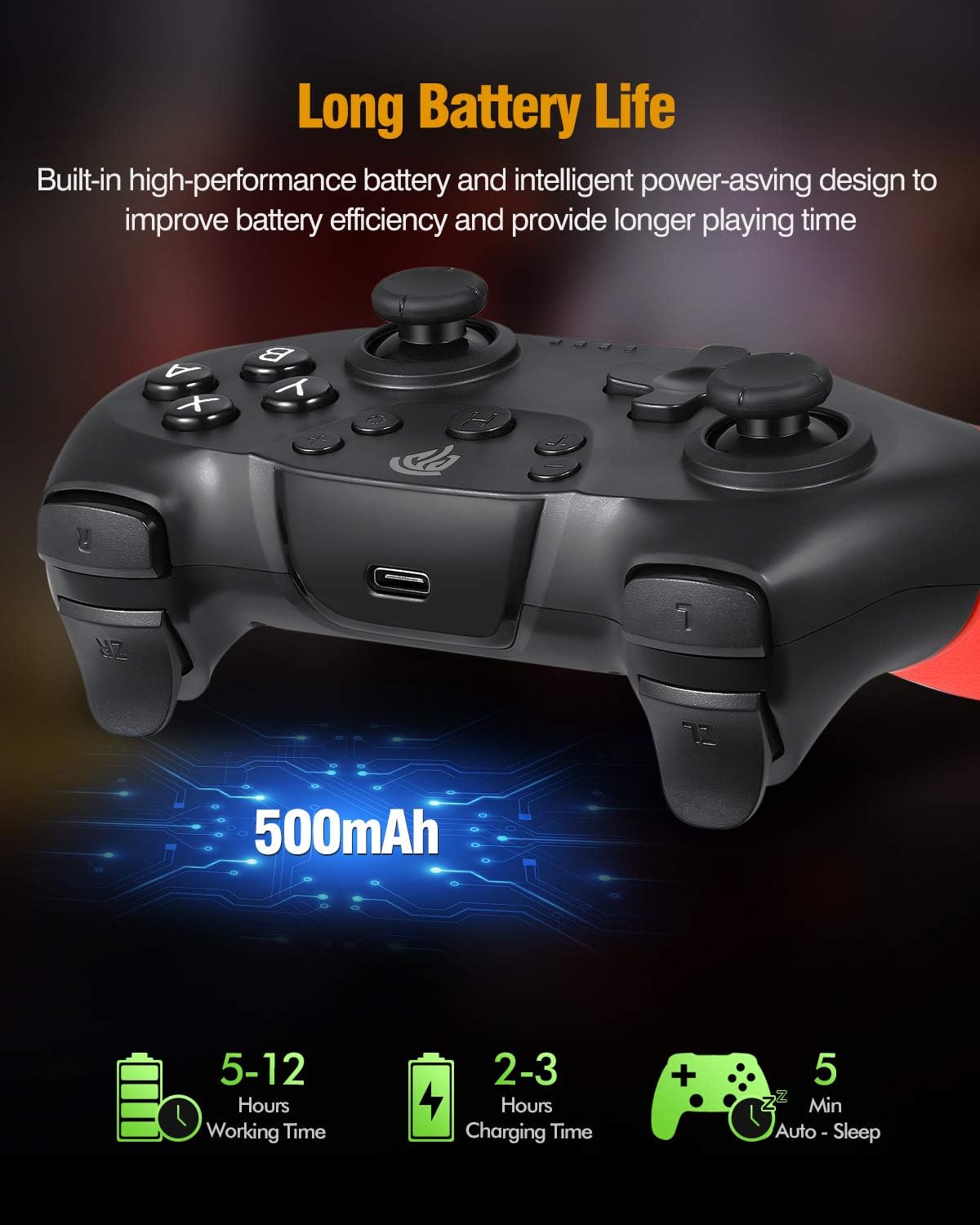
Image: Illustration of the controller's battery life and charging. The image shows the controller with a USB-C port, indicating a 500mAh battery. Text overlays specify a working time of 5-12 hours (note: actual working time is approximately 8 hours as per product features), a charging time of 2-3 hours, and an auto-sleep function after 5 minutes of inactivity.
Connecting to Nintendo Switch
Follow these steps to pair your EasySMX Wireless Controller with your Nintendo Switch console:
- From the Nintendo Switch HOME Menu, select "Controllers" > "Change Grip/Order."
- On the controller, press and hold the SYNC button (usually a small button on the top or back) for a few seconds until the LED indicators begin to flash rapidly.
- Once the controller is successfully paired, the player LED(s) corresponding to the controller number will remain lit.
- The controller will automatically connect to the Switch console when powered on if it has been paired previously.
Connecting to PC (Windows)
The controller can be connected to a Windows PC via Bluetooth or a USB cable.
Bluetooth Connection:
- Ensure your PC has Bluetooth enabled.
- On your PC, go to "Settings" > "Devices" > "Bluetooth & other devices."
- Select "Add Bluetooth or other device" > "Bluetooth."
- Press and hold the SYNC button on the controller until the LED indicators flash rapidly.
- Select the controller from the list of available Bluetooth devices on your PC.
- Follow any on-screen prompts to complete the pairing process.
Wired Connection:
- Connect the USB-C end of the charging cable to the controller.
- Connect the USB-A end of the cable to an available USB port on your PC.
- The PC should automatically detect and install the necessary drivers. The controller will be recognized as a standard gamepad.
Operating Features
Turbo Function
The controller supports a Turbo function for rapid firing of buttons. To activate Turbo:
- Press and hold the button you wish to set to Turbo (e.g., A, B, X, Y, L, R, ZL, ZR).
- While holding the button, press the Turbo button once. The button will now continuously register input when held down.
- To deactivate Turbo for that button, repeat the process: hold the button and press the Turbo button again.
Vibration Feedback
The controller features dual motors for vibration feedback, providing a more immersive gaming experience. Vibration intensity is typically controlled by the game itself.

Image: Illustration of the controller's vibration feedback. The image shows the controller with visual effects emanating from the grips, symbolizing the dual motor vibration. A gaming scene is depicted in the background, suggesting an immersive experience.
Gyro Axis / 6-Axis Somatosensory
The built-in 6-axis gyro provides somatosensory assistance, allowing for subtle and precise aiming movements in compatible games.

Image: Demonstration of the 6-axis somatosensory feature. The image shows hands holding the controller, with a game displayed on a screen in the background. Text indicates that the built-in 6-axis gyro assists subtle aiming with high precision, making aiming movements smoother and faster.
Sleep Function / Automatic Power Off
To conserve battery life, the controller will automatically enter sleep mode after approximately 5 minutes of inactivity. To wake the controller, press any button.
Maintenance
To ensure the longevity and optimal performance of your controller, follow these maintenance guidelines:
- Cleaning: Use a soft, dry cloth to clean the controller. Avoid using harsh chemicals or abrasive materials.
- Storage: Store the controller in a cool, dry place away from direct sunlight and extreme temperatures.
- Avoid Drops: Do not drop or subject the controller to strong impacts, as this can damage internal components.
- Liquid Exposure: Keep the controller away from liquids. If it comes into contact with liquid, power it off immediately and allow it to dry completely before attempting to use it again.
Troubleshooting
If you encounter issues with your EasySMX Wireless Controller, refer to the following common problems and solutions:
- Controller does not power on:
- Ensure the controller is fully charged. Connect it to a power source using the provided USB-C cable.
- Controller does not pair with Nintendo Switch/PC:
- Ensure the controller is in pairing mode (LEDs flashing rapidly).
- For Switch: Confirm you are in the "Change Grip/Order" menu.
- For PC: Ensure Bluetooth is enabled on your PC and the controller is discoverable.
- Try restarting the controller and the console/PC.
- Ensure no other wireless devices are causing interference.
- Input lag or disconnection:
- Ensure the controller is within the 10-meter operating range of the console/PC.
- Check for potential wireless interference from other devices.
- Ensure the controller has sufficient battery charge.
- Buttons or analog sticks are unresponsive:
- Restart the controller and the console/PC.
- Ensure the controller's firmware is up to date (check EasySMX official website for updates if available).
- If the issue persists, contact customer support.
Specifications
| Model Number | SP5226-R-EU |
| Manufacturer | EasySMX |
| Connectivity | Bluetooth Wireless |
| Wireless Range | Up to 10 meters |
| Battery Capacity | 500mAh Lithium Battery |
| Charging Time | 2-3 hours |
| Operating Time | Approximately 8 hours |
| Input Voltage | DC 5V 500mA |
| Compatibility | Nintendo Switch, Switch Lite, Windows PC (Not compatible with Xbox 360/One, Mac, iOS) |
| Features | 6-Axis Gyro, Dual Vibration Motors, Turbo Function, Automatic Sleep Mode |
| Dimensions (Package) | 16.61 x 16.31 x 7.19 cm |
| Weight (Package) | 340 g |
Warranty and Support
EasySMX products are designed for reliability and performance. For warranty information, technical support, or further assistance, please refer to the warranty card included with your product or visit the official EasySMX website. Please retain your proof of purchase for any warranty claims.


