
1. Introduction
Thank you for choosing the Silvergear Lollipop Kids Camera. This digital camera is designed for children, featuring a durable silicone case, 5.0-megapixel photo resolution, and video recording capabilities. It also includes built-in games for entertainment. This manual provides essential information for the safe and effective use of your camera.
2. Product Overview
Familiarize yourself with the components of your Silvergear Lollipop Kids Camera.
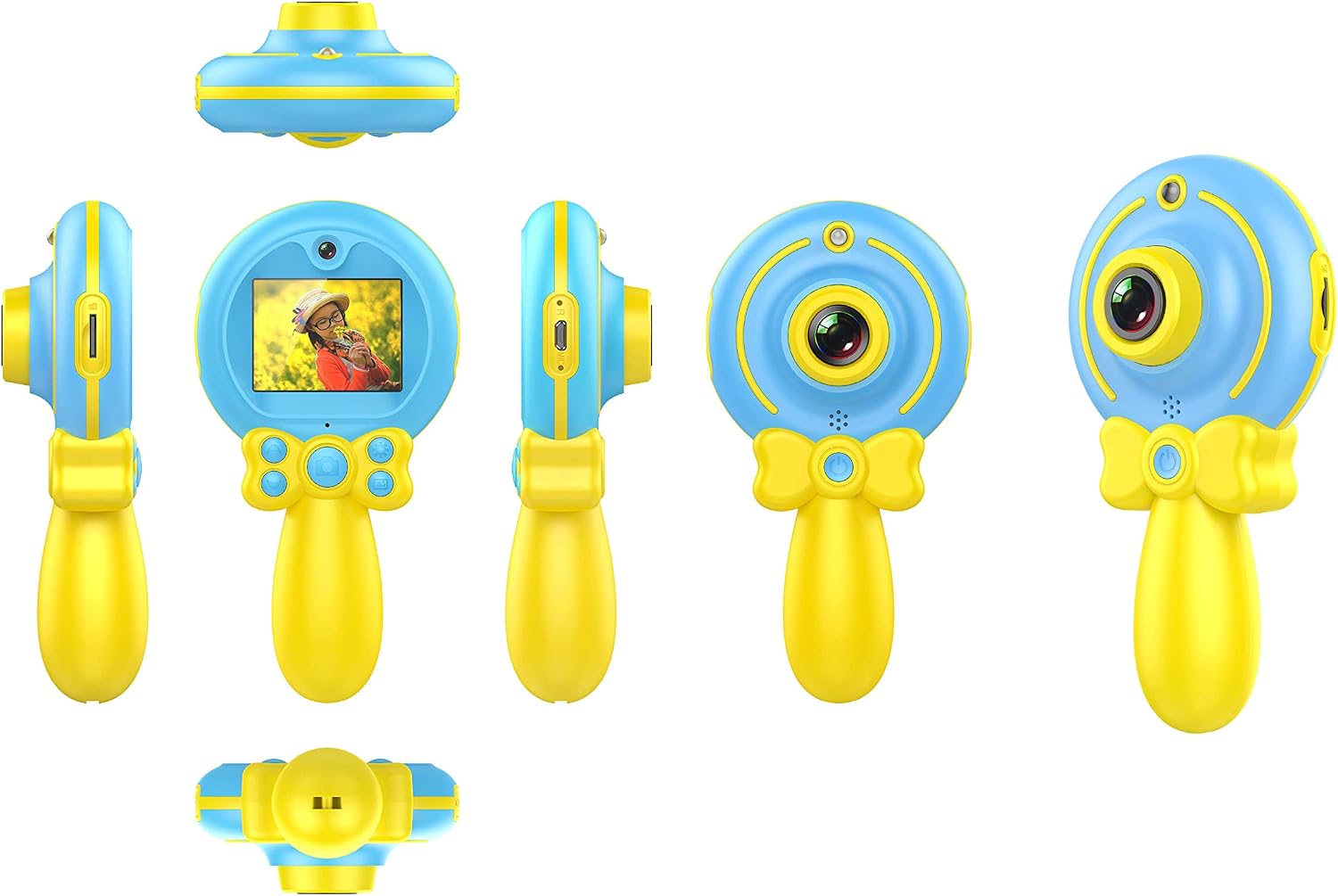
Image 2.1: Various views of the Silvergear Lollipop Kids Camera, illustrating its compact design, front and rear lenses, 2-inch display, and control buttons. The camera features a yellow handle and blue body with a silicone protective case.
- Front Lens: For taking photos and videos.
- Rear Lens: For selfies.
- 2-inch Display Screen: For viewing photos, videos, and navigating menus.
- Control Buttons: For power, navigation, and selection.
- Micro USB Port: For charging and data transfer.
- Micro SD Card Slot: For expandable storage.
- Wrist Strap Attachment Point: For securing the camera.
3. Setup
3.1 Charging the Battery
The camera is equipped with a built-in rechargeable Lithium-polymer battery. Before first use, fully charge the camera.
- Connect the included Micro USB cable to the camera's Micro USB port.
- Connect the other end of the cable to a USB power adapter (not included) or a computer's USB port.
- The charging indicator light will illuminate. Once fully charged, the light may change color or turn off.
3.2 Inserting a Micro SD Card
A Micro SD card (not included) is required to save photos and videos. The camera supports cards up to 32GB.
- Locate the Micro SD card slot on the camera.
- Gently insert the Micro SD card into the slot with the metal contacts facing down until it clicks into place.
- To remove, push the card in slightly until it springs out.
3.3 Powering On/Off
- To Power On: Press and hold the Power button for a few seconds until the screen illuminates.
- To Power Off: Press and hold the Power button for a few seconds until the screen turns off.
4. Operating Instructions
4.1 Taking Photos
The camera features a 5.0-megapixel resolution for still images.

Image 4.1: A child demonstrating the use of the Silvergear Lollipop Kids Camera for taking photographs.
- Ensure the camera is powered on and in photo mode. Use the navigation buttons to select photo mode if necessary.
- Frame your shot using the 2-inch display screen.
- Press the Shutter button to capture the photo. The camera has autofocus for clear images.
4.2 Recording Videos
The camera can record videos at 640 x 480 pixels resolution at 30 frames per second in MP4 format.
- Switch the camera to video recording mode using the mode selection button.
- Press the Record button to start recording. A timer or indicator will appear on the screen.
- Press the Record button again to stop recording.
4.3 Playing Games
The camera includes three built-in games for entertainment.

Image 4.2: A child interacting with the Silvergear Lollipop Kids Camera, viewing content on its screen.
- Navigate to the 'Games' menu option using the navigation buttons.
- Select one of the three available games.
- Use the camera's control buttons to play the game.
4.4 Transferring Files
To transfer photos and videos to a computer:
- Connect the camera to a computer using the Micro USB cable.
- The camera should appear as a removable disk drive on your computer.
- Open the camera's folder to access and copy your files.
5. Maintenance
- Cleaning: Use a soft, dry cloth to clean the camera body and screen. Do not use liquid cleaners or abrasive materials.
- Storage: Store the camera in a cool, dry place away from direct sunlight and extreme temperatures.
- Battery Care: For optimal battery life, avoid fully discharging the battery frequently. Charge the camera regularly, even if not in use for extended periods.
- Water Resistance: This camera is not waterproof. Avoid exposure to water or high humidity.
6. Troubleshooting
- Camera does not turn on: Ensure the battery is charged. Connect the camera to a power source and try again.
- Cannot take photos/videos: Check if a Micro SD card is inserted correctly and has sufficient free space.
- Poor image quality: Ensure the lens is clean and free from smudges. Check lighting conditions.
- Camera freezes: Press and hold the Power button to force a shutdown, then restart the camera.
- Computer does not recognize camera: Ensure the USB cable is properly connected. Try a different USB port or cable.
7. Specifications
| Feature | Specification |
|---|---|
| Model Number | 1087-B |
| Brand | Silvergear |
| Dimensions (L x W x H) | 9 x 5 x 15 cm |
| Weight | 140 grams |
| Still Image Resolution | 5 Megapixels |
| Video Resolution | 640 x 480 pixels (30 FPS) |
| Video Format | MP4 |
| Image Format | JPEG |
| Screen Size | 2 inches |
| Storage | Micro SD card support up to 32 GB |
| Battery | 1 Lithium-polymer (included) |
| Connectivity | USB |
| Autofocus | Yes |
| Water Resistance | Not waterproof |
| Special Features | Video recording, filters, 3 built-in games |
8. Box Contents
- Silvergear Lollipop Kids Camera (Blue)
- Silicone Protective Case
- Micro USB Charging Cable
- Wrist Strap
9. Warranty and Support
Information regarding product warranty and customer support is not available in the provided product data. Please refer to the product packaging or the manufacturer's official website for details on warranty coverage and how to contact customer support.