1. Introduction
Thank you for purchasing the E-YOOSO Z-7900 Gaming Mouse. This manual provides detailed instructions for setting up, operating, and maintaining your new gaming mouse. Please read this manual thoroughly to ensure optimal performance and longevity of your device.

Figure 1: E-YOOSO Z-7900 Gaming Mouse and its storage case.
2. Product Features
- Ergonomic Design: Engineered for comfort during extended use, reducing hand fatigue.
- High Precision Optical Sensor: Utilizes an optical sensor for accurate movement detection.
- 14 Programmable Buttons: Customize functionality for various tasks and gaming scenarios.
- Adjustable DPI: Up to 10000 DPI for precise movement control.
- Wide Compatibility: Compatible with Windows 8, Windows 7, Windows Vista, Windows XP, and Windows 10 operating systems.
- Weight Tuning Set: Allows for adjustment of mouse weight to suit user preference.
- RGB Lighting: Customizable RGB lighting effects.

Figure 2: Illustration of the ergonomic design for comfortable grip.
3. Package Contents
Please check the package contents upon unboxing:
- E-YOOSO Z-7900 Gaming Mouse
- Weight Tuning Set (pre-installed or separate)
- User Manual (this document)
- Note: Software CD may not be included. Refer to Section 5 for software installation.
4. Setup
- Connect the Mouse: Plug the USB connector of the E-YOOSO Z-7900 Gaming Mouse into an available USB port on your computer.
- Driver Installation: Your operating system (Windows) should automatically detect and install the necessary drivers. This is a plug-and-play device for basic functionality.
- Software Installation (Optional but Recommended): For full customization of programmable buttons, DPI settings, and RGB lighting, install the dedicated software. Refer to Section 5 for detailed instructions.

Figure 3: The mouse is compatible with various Windows operating systems.
5. Software Installation and Customization
To unlock the full potential of your E-YOOSO Z-7900 Gaming Mouse, including macro programming, advanced DPI settings, polling rate adjustments, and RGB lighting customization, you will need to install the dedicated software.
5.1 Obtaining the Software
As a physical software CD may not be included, please visit the official E-YOOSO support website or the product page where you purchased the mouse to find the download link for the latest software. Look for a link typically labeled "Driver Download" or "Software."
5.2 Installation Steps
- Download the software package to your computer.
- Locate the downloaded file (usually a .exe or .zip file) and extract it if necessary.
- Run the installer and follow the on-screen prompts to complete the installation.
- Once installed, launch the software. Ensure your mouse is connected to the computer.
5.3 Customization Options
- Button Assignment: Reassign functions to any of the 14 programmable buttons, including keyboard keys, multimedia controls, or macros.
- DPI Settings: Adjust DPI levels and create custom profiles for different applications or games.
- Polling Rate: Modify the mouse's polling rate (e.g., 125/250/500/1000Hz) for faster response times.
- RGB Lighting: Customize lighting effects, colors, and brightness.
- Macro Editor: Create and assign complex macro sequences to programmable buttons.

Figure 4: The mouse supports macro editing for customizable keys.
6. Operating Instructions
6.1 Basic Operation
- Left Click: Primary action.
- Right Click: Secondary action/context menu.
- Scroll Wheel: Scroll up/down, middle click.

Figure 5: Main click buttons and scroll wheel.
6.2 DPI Adjustment
The mouse features dedicated DPI buttons (usually located near the scroll wheel) to cycle through preset DPI levels. You can customize these levels using the software.
- Press the DPI+ button to increase sensitivity.
- Press the DPI- button to decrease sensitivity.
- Default DPI settings typically include 500, 1000, 2000, 3000, 5000, and up to 10000 DPI.
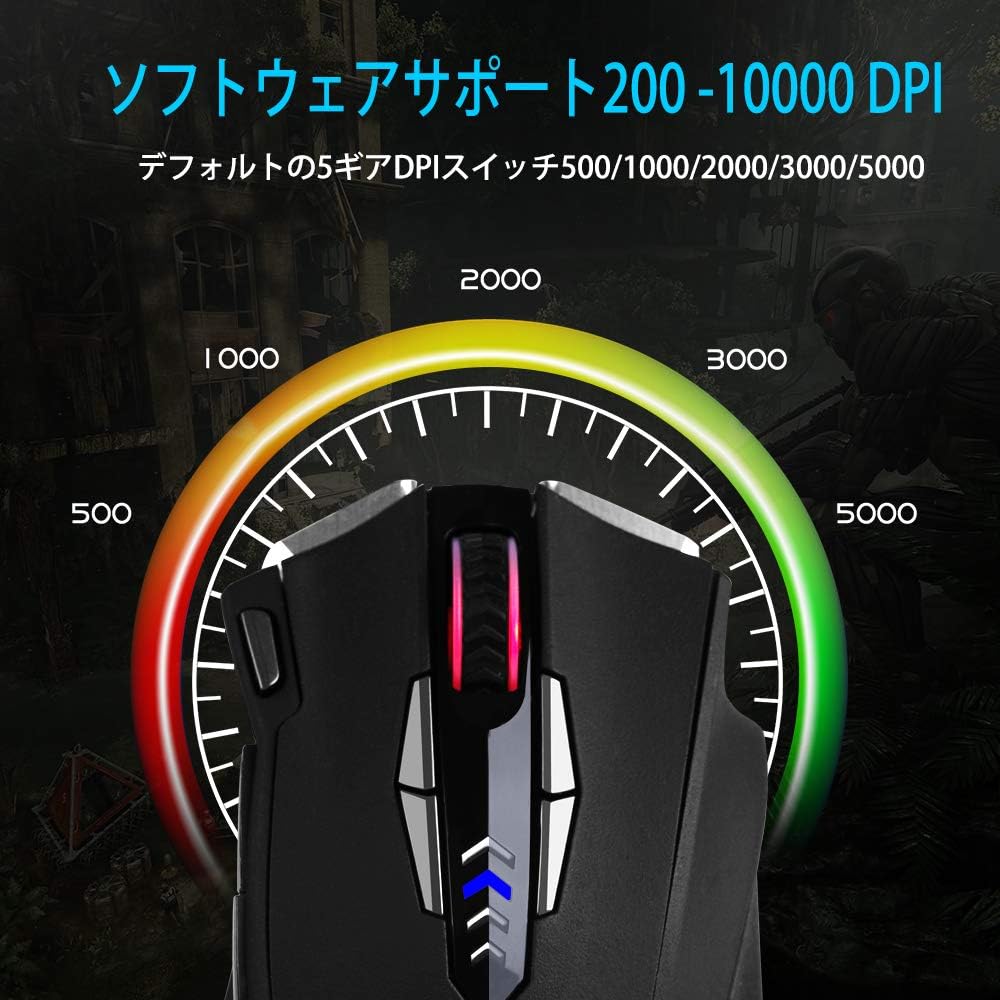
Figure 6: Visual representation of adjustable DPI levels.
6.3 Polling Rate Adjustment
The polling rate determines how often the mouse reports its position to the computer. A higher polling rate results in faster response times. This can typically be adjusted via the software or a physical switch on the mouse's underside.
- Common polling rates: 125Hz, 250Hz, 500Hz, 1000Hz.
- Adjust the polling rate according to your preference and system capabilities.

Figure 7: Polling rate switch located on the underside of the mouse.
7. Maintenance
Proper maintenance ensures the longevity and performance of your gaming mouse.
- Cleaning: Use a soft, dry cloth to wipe the surface of the mouse. For stubborn dirt, slightly dampen the cloth with water or a mild cleaning solution. Avoid harsh chemicals.
- Sensor Cleaning: Occasionally clean the optical sensor on the underside of the mouse with a cotton swab to prevent tracking issues.
- Cable Care: Avoid sharp bends or excessive pulling on the USB cable to prevent damage.
- Storage: When not in use, store the mouse in a clean, dry environment, away from extreme temperatures.
8. Troubleshooting
| Problem | Possible Cause | Solution |
|---|---|---|
| Mouse not responding | Loose USB connection, faulty USB port, driver issue. |
|
| Inaccurate tracking or cursor jumps | Dirty sensor, unsuitable mouse pad surface, high DPI setting. |
|
| Programmable buttons not working | Software not installed, incorrect button assignment, software conflict. |
|
| RGB lighting not functioning | Software setting, power issue. |
|
9. Specifications
| Feature | Detail |
|---|---|
| Brand | E-YOOSO |
| Model Number | Z-7900 |
| Connectivity Technology | USB, Wired |
| Movement Detection Technology | Optical |
| Number of Buttons | 14 (including scroll wheel click) |
| DPI Range | Up to 10000 DPI (Adjustable) |
| Polling Rate | 125/250/500/1000Hz (Adjustable) |
| Special Feature | Ergonomic Design, Programmable Buttons, RGB Lighting, Weight Tuning |
| Product Dimensions | 4.8 x 2.8 x 1.5 inches |
| Item Weight | 4.6 ounces |
| Compatibility | Windows 8, 7, Vista, XP, 10 |
10. Warranty and Support
E-YOOSO products are designed for reliability and performance. For specific warranty information, please refer to the warranty card included with your product or visit the official E-YOOSO website. For technical support, driver downloads, or further assistance, please contact E-YOOSO customer service through their official channels.
Note: Product specifications and features are subject to change without prior notice.


