
Introduction
This manual provides comprehensive instructions for the E-Yooso Z-88 Mechanical Gaming Keyboard. It covers essential information regarding setup, operation, maintenance, troubleshooting, and product specifications to ensure optimal performance and longevity of your device. Please read this manual carefully before using the keyboard.
Setup
Package Contents
- E-Yooso Z-88 Mechanical Gaming Keyboard
- USB Type-C Cable
- Keycap Puller
- Spare Switches (Blue Switch variant)
Connecting the Keyboard
- Locate the USB Type-C port on the back of the keyboard.
- Connect one end of the provided USB Type-C cable to the keyboard.
- Connect the other end of the USB cable to an available USB port on your computer or gaming console.
- The keyboard is plug-and-play and does not require additional software installation for basic functionality.
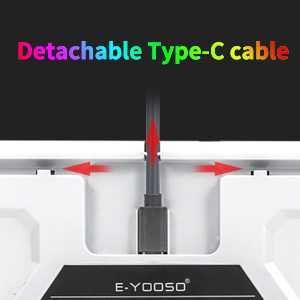
Image: Detachable Type-C cable for easy connection and portability.
Ergonomic Adjustment
The keyboard features foldable back kickstands, allowing you to adjust the typing angle for improved comfort and reduced finger fatigue during extended use.

Image: Adjustable kickstands for ergonomic typing angles.
Operation
Backlight Control
The E-Yooso Z-88 keyboard features extensive RGB backlighting with multiple modes and customization options.
- Change Backlight Mode: Press Fn + Ins to cycle through 18 dynamic backlight modes.
- Gaming Backlight Modes: Press Fn + (1-8) to activate 8 built-in gaming-specific backlight modes.
- Customizable Backlight Modes: Press Fn + (9, 0) for 2 customizable backlight modes.
- Side Lighting Modes: Press Fn + Pause to cycle through 4 RGB side lighting modes.
- Adjust Brightness: Press Fn + Up Arrow to increase brightness, Fn + Down Arrow to decrease brightness.

Image: The keyboard displaying various RGB backlight effects.
Multimedia and Function Keys
The keyboard includes 12 multimedia shortcuts accessible via the Function (Fn) key combinations.
| Function Key | Action |
|---|---|
| Fn + F1 | Open Media Player |
| Fn + F2 | Volume Down |
| Fn + F3 | Volume Up |
| Fn + F4 | Mute |
| Fn + F5 | Previous Track |
| Fn + F6 | Next Track |
| Fn + F7 | Play/Pause |
| Fn + F8 | Stop Play |
| Fn + F9 | |
| Fn + F10 | Homepage |
| Fn + F11 | Calculator |
| Fn + F12 | Search |
| Fn + ESC | Reset Keyboard Settings |
| Fn + PGDN | Switch Backlight Mode |
| Fn + WIN | Lock/Unlock Windows Key |

Image: Overview of Fn key combinations for various functions.
Anti-Ghosting
The E-Yooso Z-88 features full N-key rollover (NKRO) anti-ghosting, meaning all 81 keys can be pressed simultaneously without conflict. This ensures every keystroke is registered accurately during intense gaming sessions or fast typing.

Image: Visual representation of the keyboard's full anti-ghosting feature.
Compatibility
The keyboard is compatible with Windows 10/8/7/Vista/XP, limited Mac OS, PS5, and PS4. It works with desktops, Chromebooks, PCs, and laptops.
Maintenance
Cleaning the Keyboard
- Disconnect the keyboard from your computer before cleaning.
- Use a soft, lint-free cloth lightly dampened with water or a mild cleaning solution to wipe the keycaps and surface.
- For deeper cleaning, use the provided keycap puller to remove keycaps and clean underneath with compressed air or a small brush.
- Ensure the keyboard is completely dry before reconnecting it.
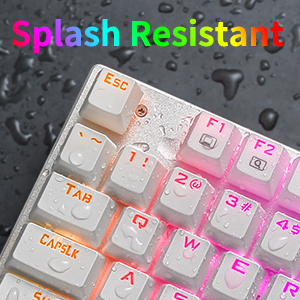
Image: The keyboard is designed with splash resistance for added durability.
Keycap and Switch Replacement
The keyboard features double injection keycaps and hot-swappable Outemu Blue switches, allowing for easy replacement if needed.
- Use the included keycap puller to gently remove keycaps.
- Use a switch puller (not included, but spare switches are provided) to remove and replace individual switches. Ensure proper alignment when inserting new switches to avoid bending pins.
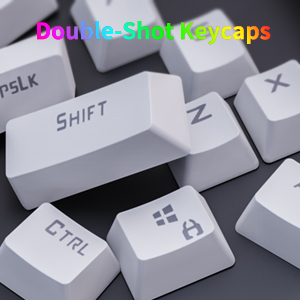
Image: Double-shot keycaps for enhanced durability and legend visibility.
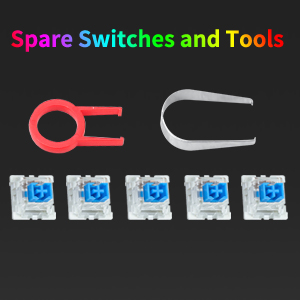
Image: Included keycap puller and spare switches for maintenance.
Troubleshooting
Keyboard Not Responding
- Ensure the USB Type-C cable is securely connected to both the keyboard and the computer.
- Try connecting the keyboard to a different USB port on your computer.
- Test the keyboard on another computer to rule out system-specific issues.
- If using a USB hub, try connecting directly to the computer.
Backlight Not Working or Incorrect
- Ensure the backlight is not turned off or set to minimum brightness using Fn + Down Arrow.
- Cycle through backlight modes using Fn + Ins or Fn + PGDN.
- Perform a keyboard reset by pressing Fn + ESC.
- If a specific key's backlight is not working, it might indicate a faulty LED.
Keys Not Registering or Double Typing
- Clean around and under the affected keycap to remove any debris.
- If the issue persists, consider replacing the switch for the problematic key using the provided spare switches and a switch puller.
Specifications
| Feature | Detail |
|---|---|
| Brand | E-Yooso |
| Model Name | Z-88 |
| Model Number | 8582 |
| Connectivity Technology | USB (Type-C detachable cable) |
| Keyboard Description | Mechanical |
| Switch Type | Outemu Blue Switch |
| Number of Keys | 81 |
| Backlighting | RGB (18 modes, 8 gaming modes, 2 customizable, 4 side lighting modes) |
| Anti-Ghosting | Full N-Key Rollover (NKRO) |
| Keycap Material | PBT and ABS Double Injection |
| Compatibility | Windows 10/8/7/Vista/XP, Limited Mac OS, PS5/PS4 |
| Material | Acrylonitrile Butadiene Styrene (ABS) and Metal |
| Item Weight | 0.75 Kilograms |
| Box Contents | Keyboard, USB Type-C Cable, Keycap Puller, Spare Switches |
Warranty Information
E-Yooso provides an after-sales guarantee for this product. For any issues, please contact customer service. Within 3 months of purchase, you may be eligible for a free return or exchange.
Customer Support
If you encounter any problems or have questions regarding your E-Yooso Z-88 Mechanical Gaming Keyboard, please refer to the troubleshooting section first. If the issue persists, contact E-Yooso customer support through the retailer's platform or the official E-Yooso website for assistance.


