
1. Introduction
This manual provides comprehensive instructions for the installation, operation, and maintenance of your Sando Tech Dream Chasing Color Bluetooth Control Box. This device is designed to control various LED lighting systems, including whip lights, rock lights, LED strips, and underglow lights, offering dynamic color-chasing effects via Bluetooth and remote control. Please read this manual thoroughly before use to ensure proper functionality and safety.
2. Package Contents
Verify that all items listed below are present in your package:
- 1 x Dream Chasing Color Bluetooth Control Box
- 1 x 2-Plug Wire Set (with 3-pin connectors)
- 1 x Remote Control (battery not included)

Image 2.1: Overview of the Sando Tech Dream Chasing Color Bluetooth Control Box kit, including the control unit, coiled wire harness with two 3-pin connectors, and the handheld remote control.
3. Specifications
| Brand | Sando Tech |
| Model Number | DCWHIP-CONTROLBOX |
| Power Source | DC Power Supply |
| Light Source Type | LED |
| Control Method | Remote Control, Bluetooth |
| Water Resistance Level | Water Resistant |
| Material | Polycarbonate |
| Number of Light Sources Supported | 2 |
| Item Weight | 1.2 pounds (approx.) |
| Package Dimensions | 12 x 8 x 2 inches (approx.) |
4. Safety Information
- Ensure the power source matches the product's voltage requirements (DC Power Supply). Incorrect voltage can damage the unit.
- Disconnect power before making any electrical connections or performing maintenance.
- Avoid exposing the control box and connectors to extreme temperatures or direct submersion in water, despite being water-resistant.
- Keep out of reach of children.
- Do not attempt to open or modify the control box, as this will void the warranty and may cause damage or injury.
5. Setup and Installation
Follow these steps to properly set up your Dream Chasing Color Bluetooth Control Box:
- Prepare the Remote Control: The remote control requires a battery (not included). Open the battery compartment on the back of the remote and insert the appropriate battery type, ensuring correct polarity.
- Connect LED Lights: Identify the two 3-pin connectors on the wire set. Connect these to your compatible LED whip lights, rock lights, LED strips, or underglow lights. Ensure the connections are secure and properly aligned to prevent damage.
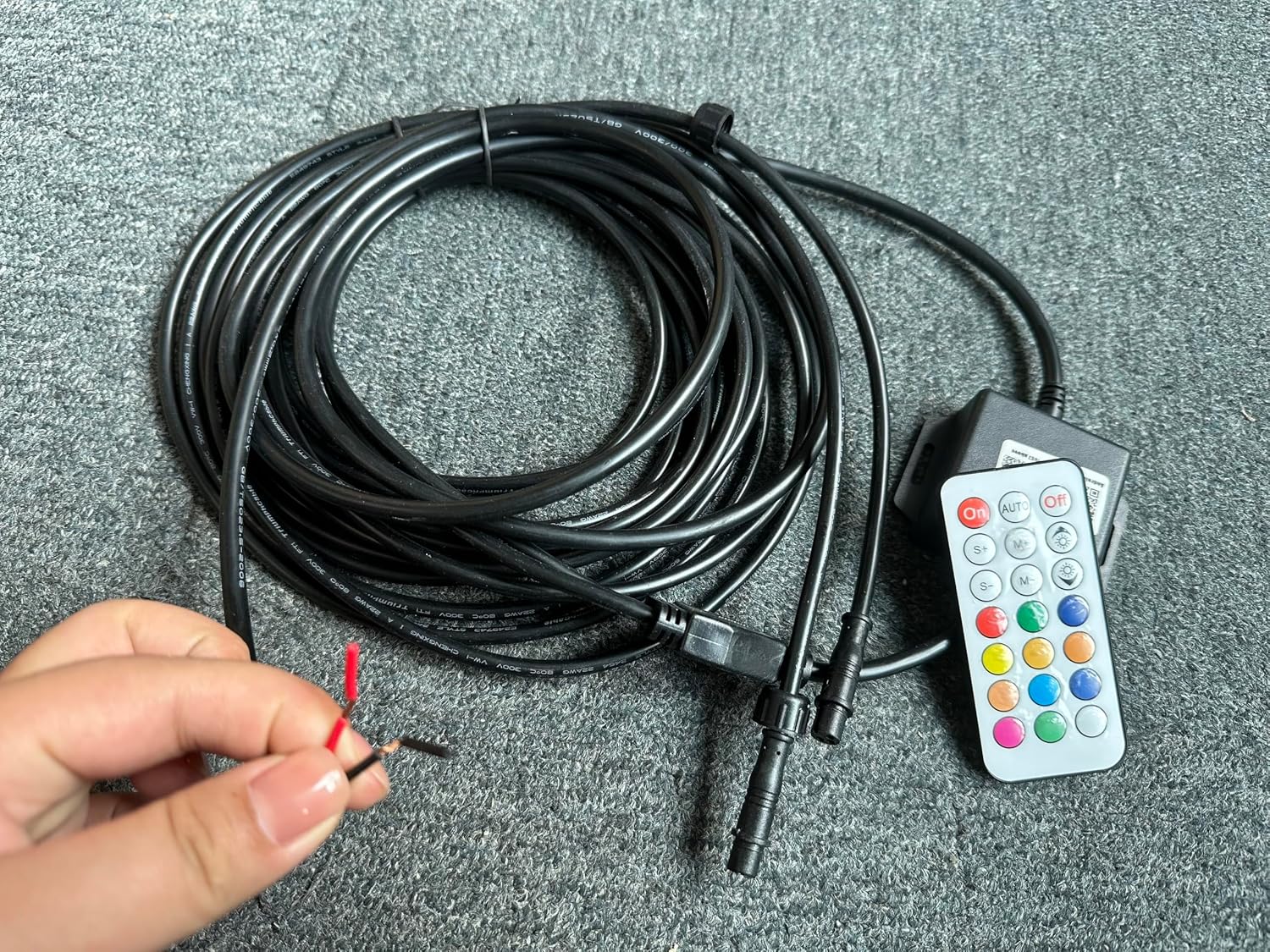
Image 5.1: A hand demonstrating the two 3-pin connectors on the wire set, which connect to compatible LED lighting accessories.
- Connect to Control Box: Plug the wire set's main connector into the designated port on the Dream Chasing Color Bluetooth Control Box. This connection should be firm.
- Power Connection: Locate the bare red and black wires extending from the control box's main harness. Connect the red wire to the positive (+) terminal of your DC power supply and the black wire to the negative (-) or ground terminal. Ensure a stable and appropriate DC power source is used.

Image 5.2: The Sando Tech control box and wire set, highlighting the bare red and black wires for connection to a DC power supply.
- Secure Installation: Mount the control box in a dry, secure location away from excessive heat or direct exposure to elements. Ensure all wiring is routed safely and secured to prevent damage or interference.
6. Operating Instructions
Once installed, operate your LED lighting system using the provided remote control or a compatible Bluetooth application.
6.1. Remote Control Operation
- ON/OFF: Press the 'ON' button to power on the lights and the 'OFF' button to power them off.
- Color Selection: Use the colored buttons on the remote to select static colors.
- Mode Selection: The remote typically includes buttons for various dynamic modes (e.g., 'AUTO', 'M+', 'M-'). Press these buttons to cycle through different chasing, flashing, or fading patterns.
- Brightness/Speed Adjustment: Buttons labeled with '+' and '-' (or similar symbols) usually control the brightness of static colors or the speed of dynamic modes.
6.2. Bluetooth App Operation
For advanced control and customization, download the compatible Bluetooth application (refer to product packaging or seller information for app name and download instructions).
- Download App: Search for the specified app on your smartphone's app store.
- Enable Bluetooth: Ensure Bluetooth is enabled on your smartphone.
- Pair Device: Open the app and follow the on-screen instructions to pair with your Dream Chasing Color Bluetooth Control Box.
- Control Lights: Use the app interface to select colors, patterns, adjust brightness, speed, and access additional features not available on the remote control.
7. Maintenance
Regular maintenance ensures the longevity and optimal performance of your control box:
- Cleaning: Periodically wipe the control box with a dry, soft cloth to remove dust and debris. Do not use harsh chemicals or abrasive cleaners.
- Connection Check: Regularly inspect all electrical connections for tightness and signs of corrosion or damage. Re-secure any loose connections.
- Wiring Inspection: Check the wiring for any cuts, pinches, or fraying. Replace damaged wires immediately to prevent electrical hazards.
- Remote Battery: Replace the remote control battery when its performance degrades.
8. Troubleshooting
If you encounter issues, refer to the following troubleshooting guide:
| Problem | Possible Cause | Solution |
|---|---|---|
| Lights do not turn on. | No power, loose connection, faulty power source, remote battery dead. | Check power supply, ensure all wires are securely connected, replace remote battery. |
| Remote control not working. | Dead battery, remote out of range, obstruction, pairing issue. | Replace remote battery, ensure line of sight to control box, try pairing via Bluetooth app. |
| Lights are stuck on one color or mode. | Control box malfunction, remote signal interference. | Try power cycling the unit. If using Bluetooth, try controlling via the app. |
| Bluetooth connection issues. | Bluetooth disabled, app not updated, interference, device not paired. | Ensure Bluetooth is enabled on your phone, update the app, re-pair the device. |
If problems persist after attempting these solutions, please contact customer support.
9. Warranty and Support
For specific warranty information and customer support, please refer to the purchase documentation or contact the seller directly. Keep your proof of purchase for any warranty claims.