
SteelSeries 64532
SteelSeries Apex 5 Hybrid Mechanical USB Gaming Keyboard User Manual
Model: 64532
1. Introduction
The SteelSeries Apex 5 is a high-performance hybrid mechanical gaming keyboard designed to enhance your gaming and typing experience. It combines the smooth feel of a membrane switch with the tactile feedback and durability of a blue mechanical switch. Featuring per-key RGB illumination, an OLED Smart Display, a robust aircraft-grade aluminum alloy frame, and a premium magnetic wrist rest, the Apex 5 offers advanced customization and comfort for extended use.
2. What's in the Box
- SteelSeries Apex 5 Hybrid Mechanical USB Gaming Keyboard
- Magnetic Wrist Rest
- USB Cable (integrated)
3. Setup
- Connect the Keyboard: Plug the USB connector of the Apex 5 keyboard into an available USB port on your computer. The keyboard is plug-and-play, and basic functionality will be available immediately.
- Attach the Wrist Rest: The premium magnetic wrist rest can be easily attached to the front edge of the keyboard. Align the wrist rest with the keyboard's front edge, and the magnets will snap it into place. This provides ergonomic support during use.
- Install SteelSeries Engine Software: For full customization of RGB lighting, OLED Smart Display, macro programming, and other advanced features, download and install the SteelSeries Engine software from the official SteelSeries website (steelseries.com/engine).
4. Operating Instructions
4.1 Hybrid Mechanical Switches
The Apex 5 features hybrid mechanical switches that offer the best of both worlds: the smooth, quiet operation of a membrane switch combined with the satisfying tactile click and durability of a blue mechanical switch. These switches are engineered for consistent performance and a responsive typing experience.
4.2 Per-Key RGB Illumination
Customize your keyboard's lighting with vibrant per-key RGB illumination. Each key can be individually lit with 16.8 million colors. Use the SteelSeries Engine software to select from various lighting effects, create custom patterns, or synchronize lighting with other SteelSeries devices.
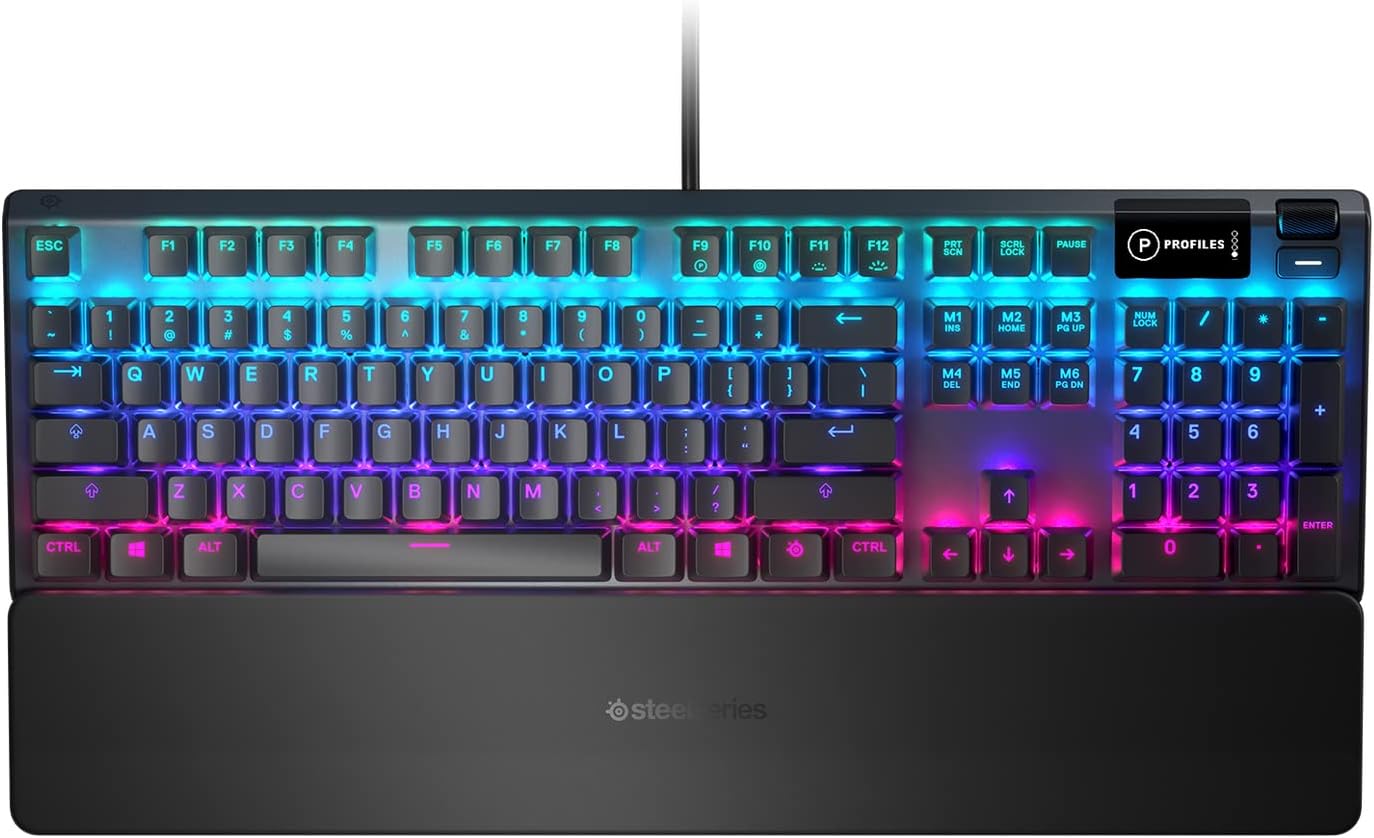
Image: The SteelSeries Apex 5 keyboard displaying its customizable per-key RGB illumination.

Image: A side profile of the Apex 5 keyboard, emphasizing the keycap design and the vibrant RGB lighting from below the keys.
4.3 OLED Smart Display
The integrated OLED Smart Display provides direct access to settings, game information, and Discord messages without minimizing your game. You can customize the display to show GIFs, monitor CPU/GPU temperatures, or switch profiles on the fly using the dedicated multimedia roller and button.

Image: A detailed view of the OLED Smart Display, indicating its functionality for displaying information like profiles.
4.4 Magnetic Wrist Rest
The included magnetic wrist rest provides full palm support and a comfortable, ergonomic feel. Its magnetic attachment ensures a secure fit, allowing for quick and easy removal when not needed. This feature is crucial for maintaining comfort during long gaming or typing sessions.
Video: This video demonstrates the easy magnetic attachment and removal of the wrist rest from the SteelSeries Apex 5 keyboard, highlighting its seamless integration and ergonomic benefits.

Image: The SteelSeries Apex 5 keyboard with its magnetic wrist rest securely attached, viewed from the side.
4.5 Multimedia Controls and Cable Routing
Dedicated multimedia controls, including a clickable metal roller and media key, allow for easy adjustment of volume and settings. The keyboard also features three-way cable routing, enabling you to choose where your cable exits, keeping your desk tidy.
5. Maintenance
- Cleaning the Keyboard: Use a soft, lint-free cloth slightly dampened with water or a mild cleaning solution to wipe down the keycaps and frame. Avoid excessive moisture. For dust and debris between keys, use compressed air.
- Cleaning the Wrist Rest: The magnetic wrist rest can be cleaned with a damp cloth. Ensure it is dry before reattaching.
- Cable Management: Utilize the three-way cable routing channels on the underside of the keyboard to organize your cable and prevent tangles.
6. Troubleshooting
- Keyboard Not Responding:
Ensure the USB cable is securely plugged into both the keyboard and the computer. Try a different USB port. Restart your computer.
- RGB Lighting Issues:
Verify that the SteelSeries Engine software is installed and up to date. Check lighting settings within the software. If issues persist, try reinstalling the software.
- OLED Display Not Working:
Ensure SteelSeries Engine is running. Check display settings within the software. A software update or reinstallation may resolve the issue.
- Keys Not Registering:
Clean around the affected keys to remove any debris. If individual keys are consistently failing, contact SteelSeries support.
7. Specifications
| Feature | Detail |
|---|---|
| Product Dimensions | 17.51 x 5.48 x 1.59 inches |
| Item Weight | 2.04 pounds |
| Manufacturer | SteelSeries |
| Item Model Number | 64532 |
| Connectivity Technology | Micro USB, USB-A, USB-C (for routing) |
| Keyboard Description | Gaming |
| Number of Keys | 108 |
| Backlighting | Per-Key RGB Illumination |
| Special Features | Customizable Display Keys, OLED Smart Display, Magnetic Wrist Rest, Aircraft Grade Aluminum Alloy Frame, Multimedia Controls, Three-Way Cable Routing, Gaming Grade Anti-Ghosting |
8. Warranty and Support
For detailed warranty information and technical support, please visit the official SteelSeries website or contact their customer service. Keep your proof of purchase for warranty claims.
SteelSeries Support: steelseries.com/support
Related documents64532


Ask a question about this manual
Ask about setup, troubleshooting, compatibility, parts, safety, or missing instructions. Manuals+ will review the question and use this page’s manual context to help answer it.