
BenQ GW2480
BenQ GW2480 24 Inch Monitor User Manual
Model: GW2480
Introduction
This manual provides comprehensive instructions for the setup, operation, maintenance, and troubleshooting of your BenQ GW2480 24 Inch Monitor. Please read this manual thoroughly before using the monitor to ensure proper functionality and to prevent damage.

Figure 1: Front view of the BenQ GW2480 24 Inch Monitor, showcasing its slim bezels and the BenQ Eye-Care logo on the screen.
Important Safety Instructions
- Do not expose the monitor to rain or moisture.
- Do not open the monitor casing. High voltage components inside.
- Ensure proper ventilation around the monitor.
- Use only the power cord supplied with the monitor.
- Disconnect the power plug from the outlet if the monitor will not be used for an extended period.
Setup Guide
1. Unpacking and Assembly
Carefully remove all components from the packaging. Ensure all parts are present:
- Monitor Panel
- Monitor Stand Base
- Monitor Stand Neck
- Power Cord
- HDMI Cable (may vary by region)
- Quick Start Guide
To assemble the stand:
- Attach the stand neck to the monitor panel. Ensure it clicks securely into place.
- Attach the stand base to the stand neck. Tighten the captive screw on the bottom of the base.

Figure 2: Angled front view of the BenQ GW2480 monitor, showing the sleek design and stand.
2. Connecting the Monitor
The BenQ GW2480 monitor supports multiple input options:
- HDMI: Connect an HDMI cable from your computer's HDMI output to the monitor's HDMI input.
- DisplayPort: Connect a DisplayPort cable from your computer's DisplayPort output to the monitor's DisplayPort input.
- VGA: Connect a VGA cable from your computer's VGA output to the monitor's VGA input.
For audio, connect external speakers or headphones to the monitor's audio output jack if using HDMI or DisplayPort for audio transmission.
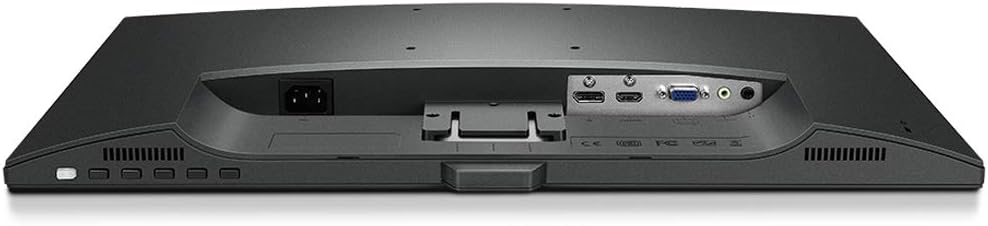
Figure 3: Bottom view of the BenQ GW2480 monitor, highlighting the power input, HDMI, DisplayPort, and VGA ports.
After connecting the video cable, connect the power cord to the monitor and then to a power outlet.
Operating Instructions
1. Powering On/Off
Press the power button located on the bottom right side of the monitor to turn it on or off. The power indicator light will illuminate when the monitor is on.

Figure 4: Rear view of the BenQ GW2480 monitor, indicating the location of the power button and On-Screen Display (OSD) control buttons on the bottom right.
2. On-Screen Display (OSD) Menu
The OSD menu allows you to adjust various monitor settings. Use the buttons on the bottom right of the monitor to navigate the menu.
- Menu Button: Opens the OSD menu.
- Navigation Buttons: Used to move through menu options.
- Enter Button: Confirms a selection.
- Exit Button: Exits the current menu or OSD.
Key OSD settings include:
- Picture: Brightness, Contrast, Sharpness, Color Temperature.
- Audio: Volume, Mute.
- Input: Selects the video input source (HDMI, DisplayPort, VGA).
- Eye-Care: Adjusts features like Low Blue Light and Brightness Intelligence Plus (B.I.+).
- System: OSD settings, Information, Reset All.

Figure 5: Rear angled view of the BenQ GW2480 monitor, providing a closer look at the physical OSD control buttons located on the lower right side.
3. Eye-Care Technology
The BenQ GW2480 features Eye-Care technology designed to reduce eye strain. This includes:
- Brightness Intelligence Plus (B.I.+): Automatically adjusts brightness and color temperature based on ambient light conditions.
- Low Blue Light: Filters harmful blue light emissions to reduce eye fatigue.
- Flicker-Free: Eliminates flickering at all brightness levels to prevent eye strain.
These features can be enabled or adjusted through the OSD menu under the "Eye-Care" section.
Maintenance
Cleaning the Monitor
To clean the monitor screen:
- Turn off the monitor and unplug the power cord.
- Use a soft, lint-free cloth lightly dampened with water or a non-abrasive screen cleaner.
- Gently wipe the screen surface. Avoid applying excessive pressure.
- For the casing, use a dry, soft cloth.
Do not use alcohol, benzene, thinners, or any abrasive cleaners, as these may damage the monitor's surface.
Troubleshooting
| Problem | Possible Cause | Solution |
|---|---|---|
| No image on screen | Power cable not connected; Video cable not connected; Incorrect input source selected. | Ensure power and video cables are securely connected. Press the input source button on the monitor to select the correct input. |
| Image too dark/bright | Brightness/Contrast settings incorrect. | Adjust Brightness and Contrast settings via the OSD menu. |
| Flickering screen | Video cable issue; Graphics card driver issue. | Check video cable connection. Update graphics card drivers. Ensure Flicker-Free mode is enabled in OSD. |
| No audio | Audio cable not connected (if applicable); Volume too low; Muted. | Ensure external speakers/headphones are connected. Adjust volume in OSD and computer settings. Check if muted. |
Specifications
- Model: BenQ GW2480
- Screen Size: 23.8 Inches
- Resolution: FHD 1080p (1920 x 1080)
- Panel Type: IPS
- Refresh Rate: 75 Hz
- Color: Black
- Inputs: HDMI, DisplayPort, VGA
- Eye-Care Features: Brightness Intelligence Plus (B.I.+), Low Blue Light, Flicker-Free

Figure 6: Side profile of the BenQ GW2480 monitor, illustrating its slim design and tilt capabilities.
Warranty and Support
For warranty information and technical support, please refer to the warranty card included with your product or visit the official BenQ support website. As this is a renewed product, warranty terms may differ from new products. Please consult your retailer for specific warranty details.
BenQ Support Website: www.benq.com/en-us/support.html
Related documentsGW2480


Ask a question about this manual
Ask about setup, troubleshooting, compatibility, parts, safety, or missing instructions. Manuals+ will review the question and use this page’s manual context to help answer it.