
1. Introduction and Overview
The Wacom One HD Creative Pen Display (Model DTC133W0C) is a 13.3-inch digital pen display designed for creative tasks, visual thinking, and enhancing digital workflows. It offers a seamless experience for various applications, including drawing, painting, photo and video editing, design creation, document annotation, and note-taking. The display features a high-definition screen and is compatible with Mac, Windows PC, Chromebook, and select Android smartphones, providing a versatile digital canvas.
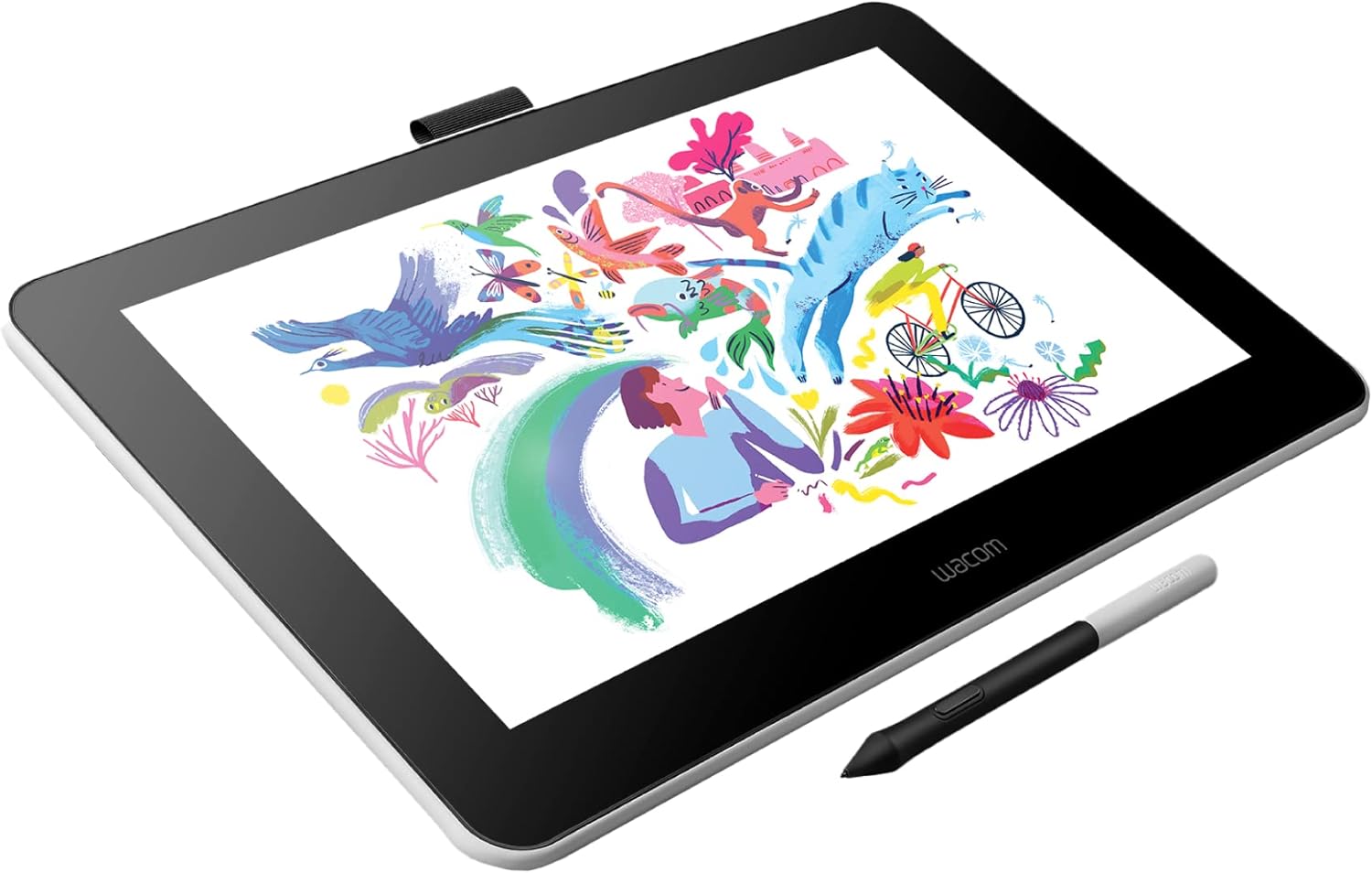
Figure 1: Wacom One HD Creative Pen Display with its digital pen.
2. What's in the Box
Upon unboxing your Wacom One HD Creative Pen Display, ensure all the following components are present:
- Wacom One Creative Pen Display (Model DTC133W0C)
- Wacom One Pen
- Wacom One X-Shape Cable (for connecting to computer)
- AC Power Cable (12W)
- Replacement Nibs (typically 3 standard nibs)
- Nib Removal Tool
- Quick Start Guide

Figure 2: Included items in the Wacom One package.
3. Setup
Follow these steps to set up your Wacom One Creative Pen Display:
- Connect to Power: Plug the AC power cable into the Wacom One display and then into a power outlet.
- Connect to Computer: Use the Wacom One X-Shape cable to connect the display to your computer. This cable typically includes HDMI for video and USB for pen input. Ensure both connections are secure.
- Install Drivers: For optimal performance, download and install the latest drivers from the official Wacom website. This is required for Windows 7 and later, and Mac OS X 10.13 and later.
- Connect to Android Device (Optional): To connect to a compatible Android smartphone, you may need a third-party USB-C to USB-C cable or an OTG adapter (sold separately). Ensure your Android device supports display output via USB-C.
- Adjust Display Settings: After connecting, your computer should detect the Wacom One as an external display. Adjust your display settings (resolution, scaling) as needed for optimal viewing and pen accuracy. For Windows 10, setting display scaling to 100% is recommended to avoid resolution and pen alignment issues.
Video 1: Wacom One Getting Started with Android. This video demonstrates connecting the Wacom One to an Android device.
4. Operating Instructions
The Wacom One is designed for intuitive use across various creative and productivity applications.
- Power On/Off: Use the power button located on the side of the display to turn the device on or off.
- Pen Interaction: Use the Wacom One Pen directly on the screen to draw, write, navigate, and interact with software. The screen's surface is designed to mimic the natural friction of paper, providing a comfortable and precise experience.
- Customizable Pen Button: The button on the Wacom One Pen can be customized through the Wacom Tablet Properties software to perform various shortcuts, such as undo, copy/paste, or specific tool functions.
- Using as a Second Screen: The Wacom One can function as an extended or mirrored display for your computer or compatible Android device, expanding your workspace.
Video 2: Make your video come to life with Wacom. This video illustrates various creative applications of the Wacom One.
5. Pen Usage
The Wacom One Pen is a key component of your creative workflow:
- Battery-Free: The pen operates without batteries, eliminating the need for charging and ensuring uninterrupted creative sessions.
- Pressure Sensitivity: With 4096 levels of pressure sensitivity, the pen allows for precise control over line thickness and opacity, mimicking traditional art tools.
- Replacement Nibs: The pen comes with several replacement nibs. To change a nib, use the included nib removal tool to gently pull out the old nib and insert a new one until it clicks into place.
- Pen Compatibility: The Wacom One is compatible with a range of digital pens from other leading brands, allowing users to choose a pen that best suits their preference.

Figure 3: Detailed view of the Wacom One Pen in use.
6. Connectivity
The Wacom One offers broad compatibility:
- Operating Systems: Works with Mac (OS X 10.13 and later), Windows PC (Windows 7 and later), and Chromebook (latest Chrome OS version).
- Android Devices: Compatible with select Android smartphones for an expanded digital workspace. Connection typically requires a USB-C to USB-C cable or an OTG adapter.
- Ports: Utilizes HDMI for video output and USB for pen input and data transfer.

Figure 4: Wacom One connected to an Android smartphone.
7. Software
The Wacom One comes with access to various creative software trials upon registration, allowing you to explore its capabilities:
- Adobe Photoshop (2-month trial)
- Adobe Lightroom (2-month trial)
- Bamboo Paper Pro (3-month trial)
- Adobe Fresco (6-month trial)
These trials provide an opportunity to experience professional-grade creative tools with your new display.

Figure 5: Digital creation on the Wacom One using creative software.
8. Maintenance
Proper maintenance ensures the longevity and optimal performance of your Wacom One:
- Screen Cleaning: Use a soft, lint-free cloth, slightly dampened with water or a screen-safe cleaner, to gently wipe the display surface. Avoid harsh chemicals or abrasive materials that could damage the screen.
- Pen Nibs: Regularly check the pen nib for wear. Replace worn-out nibs using the provided nib removal tool to maintain optimal drawing precision.
- Storage: When not in use, store the Wacom One in a safe place to prevent scratches or damage. The foldable legs allow for a compact storage profile.

Figure 6: Wacom One with its integrated stand for comfortable use.
9. Troubleshooting
If you encounter issues with your Wacom One, consider the following:
- Display Not Turning On: Ensure the AC power cable is securely connected to both the display and a working power outlet. Check the power indicator light on the device.
- No Display Output: Verify that the HDMI cable is firmly connected to both the Wacom One and your computer. Check your computer's display settings to ensure the Wacom One is detected and configured correctly (e.g., extended or mirrored display).
- Pen Not Responding/Inaccurate: Confirm that the USB cable is properly connected. Reinstall the latest Wacom drivers from the official website. For Windows 10, ensure display scaling is set to 100% and disable 'Windows Ink' in Wacom settings if experiencing pen issues.
- Android Connectivity Issues: Ensure your Android device is compatible with display output via USB-C and that you are using a suitable cable or OTG adapter. Some devices may require specific settings to enable external display mode.
10. Specifications
| Model Number | DTC133W0C |
| Standing Screen Display Size | 13.3 Inches |
| Max Screen Resolution | 1920 x 1080 Pixels (Full HD) |
| Pressure Sensitivity | 4096 Levels |
| Connectivity Technology | HDMI, USB |
| Hardware Platform | Mac, PC |
| Operating System Compatibility | Windows (7+), Mac OS X (10.13+), Chrome OS, Android |
| Item Weight | 4.5 pounds |
| Product Dimensions | 15.7 x 10.2 x 3.1 inches |
| Color | Black and White |
| Special Feature | Full Lamination |
11. Warranty and Support
For warranty information, please refer to the documentation included with your product or visit the official Wacom website. For technical support, driver downloads, and additional resources, please visit the Wacom support page or contact their customer service directly.


