1. Introduction
This manual provides instructions for the installation, operation, and maintenance of the Cudy GS108 8-Port Gigabit Unmanaged Ethernet Network Switch. This device is designed to expand your wired network connectivity, offering high-speed data transfer for various devices in home or office environments.
2. Product Overview
2.1 Key Features
- 8 Gigabit RJ45 Ports: Provides 8 x 10/100/1000Mbps RJ45 ports for connecting to your router, modem, or other network devices.
- Plug & Play: Requires no software configuration or complex setup.
- Auto MDI/MDIX: Eliminates the need for crossover cables.
- Auto-Negotiation: Automatically detects the link speed of connected devices.
- Fanless Design: Ensures silent operation.
- Metal Casing: Durable metal housing for enhanced heat dissipation and longevity.
- Power Saving: Automatically adjusts power consumption based on link status and cable length, saving up to 68% energy.
- Long-Distance Transmission: Supports data transmission up to 170 meters with Cat.5e or higher Ethernet cables.
2.2 Package Contents
- Cudy GS108 8-Port Gigabit Unmanaged Ethernet Network Switch
- Power Adapter (DC 5V)
- User Manual
2.3 Physical Appearance
The Cudy GS108 features a compact metal casing with LED indicators on the front panel and RJ45 ports and a DC power input on the rear panel.

Image: Front view of the Cudy GS108 switch, showing the PWR LED and 8 port status LEDs, along with 8 RJ45 Ethernet ports and a DC 5V power input.
3. Setup Instructions
The Cudy GS108 switch is designed for simple plug-and-play installation. No software configuration is required.
3.1 Connecting the Switch
- Connect to Power: Plug the provided power adapter into the DC 5V port on the switch and then into a power outlet. The PWR LED on the front panel will illuminate.
- Connect to Router/Modem: Connect one end of an Ethernet cable to any LAN port on your router or modem. Connect the other end of this cable to any of the 8 RJ45 ports on the Cudy GS108 switch.
- Connect Network Devices: Connect your network devices (e.g., computers, game consoles, IPTV boxes, printers, NAS) to the remaining RJ45 ports on the Cudy GS108 switch using Ethernet cables.
- Verify Connection: After connecting, wait approximately one minute. The corresponding LED for each connected port will light up, indicating an active link.

Image: Diagram illustrating how to connect various devices like computers, IPTV, printers, NAS, game consoles, and routers to the Cudy GS108 switch for network extension.
3.2 Mounting Options
The Cudy GS108 switch can be placed on a desktop or mounted on a wall.
- Desktop Placement: Place the switch on a flat, stable surface. Ensure adequate ventilation around the device.
- Wall Mounting: The switch includes mounting slots on its underside for wall installation. Use appropriate screws (not included) to secure the switch to a wall.
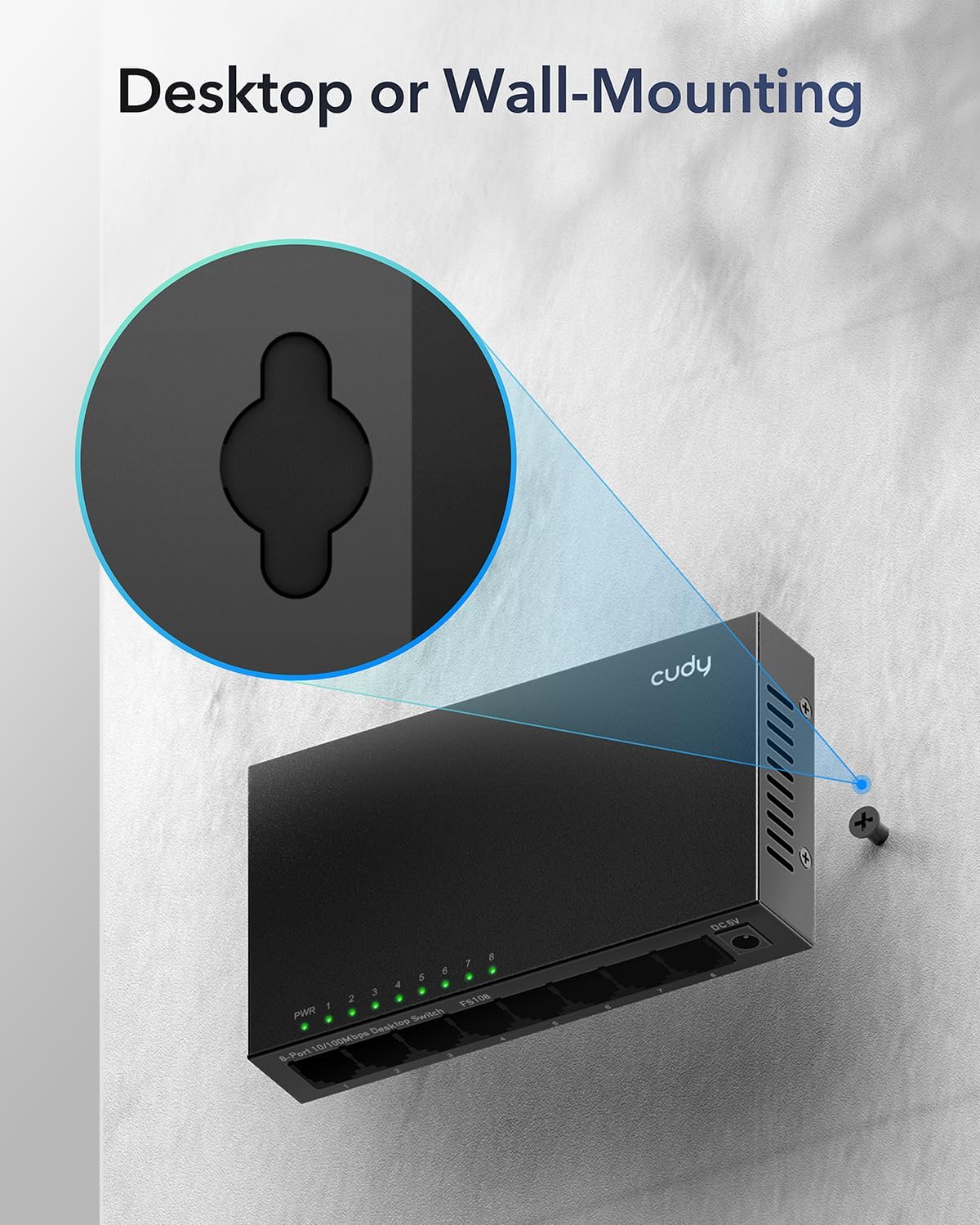
Image: Illustration demonstrating the wall-mounting capability of the Cudy GS108 switch, highlighting the keyhole slots on the back for screw placement.
4. Operating Instructions
4.1 LED Indicators
The front panel of the GS108 switch features several LED indicators to provide status information:
- PWR LED: Indicates the power status of the switch.
- On: The switch is powered on.
- Off: The switch is powered off.
- Port 1-8 LEDs: Each port has an associated LED that indicates its link/activity status.
- Green (Solid): A device is connected and operating at Gigabit (1000Mbps) speed.
- Green (Flashing): Data is being transmitted or received on the Gigabit port.
- Yellow (Solid): A device is connected and operating at 10/100Mbps speed.
- Yellow (Flashing): Data is being transmitted or received on the 10/100Mbps port.
- Off: No device is connected to the port, or the connected device is powered off.
4.2 Basic Network Operation
Once connected, the Cudy GS108 switch automatically handles data forwarding between connected devices. It operates as an unmanaged switch, meaning it does not require any user configuration for basic network functionality. Devices connected to the switch will be able to communicate with each other and with the internet (if the switch is connected to a router/modem).
5. Maintenance
To ensure optimal performance and longevity of your Cudy GS108 switch, follow these maintenance guidelines:
- Placement: Place the switch in a cool, dry location away from direct sunlight, heat sources, and excessive moisture.
- Ventilation: Ensure that the ventilation holes on the sides of the switch are not blocked to allow for proper airflow, even though it has a fanless design.
- Cleaning: Use a soft, dry cloth to clean the exterior of the switch. Do not use liquid cleaners or aerosols.
- Power: Use only the provided power adapter. Disconnect the power adapter during electrical storms or when the device is not in use for extended periods.
- Cable Management: Keep Ethernet cables neatly organized to prevent strain on the ports and accidental disconnections.

Image: A desktop monitor in an office setting, representing the power-saving capabilities of the Cudy GS108 switch when ports are idle.
6. Troubleshooting
If you encounter issues with your Cudy GS108 switch, refer to the following troubleshooting tips:
- No Power (PWR LED Off):
- Ensure the power adapter is securely connected to the switch and a working power outlet.
- Verify the power outlet is functional by plugging in another device.
- No Link/Activity on a Port (Port LED Off):
- Check that the Ethernet cable is securely connected to both the switch port and the network device.
- Ensure the connected network device is powered on and functioning correctly.
- Try a different Ethernet cable to rule out cable damage.
- Try connecting the device to a different port on the switch.
- Slow Network Speed:
- Ensure you are using Cat.5e or higher Ethernet cables for Gigabit speeds.
- Verify that your connected devices and router/modem support Gigabit Ethernet.
- Check the port LED color: Green indicates Gigabit speed, Yellow indicates 10/100Mbps speed. If it's yellow and you expect green, check the connected device's network adapter settings or cable quality.
- Continuous Power/Loop Blinking:
- This switch is an unmanaged switch and does not support Power over Ethernet (PoE). Ensure you are not attempting to connect PoE devices or using PoE injectors with this switch, as it is not designed for such functionality.
- If multiple switches are connected in a loop without proper Spanning Tree Protocol (STP) configuration (which unmanaged switches do not have), it can cause network loops. Ensure your network topology avoids physical loops between unmanaged switches.
7. Specifications
| Feature | Specification |
|---|---|
| Model | GS108 |
| Number of Ports | 8 x 10/100/1000Mbps RJ45 Ports |
| Interface Type | RJ45 |
| Data Transfer Rate | 1000 Megabits Per Second (Mbps) |
| Voltage | 12 Volts (DC) |
| Case Material | Metal |
| Product Dimensions | 6.5 x 3.62 x 2.68 inches (16.5 x 9.2 x 6.8 cm) |
| Item Weight | 11.3 ounces (0.32 Kilograms) |
| Color | Black |
| Compatible Devices | Camera, Router, PC, Game Console, IPTV, NAS, Printer |
| Manufacturer | Shenzhen Cudy Technology Co., Ltd. |
8. Warranty and Support
Cudy products are designed for reliability and ease of use. For support, please refer to the official Cudy website for frequently asked questions, firmware updates, and contact information. Cudy also provides official videos and a mobile application for setup and management of compatible devices.
For specific warranty information, please consult the warranty card included with your product or visit the official Cudy support page.
Cudy Official Website: www.cudy.com


