
Cync CSWONBLBWF1NN/ST1P
GE CYNC Smart Light Switch Instruction Manual
Model: CSWONBLBWF1NN/ST1P
Product Overview
The Cync Smart Light Switch (Button Style, No Neutral Wire Required) allows you to transform traditional light bulbs into smart lights, providing convenient control from anywhere. This switch integrates seamlessly with your smart home ecosystem, offering voice control through Amazon Alexa and Google Home, and enabling scheduling and automation features to save energy.

Image: The GE CYNC Smart Light Switch, button style, shown alongside its product packaging. The packaging highlights features such as "No Neutral Wire" and compatibility with Alexa and Google Home.

Image: A graphic illustrating key features of the Cync Smart Light Switch, including out-of-home control via the Cync App, voice control, scheduling, control of multiple devices, and no hub required. It also shows "works with Alexa" and "works with Google Home" logos.
What's in the Box
Upon opening the product packaging, verify that all components are present:
- One (1) CYNC Smart Switch On/Off Button Style
- Installation Manual (typically included)
- Bulb Adapter (may be included for specific bulb types)
Installation Guide
Before You Begin
Ensure you have the following prerequisites for successful installation:
- A ground wire (typically green or bare copper) is required.
- A 2.4 GHz Wi-Fi connection is necessary for smart control features.
- For homes built before the 1980s, this "No Neutral Wire Required" switch is generally compatible.
- This switch will not work with traditional "non-smart" switches or 3-Way switches.

Image: A simplified wiring diagram showing connections for Load, Ground, and Line wires for the Cync Smart Switch. It also indicates that a bulb adapter might be needed depending on bulb type or wattage.
Step-by-Step Installation
Follow these steps to install your Cync Smart Light Switch:
- Download the Cync App: Obtain the Cync App, powered by Savant, from your device's app store.
- Install the Switch: Follow the detailed instructions provided in the physical instruction manual included in the packaging for wiring and mounting the switch.
- Connect to Wi-Fi: Once installed, connect your switch to your 2.4 GHz Wi-Fi network via the Cync App to enable smart features.

Image: A visual guide to easy installation, showing three steps: 1. Download the Cync App, 2. Install the switch following the instruction manual, 3. Connect to 2.4GHz WiFi.

Image: A three-step visual guide on how to install the switch: 1. Turn off power and remove old switch, 2. Connect wires and fit them into the wall box, 3. Secure the switch and turn power back on.
For a comprehensive installation guide, refer to the Installation Manual (PDF).
Operating Your Smart Switch
Cync App Control
The Cync App provides comprehensive control over your smart switch and connected lighting. You can turn lights on/off, adjust settings, create scenes, and manage schedules from your smartphone.
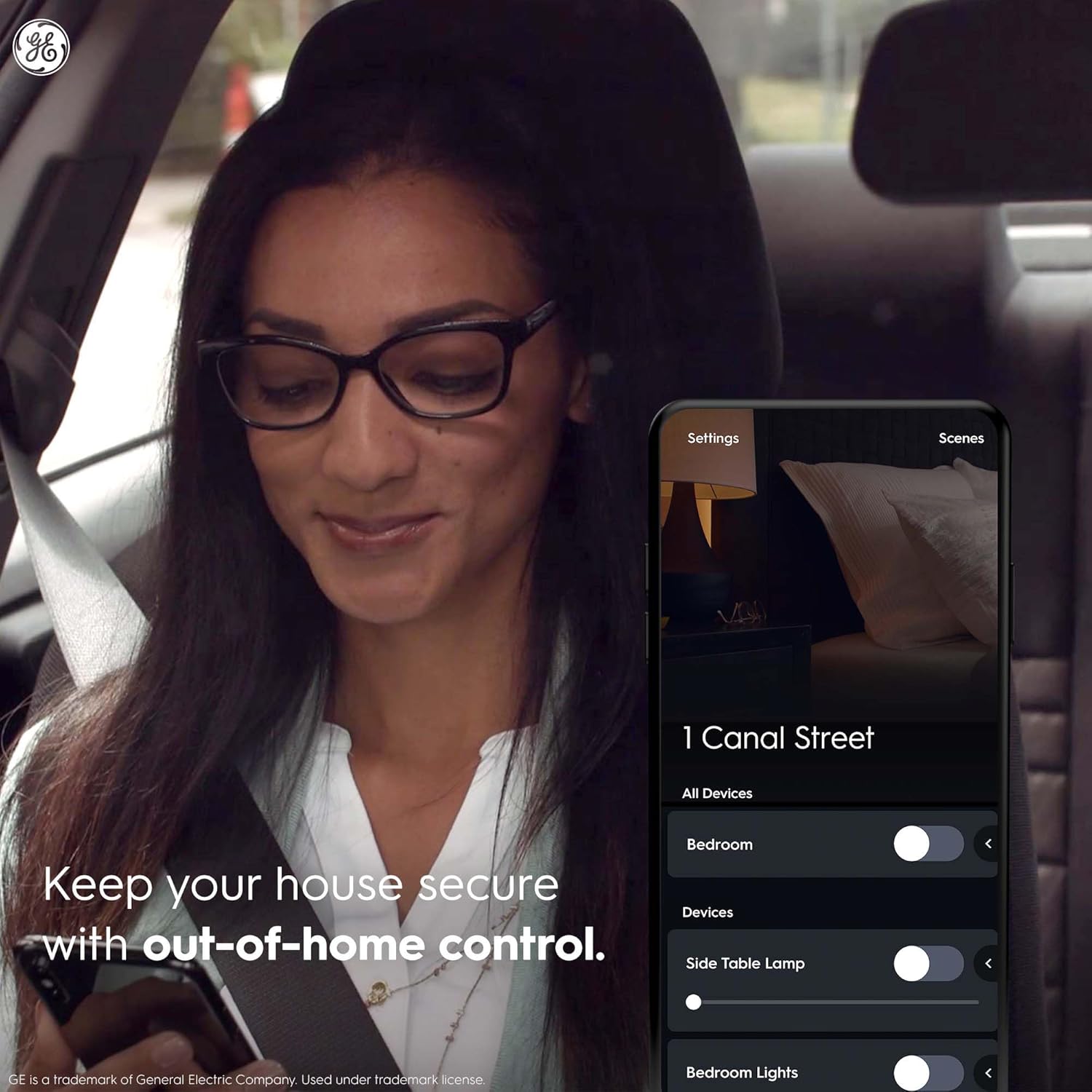
Image: A woman in a car using the Cync App on her smartphone, demonstrating out-of-home control to manage smart devices in her home.
Voice Control
Integrate your Cync Smart Switch with Amazon Alexa or Google Home for hands-free voice control. Ensure your voice assistant device is properly linked to your Cync account.

Image: A Cync Smart Switch installed on a wall, with a speech bubble indicating an Alexa command: "Alexa, turn off the dining room lights." This illustrates voice control functionality.
Scheduling and Automation
Utilize the Cync App to set customized schedules for your lights to automatically turn on or off. This feature helps in energy saving and enhances home security by simulating occupancy.

Image: An exterior view of a house at dusk with its lights automatically turned on, demonstrating the convenience of scheduling and automation features of the Cync Smart Switch.
Compatibility
Neutral Wire Compatibility
This Cync Smart Switch is designed for installations where a neutral wire is not present, making it suitable for older homes. Refer to the table below for a comparison between neutral and no-neutral wire switches.

Image: A table comparing "Neutral Wire Switch" and "No Neutral Wire Switch" across categories like wires required, ideal age of home, installation location, compatibility with Cync App devices, out-of-home control, and voice control with Alexa and Google.
Note: Neutral wires are typically found in homes built after the 1980s. If your wall box has a neutral wire, a Neutral Wire Switch might be recommended for broader compatibility with various lighting loads.
Bulb Compatibility and Adapter Use
A bulb adapter is included with your switch and may be required depending on your lighting setup. One bulb adapter is needed per switch, even with multiple bulbs on the circuit. Simply twist the bulb adapter onto the base of one bulb and screw into the fixture.

Image: A table indicating when a bulb adapter is required based on bulb type (Incandescent/Halogen, Dimmable LEDs, Non-Dimmable LEDs, Cync/C by GE smart lights, Combination of bulbs) and whether the 15W minimum load requirement is met or not.

Image: A visual guide demonstrating how to install the bulb adapter by twisting it onto the base of a light bulb and then screwing the assembly into the fixture.
For fixtures requiring an adapter not included, contact customer support.
Troubleshooting
If you encounter issues with your Cync Smart Light Switch, consider the following common solutions:
- Lights Not Responding:
- Ensure the switch has power and is correctly wired.
- Verify your Wi-Fi network is active and the switch is connected to a 2.4 GHz band.
- Check bulb compatibility and ensure the bulb adapter is correctly installed if required.
- App Connectivity Issues:
- Confirm your smartphone is connected to the same 2.4 GHz Wi-Fi network as the switch during setup.
- Restart the Cync App.
- If issues persist, try resetting the switch (refer to the installation manual for reset procedures).
- Voice Control Not Working:
- Ensure your Cync account is properly linked to your Amazon Alexa or Google Home account.
- Check that your voice assistant device is online and functioning correctly.
- Verify the device name in the Cync App matches the name used for voice commands.
- Flickering Lights:
- This can often be resolved by installing the included bulb adapter, especially with certain LED types.
- Ensure the total wattage of connected bulbs meets the minimum load requirement for the switch.
Technical Specifications
| Feature | Detail |
|---|---|
| Product Dimensions | 3.37 x 3.78 x 5.55 inches; 9.6 ounces |
| Item Model Number | CSWONBLBWF1NN/ST1P |
| Manufacturer | GE Lighting |
| Operation Mode | ON-OFF |
| Current Rating | 5 Amps |
| Operating Voltage | 120 Volts |
| Contact Type | Normally Closed |
| Connector Type | Clamp |
| Terminal | Spst |
| Circuit Type | 3-way |
| Actuator Type | Push Button |
Warranty and Support
For detailed information regarding product warranty, user guides, and installation instructions, please refer to the official documents below:
For further assistance, please visit the official Cync support website or contact their customer service.
Related documentsCSWONBLBWF1NN/ST1P


Ask a question about this manual
Ask about setup, troubleshooting, compatibility, parts, safety, or missing instructions. Manuals+ will review the question and use this page’s manual context to help answer it.