
1. Introduction and Overview
The LASUNEY 10-in-1 USB Type C HUB is a versatile multiport adapter designed to expand the connectivity of your USB-C enabled laptop or device. It provides multiple ports for display output, data transfer, network connection, and power delivery, enhancing your productivity and workspace.
Key Features:
- Triple Display Output: Connect up to three external displays via 2 HDMI ports and 1 DisplayPort for extended or mirrored modes.
- High-Speed Data Transfer: Features 2 USB 3.0 ports (up to 5 Gbps) and 1 USB 2.0 port for connecting peripherals and transferring data.
- Ethernet Connectivity: A 1000 Mbps Ethernet port ensures stable and fast wired network access.
- Power Delivery 3.0: Supports up to 100W power input (87W output for safety) to charge your laptop while using the hub.
- Card Reader: Integrated SD and TF card slots allow simultaneous reading of memory cards.
2. Product Components and Ports
Familiarize yourself with the various ports and components of your LASUNEY 10-in-1 USB Type C HUB:

Image 2.1: Overview of the LASUNEY 10-in-1 USB Type C HUB with all ports labeled.
- USB-C Host Connector: Connects to your laptop's USB-C port.
- 2 x HDMI Ports: For connecting external monitors or TVs.
- 1 x DisplayPort (DP): For connecting an external monitor.
- 1 x RJ45 Ethernet Port: For wired network connection (1000 Mbps).
- 2 x USB 3.0 Ports: For high-speed data transfer (up to 5 Gbps) and connecting USB devices.
- 1 x USB 2.0 Port: For connecting USB devices, compatible with a wider range of devices.
- 1 x SD Card Slot: For reading standard SD memory cards.
- 1 x TF Card Slot (Micro SD): For reading Micro SD memory cards.
- 1 x USB-C PD 3.0 Port: For power input to charge your laptop (up to 100W).
3. Setup Instructions
Follow these steps to set up your LASUNEY USB Type C HUB:
- Connect to Laptop: Plug the USB-C host connector cable from the hub into an available USB-C port on your laptop. Ensure your laptop's USB-C port supports video output (DisplayPort Alternate Mode) and power delivery for full functionality.
- Connect Power (Optional but Recommended): For stable operation and to charge your laptop, connect your laptop's original USB-C power adapter to the USB-C PD 3.0 port on the hub. The hub supports up to 100W power input, with 87W delivered to your laptop.
- Connect External Displays:
- Connect HDMI cables from your monitors to the HDMI ports on the hub.
- Connect a DisplayPort cable from your monitor to the DP port on the hub.
- Connect Peripherals: Plug your USB devices (e.g., mouse, keyboard, external hard drive) into the USB 3.0 or USB 2.0 ports.
- Connect Ethernet: For a wired network connection, plug an Ethernet cable into the RJ45 port on the hub.
- Insert Memory Cards: Insert your SD or TF cards into the corresponding slots for data access.
Video 3.1: Demonstration of connecting the LASUNEY USB Type C HUB to a laptop and various peripherals, including external displays, USB devices, and power.
4. Operating Instructions
4.1 Display Configuration
The hub supports various display modes depending on your operating system and source device capabilities.
For Windows Systems:
Windows systems support multiple display modes, including mirror and extended modes. For extended mode with up to 4 displays (laptop screen + 3 external monitors), your source device must support DP1.4 and have an AMD graphics card.

Image 4.1: Windows display setup showing extended mode with multiple distinct screens.
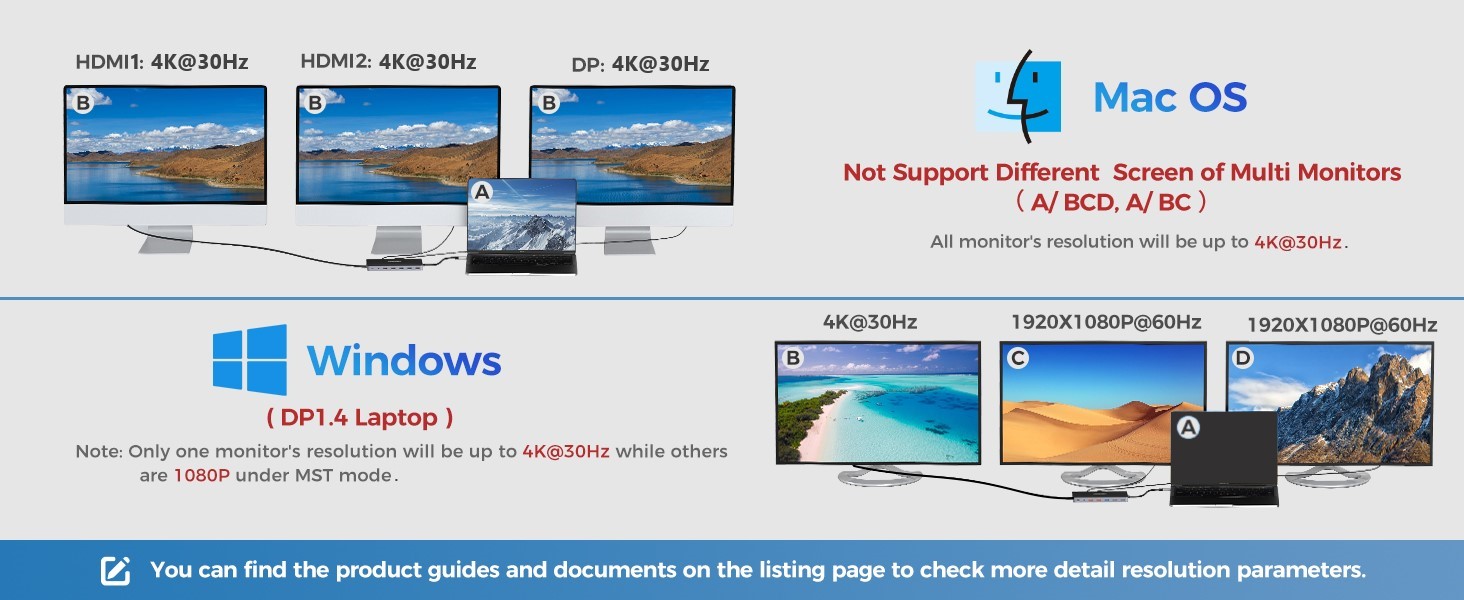
Image 4.2: Windows display resolution capabilities in MST mode.
For Mac OS Systems:
Mac OS does not natively support extended screen effects for multiple external displays to show different content. To achieve an extended mode with two different contents (one on your MacBook, one mirrored across external displays), follow these steps:
- Go to Settings > Display > Arrangement.
- Cancel Mirror Display.
- Drag the setting box to the page of the external display.
This will result in one display on your MacBook and one mirrored display across the HDMI1, HDMI2, and DisplayPort outputs. All external monitors will show the same content.

Image 4.3: Mac OS display setup showing mirrored external screens.
Image 4.4: Mac OS display resolution capabilities, showing all monitors mirrored.
4.2 Power Delivery (PD 3.0)
The USB-C PD 3.0 port allows you to charge your laptop while using the hub. Connect your laptop's original USB-C power adapter to this port. The hub supports up to 100W power input, with 87W allocated for charging your laptop and the remainder for the hub's operation and connected devices.

Image 4.5: Power Delivery in action, charging a laptop through the hub.
4.3 Data Transfer
The hub provides 2 USB 3.0 ports and 1 USB 2.0 port for connecting various USB devices. USB 3.0 ports offer data transfer speeds up to 5 Gbps, significantly faster than USB 2.0 (up to 480 Mbps). The SD and TF card slots support simultaneous reading for convenient file access.

Image 4.6: High-speed data transfer using USB 3.0 and card reader ports.
5. Compatibility
The LASUNEY 10-in-1 USB Type C HUB is designed for broad compatibility with most USB-C laptops that support DisplayPort Alternate Mode and Power Delivery. It is compatible with Windows, Mac OS X 10.6 or later, Chrome OS, and Linux 2.6.14 or later.

Image 5.1: Broad compatibility with Apple, Dell, HP, Lenovo, and other brands.
Important Compatibility Notes:
- Ensure your laptop's USB-C port is a "full-featured" port supporting Data Transfer, Video Output (DisplayPort Alt Mode), and Power Delivery.
- Mac OS: Does not support different content on multiple external monitors. All external monitors will mirror each other.
- M1 Chip Macs: Due to the unstable performance of the latest 2020 Mac processor M1 chip, video output may fail to display properly in parts of the devices.
- Logitech Bluetooth Products: This product is not compatible with Logitech Bluetooth wireless products. When used together, it may cause Bluetooth signal interference, leading to cursor delay or flicker.
- High-power equipment: Not recommended for use with high-power equipment or USB Super Drive/CD/DVD players.
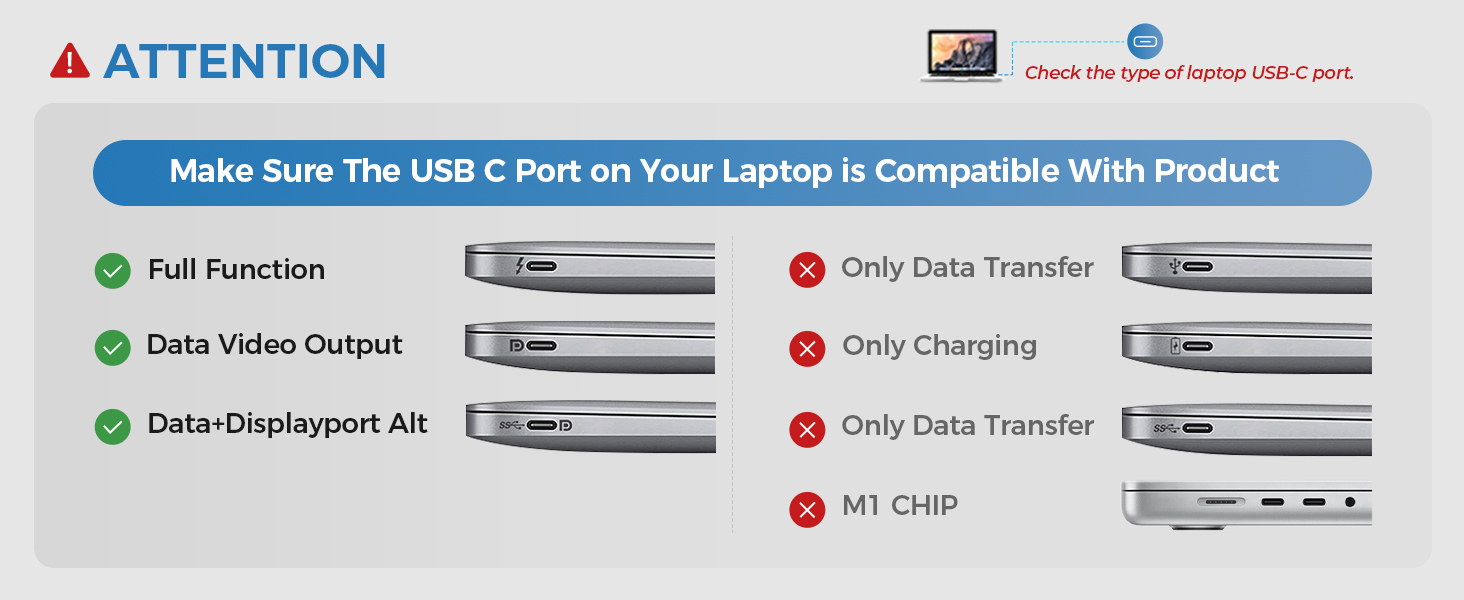
Image 5.2: USB-C port compatibility guide.

Image 5.3: List of incompatible devices (not a full list).
6. Troubleshooting
If you encounter issues, refer to the following common solutions:
- No Display Output:
- Ensure your laptop's USB-C port supports DisplayPort Alternate Mode.
- Verify all cables (USB-C to hub, HDMI/DP to monitor) are securely connected.
- For Mac OS, adjust display settings as described in Section 4.1.
- Ensure your source device supports DP1.4 for optimal multi-display performance on Windows.
- Unstable Connection/Disconnects:
- Connect your laptop's original power adapter to the hub's USB-C PD port. Insufficient power can cause instability, especially with multiple devices connected.
- Avoid using other converters with the hub, as compatibility issues can arise.
- Charging Issues:
- Use your laptop's original charger with the hub's PD port.
- Confirm your laptop's USB-C port supports Power Delivery.
- Bluetooth Interference (Logitech products):
- This hub is not compatible with Logitech Bluetooth wireless products. Disconnect such devices if experiencing issues.
- M1 Chip Mac Issues:
- Video output may be unstable. Check for updated drivers or alternative solutions from Apple or LASUNEY support.
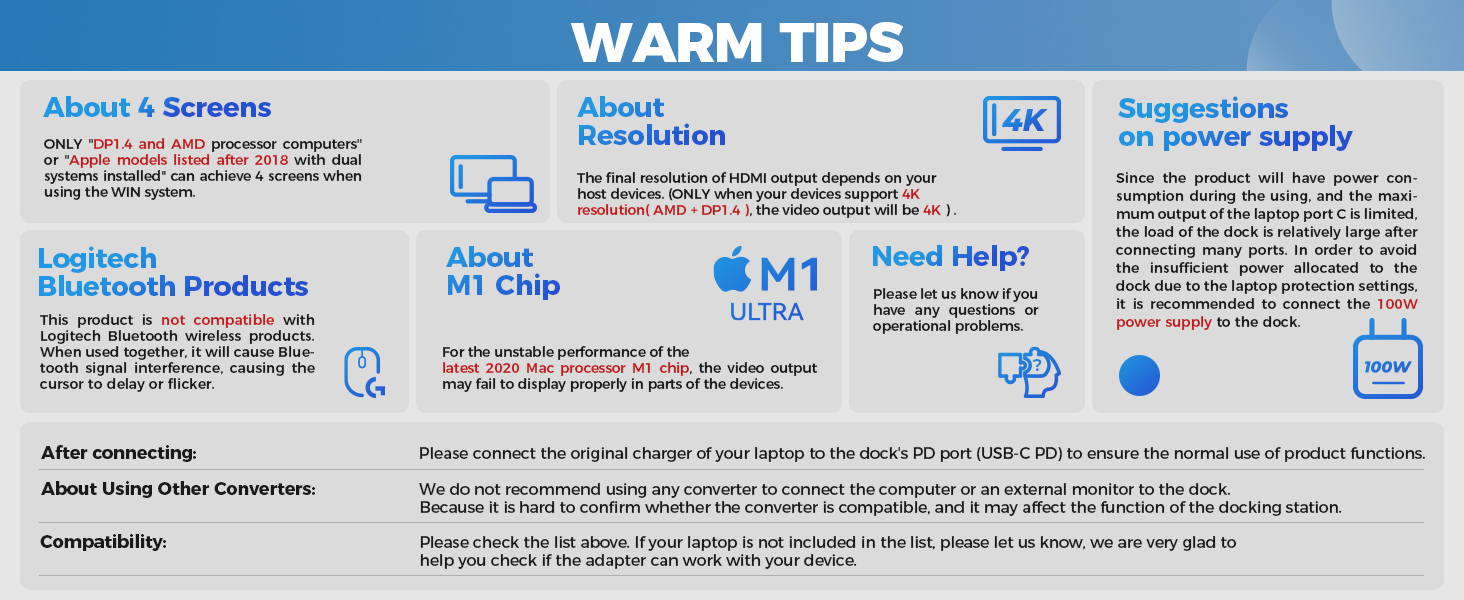
Image 6.1: Important tips for optimal performance and troubleshooting.
7. Specifications
| Feature | Detail |
|---|---|
| Brand | LASUNEY |
| Model | 10 IN 1 |
| Color | Grey |
| Product Dimensions | 4.3"L x 2.2"W x 0.6"H |
| Hardware Interface | Thunderbolt, USB Type C |
| Total USB Ports | 3 (2 x USB 3.0, 1 x USB 2.0) |
| Total HDMI Ports | 2 |
| DisplayPort | 1 |
| Ethernet Port | 1 (1000 Mbps) |
| Card Reader | SD and TF (Micro SD) slots, simultaneous reading |
| Power Delivery | PD 3.0, up to 100W input (87W output) |
| Compatible Devices | MacBook/Pro (2016-2021), MacBook Air/Mac Mini (2018-2020), ChromeBook Pixel, Dell Latitude/XPS/Precision/Inspiron, HP Spectre/Elitebook/Envy/Zbook, Lenovo Yoga/ThinkPad/IdeaPad, Asus Zenbook, Huawei MateBook, Samsung Galaxy (Requires full-featured USB-C port) |
8. Warranty and Support
The product includes a 12-month warranty. For any questions, issues, or warranty claims, please contact LASUNEY support. You can typically find contact information in the product packaging or on the manufacturer's website.
Please feel free to tell us your Order ID and problem via EMAIL/FB. We will be there within 24 hours.
- Email: support@lasuney.net
- Facebook: https://www.facebook.com/lasuney.yu


