1. Introduction
The Garmin Dash Cam Tandem is a compact, dual-lens dash camera designed to record both the road ahead and the vehicle's interior simultaneously. It features a front lens that records in 1440p and an interior lens with NightGlo™ technology for 720p recording in low-light conditions. This manual provides essential information for setting up, operating, maintaining, and troubleshooting your device.
What's in the Box
- Garmin Dash Cam Tandem
- Power Cable
- Magnetic Mount

Figure 1.1: Front view of the Garmin Dash Cam Tandem, showcasing its compact design and front-facing lens.
2. Safety Information
Before using your Garmin Dash Cam Tandem, please read all safety information carefully to ensure proper operation and to avoid damage or injury. Always operate the device in accordance with local laws and regulations regarding dash cam usage.
- Do not obstruct the driver's view or interfere with vehicle controls.
- Avoid prolonged exposure to direct sunlight when the vehicle is parked to prevent overheating.
- Use only the power cable and accessories provided by Garmin.
- Do not attempt to disassemble, repair, or modify the device.
3. Setup
3.1 Mounting the Dash Cam
- Choose a mounting location on your windshield that does not obstruct your view of the road. The ideal location is typically behind the rearview mirror.
- Clean the windshield thoroughly where the magnetic mount will be attached.
- Attach the magnetic mount to the windshield. Ensure it is securely fixed.
- Attach the Dash Cam Tandem to the magnetic mount. The strong magnet will hold it in place.
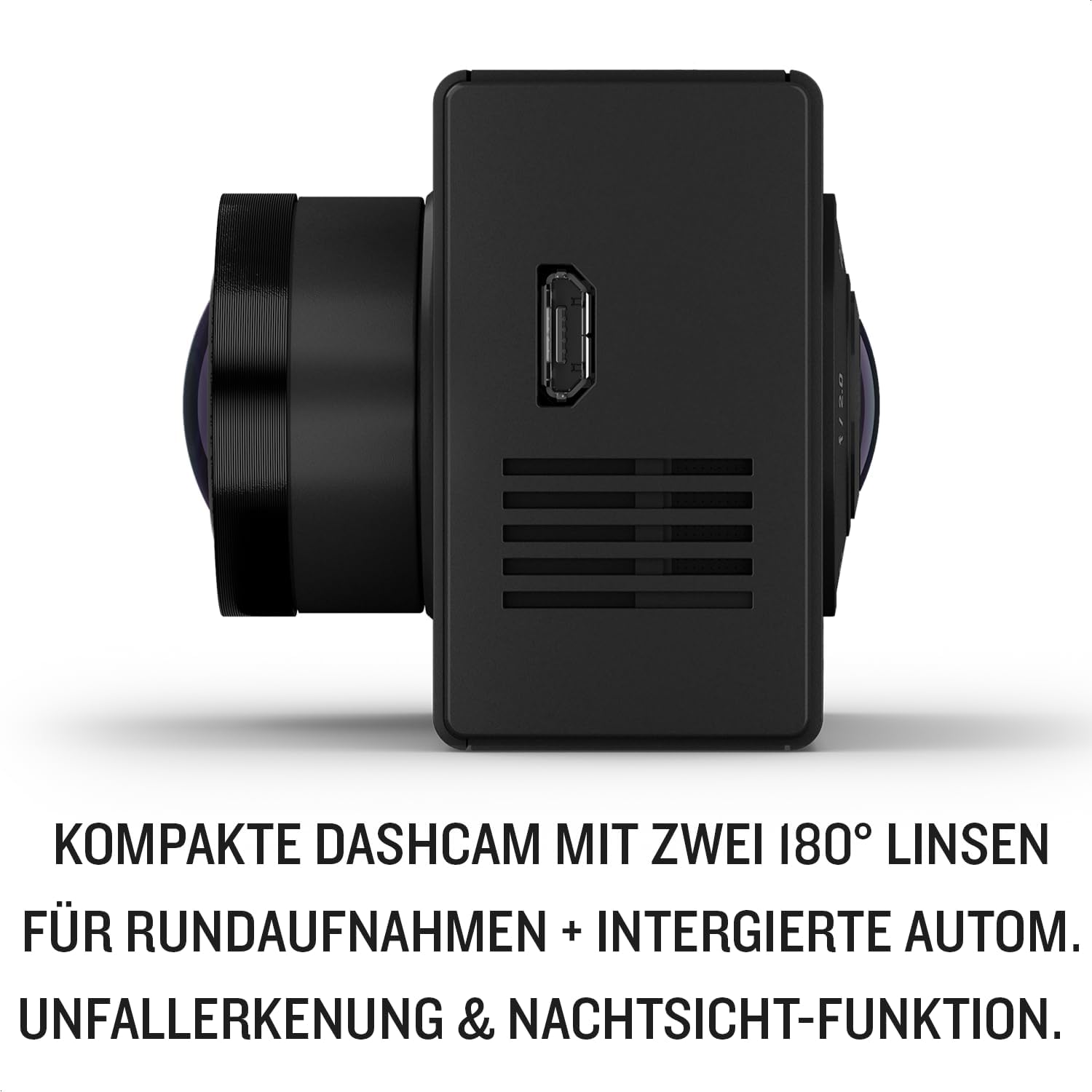
Figure 3.1: The Garmin Dash Cam Tandem attached to its magnetic mount on a vehicle windshield.
3.2 Connecting Power
Connect the included power cable to the dash cam and then to your vehicle's power outlet. The device will power on automatically when your vehicle starts.

Figure 3.2: Side view of the dash cam, illustrating the power input port for connection to the vehicle's power supply.
3.3 Initial Configuration
Upon first power-on, the device may prompt you to select language and other basic settings. Follow the on-screen instructions or refer to the Garmin Drive app for detailed setup.

Figure 3.3: The compact Garmin Dash Cam Tandem features two 180-degree lenses for comprehensive recording, integrated automatic incident detection, and night vision capabilities.
4. Operating Instructions
4.1 Video Recording
The Dash Cam Tandem automatically begins recording when powered on. The front lens captures 1440p video of the road, while the interior lens records 720p video of the cabin, enhanced by NightGlo™ technology for clear night vision.

Figure 4.1: Video recordings from both the 1440p front lens and 720p interior lens can be accessed and shared using the Garmin Drive App.
4.2 Automatic Incident Detection
The device features an integrated G-sensor that automatically detects incidents (e.g., collisions) and saves the corresponding 3-minute video footage. This footage is protected from being overwritten.
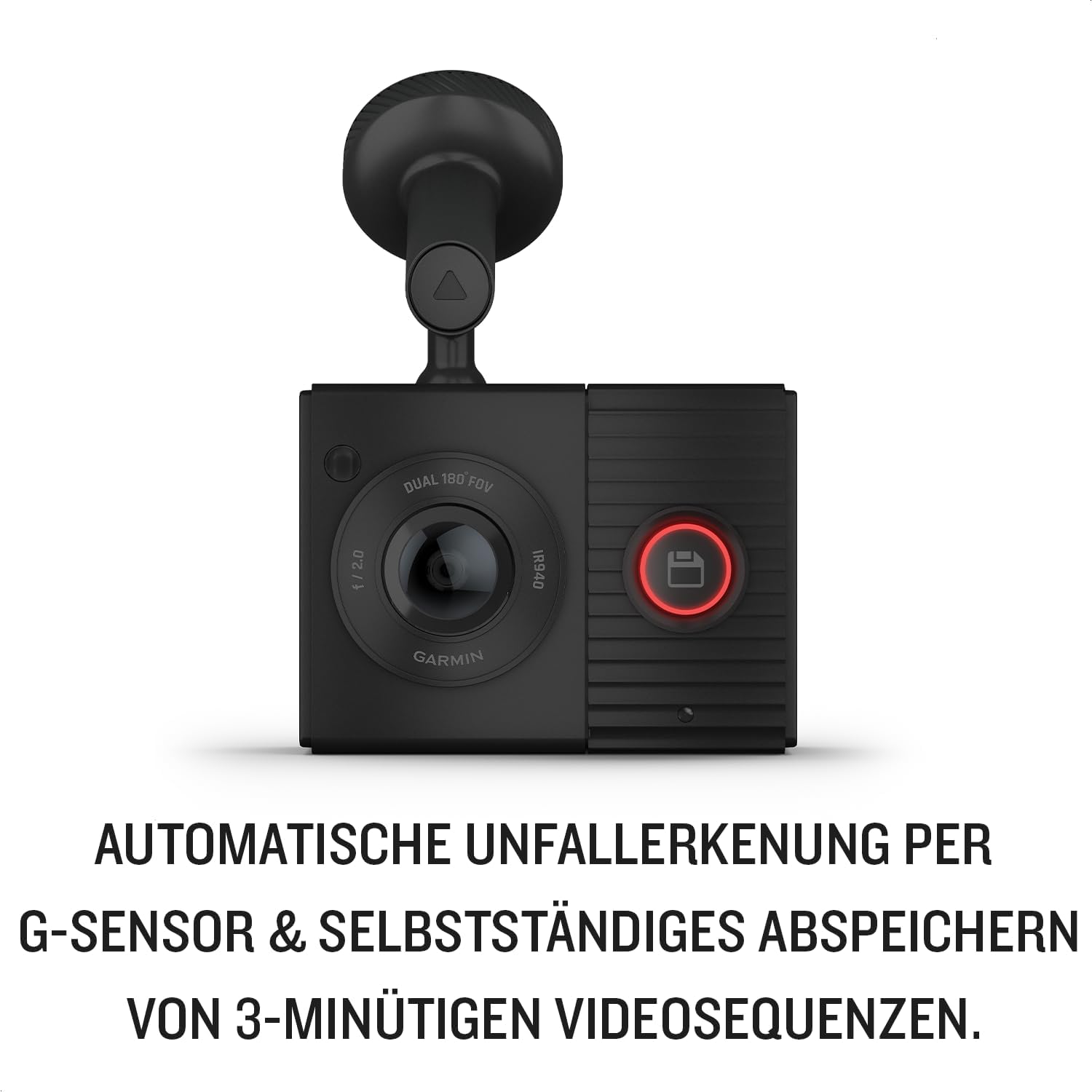
Figure 4.2: The dash cam automatically detects incidents using its G-sensor and saves 3-minute video sequences independently.
4.3 Parking Surveillance Mode
When properly connected (e.g., using a constant power source or a dedicated parking mode cable, sold separately), the dash cam can monitor your vehicle while parked. It will automatically record if an incident is detected.
4.4 Voice Control
Control your dash cam hands-free using voice commands. You can start or stop recordings, save videos, and perform other functions by speaking commands to the device.

Figure 4.3: The dash cam offers safe and convenient operation through voice control, allowing users to start, stop, and save videos at any time.
4.5 Garmin Drive App
Use the Garmin Drive app on your smartphone to view, edit, and share recorded videos. The app also allows for automatic synchronization of recordings and provides access to device settings.
4.6 Optional Features
Acoustic signals for warnings about fixed speed cameras and traffic light cameras may be optionally activated, depending on regional availability and software updates.

Figure 4.4: The dash cam can provide optional acoustic warnings for fixed speed and traffic light cameras, where available.
5. Maintenance
5.1 Cleaning the Device
Gently wipe the lenses and the device body with a soft, lint-free cloth. Do not use abrasive cleaners or solvents.
5.2 Memory Card Management
The dash cam requires a microSD™ card (sold separately) for recording. Periodically format the memory card to ensure optimal performance and to prevent data corruption. Refer to the Garmin Drive app or device settings for formatting options.
6. Troubleshooting
6.1 Device Not Powering On
- Ensure the power cable is securely connected to both the dash cam and the vehicle's power outlet.
- Verify that the vehicle's power outlet is functioning.
6.2 Recording Issues
- Check if a compatible microSD card is inserted and properly formatted.
- Ensure the memory card has sufficient free space.
- If issues persist, try formatting the memory card again or using a different compatible card.
6.3 Overheating
It is normal for the dash cam to become warm during operation. If the device becomes excessively hot or displays a temperature warning, ensure it is not exposed to direct sunlight for extended periods, especially when the vehicle is stationary. Consider repositioning the device if necessary.
7. Specifications
| Model | Garmin Dash Cam Tandem (010-02259-01) |
| Dimensions (L x W x H) | 5.5 x 2.35 x 4.1 cm |
| Weight | 200 grams |
| Front Lens Resolution | 1440p |
| Interior Lens Resolution | 720p (with NightGlo™ night vision) |
| Field of View | 180 degrees (per lens) |
| Connectivity | Bluetooth, Wi-Fi, USB |
| Mounting Type | Magnetic mount |
| Special Features | Automatic Incident Detection (G-Sensor), Parking Surveillance Mode, Voice Control |
| Power Source | Vehicle power outlet (internal Lithium-ion battery for temporary power) |
8. Warranty Information
The Garmin Dash Cam Tandem is covered by a limited warranty. For specific warranty terms and conditions, please refer to the warranty documentation included with your product or visit the official Garmin website.
9. Support
For additional support, frequently asked questions, software updates, or to contact customer service, please visit the official Garmin support website:


