
DPVR RYMEK
KNEWKEY RYMEK Typewriter Style Mechanical Wired & Wireless Keyboard User Manual
Model: RYMEK | Brand: DPVR
Introduction

Figure 1: The KNEWKEY RYMEK Typewriter Style Mechanical Keyboard.
This manual provides comprehensive instructions for the KNEWKEY RYMEK Typewriter Style Mechanical Keyboard. Designed for both wired and wireless connectivity, this keyboard offers a unique typing experience with its retro design, mechanical switches, and integrated tablet stand. It supports various operating systems including Windows, Mac, iOS, and Android, allowing seamless connection with multiple devices.
Key Features
- Classic Retro Design: Combines vintage aesthetics with modern functionality.
- Dual Connectivity: Supports both Bluetooth wireless and USB wired connections for versatile use.
- Multi-OS Compatibility: Compatible with Windows, Mac, iOS, and Android devices.
- Multi-Device Pairing: Connect and switch between up to 3 devices simultaneously.
- LED Dynamic Backlight: Enhances visibility and typing accuracy in low-light conditions.
- Integrated Tablet Stand: Conveniently holds your iPad or smartphone.
- Blue Switch Mechanical Keys: Provides a tactile and audible click feedback for an authentic typing feel.
Setup Guide
Package Contents:
- KNEWKEY RYMEK Keyboard
- USB Cable
- User Manual (this document)
Initial Charging:
Before first use, fully charge the keyboard using the provided USB cable. Connect the micro USB end to the keyboard's charging port and the USB-A end to a power source (e.g., computer USB port, USB wall adapter). The charging indicator light will show charging status.
Wired Connection:
To use the keyboard in wired mode, simply connect the provided USB cable from the keyboard to your computer's USB port. The keyboard will be recognized automatically.
Bluetooth Wireless Connection:
- Ensure the keyboard is charged and powered on.
- Press and hold the Fn key and one of the Bluetooth device keys (BT1, BT2, BT3) for 3 seconds until the corresponding indicator light flashes rapidly. This indicates pairing mode.
- On your device (computer, tablet, smartphone), go to Bluetooth settings and search for available devices.
- Select "RYMEK Keyboard" from the list.
- Follow any on-screen prompts to complete the pairing process. The indicator light on the keyboard will turn solid when successfully paired.
- Repeat for up to two additional devices using BT2 and BT3.
To switch between paired devices, simply press the Fn key and the corresponding BT1, BT2, or BT3 key once.

Figure 2: The integrated tablet stand securely holds your device for comfortable typing.
Operating Instructions
Typing Experience:
The RYMEK keyboard features blue mechanical switches, providing a distinct tactile bump and an audible click sound with each keystroke. This design is intended to replicate the classic typewriter feel, enhancing the typing experience.
Backlight Control:
The keyboard is equipped with LED dynamic backlighting. Use the dedicated backlight control keys (often combined with function keys) to adjust brightness levels or switch between different lighting modes. Refer to the keycap legends for specific backlight functions.
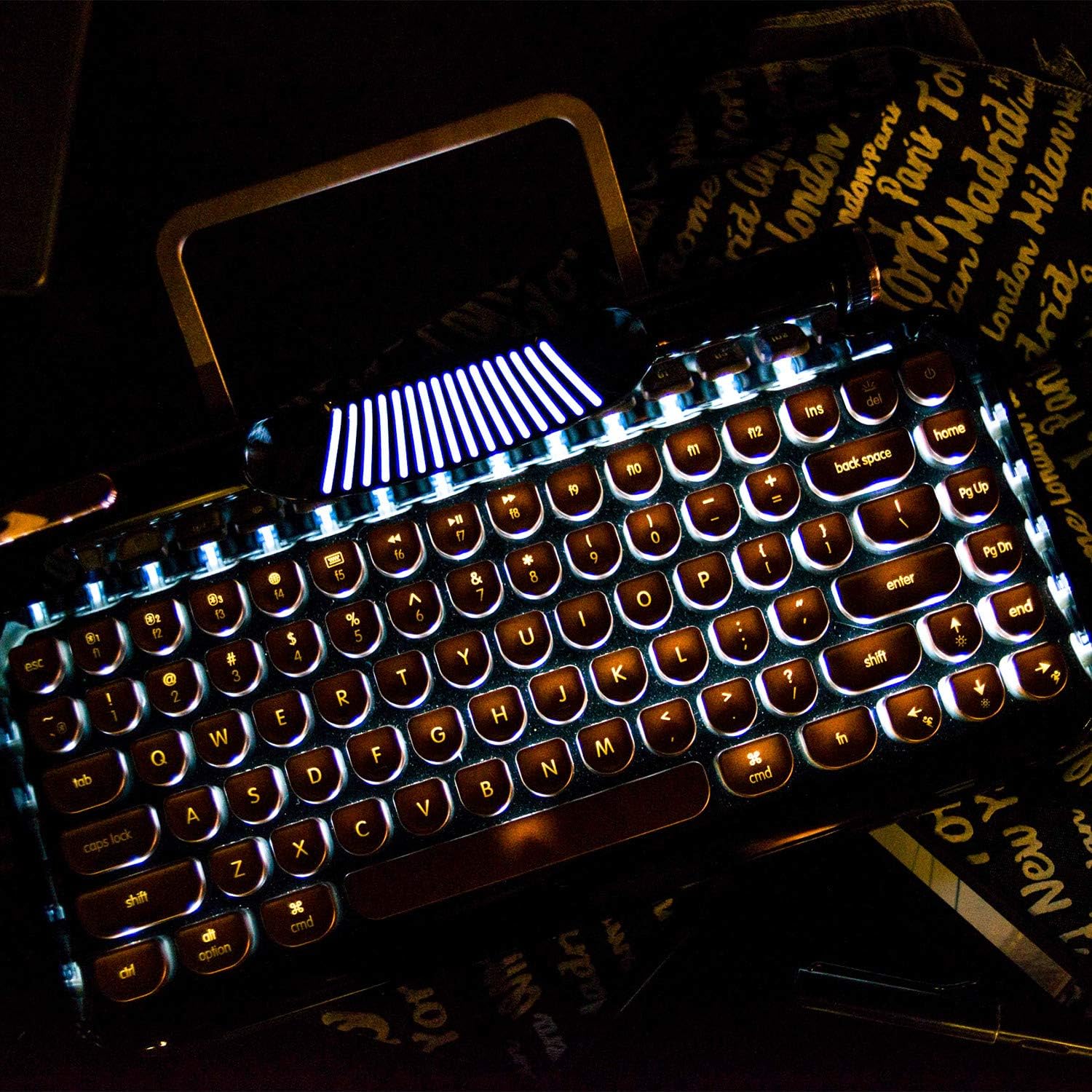
Figure 3: The dynamic LED backlight illuminates the keys for use in various lighting conditions.
Multimedia and Function Keys:
The top row of keys includes various function keys (F1-F12) and multimedia controls. These often require pressing the Fn key in combination with the desired function key. Examples include volume control, media playback, and screen brightness adjustments.
Lever Functionality:
The decorative lever on the left side of the keyboard functions as a carriage return in some applications or can be programmed for custom actions depending on your operating system and software.
Video 1: Official product video showcasing the RYMEK Typewriter Style Mechanical Keyboard's features and usage, including typing experience and backlight.
Maintenance
To ensure the longevity and optimal performance of your KNEWKEY RYMEK keyboard, follow these maintenance guidelines:
- Cleaning: Use a soft, dry cloth to wipe down the keyboard surface. For deeper cleaning, use compressed air to remove dust and debris from between the keycaps. Avoid using harsh chemicals or abrasive materials.
- Storage: When not in use, store the keyboard in a clean, dry environment away from direct sunlight and extreme temperatures.
- Liquid Spills: In case of liquid spills, immediately disconnect the keyboard from power and turn it off. Invert the keyboard to drain excess liquid and allow it to dry completely before reconnecting. Professional service may be required for significant spills.
Troubleshooting
| Problem | Possible Cause | Solution |
|---|---|---|
| Keyboard not responding (Wired) | Loose USB connection, faulty cable, driver issue. | Ensure USB cable is securely connected. Try a different USB port or cable. Restart your computer. |
| Keyboard not connecting (Bluetooth) | Keyboard not in pairing mode, device Bluetooth off, interference, low battery. | Ensure keyboard is in pairing mode (flashing indicator). Check if Bluetooth is enabled on your device. Recharge the keyboard. Move closer to the device. Forget the device in Bluetooth settings and re-pair. |
| Backlight not working | Backlight turned off or set to lowest brightness. | Press the backlight control keys to increase brightness or change modes. |
| Keys not registering | Debris under keycap, faulty switch. | Use compressed air to clear debris. If problem persists for a specific key, contact support. |
Specifications
- Product Dimensions: 14 x 42 x 2 inches
- Item Weight: 3.34 pounds
- Connectivity Technology: Micro USB, Bluetooth
- Keyboard Description: Mechanical
- Number of Keys: 83
- Special Feature: Backlit (RGB)
- Compatible Devices: Tablet, Smartphone, PC (Windows, Mac, iOS, Android)
- Style: Retro
Warranty and Support
For warranty information and technical support, please refer to the manufacturer's official website or contact their customer service directly. Keep your purchase receipt as proof of purchase for any warranty claims.
Ask a question about this manual
Ask about setup, troubleshooting, compatibility, parts, safety, or missing instructions. Manuals+ will review the question and use this page’s manual context to help answer it.