
1. Introduction
Welcome to the OPPO Band 2 user manual. This guide provides essential information on how to set up, operate, maintain, and troubleshoot your new smartwatch. The OPPO Band 2 is designed to enhance your daily life with its advanced health monitoring, extensive sports modes, and smart features, all presented on a vibrant 1.57-inch AMOLED display.
2. Product Overview
Key Features
- 1.57-inch AMOLED Display: Large, vibrant screen for clear visibility even in bright sunlight.
- 100+ Sports Modes: Comprehensive tracking for various activities, including dedicated modes for running and tennis.
- Advanced Health Monitoring: Real-time heart rate, blood oxygen (SpO2), and sleep tracking.
- 5 ATM Water Resistance: Suitable for swimming and showering (up to 50 meters).
- Long Battery Life: Up to 14 days of use on a single charge, with quick charging capabilities.
- Customizable Watch Faces: Over 150 wallpapers and 40+ customizable dials to personalize your device.
Package Contents
Ensure all items are present in your OPPO Band 2 package:
- OPPO Band 2 Smartwatch
- USB Type-C Charging Cable
- User Manual (this document)

Image: Contents of the OPPO Band 2 retail box, showing the smartwatch and its charging cable.
3. Setup
3.1 Initial Charging
Before first use, fully charge your OPPO Band 2. Connect the provided USB Type-C charging cable to the charging port on the back of the band and to a USB power adapter. A full charge takes approximately 1 hour. With just 5 minutes of charging, you can get a full day of use, and a complete charge provides up to 14 days of battery life.

Image: The OPPO Band 2 screen showing charging status and long battery life information.
3.2 Pairing with Your Smartphone
- Download the Companion App: Search for the official OPPO health or fitness app (e.g., OHealth) on your smartphone's app store (Google Play Store for Android, Apple App Store for iOS). Install the app.
- Enable Bluetooth: Ensure Bluetooth is enabled on your smartphone.
- Open the App: Launch the companion app and follow the on-screen instructions to create an account or log in.
- Add Device: In the app, navigate to the 'Add Device' or 'Pair Device' section. Select 'OPPO Band 2' from the list of available devices.
- Confirm Pairing: A pairing request will appear on both your phone and the Band 2. Confirm the pairing on both devices.
- Complete Setup: Follow any remaining prompts in the app to complete the setup process, including personal information and notification preferences.
4. Operating Instructions
4.1 Basic Navigation
The OPPO Band 2 features a touch-sensitive AMOLED display for navigation. Swipe up, down, left, or right to access different functions and menus. Tap to select an option or confirm an action. Press the side button (if available) to return to the home screen or wake the device.

Image: The OPPO Band 2 showing its main watch face with various health and activity metrics.
4.2 Workout Modes
The Band 2 supports over 100 sports modes. To start a workout:
- Swipe on the band's screen to find the 'Workout' or 'Sports' icon.
- Tap to enter the workout menu.
- Scroll through the list and select your desired activity (e.g., Running, Tennis).
- Tap 'Start' to begin tracking. The band will display real-time data such as duration, distance, calories burned, and heart rate.
- To end a workout, swipe right or press the side button, then select 'End' or 'Pause'.
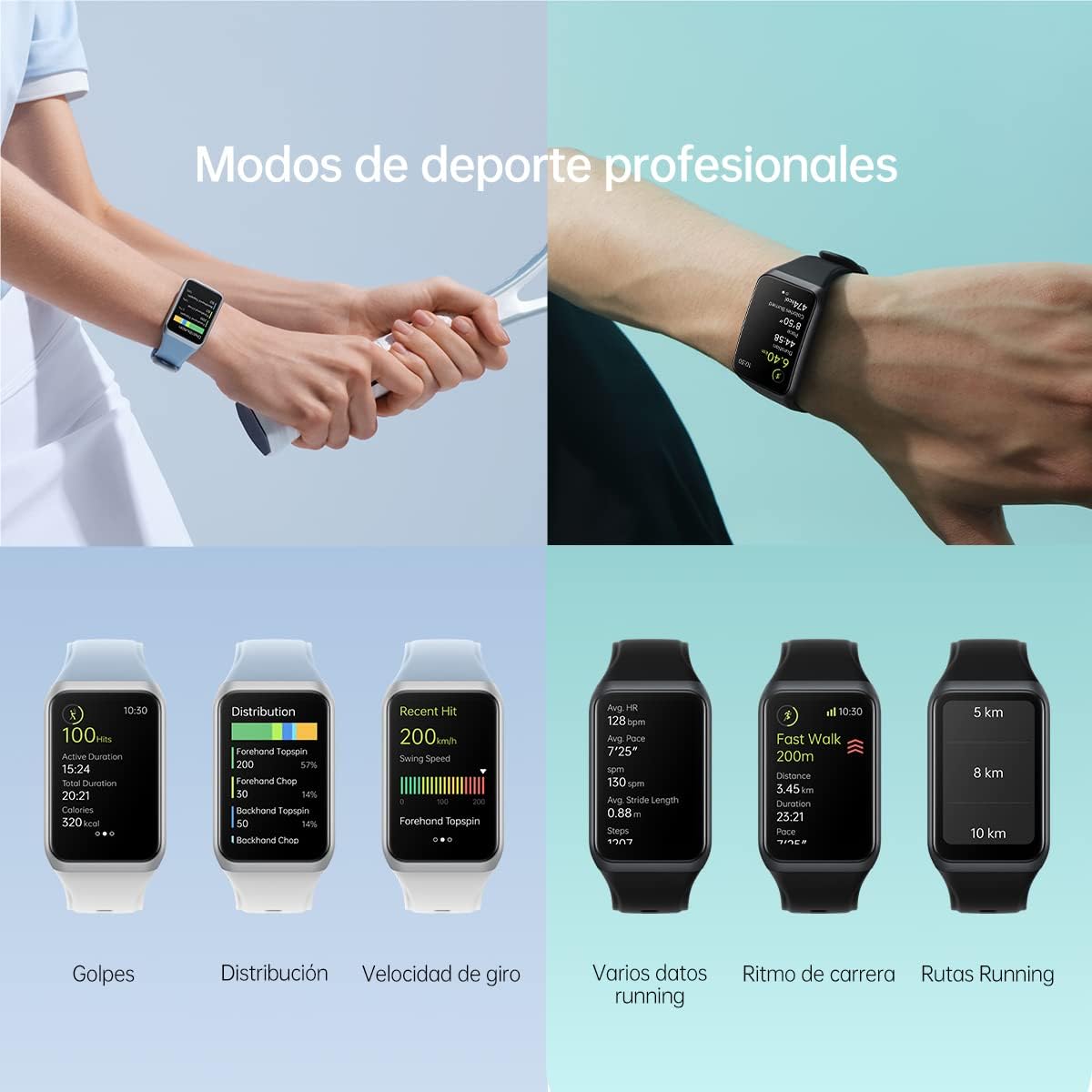
Image: The OPPO Band 2 displaying various professional sport modes and detailed running metrics.
4.3 Health Monitoring
The OPPO Band 2 continuously monitors your health metrics. Access these features by swiping through the band's interface or viewing detailed reports in the companion app.
- Heart Rate Monitoring: The band tracks your heart rate throughout the day. You can view your current heart rate and historical data. The band can also alert you to abnormally high heart rates.
- Blood Oxygen (SpO2) Monitoring: Measure your blood oxygen levels on demand or set up continuous monitoring.
- Sleep Tracking: The band automatically detects your sleep stages (deep, light, REM) and provides a comprehensive sleep report, including sleep duration and quality.
- Activity Tracking: Tracks steps, distance, and calories burned throughout the day.

Image: The OPPO Band 2 interface displaying sleep cycle monitoring and heart rate alert functions.
4.4 Notifications and Customization
- Smart Notifications: Receive call, message, and app notifications directly on your wrist. Manage notification settings through the companion app.
- Watch Faces: Personalize your Band 2 with over 150 wallpapers and 40+ customizable watch faces available through the companion app.
5. Maintenance
5.1 Cleaning
Regularly clean your OPPO Band 2 to ensure optimal performance and hygiene.
- Wipe the screen and band with a soft, damp cloth.
- For the charging contacts and heart rate sensor, use a dry cotton swab to gently remove any dust or debris.
- Avoid using harsh chemicals or abrasive materials, as these can damage the device.
5.2 Water Resistance
The OPPO Band 2 has a 5 ATM water resistance rating, meaning it can withstand pressures equivalent to a depth of 50 meters. This makes it suitable for swimming in pools or shallow water, and for showering. However, it is not recommended for diving, high-speed water sports, or prolonged submersion in hot water.
5.3 Battery Care
To prolong battery life:
- Avoid extreme temperatures.
- Charge the device regularly, but avoid leaving it fully charged or fully depleted for extended periods.
- Use only the provided charging cable.
6. Troubleshooting
If you encounter issues with your OPPO Band 2, try the following solutions:
| Problem | Possible Solution |
|---|---|
| Band does not turn on | Ensure the band is fully charged. Connect it to the charger for at least 10 minutes. |
| Cannot pair with smartphone | Ensure Bluetooth is enabled on your phone. Restart both the band and your phone. Try unpairing and re-pairing through the app. |
| Inaccurate health data | Ensure the band is worn snugly on your wrist, not too tight or too loose. Clean the sensor area. Update the band's firmware via the app. |
| Notifications not received | Check notification settings in the companion app and your phone's system settings. Ensure the app has necessary permissions. |
| Charging issues | Ensure the charging cable is properly connected to both the band and the power source. Clean the charging contacts. Try a different USB port or power adapter. |
If the problem persists, please refer to the official OPPO support website or contact customer service for further assistance.
7. Specifications
| Feature | Detail |
|---|---|
| Model Name | Band 2 |
| Model Number | 6140156 |
| Display Type | AMOLED |
| Screen Size | 1.57 inches |
| Operating System | Android (Compatible with Android & iOS) |
| Memory Storage Capacity | 128 MB |
| Connectivity Technology | Bluetooth |
| GPS | Without GPS |
| Water Resistance Depth | 50 meters (5 ATM) |
| International Protection Rating | IP67 |
| Battery Capacity | 200 mAh |
| Battery Life | Up to 14 days |
| Battery Charge Time | 1 hour |
| Band Material Type | Silicone |
| Case Material Type | Stainless Steel |
| Human Interface Input | Touch Control, Buttons |
| Special Features | Notifications, Activity Tracker, Sleep Monitor, Heart Rate Monitor, Blood Oxygen Monitor |
8. Warranty and Support
8.1 Warranty Information
The OPPO Band 2 comes with a standard manufacturer's warranty. Please refer to the warranty card included in your product packaging or visit the official OPPO website for detailed terms and conditions regarding warranty coverage, duration, and service procedures.
8.2 Customer Support
For technical support, service inquiries, or any questions not covered in this manual, please contact OPPO customer service through their official website or the contact information provided in your product documentation. You can also find FAQs and additional resources on the OPPO support page.


