
1. Setup Instructions
The ASUS RT-AX56U router is designed for easy setup, often guided by a mobile application or web browser interface.
1.1. Hardware Connection
Before configuring your router, ensure all physical connections are correctly made.
- Connect the powered-off modem to the router's WAN port using an Ethernet cable.
- Connect the power adapter to the router and turn on the router.
- Connect your device (PC/laptop) to the router wirelessly or with an Ethernet cable to a LAN port.
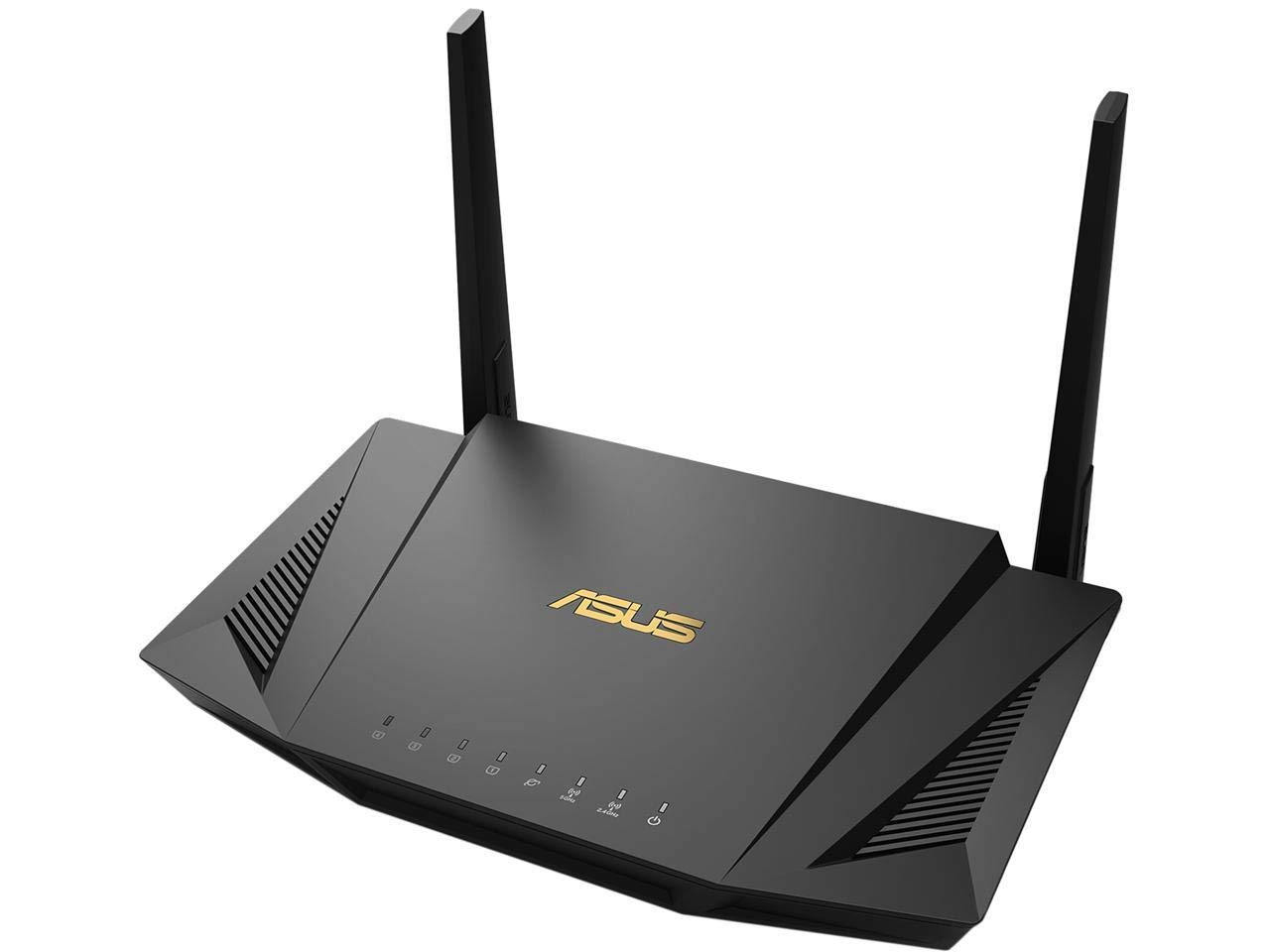
Image: ASUS RT-AX56U Router with its four external antennas extended, showing its sleek black design. The router is positioned on a wooden surface, indicating a typical home setup.
1.2. Network Setup
The router offers two primary methods for network setup:
- Via TP-Link Tether App: Download the Tether app, open it, log in with your TP-Link ID, tap the '+' button, select 'Router > Wireless Router', and follow the on-screen steps to complete setup and connect to the internet.
- Via Web Browser: Connect your device to the router wirelessly or with an Ethernet cable. Launch a web browser and enter http://tplinkwifi.net or http://192.168.0.1 in the address bar. Follow the step-by-step instructions to set up the internet connection and register for the TP-Link Cloud service.
Video: This video demonstrates how to set up your ASUS WiFi Router using the Quick Internet Setup (QIS) wizard, guiding you through the initial configuration steps to get your network running.
2. Operating Instructions
The RT-AX56U router provides a range of features to optimize your home network experience.
2.1. General Usage & Performance
- Next-Gen WiFi 6 Standard: Supports 802.11AX (Wi-Fi 6) and 80MHz bandwidth for improved capacity and efficiency.
- Ultrafast WiFi Speed: Achieves up to 1800Mbps (574 Mbps on 2.4GHz, 1201 Mbps on 5GHz) with 80MHz bandwidth and 1024-QAM.
- Increased Capacity: Utilizes MU-MIMO and OFDMA techniques to efficiently allocate channels and communicate with multiple devices simultaneously.
- Wide Coverage: Provides a maximum range of 3000 Sq Ft.
2.2. Network Security & Controls
- Commercial-grade Security: Features lifetime free AiProtection powered by Trend Micro to block internet security threats for all connected smart devices.
- Parental Controls: Manage and monitor internet usage for connected devices.
- Built-in VPN: The router supports VPN services, allowing you to configure settings to protect all your devices online through the router.
- AiMesh Compatibility: Can be integrated into an ASUS AiMesh WiFi system for seamless whole-home coverage.
3. Maintenance
Regular maintenance ensures optimal performance and security for your router.
3.1. Firmware Update
Keeping your router's firmware up to date is crucial for security and performance improvements.
Video: This video provides a step-by-step guide on how to update the firmware of your ASUS WiFi Router to the latest version, ensuring improved security and performance.
3.2. Restore to Default Settings
If you encounter persistent issues or wish to clear all configurations, you can restore the router to its factory default settings.
Video: This video demonstrates two methods to restore your ASUS router to its default factory settings, either through the web interface or by using the physical reset button.
4. Troubleshooting
Here are solutions for common issues you might encounter with your ASUS RT-AX56U router.
4.1. Internet Connection Issues
If you are experiencing problems with your internet connection, refer to the following video for guidance.
Video: This troubleshooting guide helps you diagnose and fix common internet connection problems with your ASUS Router, providing steps to restore connectivity.
4.2. Improving WiFi Signal
To enhance your WiFi signal strength and coverage, consider the following:
- Router Placement: Position the router in a central location, away from obstructions and interference sources like thick walls, large metal objects, microwaves, and refrigerators.
- Antenna Adjustment: Adjust the router's antennas to optimize signal direction. For specific angles, refer to the user manual.
- Firmware Update: Ensure your router's firmware is up to date.
- Device Drivers: Update the wireless device drivers or firmware on your connected devices (laptops, smartphones, USB WiFi adapters).
Video: This video offers practical tips and steps to improve your ASUS WiFi Router's signal strength and coverage, addressing common issues that might weaken your wireless connection.
4.3. Accessing Router Settings Page
If you need to access the router's settings page, follow the instructions in the video below.
Video: This video guides you through the process of accessing the ASUS Router's settings page, which is essential for configuration and advanced network management.
5. Specifications
| Feature | Detail |
|---|---|
| Wireless Type | 802.11a, 802.11ax, 802.11b, 802.11g, 802.11n |
| Number of USB 2.0 Ports | 1 |
| Number of USB 3.0 Ports | 1 |
| Series | RT-AX56U |
| Operating System | ASUSWRT |
| Item Weight | 1.91 pounds |
| Product Dimensions | 8.8 x 5.09 x 1.87 inches |
| Voltage | 100-240 Volts |
| Special Feature | Internet Security, WPS |
| Frequency Band Class | Dual-Band |
| Wireless Communication Standard | 802.11a, 802.11ax, 802.11b, 802.11g, 802.11n |
| Compatible Devices | Personal Computer |
| Recommended Uses For Product | Security |
| Connectivity Technology | Ethernet, Wi-Fi |
| Antenna Type | Internal |
6. What's in the Box
The ASUS RT-AX56U package includes:
- RT-AX56U router
- RJ45 Ethernet cable
- Power Adapter
- Quick Start Guide (QSG)
- Warranty Card
7. Warranty & Support
Your ASUS RT-AX56U router comes with a Warranty Card included in the box. For technical assistance, troubleshooting, or any product-related inquiries, please refer to the official ASUS support channels.
7.1. Legal Disclaimer
Actual data throughput and WiFi coverage will vary from network conditions and environmental factors, including the volume of network traffic, building material and construction, and network overhead, resulting in lower actual data throughput and wireless coverage.