OPPO Reno 10 Pro 5G CPH2525

OPPO Reno 10 Pro 5G CPH2525 User Manual

Model: Reno 10 Pro 5G CPH2525

Introduction

This manual provides essential instructions for setting up, operating, maintaining, and troubleshooting your OPPO Reno 10 Pro 5G CPH2525 smartphone. Please read this guide thoroughly to ensure proper use and to maximize the device's performance and longevity.

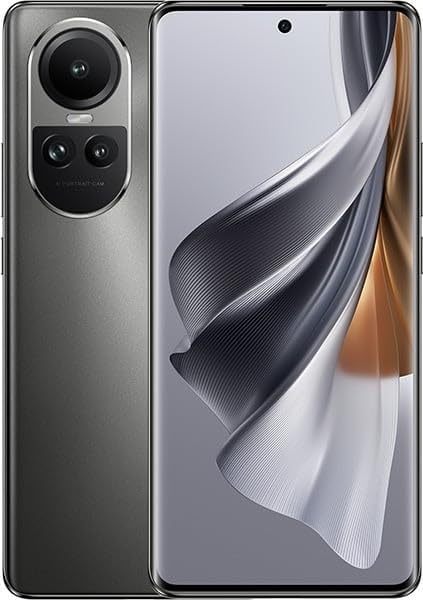
OPPO Reno 10 Pro 5G CPH2525 smartphone in Silvery Grey, showing the front display and the rear camera module.

Figure 1: OPPO Reno 10 Pro 5G CPH2525 smartphone. This image displays the device's sleek design, featuring a large edge-to-edge display with a punch-hole front camera and a prominent rear camera module with multiple lenses, all in a sophisticated Silvery Grey finish.

Setup

1. Unboxing and Initial Inspection

Upon opening the package, verify that all components are present and undamaged. The standard package typically includes:

  • OPPO Reno 10 Pro 5G CPH2525 Smartphone
  • USB Type-C Cable
  • Power Adapter
  • SIM Ejector Tool
  • Quick Start Guide and Safety Information

2. SIM Card Installation

  1. Locate the SIM card tray on the side of your device.
  2. Insert the SIM ejector tool into the small hole next to the tray and press gently until the tray pops out.
  3. Place your Nano-SIM cards (up to two) into the designated slots on the tray, ensuring the gold contacts face downwards and the cut corner aligns correctly.
  4. Carefully reinsert the SIM tray into the phone until it clicks into place.

3. Initial Power On and Setup Wizard

Press and hold the Power button (usually on the right side) until the OPPO logo appears. Follow the on-screen instructions to:

  • Select your language and region.
  • Connect to a Wi-Fi network.
  • Sign in with your Google account or create a new one.
  • Set up screen lock (PIN, pattern, password, fingerprint, or face unlock).
  • Review and accept terms and conditions.

Operating Instructions

1. Basic Navigation

  • Power Button: Press to turn the screen on/off. Press and hold to power off or restart.
  • Volume Buttons: Adjust media volume, call volume, or notification volume.
  • Touchscreen Gestures: Swipe up for app drawer, swipe down for notifications/quick settings, pinch to zoom, tap to select.

2. Calls and Messaging

  • Making Calls: Open the Phone app, enter the number, and tap the call icon.
  • Sending Messages: Open the Messages app, tap 'Start chat', enter recipient and message, then send.

3. Camera Usage

Open the Camera app to capture photos and videos. Swipe left or right on the viewfinder to switch between modes like Photo, Video, Portrait, Night, and more. Tap the shutter button to take a picture or start/stop video recording.

4. Connectivity

  • Wi-Fi: Go to Settings > Wi-Fi to connect to available networks.
  • Bluetooth: Go to Settings > Bluetooth to pair with other devices like headphones or speakers.
  • 5G Network: Your device supports 5G connectivity. Ensure your SIM card and mobile plan support 5G, and you are in a 5G coverage area for optimal speeds.

5. Security Features

Protect your device and data using various security options:

  • Fingerprint Unlock: Register your fingerprints in Settings > Password & Biometrics.
  • Face Unlock: Set up face recognition for quick unlocking.
  • PIN/Pattern/Password: Essential for basic device security.

Maintenance

1. Cleaning Your Device

Use a soft, lint-free cloth to clean the screen and body of your phone. Avoid harsh chemicals or abrasive materials. For ports, use a soft brush to gently remove dust.

2. Software Updates

Regularly check for and install software updates to ensure your device has the latest features, security patches, and performance improvements. Go to Settings > About device > Up to date to check for updates.

3. Battery Care

To prolong battery life:

  • Avoid extreme temperatures.
  • Use the original charger and cable.
  • Avoid fully discharging the battery frequently.

Troubleshooting

1. Common Issues and Solutions

  • Device Not Responding: Press and hold the Power button for about 10 seconds to force a restart.
  • Apps Crashing: Clear the app's cache (Settings > Apps > App management > [App Name] > Storage usage > Clear cache) or reinstall the app.
  • Network Connectivity Issues: Toggle Airplane Mode on and off, restart the device, or reset network settings (Settings > System settings > Back up and reset > Reset phone > Reset network settings).

2. Factory Reset

Warning: A factory reset will erase all data on your phone. Back up important data before proceeding.

To perform a factory reset: Go to Settings > System settings > Back up and reset > Reset phone > Erase all data. You will need to confirm your screen lock to proceed.

Specifications

FeatureDetail
BrandOPPO
Model NameReno 10 Pro 5G
Model IdentifierCPH2525
Storage Capacity256GB
RAM12 GB
ProcessorQualcomm Snapdragon
Screen Size6.55 Inches
Cellular Technology5G
ConnectivityBluetooth, Wi-Fi
SIM TypeDual Nano-SIM
ColorSilvery Grey
Special FeaturesWaterproof (Note: Verify specific IP rating for detailed water resistance information.)

Warranty and Support

Your OPPO Reno 10 Pro 5G CPH2525 comes with a standard manufacturer's warranty. For detailed warranty terms and conditions, please refer to the warranty card included in your product packaging or visit the official OPPO website.

For technical support, service, or further assistance, please contact OPPO customer service through their official website or authorized service centers. Keep your proof of purchase for warranty claims.

Related Documents - Reno 10 Pro 5G CPH2525

Preview Guida di Sicurezza e Funzionamento Smartphone OPPO
Informazioni essenziali sulla sicurezza, funzionamento e precauzioni per smartphone OPPO. Copre temperatura, batteria, ricarica, uso sicuro e avvertenze mediche.
Preview OPPO Reno 4 5G Quick Start Guide and Technical Specifications
Comprehensive quick start guide and detailed technical specifications for the OPPO Reno 4 5G smartphone, including setup, features, safety information, and regulatory compliance.
Preview ColorOS 16.0 User Manual - OPPO
Explore the features and functionalities of ColorOS 16.0 with this comprehensive user manual. Learn how to navigate your OPPO device, customize settings, and utilize advanced features for an optimal smartphone experience.
Preview OPPO CPH1979 Smartphone: Quick Start Guide and Specifications
Comprehensive guide for the OPPO CPH1979 smartphone, covering setup, essential functions, technical specifications, and safety information.
Preview OPPO CPH2201 Product Manual and Safety Information
Official product manual for the OPPO CPH2201 smartphone (OPPO Reno 5 Pro 5G). Covers product information, manufacturer details, compliance, safety warnings, and usage instructions. Includes multilingual safety notices and links to operational videos.
Preview OPPO ColorOS 6.0 User Guide: Features, Settings, and Safety
Comprehensive user guide for OPPO smartphones running ColorOS 6.0, covering setup, features, personalization, safety, and privacy.