
1. Product Overview
The NOBRAND Magicforce 83-Key Mechanical Gaming Keyboard is designed for compact performance and durability. Featuring OUTEMU brown mechanical switches and an ES layout, it offers a responsive typing and gaming experience. Its portable design and detachable USB cable make it convenient for various setups.
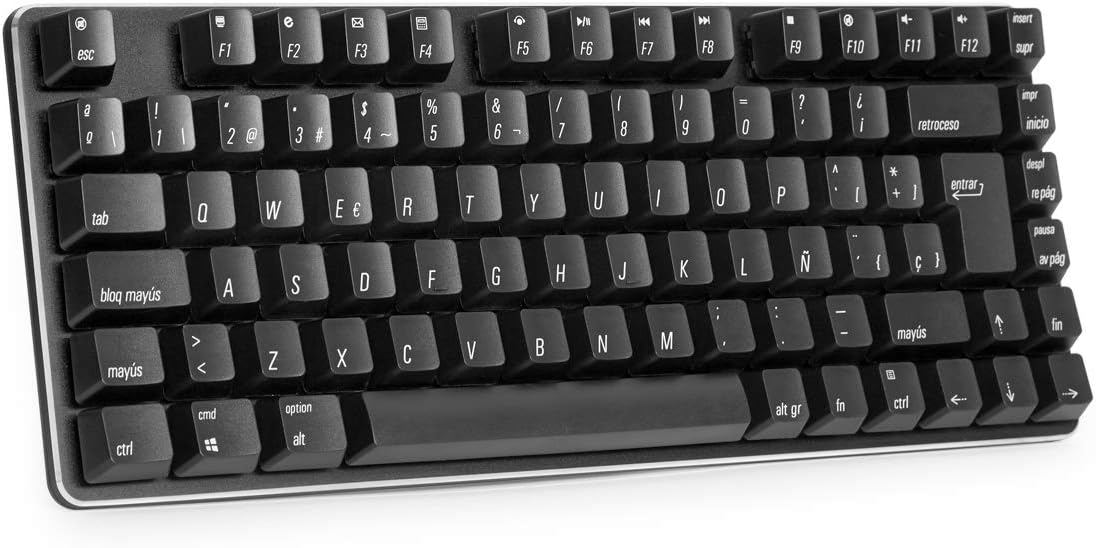
Figure 1: Top view of the Magicforce 83-Key Mechanical Gaming Keyboard, showcasing its compact ES layout.
2. Setup Instructions
2.1 Unboxing
Carefully remove the keyboard from its packaging. Ensure the following items are present:
- 1 x NOBRAND Magicforce 83-Key Mechanical Gaming Keyboard
- 1 x Detachable USB Cable
2.2 Connecting the Keyboard
- Connect the smaller end of the detachable USB cable to the USB port located on the underside of the keyboard.
- Connect the larger end of the USB cable to an available USB port on your computer or laptop.
- The keyboard is plug-and-play; no additional drivers are required for basic functionality.
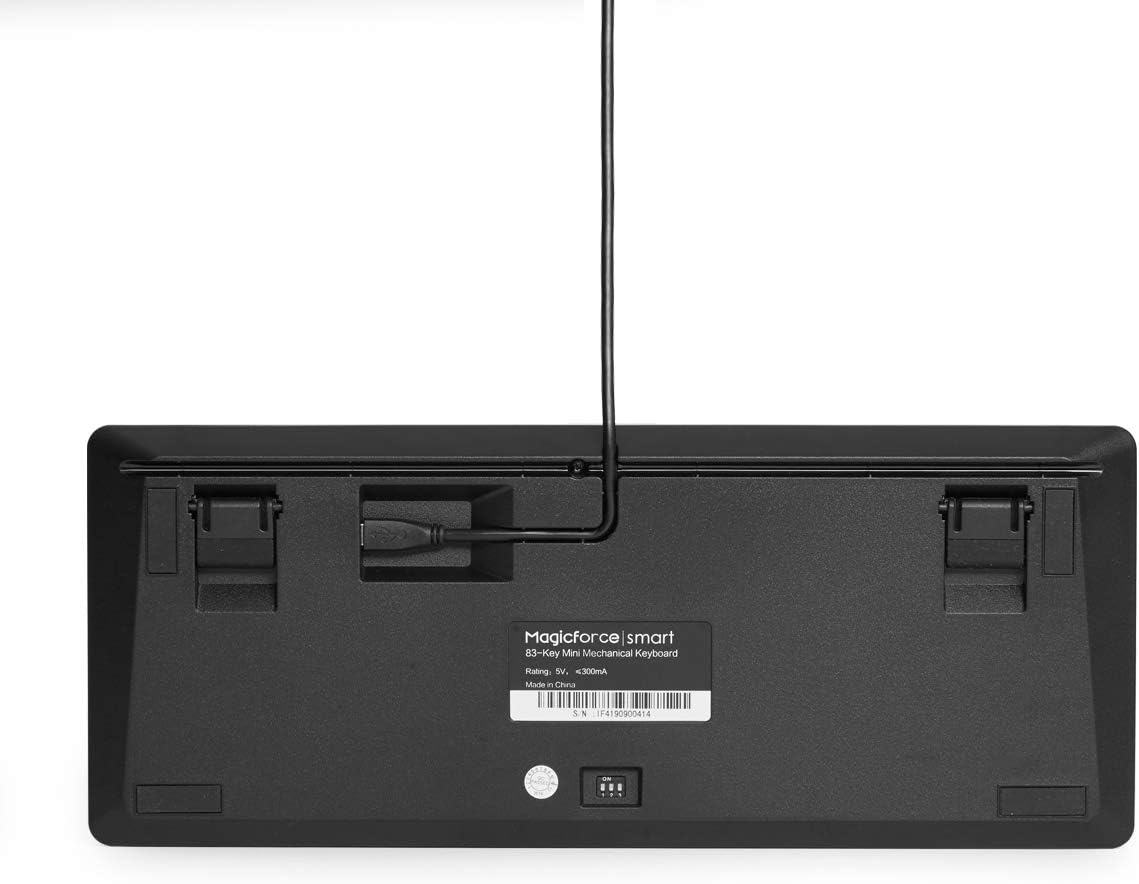
Figure 2: Underside of the keyboard showing the detachable USB cable connected to its port.
2.3 Ergonomic Adjustment
The keyboard features an ergonomic stepped keycap design. You can adjust the keyboard's angle using the foldable feet on the underside for comfortable typing. The compact, no-frame design is ideal for portable use and space-saving setups.
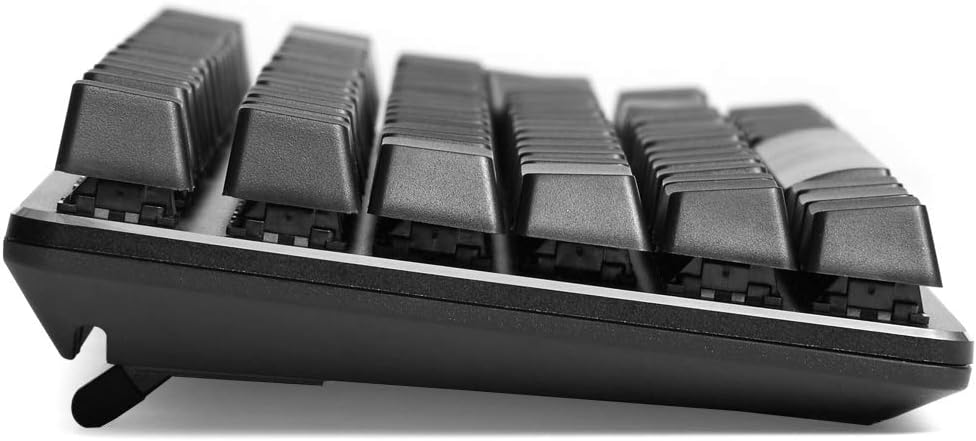
Figure 3: Side view illustrating the ergonomic stepped keycap profile of the keyboard.
3. Operating Instructions
3.1 Basic Functionality
The keyboard features an 83-key ES layout, providing all standard alphanumeric and function keys. The OUTEMU brown mechanical switches offer a tactile bump without an audible click, suitable for both typing and gaming.

Figure 4: Detailed view of an OUTEMU brown mechanical switch, highlighting its construction.
3.2 Function (FN) Key Combinations
The keyboard includes a dedicated FN key that, when pressed in combination with other keys, activates various shortcut functions. Refer to the keycaps for specific FN key legends (e.g., F1-F12 for media controls, volume, etc.).
- FN + F1-F12: Multimedia and system control functions.
- Other FN combinations may be available for specific keyboard features.
3.3 Gaming Features
This keyboard supports 6-key anti-ghosting, ensuring that up to 6 simultaneous key presses are registered accurately during intense gaming sessions. This prevents missed inputs and enhances gaming performance.
4. Maintenance
4.1 Cleaning the Keyboard
- Disconnect the keyboard from your computer before cleaning.
- Use a soft, lint-free cloth lightly dampened with water or a mild cleaning solution to wipe the keycaps and keyboard surface.
- For dust and debris between keys, use compressed air or a small brush.
- Avoid using harsh chemicals, abrasive cleaners, or excessive moisture, as these can damage the keyboard.
4.2 Storage
When not in use, store the keyboard in a clean, dry environment away from direct sunlight and extreme temperatures. The detachable USB cable allows for easier storage and transport.
5. Troubleshooting
5.1 Keyboard Not Responding
- Ensure the USB cable is securely connected to both the keyboard and your computer.
- Try connecting the keyboard to a different USB port on your computer.
- Test the keyboard on another computer to determine if the issue is with the keyboard or the computer's USB port/drivers.
- Restart your computer.
5.2 Specific Keys Not Working
- Check for any physical obstructions or debris under the keycap.
- Gently remove the keycap (if designed for removal) and inspect the switch for damage.
- Ensure no software conflicts or remapping utilities are interfering with key functions.
6. Specifications
| Brand | NOBRAND |
| Model | Magicforce 83-Key ES Layout |
| Connectivity | Wired USB |
| Key Type | Mechanical (OUTEMU Brown Switches) |
| Key Layout | 83-Key, ES Layout |
| Anti-Ghosting | 6-Key Rollover |
| Compatible Devices | Laptop |
| Dimensions (L x W x H) | 31 x 12.5 x 4 cm |
| Weight | Approximately 700g |
| Power Rating | 5V, <300mA |
| Origin | Made in China |

Figure 5: Keyboard dimensions, showing length, width, and height measurements.

Figure 6: Product label on the underside of the keyboard, detailing model and electrical specifications.
7. Warranty Information
Specific warranty details for this product are not provided in the available information. Please refer to your point of purchase or the retailer's website for warranty terms and conditions.
8. Customer Support
For technical assistance or further inquiries, please contact the retailer or the manufacturer directly. Contact information is typically available on the product packaging or the retailer's website.