
Thermaltake CL-W233-PL12SW-B
Thermaltake Water 3.0 240 ARGB AIO Liquid Cooler User Manual
Model: CL-W233-PL12SW-B
1. Introduction
This manual provides detailed instructions for the installation, operation, and maintenance of your Thermaltake Water 3.0 240 ARGB AIO Liquid Cooler (Model: CL-W233-PL12SW-B). Please read this manual thoroughly before installation and use to ensure proper function and safety.
Safety Information
- Ensure all power is disconnected from your computer before installation.
- Handle components with care to avoid damage.
- Refer to your motherboard manual for specific fan and RGB header locations.
- Do not open the liquid cooler unit; it is a sealed system.
2. Package Contents
Verify that all components are present in the package:
- 1x Radiator with Integrated Pump and Cold Plate
- 2x 120mm ARGB Fans
- 1x Universal Mounting Kit (Intel/AMD brackets, backplate, standoffs, screws)
- 1x ARGB Controller
- 1x Thermal Paste (may be pre-applied)
- 1x User Manual (this document)
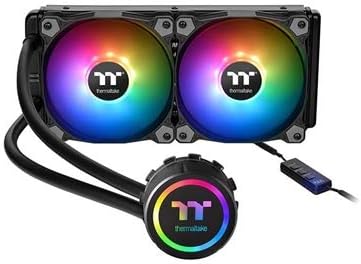
Image 1: Thermaltake Water 3.0 240 ARGB AIO Liquid Cooler. This image displays the complete liquid cooling unit, featuring a 240mm radiator with two 120mm ARGB fans attached, a pump block with an illuminated Thermaltake logo, and tubing connecting the pump to the radiator. An ARGB controller is also visible.
3. Setup and Installation
Follow these steps carefully for proper installation. Specific steps may vary slightly depending on your CPU socket type (Intel or AMD) and PC case.
3.1 Prepare CPU Socket
- Clean CPU Surface: Ensure the CPU surface is clean and free of any old thermal paste. Use isopropyl alcohol and a lint-free cloth if necessary.
- Install Backplate: For Intel sockets, install the appropriate backplate behind the motherboard. For AMD sockets, use the existing motherboard backplate.
- Attach Standoffs: Screw the correct standoffs for your CPU socket type into the backplate or motherboard mounting holes.
3.2 Mount Radiator and Fans
- Attach Fans to Radiator: Secure the two 120mm ARGB fans to the radiator using the provided long screws. Ensure the fan airflow direction is as desired (typically exhausting air out of the case or drawing air in).
- Mount Radiator in Case: Install the radiator assembly into an available 240mm fan mount location in your PC case (e.g., top, front, or rear). Secure it with the shorter screws.
3.3 Install Pump/Cold Plate
- Apply Thermal Paste: If thermal paste is not pre-applied to the cold plate, apply a small pea-sized amount to the center of your CPU's integrated heat spreader (IHS).
- Position Pump: Carefully place the pump/cold plate assembly onto the CPU, aligning the mounting holes with the standoffs.
- Secure Pump: Use the provided thumb screws or nuts to secure the pump evenly to the standoffs. Tighten in a cross pattern until snug, but do not overtighten.
3.4 Cable Connections
- Pump Power: Connect the pump's 3-pin or 4-pin power cable to a dedicated AIO_PUMP or CPU_FAN header on your motherboard. Consult your motherboard manual for the correct header.
- Fan Power: Connect the two 120mm ARGB fans to the included ARGB controller. The controller will then connect to a SATA power connector from your power supply and a 4-pin fan header on your motherboard (or directly to the motherboard's ARGB header if supported).
- ARGB Lighting: Connect the ARGB cables from the fans and pump to the ARGB controller. If your motherboard has a 5V ARGB header, you can connect the controller to it for software control. Otherwise, use the controller's built-in buttons for lighting effects.
- Cable Management: Route all cables neatly to ensure proper airflow and a clean build.
4. Operating Instructions
Once installation is complete and all connections are secure:
- Power On: Turn on your computer. The pump and fans should start operating, and the ARGB lighting should illuminate.
- BIOS/UEFI Check: Enter your system's BIOS/UEFI settings to verify that the CPU fan speed (which should reflect the pump speed if connected to CPU_FAN) is detected and operating correctly. Ensure the pump is running at 100% speed for optimal cooling.
- Monitor Temperatures: Use monitoring software (e.g., HWMonitor, Core Temp) to check CPU temperatures under idle and load conditions to confirm effective cooling.
- ARGB Control: If connected to a motherboard ARGB header, use your motherboard's RGB software to customize lighting effects. If using the included controller, use its buttons to cycle through lighting modes and colors.
5. Maintenance
Regular maintenance helps ensure optimal performance and longevity of your liquid cooler.
- Dust Cleaning: Periodically clean dust from the radiator fins and fan blades using compressed air or a soft brush. Ensure fans are not spinning during cleaning.
- Inspect Tubing: Check the tubing for any signs of kinks, leaks, or damage.
- Monitor Performance: Pay attention to any unusual noises from the pump or fans, or unexpected increases in CPU temperature, which may indicate a problem.
- Do Not Disassemble: The liquid cooler is a sealed unit. Do not attempt to open or refill it, as this will void the warranty and may cause damage.
6. Troubleshooting
| Problem | Possible Cause | Solution |
|---|---|---|
| High CPU Temperatures |
|
|
| ARGB Lighting Not Working |
|
|
| Unusual Noises (Gurgling, Whining) |
|
|
7. Specifications
| Feature | Detail |
|---|---|
| Model Number | CL-W233-PL12SW-B |
| Cooling Type | All-in-One (AIO) Liquid Cooler |
| Radiator Size | 240mm |
| Fan Size | 2x 120mm ARGB Fans |
| Cooling Method | Water |
| Noise Level | 25.8 Decibels (Fan) |
| Power Connector Type | 4-Pin (Fan), SATA (ARGB Controller) |
| Voltage | 12 Volts |
| Wattage | 4.25 watts |
| Compatible Devices | Desktop (Intel/AMD Sockets) |
| Item Weight | 4 pounds |
| UPC | 841163070802 |
8. Warranty and Support
Thermaltake products are backed by a limited warranty. For detailed warranty information, please refer to the official Thermaltake website or the warranty card included with your product.
For technical support, troubleshooting assistance, or to inquire about replacement parts, please visit the official Thermaltake support portal or contact their customer service department. You can typically find contact information on the Thermaltake website: www.thermaltake.com
Related documentsCL-W233-PL12SW-B


Ask a question about this manual
Ask about setup, troubleshooting, compatibility, parts, safety, or missing instructions. Manuals+ will review the question and use this page’s manual context to help answer it.