
Introduction
The Aula S6 Multi-Mode Wireless Gaming Headset is designed to provide a versatile audio experience for gaming and multimedia. This headset features three connection options: 2.4GHz wireless, Bluetooth 5.3, and a traditional 3.5mm wired connection. Its ultra-lightweight design, weighing only 180 grams, ensures comfort during extended use. The integrated microphone with smart noise reduction technology delivers clear communication, and the headset offers up to 22 hours of battery life.
Package Contents
Please check the box for the following items:
- 1 x Aula S6 Multi-Mode Wireless Gaming Headset
- 1 x 2.4GHz Wireless Connection Dongle
- 1 x Type-C to 3.5mm Audio Connection Cable (1.5 meters)
- 1 x USB Type-C Charging Cable
- 1 x User Manual
Product Overview
Familiarize yourself with the headset's components and controls.
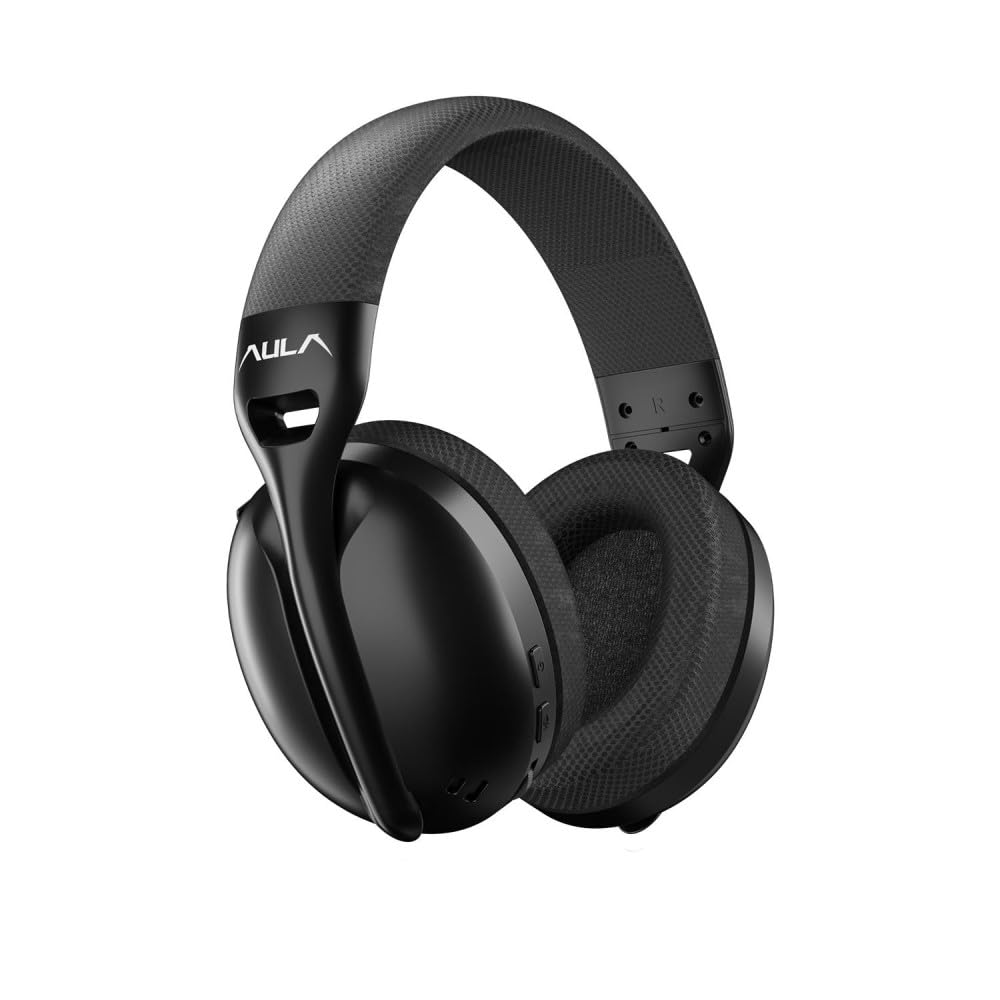
Image: Front view of the Aula S6 Multi-Mode Wireless Gaming Headset. This image displays the overall design of the headset, highlighting its earcups and headband.
Controls and Ports

Image: Bottom view of the Aula S6 headset. This image illustrates the location of the Type-C charging port, 3.5mm audio jack, volume wheel, and other control buttons on the earcups.
- Power Button: Used to power the headset on/off and for pairing.
- Mode Switch Button: Toggles between Game Mode and Music Mode for optimized audio profiles.
- Volume Wheel: Adjusts the audio volume.
- Multi-function Buttons: For call management (accept/reject) and switching between Bluetooth and 2.4GHz connections.
- Retractable Microphone: Mute by retracting into the earcup, unmute by extending.
- Type-C Port: For charging the headset.
- 3.5mm Audio Jack: For wired connection using the provided Type-C to 3.5mm cable.
Setup
Charging the Headset
Before first use, fully charge the headset. Connect the provided USB Type-C charging cable to the headset's Type-C port and the other end to a USB power source (e.g., computer, wall adapter). The LED indicator will show charging status and turn off when fully charged.
Connecting the Headset
The Aula S6 offers three connection methods:
1. 2.4GHz Wireless Connection (via Dongle)
- Insert the 2.4GHz wireless dongle into a USB port on your computer or compatible device.
- Power on the headset by pressing and holding the Power button.
- The headset should automatically connect to the dongle. The LED indicator will confirm a successful connection.
2. Bluetooth 5.3 Connection
- Power on the headset.
- Press and hold the Power button until the LED indicator flashes rapidly, indicating pairing mode.
- On your device (smartphone, tablet, laptop), enable Bluetooth and search for available devices.
- Select "Aula S6" from the list of devices to pair. The LED indicator will show a solid light upon successful connection.
3. Wired 3.5mm Connection
- Connect the Type-C end of the provided audio cable to the headset's Type-C port.
- Connect the 3.5mm end of the cable to the audio jack of your device.
- The headset will operate in wired mode, bypassing wireless functions.
Operating Instructions
Power On/Off
- To Power On: Press and hold the Power button for approximately 3 seconds until the LED indicator lights up.
- To Power Off: Press and hold the Power button for approximately 5 seconds until the LED indicator turns off.
Mode Switching (Game/Music)
Press the Mode Switch button to toggle between Game Mode and Music Mode. Each mode optimizes audio settings for its intended use.
Microphone Usage

Image: Angled view of the Aula S6 headset with its retractable microphone extended. This shows the microphone in its active position for communication.
- To Unmute: Extend the microphone from the earcup.
- To Mute: Retract the microphone fully into the earcup.
The smart noise reduction technology helps minimize ambient noise for clearer voice transmission.
Call Management
When connected via Bluetooth or 2.4GHz wireless, use the multi-function buttons on the headset to manage calls:
- Accept Call: Press the multi-function button once.
- Reject Call: Press and hold the multi-function button for 2 seconds.
- End Call: Press the multi-function button once during a call.
Volume Control
Rotate the Volume Wheel up or down to precisely adjust the audio output level.
Multi-Device Connection
The headset supports simultaneous wireless connection to two different devices. Use the multi-function buttons to switch between the connected devices as needed.
Maintenance
To ensure the longevity and optimal performance of your Aula S6 headset, follow these maintenance guidelines:
- Cleaning: Use a soft, dry cloth to clean the headset. Avoid using harsh chemicals or abrasive materials.
- Storage: Store the headset in a cool, dry place away from direct sunlight and extreme temperatures.
- Avoid Moisture: The headset is not waterproof. Keep it away from water and high humidity.
- Cable Care: Handle cables gently. Avoid sharp bends or excessive pulling to prevent damage.
Troubleshooting
If you encounter issues with your Aula S6 headset, refer to the following common solutions:
- No Sound/Low Volume:
- Check the volume level on both the headset and your connected device.
- Ensure the headset is properly connected (wired, Bluetooth, or 2.4GHz dongle).
- Verify that the correct audio output device is selected in your device's sound settings.
- Microphone Not Working:
- Ensure the microphone is extended and not muted.
- Check microphone input settings on your connected device.
- Test the microphone with another application or device.
- Connection Issues:
- For Bluetooth: Ensure the headset is in pairing mode and within range. Forget the device on your phone and re-pair.
- For 2.4GHz: Ensure the dongle is securely plugged in and the headset is powered on. Try a different USB port.
- For Wired: Ensure the 3.5mm cable is fully inserted into both the headset and the device.
- Headset Not Powering On:
- Charge the headset for at least 30 minutes.
- Try a different charging cable and power source.
Specifications
| Brand | AULA |
| Model | S6 |
| Connectivity | Bluetooth 5.3, 2.4GHz Wireless, 3.5mm Wired |
| Driver Size | 40 mm |
| Impedance | 120 Ohm |
| Headphone Sensitivity | 120 dB |
| Microphone Sensitivity | -38 ± 2db |
| Frequency Response | 20Hz – 20kHz |
| Weight | 180 Grams |
| Battery Life | Up to 22 hours |
| Material | Breathable Fabric and ABS Plastic |
| Compatible Devices | Mobile Phone, Laptop, Desktop Computer, Game Console, Tablet, Television |
Warranty and Support
The Aula S6 Multi-Mode Wireless Gaming Headset comes with a 2-Year Aula Turkey Warranty.
For warranty claims, technical support, or further assistance, please contact your local Aula authorized dealer or visit the official Aula website for support contact information.


